

How Sourcing Works
- Describe the candidate you want
Sourcing in the sidebar, and type what you’re looking for in plain English. You can also use the mic button to dictate your search criteria instead of typing.
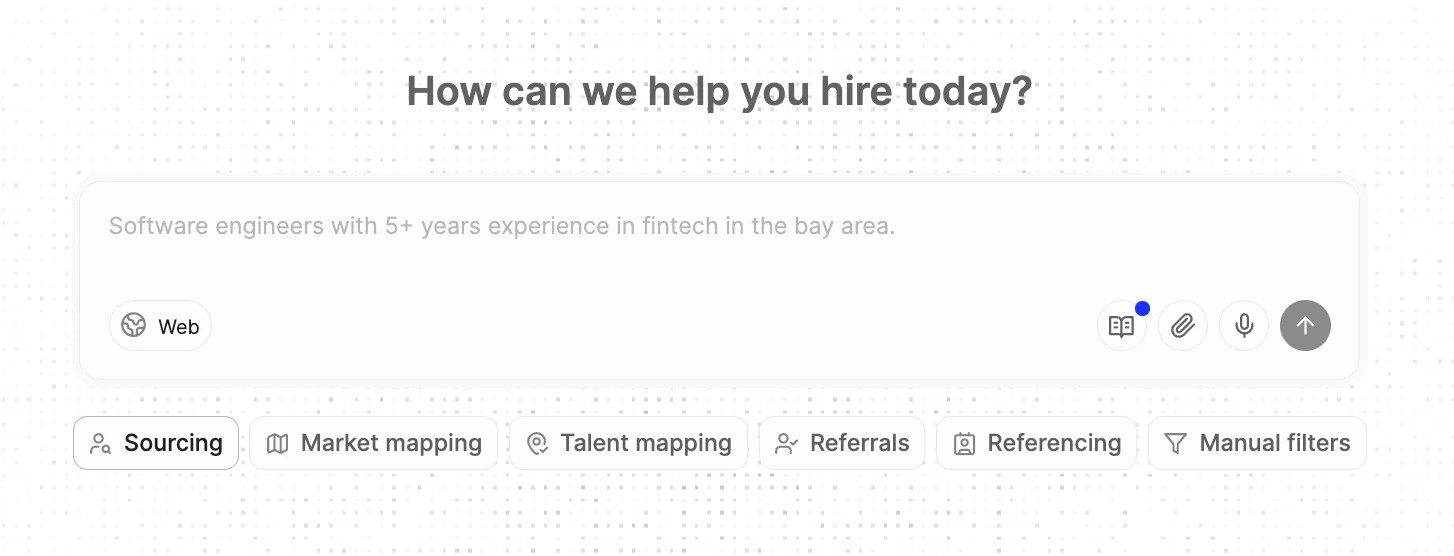
Start your sourcing search by describing what you’re looking for in plain language. You can also use manual filters, or choose a more advanced research mode such as talent mapping.
- Add documents
📎 (paperclip) to select documents to upload, or paste them directly in the chat window.
- Refine the Candidate Profile
Accept to start sourcing candidates.
- Run your sourcing search
- Review and provide feedback to refine results
Yes/ Maybe/ No and add feedback. After a few ratings, you can refine the search and Metaview will adjust results to match your preferences. If you want to change your search criteria, you can also edit or delete a previous message. Metaview will re-run the search from that point in the conversation.
- Enrich contact details for potential candidates
- Reach out to potential candidates
Add to sequence in the bottom right corner.
Other Ways to Kick Off a Search
These options help you jump into sourcing with less setup by generating the starting context automatically based on existing calls you have captured on Metaview.- From a role intake call: If Metaview is present on a role intake call, it can use the call transcript to draft the initial search and generate candidates based on the discussion.
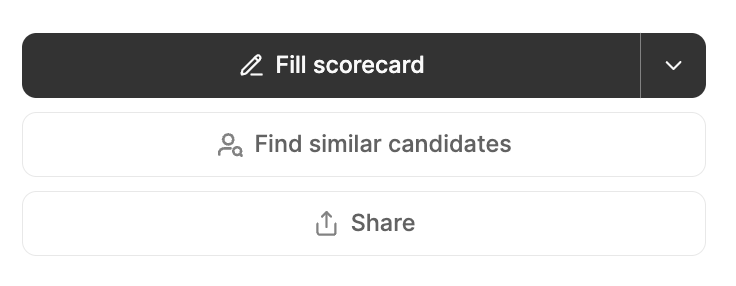
- Find candidates similar to someone you just interviewed: Open any interview and click
Find similar candidatesto source more profiles like the person you just spoke to.
Workflow improvements
These features help you move faster, reuse context, and keep sourcing connected to your workflow.- Collaborate with your team: Add comments directly on candidate profiles so your team’s feedback, decisions, and reasoning stay in one place.
@mentionteammates to bring them into the search (they’ll receive your comment by email), or tag@Metaviewto ask questions about the candidate’s profile and use team feedback to refine the search. - Use Sourcing in Slack: Start or continue sourcing searches from Slack, receive updates when the agent needs input or results are ready, and jump back into Metaview for full candidate review. See Slack for Sourcing and Sourcing Guide for setup and best practices.
- Personal and Workspace Knowledge: Save and reuse sourcing preferences so you don’t have to rewrite the same instructions every time. Click the
📖 (book)icon to add new knowledge for yourself or for your workspace (so your whole team can reuse it), and enable/disable knowledge items for any specific search. - Add candidates to your ATS: Once you’ve shortlisted candidates, push them directly into your ATS to stay organized.
- Schedule search reruns: Automatically rerun a search daily, weekly, monthly, or quarterly to find new candidates and refresh existing results (only available on Max and Enterprise Sourcing plans).
- Expand your search to your existing applicant pool: Expand your searches to include candidates already in your ATS and within your Metaview workspace. When enabled, your searches can surface “CV-invisible” insights from interviews — like motivations, career goals, and preferences.
- Exclude candidates you’ve already seen or contacted: Use the
Exclusionsmenu to prevent candidates from appearing in your results if they were seen in a previous search, are already in your connected ATS, were contacted in a sequence, or recently changed jobs. You can also ask the agent to apply these exclusions in plain language. Exclusions apply only to the current search, so you can use different settings for different roles. - Organize, Find and Share agent sessions: Click the History panel on the left to expand it and access your past Sourcing and Research agent sessions. Use the search field to quickly find a session, then click the
...(three dots) menu to manage it. From there, you canPin,Rename,Delete, orSharethe session. To learn more about sharing with colleagues and collaborators in Metaview, see our Sharing functionality. - Use through MCP: Connect Metaview to an MCP-compatible AI tool, such as Claude or Cursor, to run sourcing workflows from your AI assistant. You can manage searches, review surfaced candidates, give feedback, and ask sourcing reporting questions in plain English. See here for details.
- Research mode: Use
Researchmode when you want to understand the market — for example role trends, hiring flows, or employer growth. It uses structured prompts and returns tables, charts, profiles, or reports. - Export candidate packs: Download Candidate Packs as a CSV for use in other outreach workflows. You can choose to include only candidates with emails and optionally enrich missing emails before exporting.
- Create Application Reviews from a sourcing search: Move from Sourcing into inbound application reviews faster. When Metaview detects a matching ATS role without an Application Review, it can help you create one using your Sourcing ICP added as context.
Where Does the Candidate Data Come From?
Metaview helps you source candidates by providing candidate profile data from vetted third-party providers with broad global coverage. Candidate profiles are built from publicly available professional information such as job titles, work history, education, and skills. We review provider coverage and data quality on an ongoing basis. If you connect a supported ATS (see list below) and enable it for search, Metaview can also surface relevant candidates from your own ATS alongside external results. These candidates will be clearly marked with an ATS icon and linked to their existing profile. This can help you rediscover candidates who have previously applied or were considered for other roles, but may be a strong fit for your current needs.List of ATS providers you can use with Sourcing
List of ATS providers you can use with Sourcing
- Abacus Umantis
- Ashby
- BambooHR
- Bullhorn
- Clockwork
- Crelate
- Eploy
- Ezekia
- Gem ATS
- Greenhouse
- iCIMS
- JobAdder
- JobDiva
- Jobvite
- Kula
- Lever
- Loxo
- Manatal
- Oracle Recruiting Cloud
- Pinpoint
- Recruit CRM
- Recruitee
- Recruiterflow
- SAP SuccessFactors
- SmartRecruiters
- Stardex
- Teamtailor
- Thrive Legacy
- TrackerRMS
- UKG Pro
- Workable
- Workday
- Zoho Recruit
Troubleshooting
I’m blocked from running searches or seeing candidates
You may be on a Free (trial) Sourcing seat. Free seats have restricted access, including caps on the number of searches you can run and the candidates you can view. If you need unlimited access, you can upgrade to a Pro or Max Sourcing seat.
I’m prompted to upgrade, but I’ve already paid
If you’re seeing an upgrade prompt even though your team has purchased sourcing, it usually means a paid sourcing seat hasn’t been assigned to your account yet, or you have reached your monthly search limit on the Pro subscription. Purchased sourcing seats aren’t automatically tied to a specific person — your team admin assigns them to individual users and can reassign them at any time as team needs change. To get unlimited access, check with your team admin to confirm that you’ve been assigned a Max sourcing subscription. For more details, see Managing your team.Where can I see sourcing usage and seat assignments?
You can see sourcing usage and seat assignment on the Team Management.