

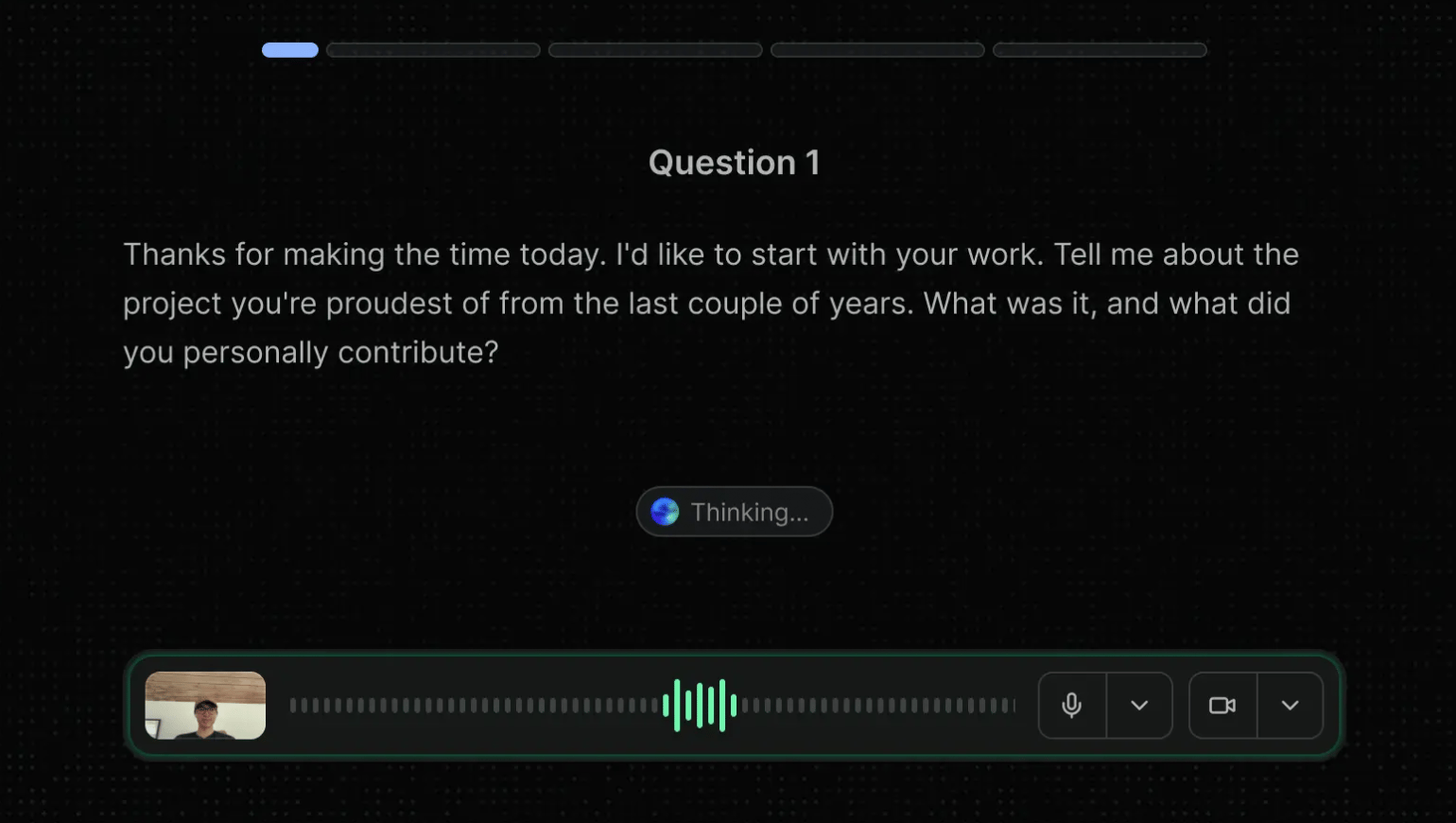
The AI interviewer only asks questions and listens. It doesn't decide anything.
How Screening Works
To create your first screen, open Metaview, click Screening in the sidebar, and clickNew screen.
1
Create a screen
Choose how candidates will reach the interview. Either connect to an ATS role — pick the role from your connected ATS and the pipeline stages Metaview should import, progress, and reject candidates from — or share an invite link that candidates can use to register themselves with their name and email, with no ATS needed. On an ATS-connected screen, candidates in the import stage appear in Metaview but nobody is contacted until you enroll them. On an invite-link screen, candidates receive their interview link the moment they register.
2
Build the interview
Attach a job description and any context about what you’re looking for, and Metaview drafts an interview plan: a series of steps, each with a goal, one or more questions, and a rubric describing what a strong answer looks like. Edit anything directly, or use
Agent chat to describe the changes you want in plain language — the agent can also adjust languages, the camera setting, the welcome message, the invitation email, and the deadline, and proposes each change as a card you accept or dismiss. See Screening Setup for the full scope and how the card review works.3
Set up the candidate experience
Choose the languages candidates can interview in, whether their camera is
On, Optional, or Off, and what they see before they start — your logo, a welcome message, and an optional intro video from you.4
Preview and test
Preview as candidate takes you through the interview exactly as a candidate would experience it. You can also test a single question, or run the whole interview from the start, without leaving the builder. Previews are free and never consume credits.5
Publish and invite candidates
Click
Publish to make the interview live. On an ATS-connected screen, enroll candidates from the Candidates tab — individually, in bulk, or with Auto-enroll for every current and future candidate in the ATS import stage. On an invite-link screen, copy the link from the screen’s … menu and share it in your job description, outreach email, or anywhere else candidates will see it. Enrolled or registered candidates receive an invitation email with a personal link, plus reminders if you’ve set a deadline — see Publishing and Enrolling Candidates for the full flow.6
Review results
Each completed interview is assessed against your rubrics and rated
Great, Good, Okay, Poor, or Inconclusive, with a written summary and per-question notes. Open a candidate to watch the recording, read the synced transcript, and see exactly which answers the scoring is based on. When you’re ready, Progress or Reject candidates. On an ATS-connected screen, Metaview moves them to the stage you chose in your ATS and can send a rejection email through the ATS template. On an invite-link screen, the decision is stored in Metaview only — rejection messages to candidates are your team’s responsibility. You always make the final call — Metaview never auto-rejects anyone unless you’ve explicitly turned on rejection at the deadline, and that’s triggered by a missed deadline, never by a rating.Scorecards
Every completed interview gets a scorecard. It includes an overall rating and summary, and for each question: how well the answer matched your rubric, factual notes on what the candidate said, what remains unknown, and links to the exact moments in the transcript. Underneath the question results, an Also mentioned section captures useful things the candidate volunteered that your questions didn’t ask about — a notice period, who referred them, a competing offer, a relocation plan. It’s empty when nothing came up beyond the interview plan. Ratings are based on your own rubrics rather than a generic standard, and they’re intended to support your review, not replace it. Ratings are produced from the transcript of the conversation — there’s no video analysis, and no audio analysis beyond turning speech into text — so the strongest rubrics describe the substance of a good answer rather than its delivery. Recordings are there for your playback, not the AI’s. For more on writing rubrics and using Screening responsibly, see Screening Best Practices. If you edit and republish your interview plan, scorecards are regenerated so results stay comparable across candidates.Interview Integrity Signals
Screening automatically analyzes the interview transcript for signals that may indicate scripted or externally assisted answers, including potential use of AI tools, as well as potential inconsistencies with the profile the candidate applied with. Each signal is shown as low, medium, or high risk, with reasoning and links to the relevant moments in the transcript.What Candidates Experience
Candidates reach their interview in one of two ways, depending on how you set the screen up:- ATS-connected screens. Candidates receive an email invitation from Metaview with a personal link once you’ve enrolled them from your ATS pipeline.
- Invite-link screens. Candidates open a public link you’ve shared — in a job description, outreach email, or anywhere else — enter their name and email, and receive their personal interview link straight away.
Screening Credits
Screening uses credits when completed candidate interviews are evaluated. Building, publishing, and previewing screens is free. The credit rate and available allowance depend on your workspace’s billing setup. For platform credits, check Settings → Credits & billing. See Screening Credits for rates, allowances and where to buy more.Hit a problem with a screen, or looking for a more specific answer? See Screening FAQs & Troubleshooting.