

A seven-minute walkthrough of the whole flow, from importing a role to reviewing a full pipeline.
When to Use Application Review
Application Review is built for roles where inbound volume is the bottleneck — a job goes live and hundreds of applications arrive before anyone has time to open the first one. Rather than working through them in whatever order your ATS presents, or spot-checking and hoping, every application gets read against the same standard, with reasoning you can check. That tends to matter most in three situations:- A newly opened high-volume role, where you want to be through the first pass before your hiring manager asks.
- A backlog you have not been able to face, where candidates have been waiting and each one still deserves a proper look.
- A shifting brief, where priorities change once the first interviews happen and the whole pipeline needs re-reading against the new bar.
How AI Application Review Works
To start a review, open Metaview, click Application Review in the sidebar, and select a role from your ATS.- Select a role and stage You will see a list of open roles pulled from your connected ATS. Pick the role you want to review, give it a name, then choose which pipeline stage to pull candidates from. This defaults to the Application Review stage, but you can select any stage. As part of setup, you can also optionally configure how rejections are handled:
- Default rejection reason: Select a reason that will automatically be applied in your ATS when candidates are rejected. This helps keep your data consistent and saves time during review.
- Rejection email: Choose which email template to send to candidates when rejecting them. These email templates will come straight from your ATS. This allows you to tailor communication based on stage or role. If no email is selected, no automatic rejection email will be sent.
- Add context Metaview automatically pulls what it can from your ATS — the job post itself, plus any scorecard or application questions attached to the role — so you start with context already in place. You can then add anything else that defines the role: a fuller job description, a competency framework, or your hiring manager’s intake notes. This step is optional, but the more context you add here, the better the Candidate Profile, and the better every classification that follows.
- Refine the Candidate Profile Using all the role context now in place, Metaview will generate a draft Ideal Candidate Profile (ICP) that summarizes the key requirements: experience, skills, education, red flags, and positive signals. Edit as needed and once it looks right, click
Start Reviewing.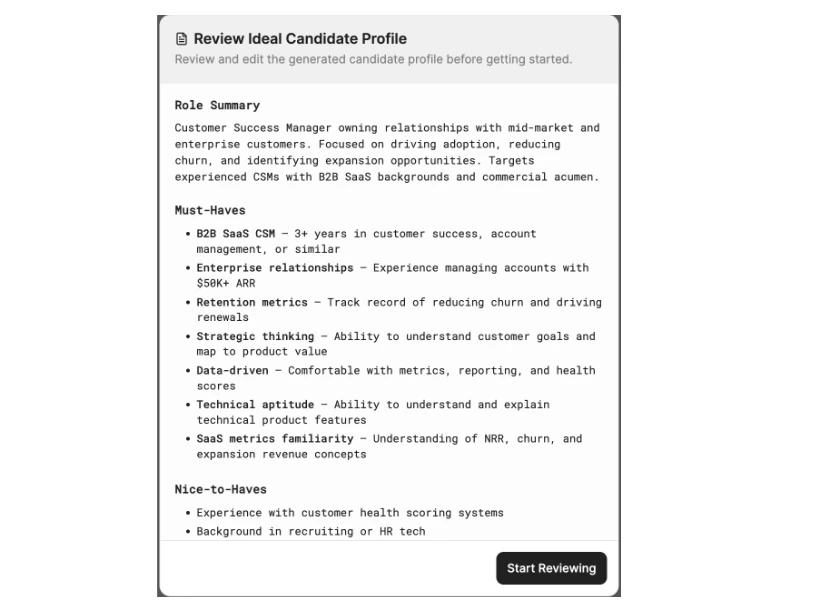
You can write the ICP in plain language. If you want to weight certain criteria more heavily, just say so (for example, "Python experience is a hard requirement and should be weighted above all other criteria"). The AI reads the ICP the same way a human would.
- Review candidates Once you accept the Candidate Profile, Metaview pulls all candidates from the selected stage in your ATS and classifies each one individually against the ICP. Each candidate gets written reasoning covering their strengths, gaps, and an overall match category:
- Strong match: Closely aligns with the ICP across key criteria
- Good match: Aligns with most requirements, with some gaps
- Partial match: Some alignment, but notable gaps remain
- Low match: Limited alignment with the ICP
- Inconclusive: No CV was uploaded, the file was corrupted, or the resume could not be parsed These ratings are intended to support — not replace — your review. The written reasoning behind each rating is provided so you can apply your own judgment and context when assessing candidates.
- Provide feedback to refine results As you review, mark candidates as
Yes/Maybe/Noand add feedback. After a few ratings, you can choose to refine your search — Metaview uses your input to adjust how candidates are evaluated, so the results better reflect what matters to you. You can also edit your Candidate Profile or create a new one at any point. When you do, Metaview re-evaluates candidates against the updated profile. - React to potential candidates Once you have identified the right people, you can take action directly from Metaview:
- Progress candidates: move them forward to the next stage in your ATS
- Reject candidates: reject them in your ATS, with a rejection email sent using the template you configured during setup You always make the final call. Metaview never auto-rejects anyone.
What You See in the Review
Each candidate appears as a row in the review, so you can read the shape of the whole pipeline before opening anyone.Candidate insights at a glance
Alongside the match category, Metaview surfaces the details you would otherwise dig out of each CV yourself:- Current role, current company, education, and location
- Current tenure — how long they have been in their present role
- Average tenure — how long they typically stay in a role
- Total years of experience
Skill-by-skill alignment
The match category tells you how a candidate aligns with your ICP as a whole. Metaview also breaks that down: each core competency in your ICP becomes its own column, showing how strongly that candidate matches that specific skill. This helps when your priorities are narrower than the role. You can sort and filter by overall alignment, or by a single competency — for example, pulling up everyone with strong revenue ownership experience because that is what your hiring manager wants to see first. Because these columns come from your ICP, editing the competencies in your ICP changes the columns you get.The candidate detail view
Click into any candidate to see everything behind their classification in one place:- A condensed summary of their experience
- The written reasoning for their match category, criterion by criterion
- Their application integrity assessment
- Their full CV, as submitted
- Any application questions they answered
Ingesting New Candidates
When new applications come in through your ATS, they are picked up and evaluated against your current Candidate Profile. New candidates appear alongside your existing pool with the same written reasoning and match ratings, so your review stays up to date without starting over.Reviewing Application Integrity
Recruiting teams increasingly deal with fraudulent, automated, or low-effort applications. Application Review helps you spot them by automatically checking each submission for signs of inauthentic or automated activity. These checks are performed solely on the application materials themselves. Signals fall into two categories:- Consistency signals — whether details within the application are complete and internally consistent.
- Automation signals — whether the application shows signs of being submitted through an auto-apply service or contains templated, low-effort content.