

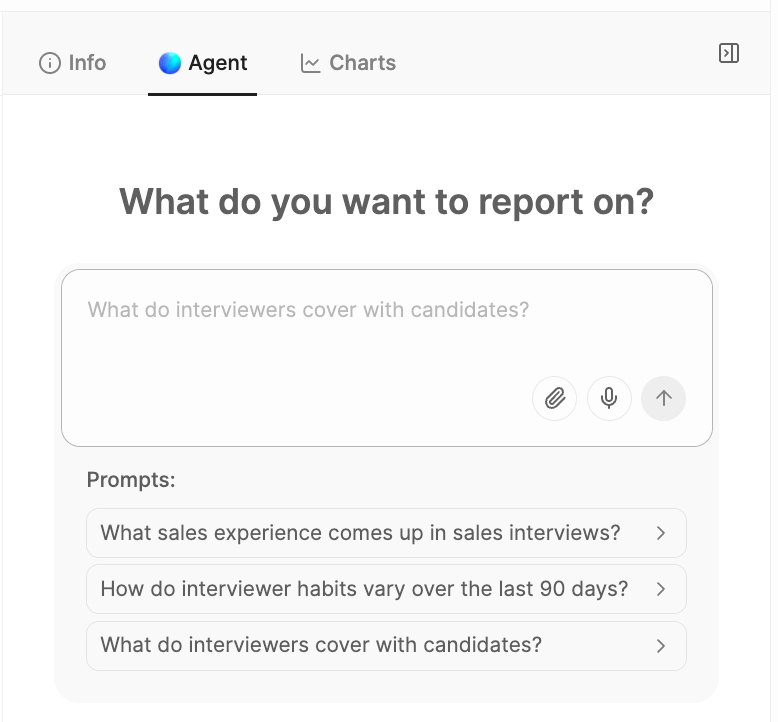
Ask the Reports agent questions about your recruiting data in plain language. You can explore trends, compare results, and dig deeper into your reports without manually filtering or analyzing the data.
How the Reports Agent Works
Open any report and go to theAssistant tab, or start a new report from Reports → New report and type your question into the prompt box.
1
Describe what you want to know
Type a plain-language question — “_What are candidates’ main hesitations about joining?”, “Which technical skills are mentioned most often across interviews this quarter?” _You can also use voice input, or attach context like a job description, interviewing framework, or rubric to shape the answer. Type a plain-language question — “_What are candidates’ main hesitations about joining?”, “Which technical skills are mentioned most often across interviews this quarter?” _You can also use voice input, or attach context like a job description, interviewing framework, or rubric to shape the answer.
2
Let the agent build the report
With your instructions, the agent updates the report in place: filters, grouping, metrics, columns, and new AI columns if the question needs them. On questions that need a new AI column, it runs the column on a sample of 20 conversations first and asks before running it over your full set — so you can sanity-check the column before it works through the rest.
3
Read the answer
The agent answers in chat with the number and its denominator — “595 of 1,529 interviews (39%) raised a hesitation, role scope the biggest theme” — plus a breakdown and links to the conversations behind it. The underlying report shows the same basis, so you can click into any row to see the source.
4
Get the deliverable you need
Ask for a CSV, PDF, chart, or Metaview-styled dashboard, and the agent produces it as a card in the chat.
"Show me that call" opens a card with the specific conversation. You can also ask the agent to pull in outside context from the public web — a company’s funding round, a market stat — when a question needs it.5
Spin off a follow-up report
When a follow-up needs a different population than the current report covers — a wider date range, a different conversation type — the agent proposes a separate new report as a draft. You create it with one click, and the new report opens in its own chat with a handoff note explaining what it’s for.
As you drill into a grouped row, the drill-down view shows a narrower slice of the same report, and the agent chat stays with you — it doesn’t fork into a separate conversation per drill-down.
AI columns are workspace-wide
When the agent creates an AI column to answer your question, that column becomes part of your whole workspace’s column library — not just this report. Three things worth knowing:- Anyone adding columns to any report in the workspace will see it in the
Add columnmenu. - Other reports that already use the column will show the agent’s version of its results.
- If you later ask the agent to change the column’s definition, the change clears the column’s results in every report that uses it, and the agent will ask you first before making that change.
Who can see and send to the chat
The agent chat is shared across everyone the report is shared with, so you can see each other’s conversations and the agent’s answers:- Everyone who can see the report can read the chat.
- Only the report creator and workspace admins can send messages. If you’re viewing a report in read-only mode, you’ll see the chat history but not a message box. There is no separate editor sharing role.
- “Created by Metaview” default reports are read-only for the agent chat — even for workspace admins. You can ask the agent questions by duplicating the report into one you own.
- The agent uses the report owner’s conversation access, not the viewer’s. It can answer questions using conversations the report owner can access, including conversations the viewer wouldn’t otherwise be able to see. Changes made by the agent, such as updating filters or adding AI columns, are also attributed to the report owner.
Hit a problem, or looking for a more specific answer? See the Reports Overview for how filters, columns, charts, sharing, and subscribers work.