

How it works
- A person belongs to one workspace at a time.
- Each workspace has its own admins, seats and settings.
- Each workspace chooses how its members sign in: its own SSO, or a password, Google or Microsoft.
- Conversations stay in the workspace where they were captured.
Getting another workspace
Contact support@metaview.ai or your Metaview contact. We create the workspace and, if your workspaces use the same email domain, separate them so each one manages its own sign-in. We do this once. After that, you manage everything yourselves.Moving a person between workspaces
-
In the workspace the person is leaving, open the People page, click the person, then click
Remove memberand confirm. If that workspace uses SCIM, IT can remove them from its directory instead.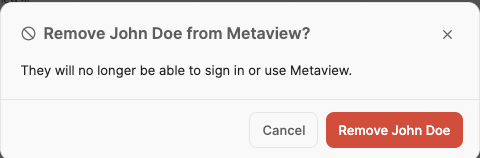
Confirm to remove the person from the workspace they are leaving.
-
Add them to the other workspace in one of these ways:
- SSO: IT assigns them to that workspace’s Metaview app, and they sign in from it. That workspace needs its own SSO.
-
Invite: an admin of that workspace clicks
Invite teamon the People page. They may not get an invite email, so tell them. If that workspace has SSO, IT must also assign them to its app.
Invite team, at the top right of the People page.
- SCIM: IT adds them to that workspace’s SCIM directory. If IT did this before step 1, IT must remove and add them again.