Elyse shows you how to use Snippets.
How teams use snippets
- Answering a hiring manager’s gating questions. The hiring manager gives you two or three must-ask questions before the screen. You ask them, clip the answers, and send the clips. The hiring manager judges fit immediately — instead of the candidate running two more interview stages before anyone discovers they missed a gate.
- A gut check across the interview panel. Anyone on the panel can see how a colleague’s interview actually went without reading a full transcript, which is much faster than reconstructing it in a debrief.
- Making a case with evidence. Illustrate a candidate’s strongest answer, or a genuine concern, in their own words — while keeping the rest of the conversation private.
- Calibrating interviewers. Build a set of clips showing good and weak answers to the same question, and use them to align a panel on what “good” sounds like.
Please note that if video recording has been disabled by your organization or by a meeting participant, the Snippets feature will not be available. Snippets are also not available for phone calls.
Create a new Snippet
Open a conversation and select the Snippets tab. You have three ways to create a snippet:Find a moment
Type what you’re after into the Find a moment box — for example, “where they talk about handling conflict” — and matching clips appear in under a second. Pick the one you want and save it. The search chooses a natural start and end for the clip (roughly 15 seconds to 5 minutes); you can edit the range later on the saved snippet.
Automatic suggestions
Metaview surfaces suggested snippets for every conversation. They show in the Snippets tab until you start a search, and come back when you clear the search box.Select a range in the transcript
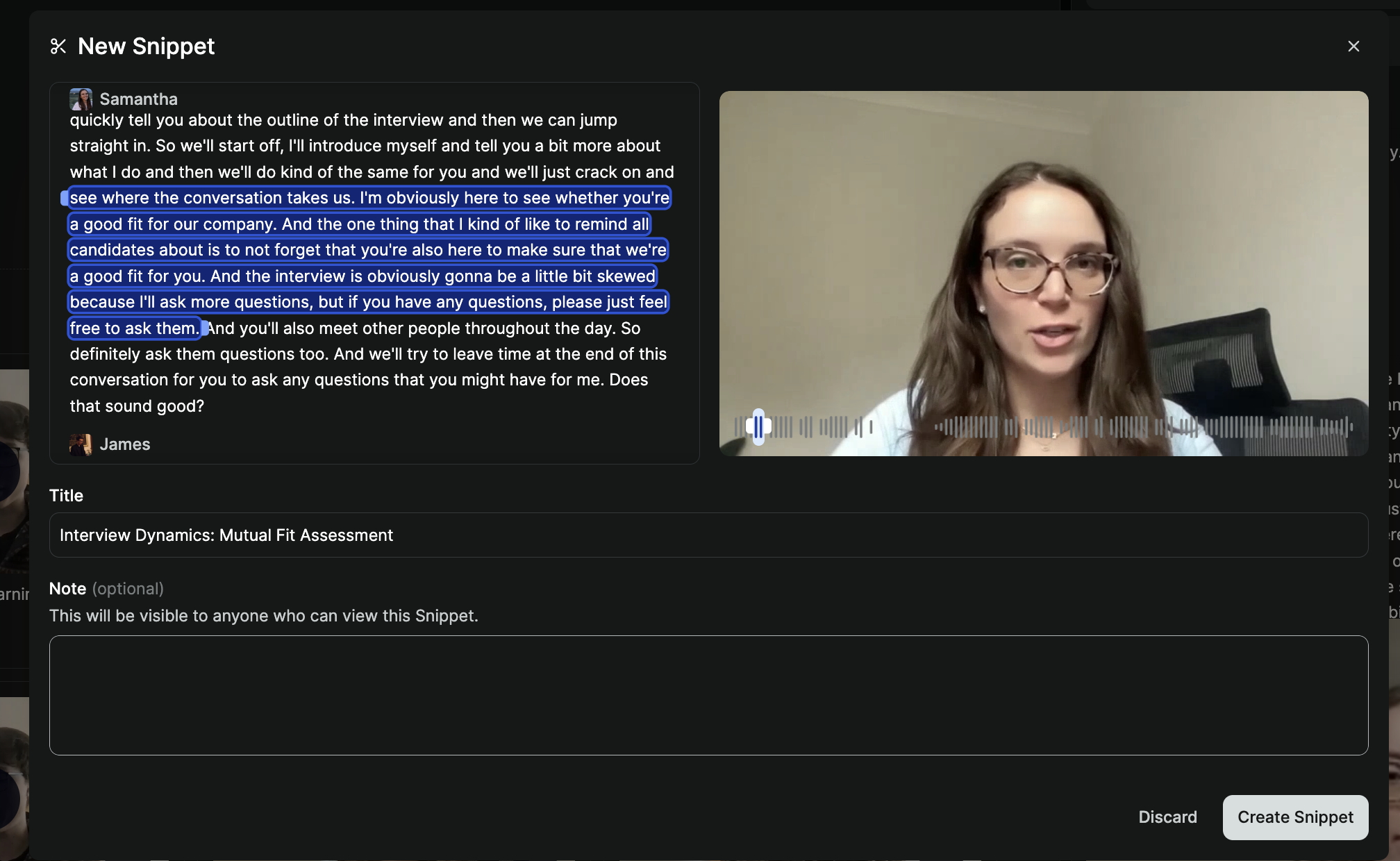
If you want to clip an exact passage yourself, clickCreate a Snippet, select the parts of the transcript you want included, and save.
Titles and notes
When you save a snippet by any of these methods, Metaview writes a title and a short note for you. Anything you type into either field is kept as-is, so you can leave them blank for auto-written text, or write your own. Once saved, a short clip is created that you can share with others.Sharing snippets
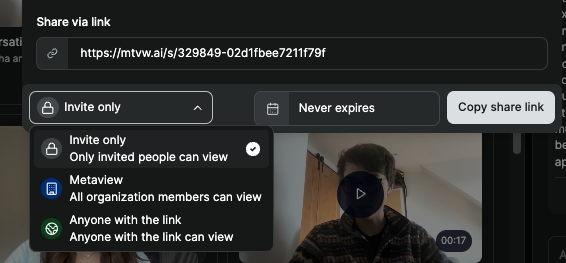
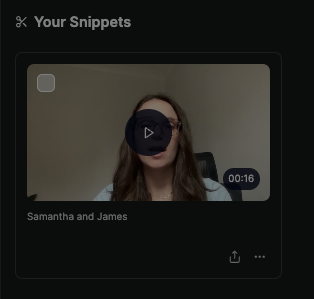
After you have created a snippet, you can easily share it with specific individuals, with members of your team, or with external users (they don’t even need to have a Metaview account to view it). Once you have created your Snippet, click the📤 (upload symbol) .
Anyone with the link option if the trusted people you intend to share the Snippet with do not have a Metaview account. Once you have selected the setting, click Copy share link to copy your Snippet link.