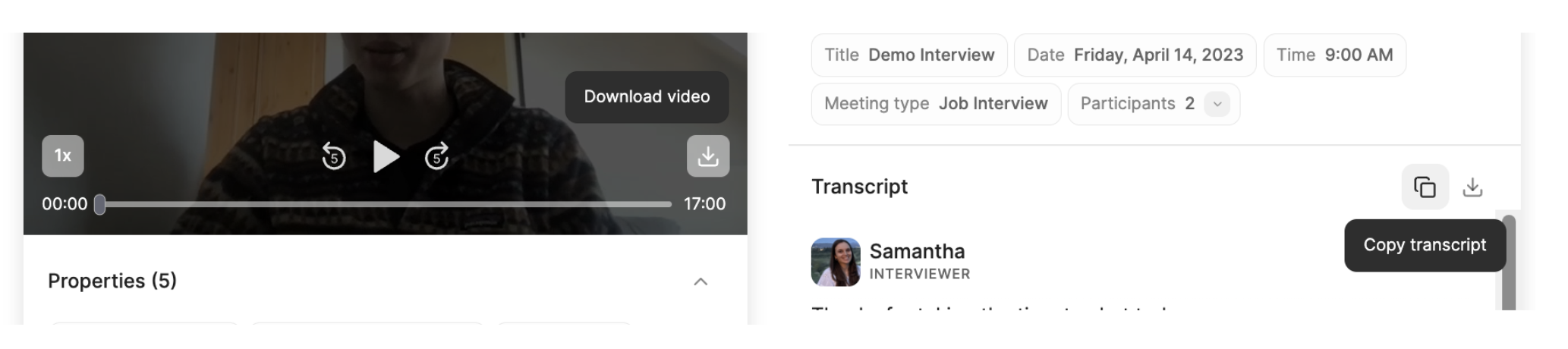
What gets captured
Workspaces can be configured to capture audio only, with no video recording, for compliance or policy reasons — and individual participants can decline video. Where that applies, playback is audio and Snippets are unavailable. See Privacy configurations.
Open the recording and transcript
Clickon the video title (or audio if video is not available) in the Sources panel to open the recording and the full transcript of the call.
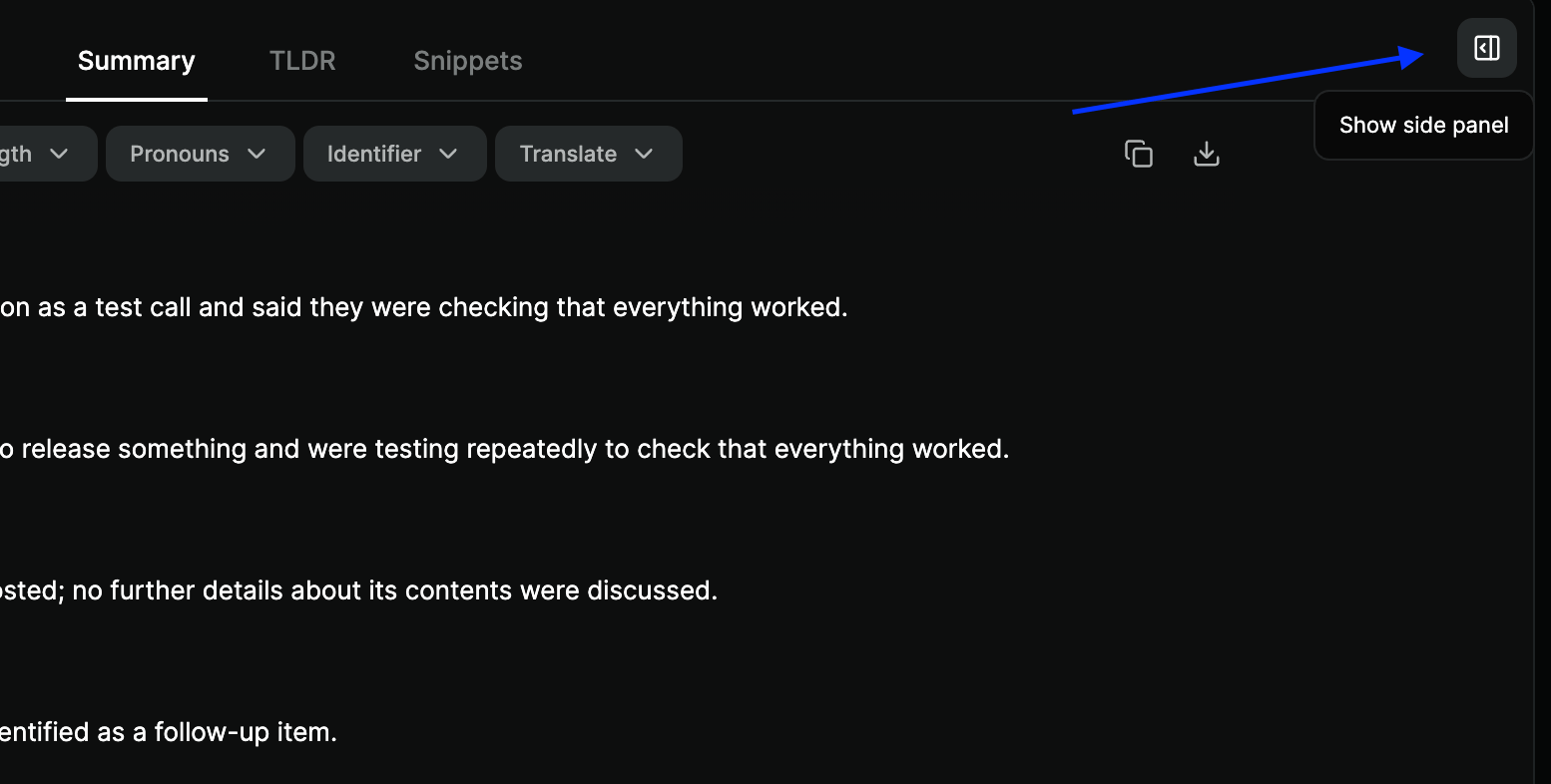
To access the recording and transcript, click Show side panel at the right end of the Summary / TLDR / Snippets tab bar
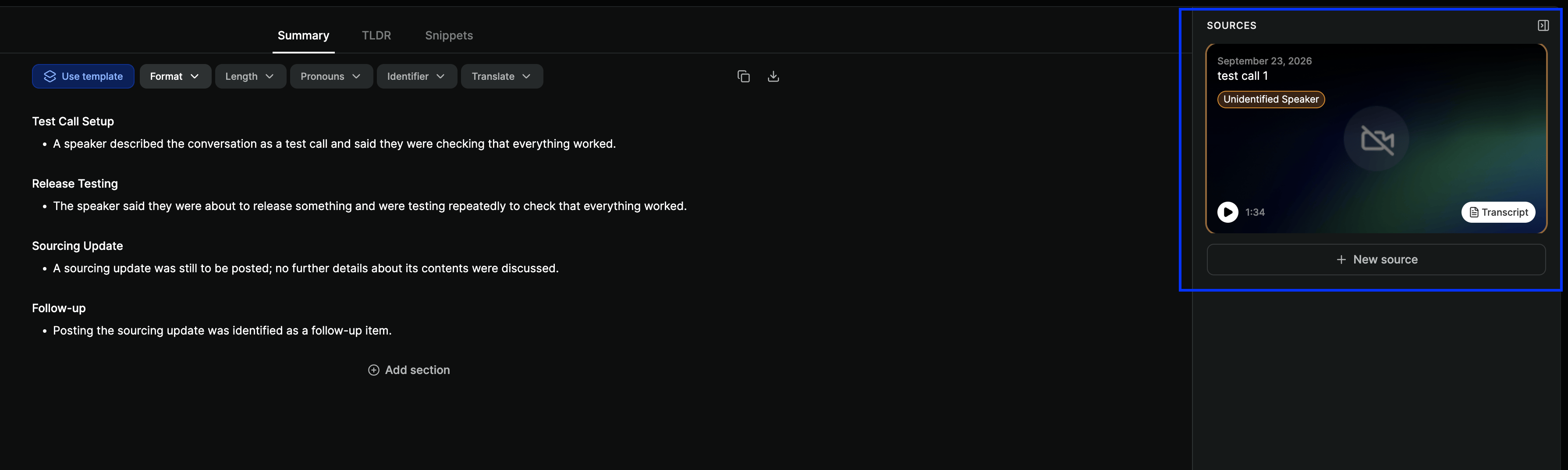
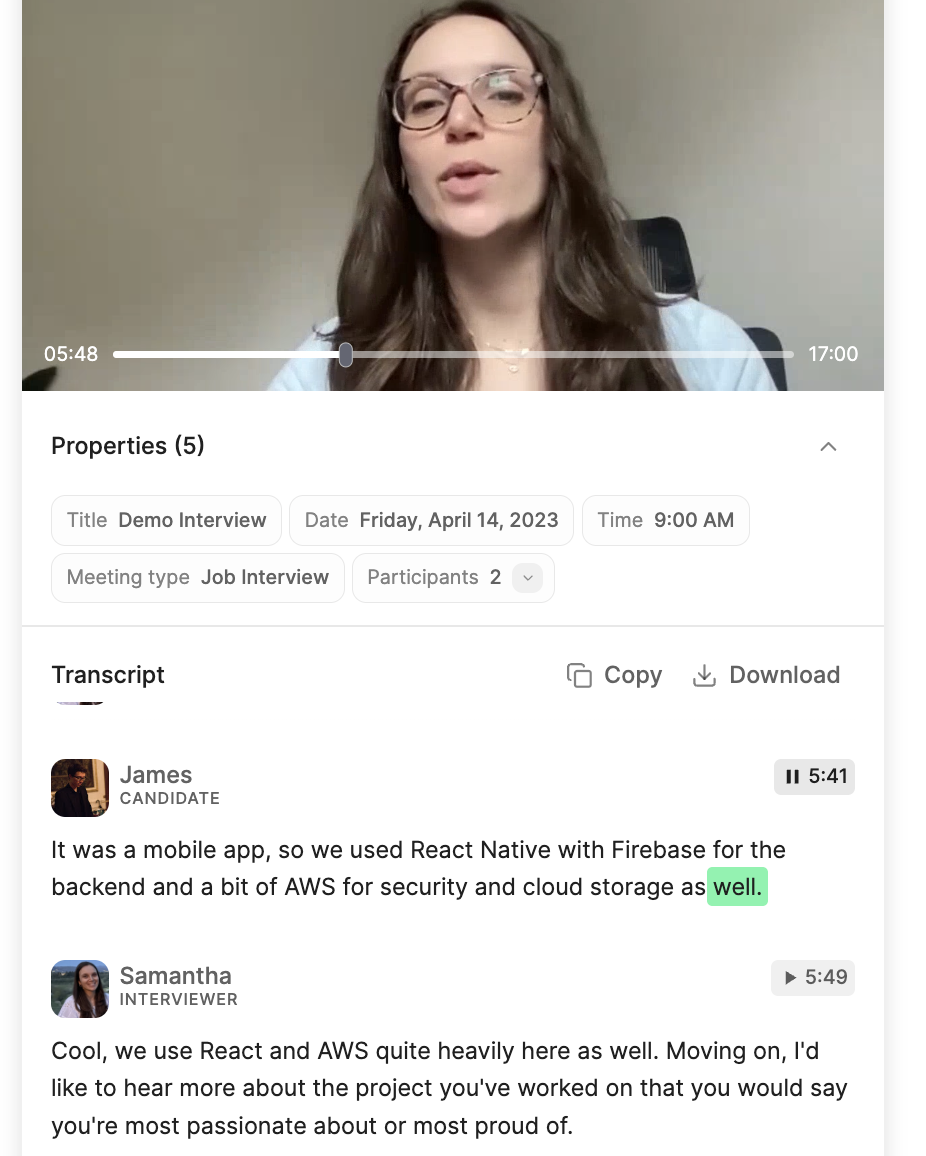
The side panel contains the source of the notes you're viewing: the call recording and transcript.
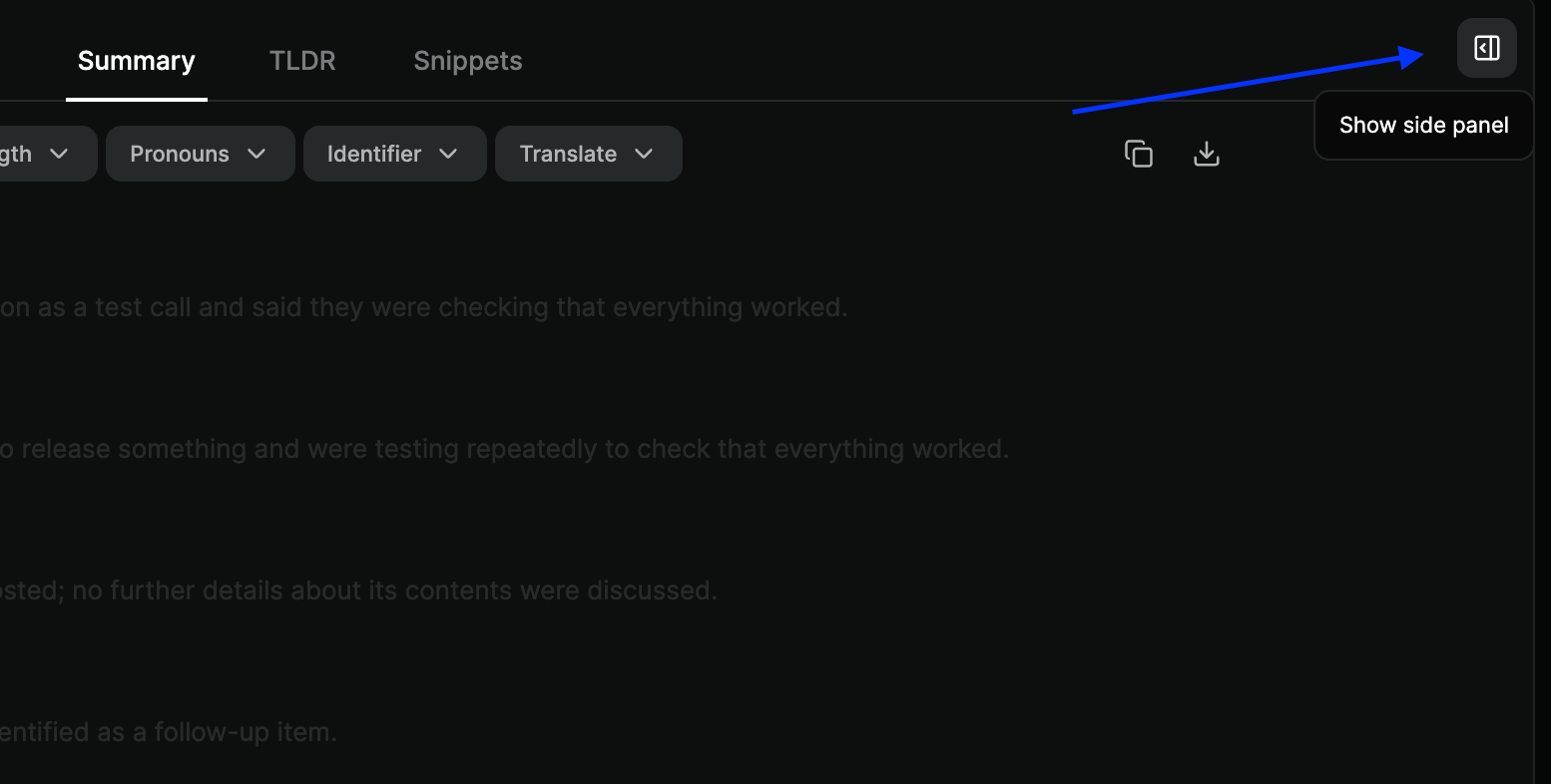
To access the recording and transcript, click Show side panel at the right end of the Summary / TLDR / Snippets tab bar
The side panel contains the source of the notes you're vieweing: the call recording and transcript
- Play / Pause
- Go back 5 seconds / skip ahead 5 seconds
- Adjust playback speed (from 1x to 2x)
- Maximize/minimize the playback screen
- The scroll bar with progress and the recording duration
Jumping to the moment behind a note
Scrubbing a recording to find something is slow. Work backwards from your notes instead: click the💬 (speech balloon) on a notes section to see the transcript segments it was drawn from, then click a segment to jump straight to that point in the recording. Where a claim came from more than one place in the conversation, you’ll see a count and can step through each occurrence.
This is the fastest way to answer a specific question about a call, and a good habit before forwarding notes to someone else. See Note sections.
Copy or download
You can copy or download the transcript of your call. The recording (if available) can also be downloaded.