

Desktop recording must be enabled for your workspace. If you do not see
Download desktop app in your Metaview menu after signing in, ask your workspace admin or contact support.Before you start
Supported computers- Mac — Apple Silicon Mac running macOS 14.2 or later
- Windows — Windows 10 or later on an x64 computer
Install the app
1
Download the Metaview desktop app
Open your user menu in Metaview and select
Download desktop app, or go to metaview.ai/download. The page supplies the correct installer for your computer.2
Install and sign in
On a Mac, open the DMG and drag Metaview into Applications. On Windows, run the installer. Then open Metaview and sign in with your usual Metaview account.
3
Connect your calendar
Connect your calendar if prompted. Your calendar lets the app show upcoming meetings, but opening the app never starts a recording.
4
Allow recording access
Complete each permission step shown in the app. On a Mac, you may need to restart Metaview after granting access, and the app may also prompt you to restart Zoom.
Start and stop a recording
Recording always requires your click. The app never starts recording automatically.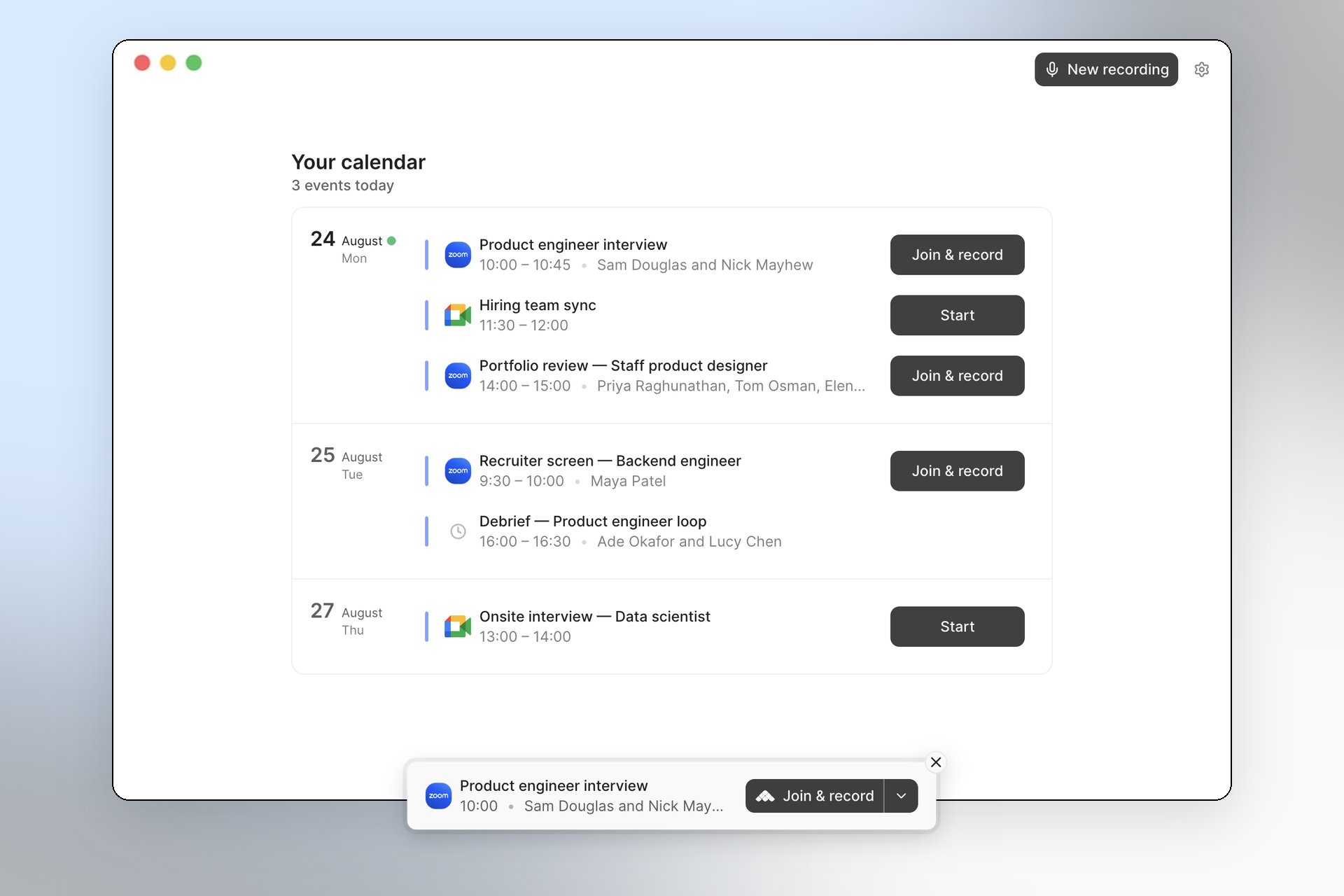
The desktop app displays your calendar once synced. Each eligible meeting carries a Join & record (or Start) button, and a floating prompt appears when a meeting is about to begin.
1
Choose the conversation
For a scheduled video call, select
Join & record to open the meeting and prepare the recording, or select Start for a calendar event that does not have a meeting link. If Metaview detects a call you joined another way, its prompt offers Record.For an ad hoc or in-person conversation, select New recording in the top-right of the app. Ad hoc recordings may not include participant names, so you may need to assign or correct speakers after processing.2
Confirm that recording started
Check for the recording indicator and the running timer. You can hide the floating recording bar without stopping the recording.
3
Keep the audio available
Keep your computer audio unmuted and Metaview running. During a video call, keep the meeting window and participant tiles visible where possible — a minimized or hidden meeting can make speaker identification less accurate.
4
Stop and save
Select
Stop when the conversation ends. Keep Metaview open until the upload finishes. The app then processes the transcript and notes in the background.5
Open your notes
Metaview notifies you when the conversation is ready. Select
Open Notes or Open conversation, or open it from the matching calendar event in the desktop app.Tell participants that you are recording
You are responsible for telling participants and respecting their recording preferences. We recommend notifying them before the meeting and confirming again when the call starts. See Notifications for guidance. On a Mac,Announce recording in chat is on by default for Google Meet in Chrome, the Zoom desktop app, and the Microsoft Teams desktop app. You can change it in the desktop app’s settings unless your workspace requires it. Your workspace can also use custom wording.