

Organizations
To protect confidentiality and uphold our responsibilities as a data processor, Metaview assigns each conversation to a single, clearly identified customer organization (workspace) before any processing takes place. This ensures that only authorized users from that organization (as described in the rules below) get email notifications, have access to, and manage the resulting notes and data. A single video conference call may include multiple Metaview AI Notetaker bots if multiple organizations or workspaces invite Metaview to join the same meeting. In such case, each bot is owned independently by the workspace that invited it. Ownership is determined based on how the call was scheduled or how Metaview was invited to join, using predefined rules enforced by our system. If ownership cannot be reliably determined, the system will prevent the bot from joining the call.- Automatic scheduling
- Manual scheduling using in-app methods
- Manual calendar invites
notes@bot.metaview.ai, the system assigns the conversation to a customer organization using the following logic:
- Based on the identity of the user who added Metaview to the calendar event, where that user can be reliably identified.
- If that user can’t be identified or is not associated with a known customer organization, to the organization of the calendar event organizer.
Bot identification
When the Metaview bot joins a video conference call, it appears under a name clearly stating the inviting organization’s identity (e.g., Dunder Mifflin’s Metaview Notetaker). This makes it clear to all participants which organization has authorized the bot’s presence and will control the resulting data.The meeting host still controls whether a given bot can join a video conference and can remove it at any time. This applies to all scheduling methods.
Situations with multiple bots
If multiple organizations or workspaces invite Metaview to the same call, each one’s bot will attempt to join separately and be clearly branded with the organization’s name and custom logo (if applicable). Each bot is separately owned and controlled by its respective organization/workspace, including access permissions, retention duration, and other settings. Users from one organization cannot access or manage another organization’s recordings or notes, even if both bots joined the same call.Call invitees and participants
By default, all people from the customer organization assigned to the call who are invited to the call will get an automated email notification and have access to the notes. Additionally, any users who are later added manually as “Interviewers” in the call transcript (see Assigning participants for details) will also have access to the notes on their Metaview account. To remove users associated with a call and revoke their access to the call recording and notes, you can remove them from the call. See Adding or removing participants. Automatic email notifications are sent to all interviewers when their notes are ready. Individual users can unsubscribe from email notifications in their personal settings. Alternatively, email notifications can be disabled for your organization. Please contact us to disable email notifications.You can verify who else has received an automated, post-call email notification in the footer of any “ready for you to review” emails.
Event organizers
Whether event organizers get access by default to calls that they schedule on Metaview is a configuration that is set at the organization level.- If there is a team or individual who schedules calls on behalf of interviewers in your organization, we recommend disabling the
Event Organizer Default Accesssetting. Metaview will still attempt to detect their presence on the call as a participant. - If everyone schedules their own calls in your organization, we recommend enabling the
Event Organizer Default Accesssetting.
A user who invites Metaview directly from their account using the Ongoing calls option will have access to the call.
Account admins
Users who have been assigned an account admin role will have access to all calls within their organization under the All Conversations tab on their Metaview home page. Please see Managing your team for more information on assigning admins. This is currently the only method by which a user can get access to all calls by default.Recruiters and hiring managers on a job
If your workspace has an ATS integration, Metaview can also grant access based on who the ATS says is working on that job — so a hiring manager sees the interviews for their own roles without anyone sharing each one. This is per-application, not a global permission: it comes from the role a person is assigned on that specific job or application in your ATS, not from their overall ATS access level. Metaview reads four roles — Hiring Manager, Recruiter, Coordinator, and Sourcer. Which of those roles grant access is configured for your workspace, so you can match it to who on your team actually needs to see interviews. Some organizations want hiring managers to see every interview for their own roles; others keep access with the recruiting team and share individual conversations instead. Both are fine — it’s a decision you make, and it can be changed later. Two things have to be true for role-based access to apply at all. The conversation must be matched to an ATS application — an unmatched call has no job to inherit roles from. And the person must already be a member of your Metaview workspace; being named on a job in your ATS doesn’t create an account or invite anyone.Conversations you can see through a job role appear under Reports rather than on your home page.
Internal candidates
By default, all people from your organization who are invited to the call will have access to the notes and receive an email notification, including any internal candidates who would be invited with their work email. Here are some suggestions if you want to avoid providing internal candidates with access to their calls and receiving email notifications:- Invite internal candidates using their personal (non-work) email address
- Use a separate calendar invite for Metaview and for internal candidates
- Add
Candidate email: <insert-candidate-email@yourcompany.com>to the calendar event description to let Metaview know which participant on the invite is the candidate on the call
Interviews scheduled by an ATS integration with Metaview will automatically restrict call access to internal candidates.
Request Access
When someone who does not have access to a conversation tries to access a conversation that they do not have access to, they will be blocked. The request will be sent by email to the owners of the call, who can then opt to grant access. If the participant of the call does not have an active Metaview account, the request will instead be sent to the team’s admin.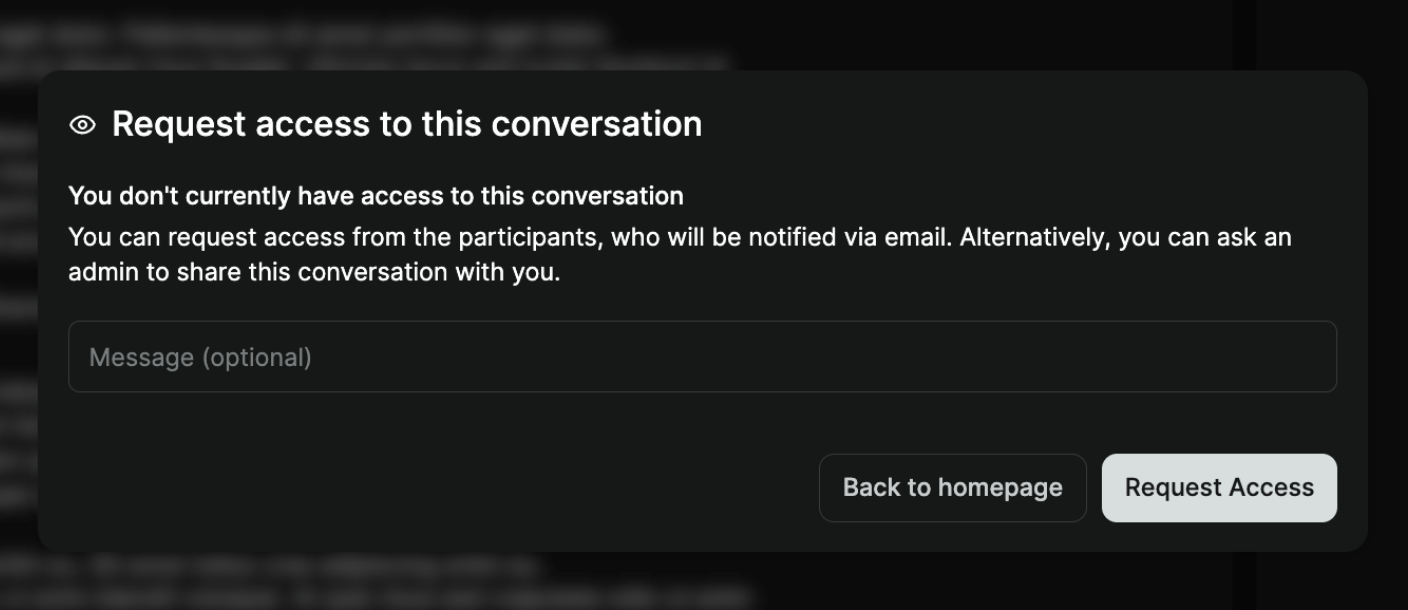
Giving access to someone who doesn’t have it
Everything above is access people get automatically. When someone falls outside those rules — a colleague who wasn’t on the call, an interviewer at a client, a candidate’s future manager — you grant it deliberately instead:Share one conversation
Invite named people, open it to your whole workspace, or generate a link that works for people without a Metaview account.
Share a collection
Better when it’s the same group of calls every time — one share covers every conversation in the collection, including ones you add later.
Send a snippet
When someone only needs one moment, share the clip rather than access to the whole conversation.