

- Call from your Metaview phonebook. On the Notes home page, find Call a candidate in the side panel and click
Find & call candidate. Search for a candidate by name or phone number, choose someone from an upcoming or previous call, or enter a new phone number. - Interview scheduled in advance? On the day of the interview, open the
Upcomingconversations tab and clickPhone candidateon the scheduled conversation. Metaview already has the candidate and number, so there is nothing to look up. - Prefer to dial manually? The Metaview switchboard remains available for scheduled and unplanned calls.
- Browser (recommended, and the default): talk through your computer’s microphone and speaker, straight from Metaview. Your phone never rings.
- My phone: Metaview rings your phone first, then connects the candidate.
1. Register your phone number with Metaview
Before using the phone option, you must register your phone number in your account Personal settings. This applies to browser calls too: Metaview uses your verified number to match the call and its notes to your account, and to show to the candidate when Caller ID is set toShow my number.
The number you register must be your outbound number (the one that shows up on the call display when you make a call). If your direct dial inbound number is different to your outbound number, you will need to register the outbound number.
Yes and add your extension (or have one assigned to you). The extension number will identify you when you call the Metaview switchboard in the future.
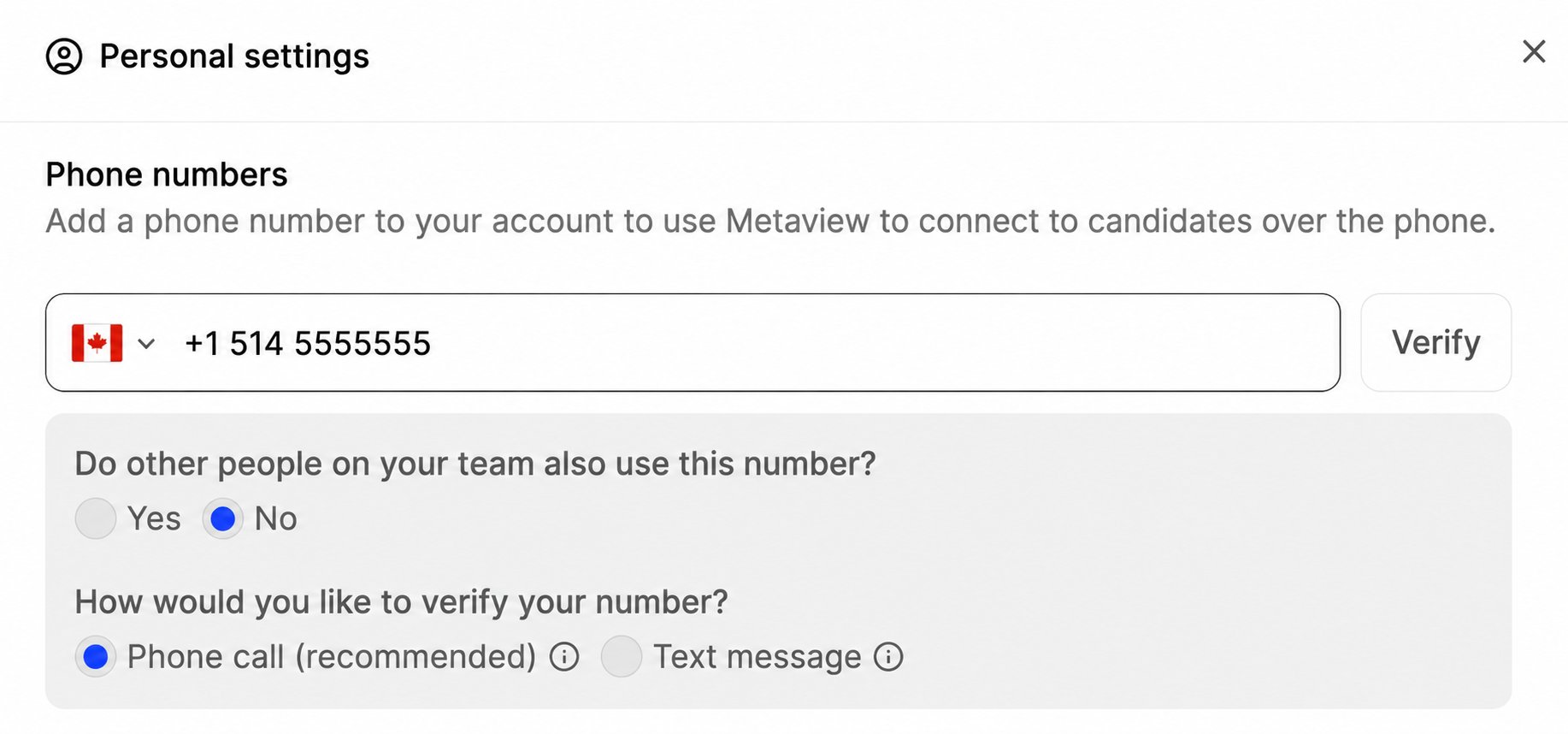
Verify your phone number before using it on your Metaview calls.
Verify your number
Under How would you like to verify your number?, choosePhone call or Text message, then click Verify. Both prove the number is yours, and either is enough to get started.
Phone call is recommended because it does one extra thing: it lets Metaview show your number to candidates. You need that in one case only: one-click calling (browser or phone) with Caller ID set to Show my number, the one combination where candidates see your own number instead of a Metaview one.
- Adding a number? Choose
Phone calland the single call covers both checks. - Already registered? Your existing verification remains valid. If the case above applies, Metaview will prompt you for a one-time phone-call verification.
2. Schedule the phone interview in Metaview
Scheduling is optional, but recommended when the interview is planned in advance. Add the candidate’s phone number to the calendar event and invite Metaview via Manual invites or Automatic scheduling. Scheduling gives you:- A ready-to-call conversation. On the day of the interview, open the
Upcomingconversations tab and clickPhone candidatewithout searching for the candidate or entering their number. - Dial assist on the switchboard. No keying in the candidate’s full number.
- Better notes. Metaview takes the candidate’s name and event details from the invite.
3. Start your call
Use one-click calling from your Metaview phonebook or a scheduled conversation, either through your browser or your phone. You can still use the switchboard whenever you prefer to dial manually.Option A: One-click calling
On the Notes home page, find Call a candidate in the side panel and clickFind & call candidate.
- Search for a candidate by name or phone number.
- Choose a candidate from your ATS, an upcoming phone call, or someone you called previously.
- If the number is missing, add it before calling. You can also enter an entirely new number without selecting a candidate.
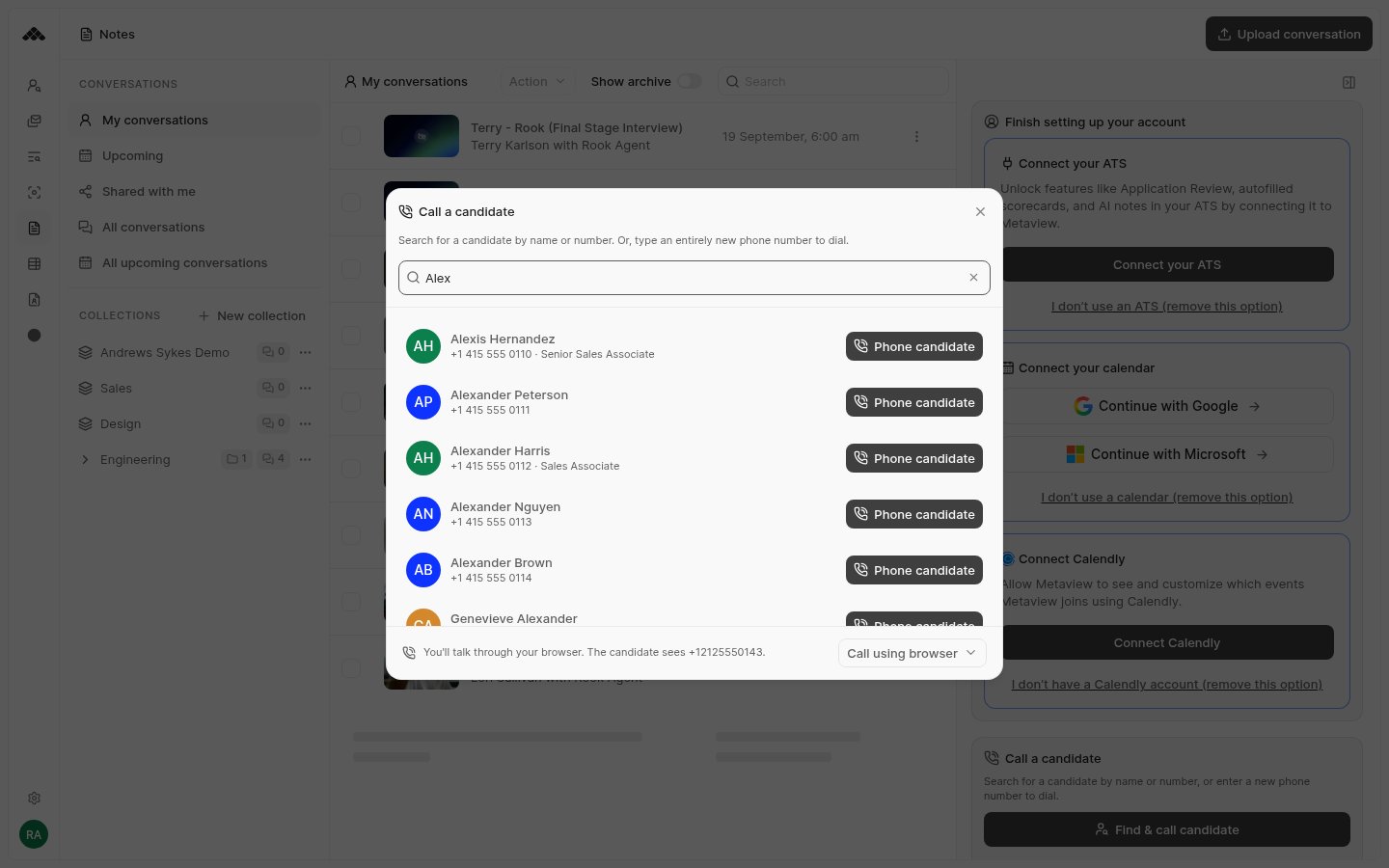
Search by candidate name or phone number. Candidates with one saved number can be called directly from the results.
Upcoming conversations tab on the day of the call and click Phone candidate on the conversation.
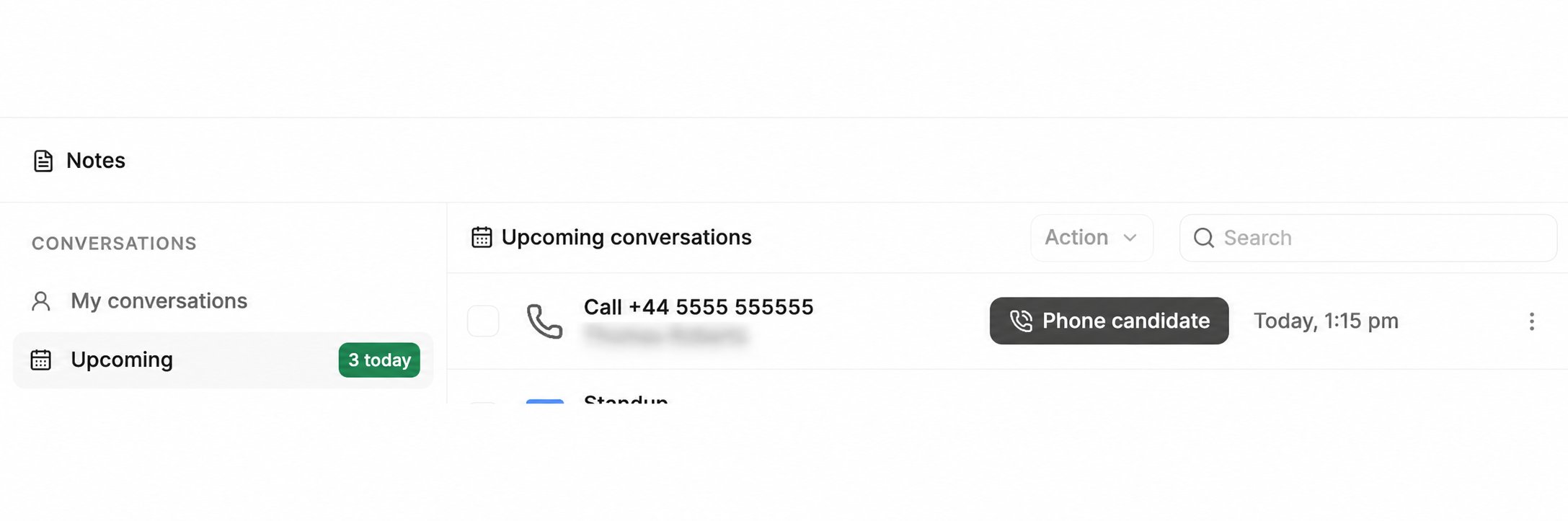
Click on Phone candidate to start the call.
Choose Browser or My phone
We recommend calling from your browser: there’s nothing to answer, and you can start talking as soon as the candidate picks up. It’s the default, so most of the time you don’t need to change anything. To switch, open the menu next to the call button (the arrow besidePhone candidate, or Call using at the bottom of the phonebook) and choose Browser or My phone. The same menu lets you pick which of your verified numbers to use. Metaview remembers your choice on every device.
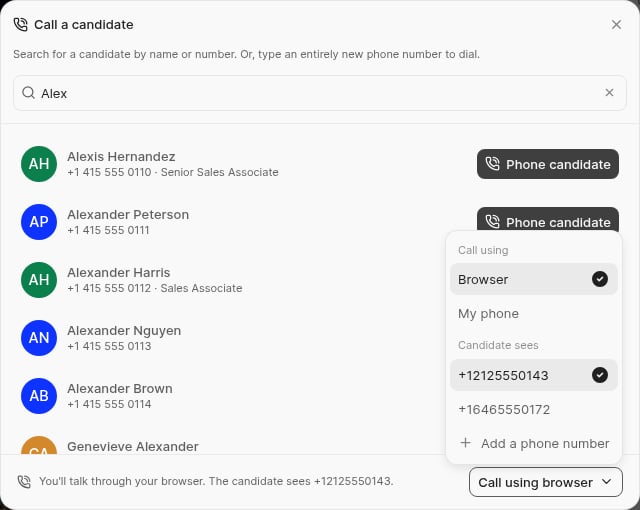
Choose how to call, and which of your numbers to use.
Call from your browser
- Click
Phone candidate. The first time you call after opening Metaview, a quick audio check appears: allow microphone access when your browser asks, check your microphone and speaker, then clickStart call. - Talk to the candidate once the status shows
Connected. You can mute, change your audio devices, open the keypad, or switch to your phone from the controls at the bottom of the screen. - Hang up when you’re done. Your notes arrive just like any other phone call.
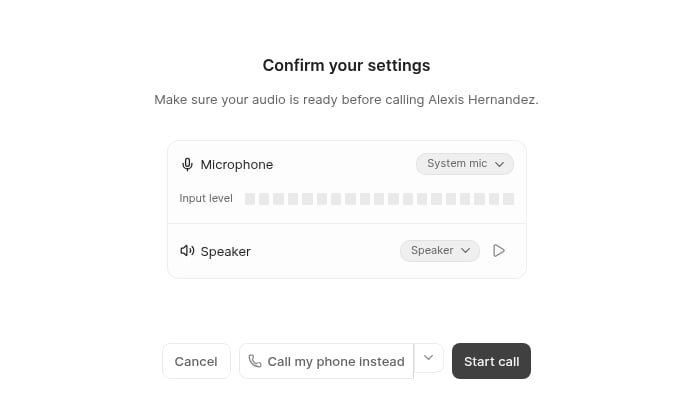
Check your microphone and speaker before your first call.
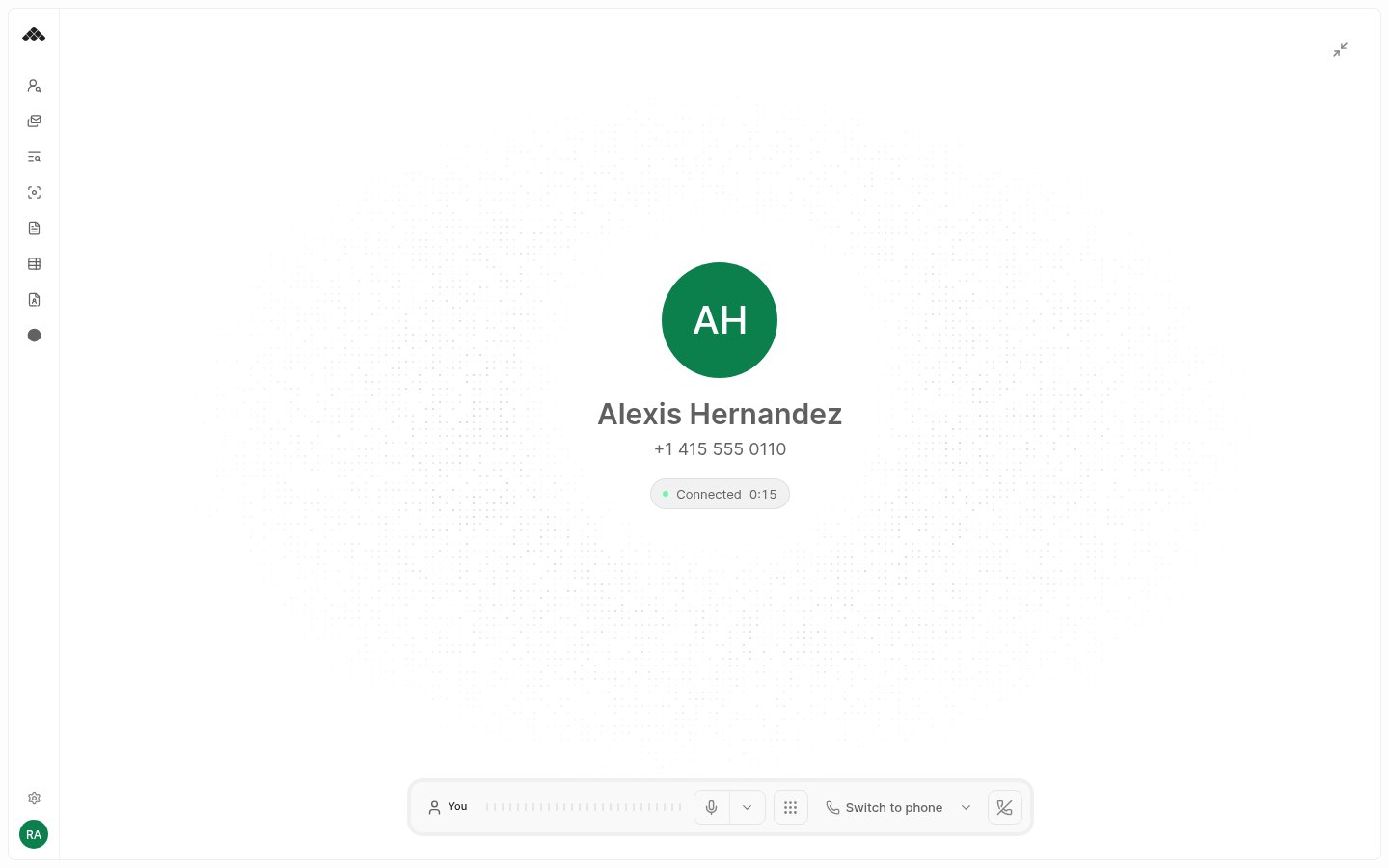
A browser call in progress.
Call via your phone
WithMy phone selected, Metaview calls you first. Answer, and Metaview dials the candidate and connects you. If you do not answer, the candidate is never called, so a mistaken click costs nothing.
Not seeing one-click calling? Check that the feature is enabled for your account and that you have a verified personal number without an extension. Shared lines with extensions must use the switchboard, for both browser and phone calls. For a scheduled conversation, also check that the candidate’s phone number is present.
Option B: Call the Metaview switchboard
We currently offer numbers in Australia, Canada, Colombia, Ireland, the Netherlands, Denmark, Israel, Italy, New Zealand, Hong Kong, South Africa, the United Kingdom, the United States, and Mexico.Tip: Save the switchboard number in your contacts for additional convenience.
- Enter your extension (only if you have a shared number). For example:
101#using your phone keypad. - If you have scheduled a phone call in Metaview, the automated prompt will confirm this information and you will simply need to dial
1#using your phone keypad to transfer the call to the scheduled number. - Otherwise, enter the candidate number on your phone dial pad followed by the # sign. For example:
5551234567#using your phone keypad to transfer the call to the scheduled number. If you are dialing an international number, make sure to include the country code first. - Start by entering the number without
+, special characters, or extra0digits. If the call doesn’t connect, try adding your country’s international exit code (e.g.011when calling internationally from the US) before the number.