

Elyse shows you how to use TLDR to get a one-paragraph summary.
Select your topics
Select AI-generated topics or create your own topics by clickingCreate a topic. Once you have selected at least 3 topics, click Generate TLDR. Metaview will generate a one-paragraph summary using your topics in a few seconds.
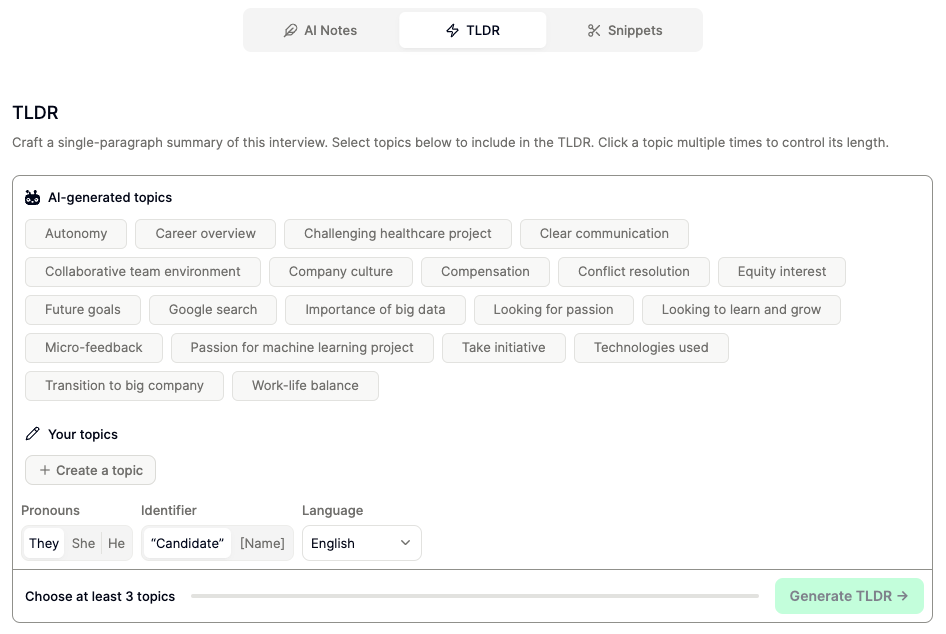
Create custom topics
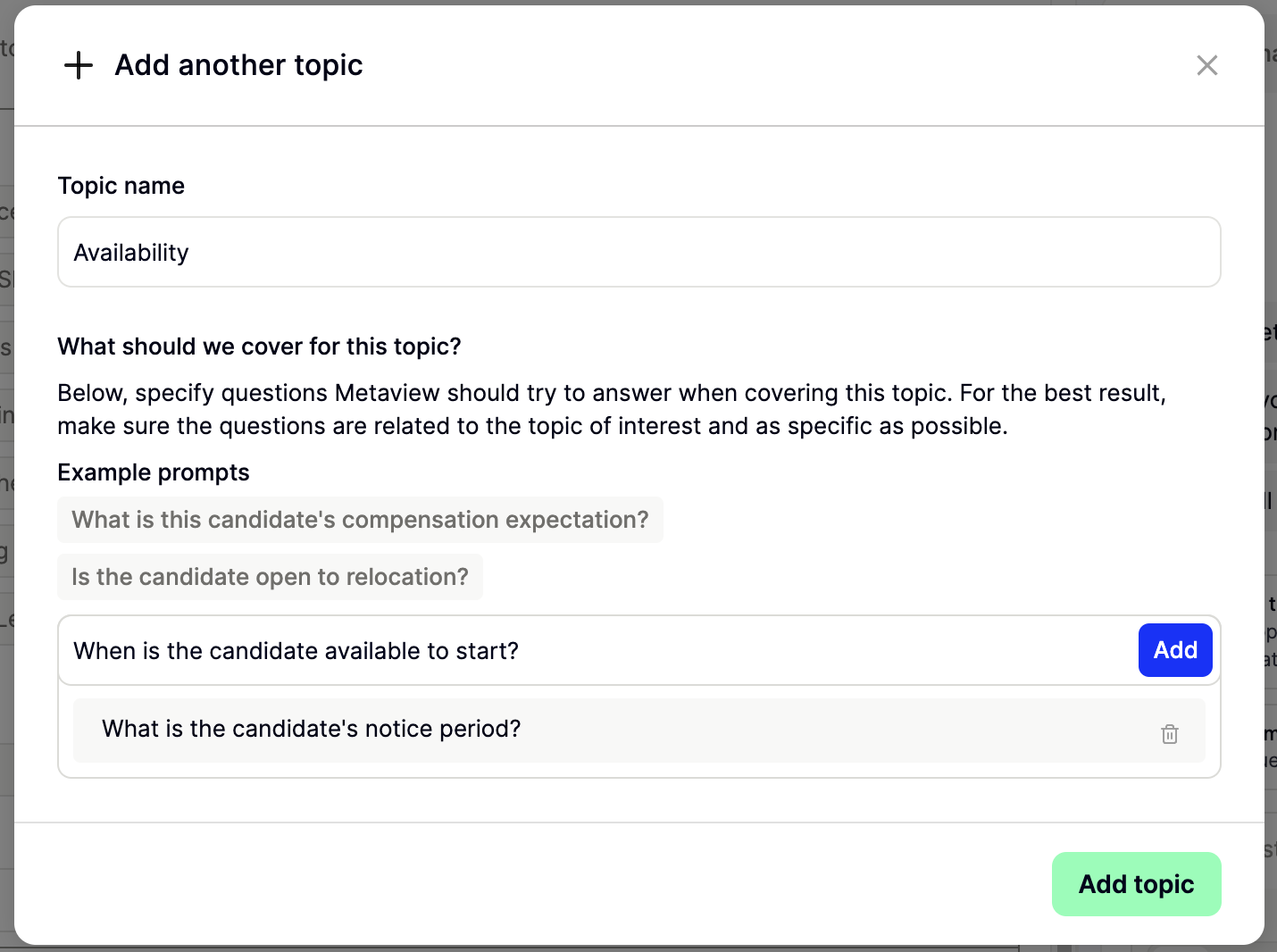
Your custom topics will be available for your future calls to speed up TLDR creation. Give the topic a name and specify the questions Metaview should try to answer when covering this topic. For the best result, make sure the questions are related to the topic of interest and are as specific as possible. For example:- Topic name: Availability
- Enter question: “What is the candidate’s notice period?”, “When is the candidate available to start?” (if you add more than one question, make sure they related to the same topic)
Add to save your question, and Add topic to create your custom topic.
⚙️ (gear) icon next to your custom topic.
Adjust TLDR output
Click on atopic one, two, three or four times to toggle its length between - (short), = (medium), ≡ (long) or to remove it from the summary.
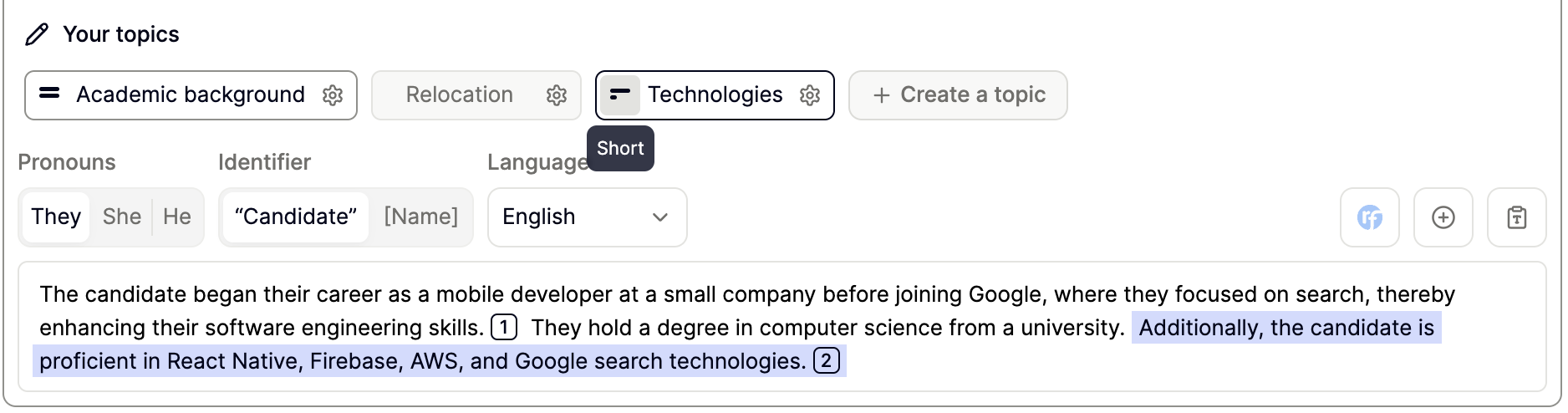
- Pronouns:
They(default),She,He - Identifier:
"Candidate",[Candidate name](see Conversation details to change the candidate’s name) - Translate your TLDR into one of Metaview’s 40+ supported
languages
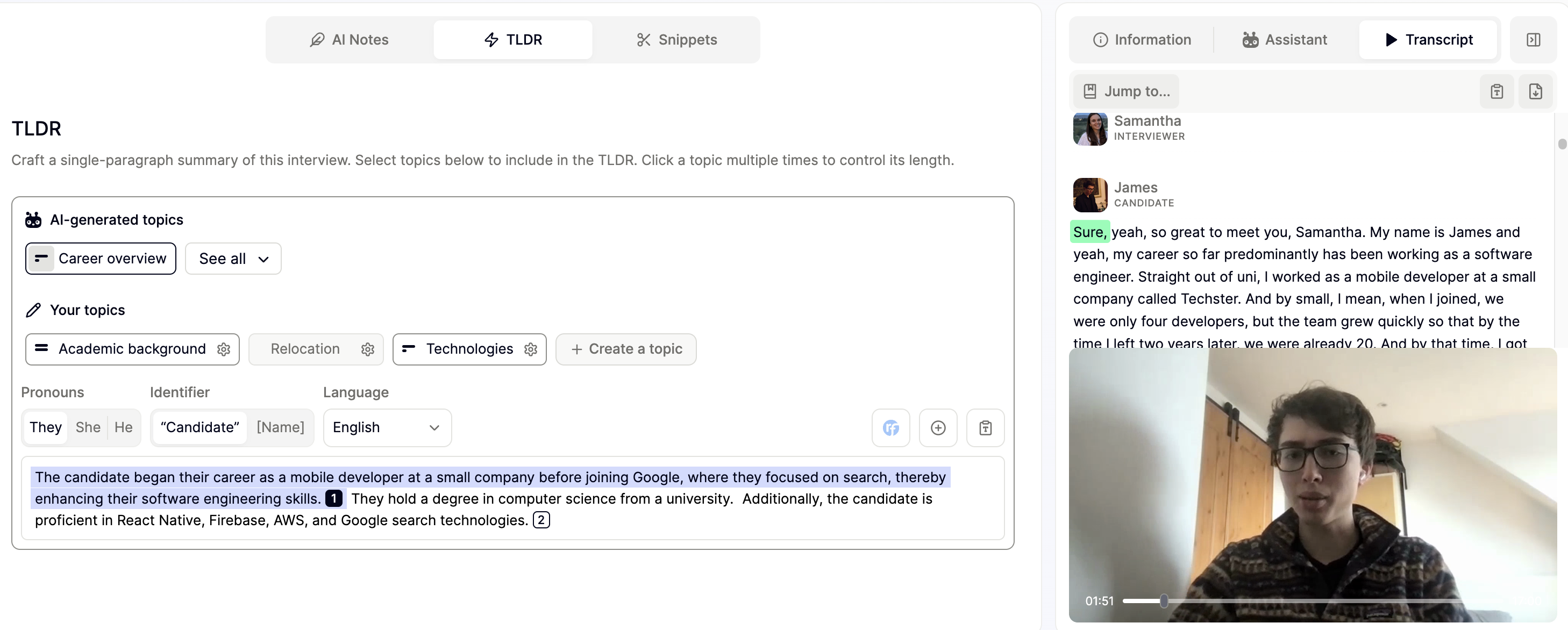
Use the footnotes to review the transcript
In your generated TLDR, Metaview will provide you with helpful footnotes so that you can quickly consult the transcript where the topic summary came from. Click on the footnotes like[1] to try it.
Use and share your TLDR
Once you are happy with your summary, you can add it to your main AI notes, copy the text (for example, to be pasted in an email to a hiring manager), or if you have an ATS integration, push it to the ATS.
Troubleshooting
- Not all speakers are assigned Metaview will not be able to correctly generate a TLDR if it was unable to identify all call participants. Go to Call details to check participant assignments in the transcript. You’ll then be able to generate the TLDR.
- No candidate is identified on the call Currently, TLDRs generate summaries based on what the candidate has said. Therefore, you will need to ensure that at least one participant in the transcript is labeled as a candidate. Go to Call details to assign a candidate in your conversation.
- Short call duration TLDR feature requires a sufficiently-long conversation to be able to generate topics and a one-page summary for you. If your call is very short (under 5 minutes) or the candidate spoke very little, you will likely get an error when trying to use this feature.
-
No content related to selected topics
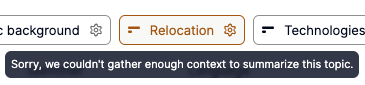
You will get a warning if Metaview is unable to identify any content to summarize for one or more of your selected topics. We recommend selecting at least 3 topics so that the TLDR covers a range of themes from the conversation.
- I am not satisfied with the TLDR output Your feedback is invaluable to help us improve TLDR quality and reliability. The best way to signal an issue is to submit it directly underneath the TLDR summary.
