

Sending your first sequence
- Enrich candidate contact information
email or phone field to open the enrichment modal.
From the enrichment modal, enter the candidate’s LinkedIn URL and click Find Contact to look up their verified email address. You can also add an email manually if you already have it. The credit cost is shown in the top right corner of the modal.
Metaview checks data already available in your ATS or attempts to enrich via third-party providers. If a verified email or phone number is found, it will appear on the candidate’s profile.
- Add candidates to a sequence
Add to Sequence. You can add candidates individually or in bulk from your search results.
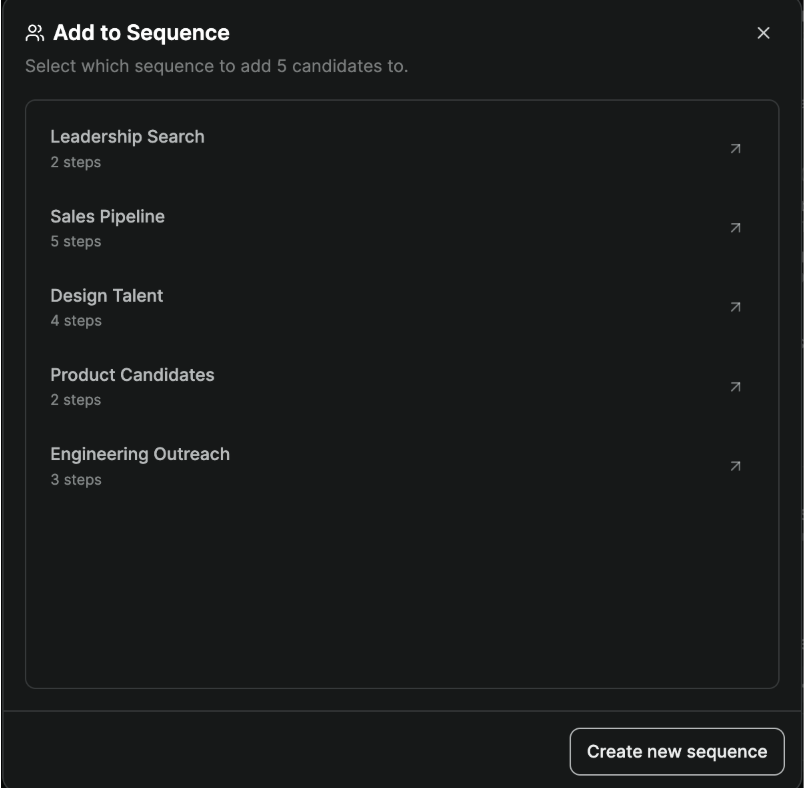
You can add candidates to an existing sequence or create a new one. Candidates without an email address will be automatically paused when added, so they won't block the rest of your outreach.
- Create your sequence
New Sequence.
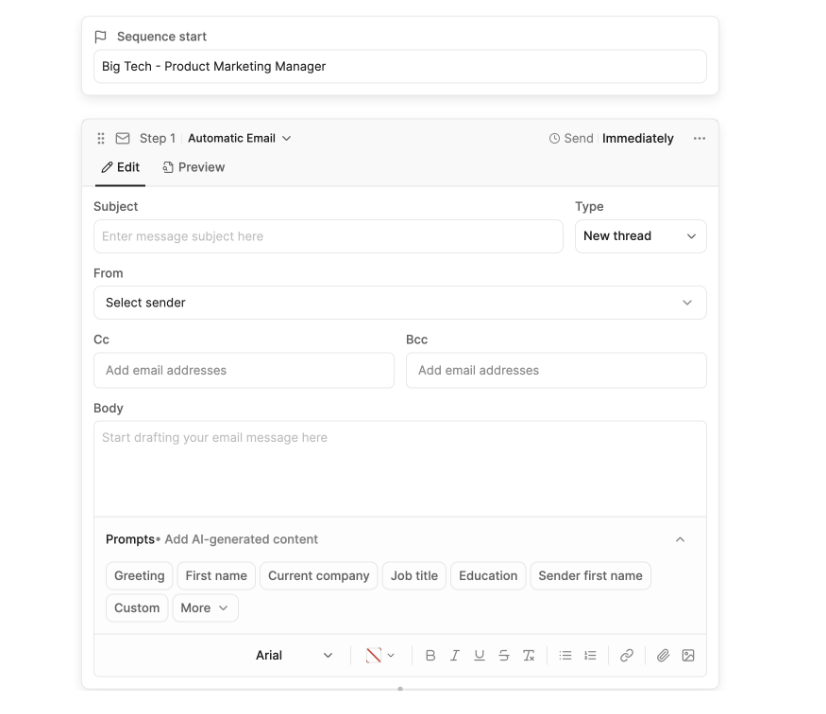
Each sequence is made up of one or more steps. For each step, you configure:
- Subject line: For new email threads. Reply steps automatically continue the previous thread.
- Email body: Write your message or use AI to draft it. You can include variable placeholders (like first_name, company, or role_title) that are automatically filled in with candidate-specific details using AI before each email is sent.
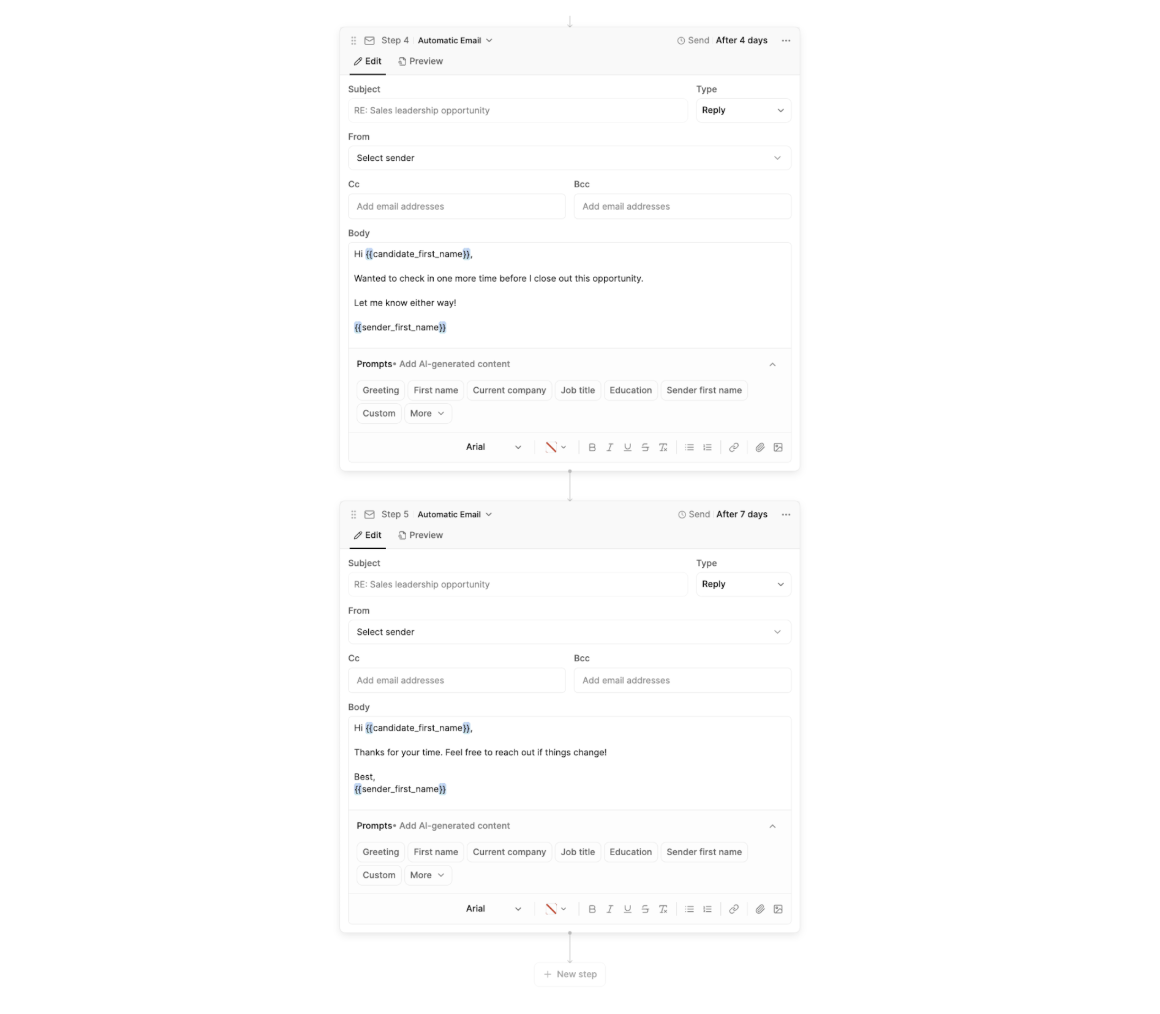
- Step type: Choose between a
new thread(sends a fresh email) or areply(continues the thread from a previous step). - Schedule: Set when the step should fire. Options include sending immediately, after a set delay (e.g. 3 days after the previous step), or on the next business day at a specific time.
- Choose between automated and manual steps
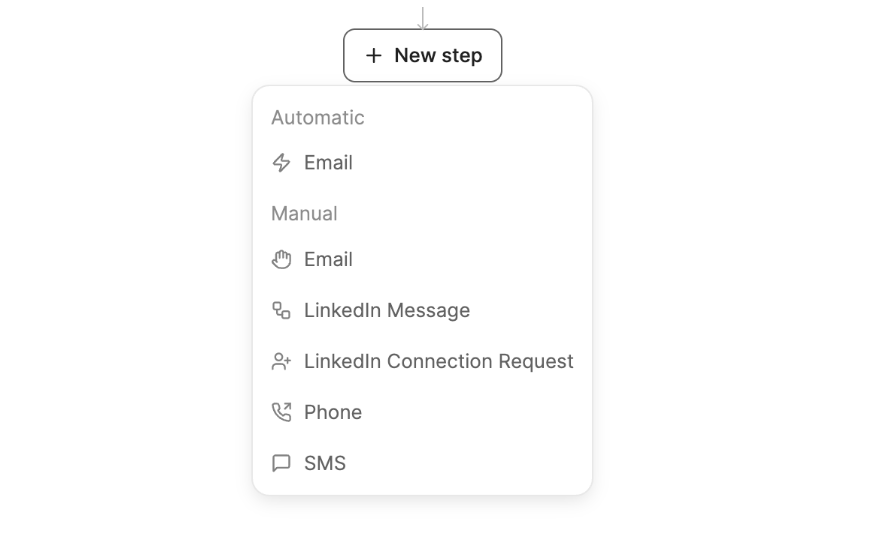
+ New step in the sequence builder, you’ll see two categories of step types:
- Automatic steps are executed by Metaview on your behalf at the scheduled time without any action required from you.
- Email: Sends a fully personalised email automatically. The AI fills in any variable placeholders using the candidate’s profile before sending.
- WhatsApp: Sends a fully personalised WhatsApp message automatically.
- Manual steps prepare the action and notify you when it’s ready. You review the content, make any edits, and complete the step yourself. This gives you full control at key points in your outreach, for example, a more tailored follow-up to a senior candidate or a personal LinkedIn message.
- Email: Drafts the email and alerts you when it’s ready to review and send manually.
- LinkedIn Message: Creates a reminder to send a message to the candidate. You’ll be notified when it’s time to action this step, with the candidate’s profile linked for quick access.
- LinkedIn Connection Request: Creates a reminder to send a connection request. This is a manual action with a notification prompt.
- Phone: Creates a reminder to call the candidate. The candidate’s phone number (if enriched) is shown alongside the step so you can dial directly.
- SMS: Creates a reminder to send a text message to the candidate.
- WhatsApp: Creates a reminder to send a manual WhatsApp message.
- Activating your sequence

- a sequence name
- at least one configured step
- the first email step set to New thread (not Reply)
- a subject line and body on every email step
- a sender with a connected email account
- Track replies and manage candidates
Additional Features
- Send on behalf of others: If you’re managing outreach for a team, you can configure sequence steps to send emails from another user’s email address. The recipient sees the other person as the sender, which is useful when a recruiter manages outreach on behalf of a hiring manager or colleague. The person whose email you want to send from must first grant you permission in their Sequences Settings.
- Permissions and visibility: By default, users can only see their own sequences. Admins can view all sequences across the workspace. Any user can duplicate a sequence they have access to. Only the creator of a sequence can edit it, add or remove candidates, or change step content. Admins can view and duplicate but not modify sequences they didn’t create.
When Sequences Stop
Metaview is designed to stop outreach when it’s no longer needed, so you don’t have to manage every candidate manually. A sequence will automatically stop for a candidate when:- The candidate replies: The sequence is cancelled immediately. Metaview also classifies the reply as Interested, Not Interested, Follow Up, or Unknown so you can prioritise responses.
- A Calendly event is booked: If you have Calendly connected and a candidate books a call with you, the sequence stops. This is enabled by default and can be toggled per user.
- A Metaview session is scheduled: If a Metaview-captured interview is scheduled with the candidate, the sequence auto-cancels.
- An ATS event occurs: If the candidate is moved to a new stage or another qualifying event happens in your ATS, the sequence can auto-cancel.
- An email bounces: The sequence is paused (not cancelled) with the reason shown. You can update the candidate’s email and resume the sequence.
- Your email becomes disconnected: If your Gmail or Outlook OAuth token expires or is revoked, active sequences are paused until you reconnect. See Gmail for Sequences or Outlook for Sequences for how to reconnect.
Tracking and Metrics
Metaview tracks five metrics for each email step in a sequence:- Sent: the email has been dispatched from your Gmail or Outlook account.
- Delivered: the recipient’s email server accepted the message.
- Opened: the recipient first open of the email (tracked via an invisible pixel).
- Bounced: the email couldn’t be delivered. The candidate’s sequence is paused automatically and you’ll be notified.
- Replied: the candidate responded. The sequence is cancelled, and the reply is tagged as Interested, Not Interested, Follow Up, or Unknown.
- Interested: a reply is automatically tagged is positive. Candidates are also tagged if a Calendly event or Metaview session is scheduled, or a qualifying ATS event occurs.
Troubleshooting
My emails are stuck on “Sending…”
This occasionally happens with the first step of a new sequence. Try pausing the affected candidates and then resuming them — this usually clears the stuck state. You can filter by “Has email” → “Yes” to quickly find who needs resuming.My sequence blocked, and what can I do?
A sequence may be blocked if the candidate is missing an email address or phone number, or if the connected email or WhatsApp account is disconnected. Click the warning badge to add the missing information, reconnect the account, or skip the blocked step and continue the sequence. Skipping moves the candidate to the next step in the sequence, such as moving past an unavailable email step to WhatsApp. You can also selectSkip Current Step from the candidate’s row menu. Skipped steps are recorded in the activity history, including who skipped them and why.