

How AI Application Review Works
To start a review, open Metaview, click Application Review in the sidebar, and select a role from your ATS.- Select a role and stage You will see a list of open roles pulled from your connected ATS. Pick the role you want to review, give it a name, then choose which pipeline stage to pull candidates from. This defaults to the Application Review stage, but you can select any stage. As part of setup, you can also optionally configure how rejections are handled:
- Default rejection reason: Select a reason that will automatically be applied in your ATS when candidates are rejected. This helps keep your data consistent and saves time during review.
- Rejection email: Choose which email template to send to candidates when rejecting them. These email templates will come straight from your ATS. This allows you to tailor communication based on stage or role. If no email is selected, no automatic rejection email will be sent.
- Add documents To make the review more precise, you can attach a job description or other role documents. This step is optional but recommended. The extra context helps Metaview generate a more complete and accurate Candidate Profile, so you can move faster through setup.
- Refine the Candidate Profile Using your job description and any attached documents, Metaview will generate a draft Ideal Candidate Profile (ICP) that summarizes the key requirements: experience, skills, education, red flags, and positive signals. Edit as needed and once it looks right, click
Start Reviewing.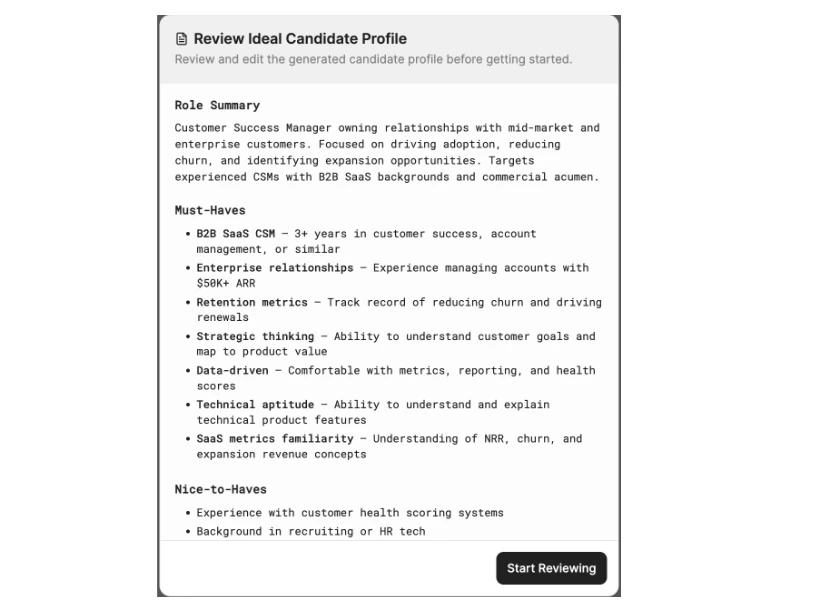
You can write the ICP in plain language. If you want to weight certain criteria more heavily, just say so (for example, "Python experience is a hard requirement and should be weighted above all other criteria"). The AI reads the ICP the same way a human would.
- Review candidates Once you accept the Candidate Profile, Metaview pulls all candidates from the selected stage in your ATS and classifies each one individually against the ICP. Each candidate gets written reasoning covering their strengths, gaps, and an overall match category:
- Strong match: Closely aligns with the ICP across key criteria
- Good match: Aligns with most requirements, with some gaps
- Partial match: Some alignment, but notable gaps remain
- Low match: Limited alignment with the ICP
- Inconclusive: No CV was uploaded, the file was corrupted, or the resume could not be parsed These ratings are intended to support — not replace — your review. The written reasoning behind each rating is provided so you can apply your own judgment and context when assessing candidates.
- Provide feedback to refine results As you review, mark candidates as
Yes/Maybe/Noand add feedback. After a few ratings, you can choose to refine your search — Metaview uses your input to adjust how candidates are evaluated, so the results better reflect what matters to you. You can also edit your Candidate Profile or create a new one at any point. When you do, Metaview re-evaluates candidates against the updated profile. - React to potential candidates Once you have identified the right people, you can take action directly from Metaview:
- Progress candidates: move them forward to the next stage in your ATS
- Reject candidates: reject them in your ATS, with a rejection email sent using the template you configured during setup You always make the final call. Metaview never auto-rejects anyone.
Ingesting New Candidates
When new applications come in through your ATS, they are picked up and evaluated against your current Candidate Profile. New candidates appear alongside your existing pool with the same written reasoning and match ratings, so your review stays up to date without starting over.Reviewing Application Integrity
Recruiting teams increasingly deal with fraudulent, automated, or low-effort applications. Application Review helps you spot them by automatically checking each submission for signs of inauthentic or automated activity. These checks are performed solely on the application materials themselves. Signals fall into two categories:- Consistency signals — whether details within the application are complete and internally consistent.
- Automation signals — whether the application shows signs of being submitted through an auto-apply service or contains templated, low-effort content.
Pausing and Managing Reviews
You can stop an Application Review either temporarily or permanently, depending on your needs. If you pause a review, Metaview will stop evaluating new candidates. When you resume, all candidates currently in the selected ATS stage who have not yet been evaluated will be processed — including those who applied during the pause. This may use credits for all newly accumulated candidates. Candidates who were progressed or rejected in your ATS while the review was paused will not be re-evaluated. If you want to stop reviewing candidates entirely, there are two options depending on your situation. To prevent new applications from being processed, close or unpublish the role in your ATS (e.g. Greenhouse, Ashby), which stops new candidates from entering the pipeline. If the role is complete and no further review is needed, you can delete the Application Review in Metaview. Deleted reviews are archived and no longer consume credits.Using Best practices
We understand you may have questions about best practices when using Application Review. We’ve put together a guide for your team covering how to set up effective ICPs, review match categories, and stay aligned with compliance expectations — take a look here.Application Review Credits
Application Review Credits are used to evaluate candidate applications directly from your ATS, with one credit used per application. Credits are shared across your workspace. Metaview may provide a limited number of free credits that renew monthly. Paid or Enterprise allowances may vary by plan or contract. Unused monthly credits do not roll over, but purchased top-up credits remain available for a limited period. You can view your team’s available credits, renewal and expiry dates, and usage from Application Review → Credits. If your workspace runs out of credits, active application reviews will pause until you purchase more credits or your monthly credits renew. Please note that Credits are non-refundable.Troubleshooting
My candidate count doesn’t match my ATS
It’s normal for the number of candidates in an Application Review to differ from the number you see in your ATS. Common reasons include:- Stage and role scope — a review pulls candidates from one specific stage of one role. If you compare it against a different stage, or your ATS’s whole-pipeline view, the totals won’t line up.
- Merged duplicates — when the same person applies more than once, Metaview merges them into a single candidate.
- Multiple applications from one person — a candidate with several applications is counted once.
- Anonymised candidates — candidates whose personal data has been anonymised in your ATS (for example, after a data-retention period) aren’t synced, so they don’t appear.
- Restricted or confidential candidates — private, confidential, or otherwise restricted candidates in your ATS aren’t synced.
- Sync timing — new applications and recent changes in your ATS can take up to ~30 minutes to be reflected in Metaview.
These differences are expected and don’t mean candidates are missing. If your numbers still look off after accounting for the above, contact support with the role name and workspace so the team can take a look.