

Connect with Claude
Metaview is an official connector in Claude (Anthropic). This is the easiest way to get started.- Open Claude and go to Settings > Connectors.
- Search for Metaview in the connector directory.
- Click Connect and sign in with your Metaview account.
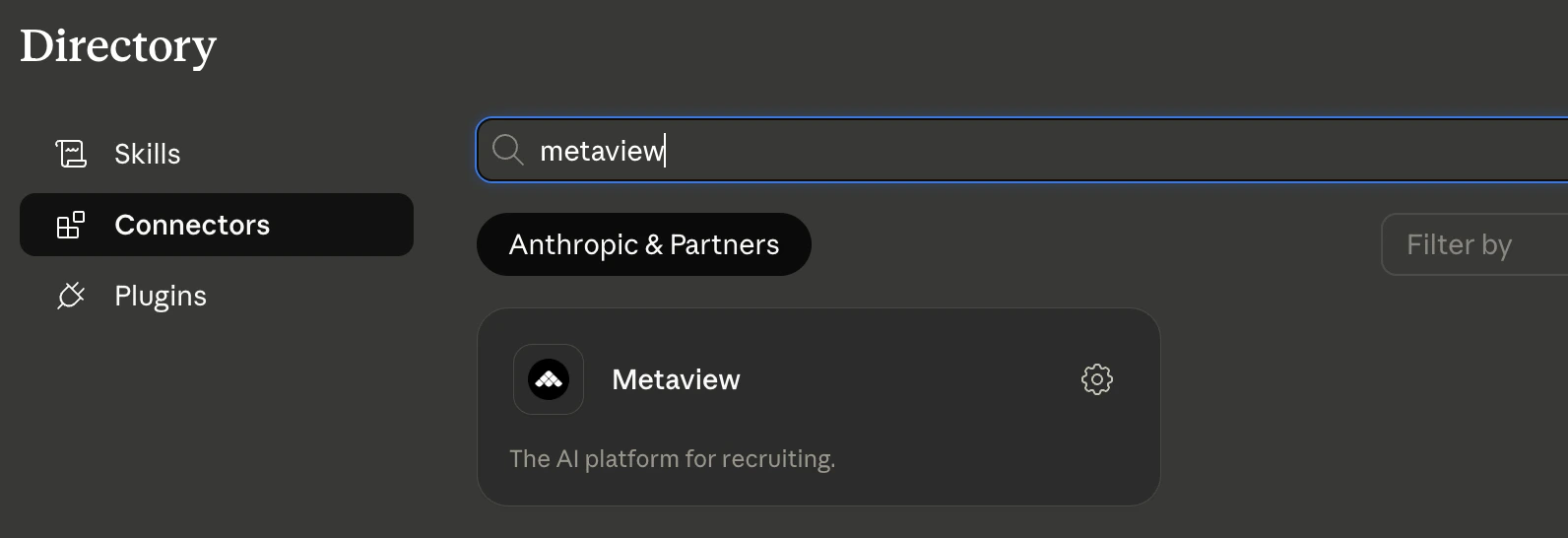
Search for the Metaview connector from your company's Claude account.
This works with Claude.ai (web), Claude Desktop, and Claude mobile apps — anywhere Claude supports connectors.
Connect with ChatGPT
Metaview is available as an official ChatGPT app powered by Metaview’s MCP server. This is the easiest way to connect Metaview to ChatGPT (OpenAI).- Open ChatGPT and go to the Apps section.
- Search for Metaview in the Apps catalogue.
- Click Connect and sign in with your Metaview account.
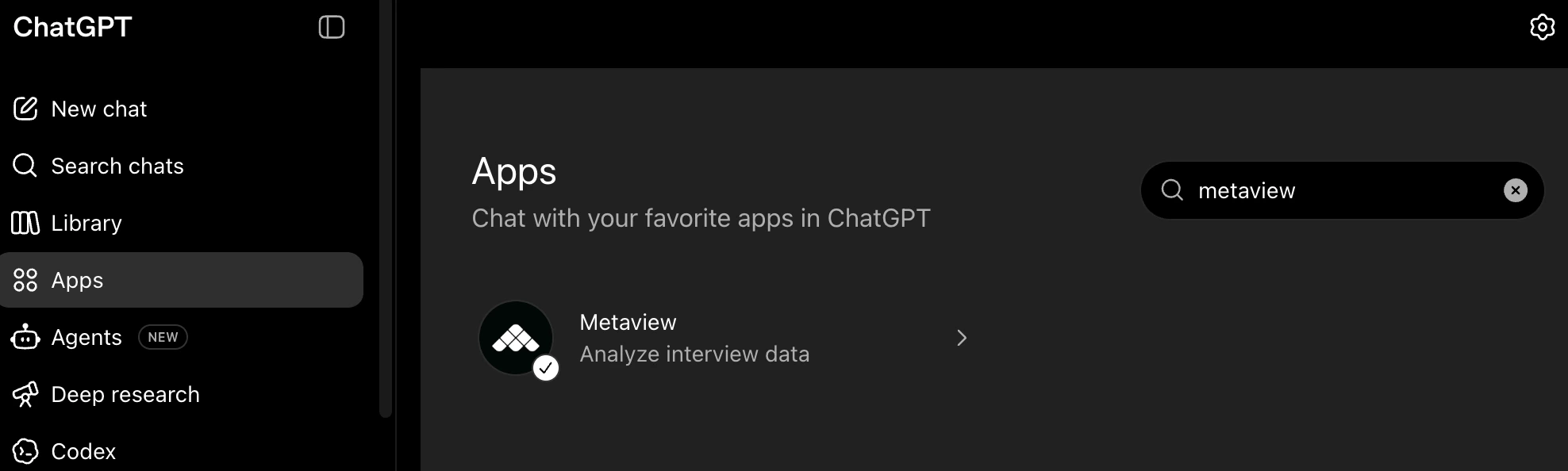
Search for the Metaview app from your company's ChatGPT account.
Connect other MCP clients using OAuth
Most MCP-compatible clients support OAuth authentication. This is the simplest way to connect — no API key needed. 1. Add the Metaview MCP server URL to your client Add the following to your MCP client configuration:claude_desktop_config.json under the "mcpServers" key. In Cursor, add it to your MCP settings. Refer to your client’s documentation for the exact location of MCP server configuration.
2. Sign in with your Metaview account
When your MCP client connects, it will open a browser window prompting you to sign in with your Metaview account. Once authenticated, your client can access your Metaview data.
3. Start using Metaview data in your AI tools
Once connected, your AI tool can access your Metaview interview data, summaries, and reports through the MCP integration.
Connect other MCP clients using an API key
If your MCP client does not support OAuth, you can authenticate using an API key instead 1. Navigate to the MCP integration settings in the Metaview app You can navigate to the MCP settings directly with this link, or navigate through the Integrations page. Toggle on “Use API Key instead of OAuth?” to access the API key management section. 2. Generate a new API key Click theGenerate API Key button. Give your key a descriptive name (e.g. “Claude Desktop” or “Cursor”) so you can identify it later. Copy the generated key immediately - you won’t be able to see the full key again.
3. Configure your MCP client
Setup varies depending on which MCP client you are using. Follow the instructions for your client below.
- Claude Desktop
- Cursor
- Other clients
If you use Claude, the easiest way to connect is via the official Metaview connector — see Connect with Claude above. The instructions below are for manual setup with an API key.
mcp-remote bridge via Node.js.Prerequisites: Download and install Node.js if you don’t already have it.- Open Claude Desktop and go to Settings > Developer > Edit Config.
- Paste the following into the configuration file, replacing
YOUR_API_KEYwith the key you copied in step 2:
- Quit Claude Desktop completely and reopen it.
Managing API keys
You can create multiple API keys, one for each tool or client you want to connect. Each key is named so you can easily identify which tool it belongs to. To revoke access for a specific tool, delete the corresponding API key from the MCP settings page. This immediately prevents that tool from accessing your Metaview data.Security
Metaview’s MCP integration is designed to provide secure, permissioned access to your Metaview data, with access governed by your existing Metaview account permissions.- OAuth sign-in uses your existing Metaview account credentials — no additional secrets to manage
- API keys are scoped to your personal Metaview account
- Both authentication methods can only access data you have permission to view
- You can revoke any API key at any time
FAQs
What is MCP (Model Context Protocol)?
We offer MCP as an optional way for you to access and work with your Metaview data using AI tools like Claude. MCP is an emerging standard that allows AI tools to securely connect to external systems, so if you choose to connect a tool, it gives you a new way to access and interact with your Metaview data. You can already access your data in Metaview through your browser, our MCP simply provides an additional way to work with that same data through your AI tools, such as asking questions, searching, or reporting.What can I use the Metaview MCP integration for?
Our MCP enables deeper analysis across your Metaview data. Examples include:- Searching across past conversations to find specific topics or responses
- Reviewing your conversation activity, including interview volume by role or over time
- Pulling together key points from recent conversations to prepare for a debrief
- Analyse Sourcing data, including search volumes
What data does MCP have access to?
MCP provides access to your data stored in Metaview, including:- Conversation transcripts
- AI-generated outputs such as Notes
- Metadata associated with your conversations (e.g. role, stage, interviewer)
- Sourcing data, including searches, surfaced candidates, candidate feedback, and sourcing activity/reporting metrics.
Who is this for?
This is best suited for:- Recruiting leaders and operations teams
- Power users who want deeper insights across interviews
- Teams using AI tools like Claude or ChatGPT for analysis
Is this secure?
Yes. MCP is designed to provide secure, permissioned access to your data.- Access follows your existing Metaview permissions — users can only access data they already have access to
- Data is only retrieved when you explicitly request it
- You control what queries are run and what data is shared with connected tools