

Clockwork API access is a premium feature. If you can’t see the API Keys section described below, contact your Clockwork account manager to have API access enabled for your firm.
Connect Clockwork to Metaview
Connecting Clockwork requires four values from your Clockwork account — your API Key, Secret Key, Firm Service Key, and firm slug. The first three are found together on the API Keys page; the firm slug is taken from your Clockwork URL. 1. Open your Clockwork profile In Clockwork, click your name in the top-right of the screen and select Profile.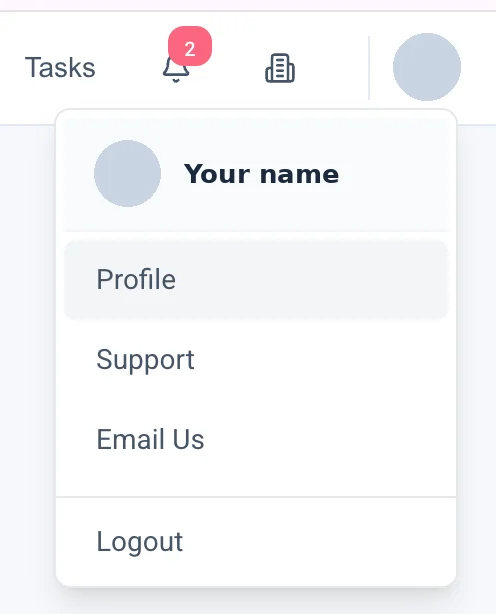
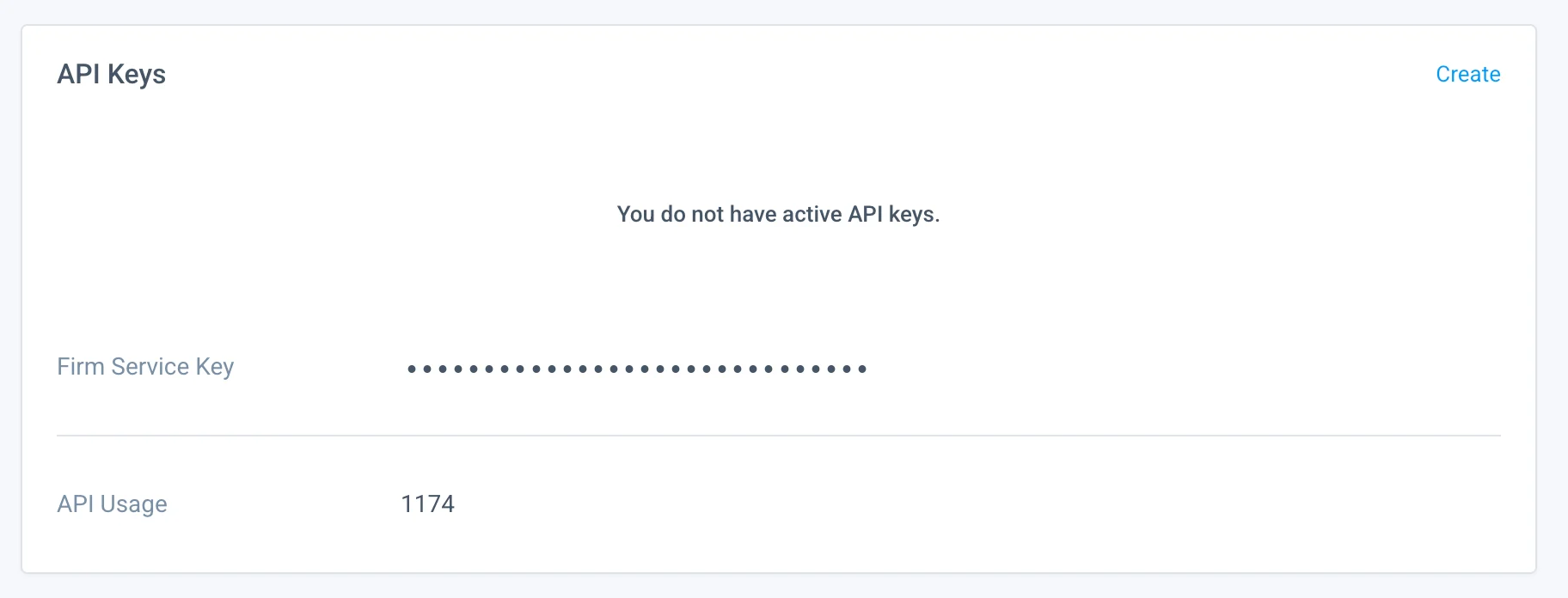
.clockworkrecruiting.com. For example, if you sign in at https://acme.clockworkrecruiting.com your firm slug is acme.
6. Enter your details in Metaview
Navigate to https://my.metaview.app/?settings=clockwork. If you haven’t previously signed in to Metaview, you will be prompted to do so. Enter your API Key, Secret Key, Firm Service Key and firm slug into the corresponding fields.
After entering all the above details, click the Test API Key button — if you have entered your details correctly the tests will pass, and you will be able to confirm your Metaview – Clockwork integration.
Permissions
Metaview uses this access to match your calls to the right candidate and role, enrich candidate profiles, keep your team in sync, and write Notes and other Metaview information back to Clockwork. Your Clockwork API Key, Secret Key and Firm Service Key authorize this connection as a whole — there are no individual permissions for you to select. This is a direct connection — no third-party integration partner is involved. Anything under Optional is only used by an individual feature — without it, the core integration still works.View list of permissions
View list of permissions
Required
- People (list and search)
- Projects
- Companies
- Users
- Create a note on a person
- Person emails, phone numbers, positions, tags, candidacies, statuses and notes
- Person attachments
- Create a person or candidacy, and write profile data
Clockwork keys are created all-or-nothing, so the optional access above is granted by the same keys. It is only exercised when you use the optional features it covers.
Features
Integrating your Clockwork CRM to Metaview unlocks the following features:- Employees sync
- Ability to post your Notes to your CRM with one click
- Data enrichment of candidate profile (e.g. name, job title, stage, location, CV)
- Automatic addition of links to Metaview notes in your CRM
- Use Sourcing to search through your CRM for potential candidates
- Add new candidates to your CRM that have been sourced
Clockwork logo to go to the matched entry in your CRM.
Troubleshooting
Although Metaview does not automatically schedule calls from Clockwork, Metaview will still attempt to match your calls scheduled by other means to the relevant entries in your CRM. The most common reasons why this doesn’t happen automatically are:- Call or candidate is missing in the CRM
- Duplicate candidates in the CRM
- Data mismatch between Metaview invite and information in your CRM (e.g. wrong participants, missing participant, wrong candidate)
- Insufficient information to match call or candidate (often occurs when using Inviting to an ongoing call or Upload recordings options)
- The meeting type is NOT set to Job interview or Debrief. Please see Call details for more information.
Please note that Metaview will not backfill data if you update information in your CRM after your call.
Disconnect your Clockwork integration
You can disable your Metaview integration directly from within your Metaview account underSettings → Integrations then select Disconnect Clockwork.
This immediately disconnects Metaview from your CRM data. Please note however that any calls that have already been scheduled may still go ahead. Please see Disabling Metaview for details on how to also make sure that the Notetaker bot doesn’t join any future calls.