

- Make sure to invite Metaview at least 15 minutes prior to the scheduled start time
- The calendar event needs to have a valid video conference link or phone number
- See additional details on Google Meet, Zoom, MS Teams, Webex and Phone setup and use
- At least one invited participant needs to have a Metaview account on a free plan or subscription.
- See Managing your Team for more details.
- The event organizer should be from your organization and associated with your company email domain. This is not required but strongly recommended, especially if you conduct video conference calls with other companies that also use Metaview.
- Manual scheduling is enabled in your workspace preferences.
The person who manually invites Metaview to a meeting doesn’t necessarily get access to the call transcript, recording, and notes. Please see Access for more information on who gets access to conversations.
Add Metaview to a calendar event
The easiest way to invite Metaview to capture your interviews is by manually adding Metaview using thenotes@bot.metaview.ai email as a guest on your upcoming calls in your calendar.
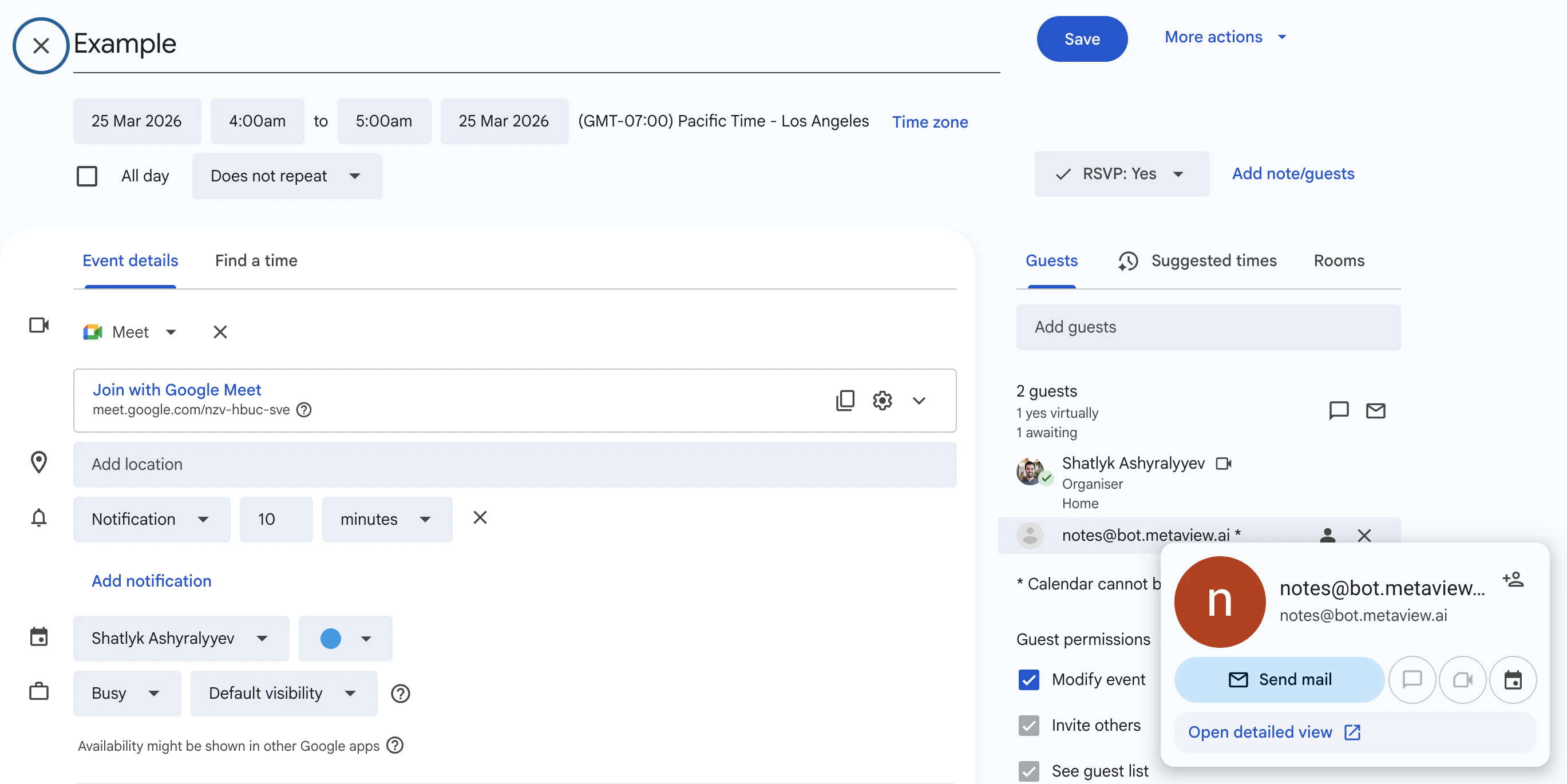
Send option when asked “Would you like to send invitation emails to Google Calendar guests?”. In Outlook, select Send update to attendees (or the equivalent option) to ensure the invite email is sent to Metaview.

When you add Metaview to a calendar event, you must choose the option to send the invite/update email. If you select “Do not send”, Metaview won’t receive the invitation, so it won’t know it’s been invited and your call won’t be scheduled.
Use the calendar widget
Once you have connected your Google Calendar or Outlook Calendar, you will see your calendar on your Metaview home page.Simply click Add on the event to invite Metaview.
When Metaview is invited using the calendar widget, the notes@bot.metaview.ai guest will not be added to your calendar event in Google Calendar or Outlook. Metaview will also not follow the calendar invite if it gets rescheduled. Adding notes@bot.metaview.ai to the calendar invite will ensure that we joined the rescheduled time.
Scheduling phone calls
In order to schedule your phone calls with Metaview, you first need to register your phone number as outlined in the Phone setup and use instructions.Metaview won’t automatically join your phone calls, even if you schedule them in advance.
Recurring meetings
You can manually invite Metaview to recurring calendar event meetings. Only the first upcoming meeting will initially show up in your Upcoming interviews list on your Metaview homepage. Subsequent events will show up shortly before they are about to start.Rescheduling events
If you have scheduled Metaview for an upcoming event by addingnotes@bot.metaview.ai and you reschedule the event, Metaview will try to join at the updated time automatically. Make sure you reschedule the event at least 30 minutes before the original scheduled time and select the option that will send a notification to participants (including Metaview). However, if you have manually scheduled Metaview using the calendar widget, Metaview will not automatically reschedule the call.