

Install the Metaview browser extension and sign in with your Metaview account. Your workspace must be connected to Workday. If the integration hasn’t been set up, ask your workspace administrator to follow the Workday integration guide.
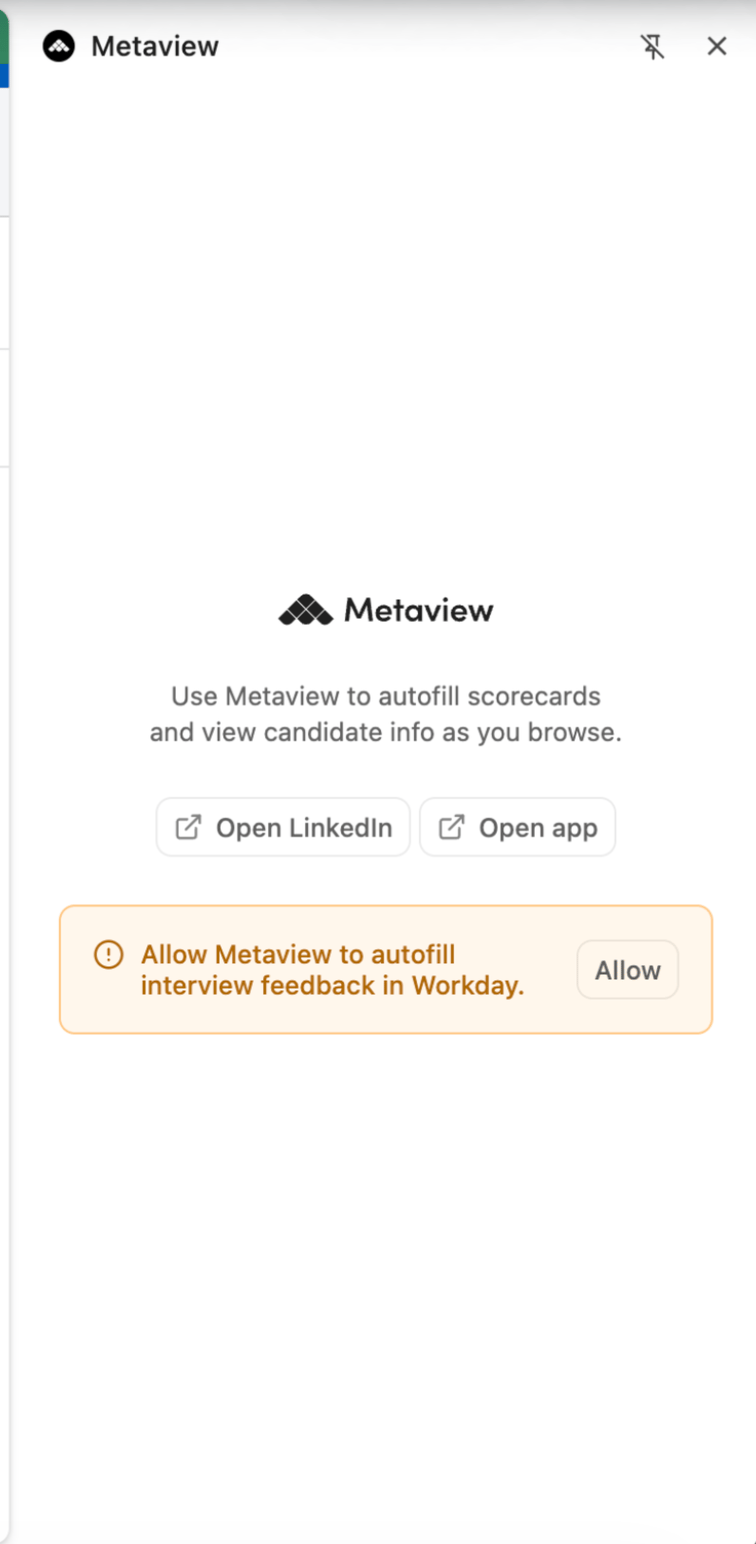
Open Workday and click the Metaview icon in your browser toolbar to open the side panel. On first use, you’ll see a prompt to allow Metaview to autofill interview feedback in Workday. Click
Allow and approve the browser’s permission request.
Open the
Give Interview Feedback task for the interview you want to complete. Once you’ve allowed Workday access, you’ll see a Metaview banner on the editable feedback form. This is where you select the conversation and start autofill.
Pick your conversationIn the Metaview banner, click
Pick a conversation from Metaview to open the side panel. Browse your conversations or use Search to find the relevant interview. Check that you’ve selected the conversation for the candidate and interview you’re writing feedback about.Click Autofill with Metaview
Click
Autofill with Metaview on the feedback form. Metaview uses the questions in your form and information from your selected conversation to draft objective answers, such as a summary of the candidate’s experience, skills, or technologies discussed.
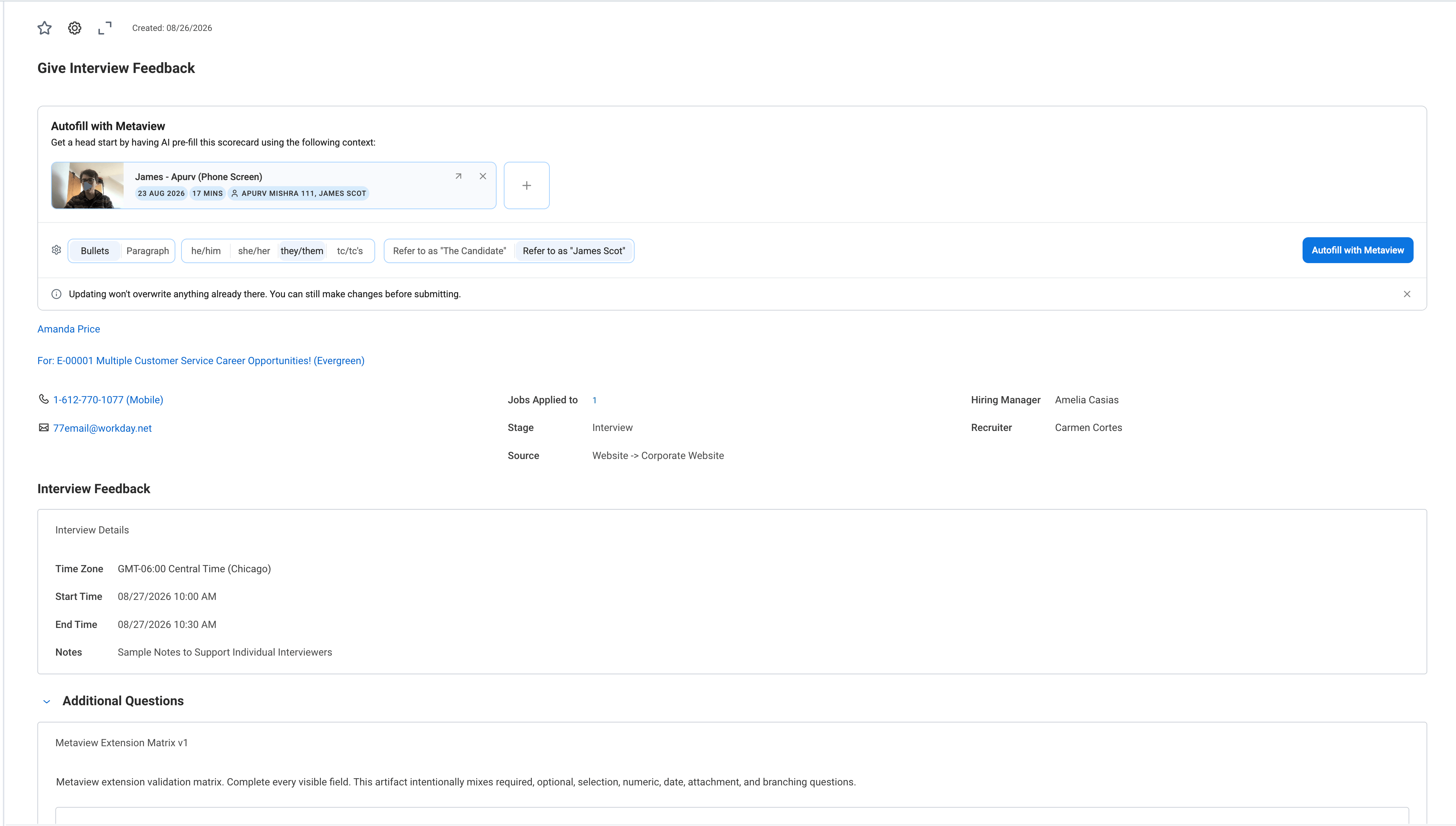
Your existing answers are preserved. If a multiline feedback field already contains text, Metaview adds its generated content below that text, separated by a divider. Existing selections and single-line answers are left unchanged. Review, personalize, and submit
Read through each autofilled answer and edit it as needed. Complete any remaining questions, select your
Overall Rating, and add your evaluation and hiring recommendation.
When you’re ready, save or submit the feedback using Workday’s controls. Autofill adds content to the form; it does not save or submit the feedback for you.