

What the extension does
The Metaview browser extension has three main capabilities:Scorecard Autofill
Side Panel - Session Browser & Transcript Viewer
LinkedIn Side Panel
Install and set up
Add Metaview to ChromeInstall the extension
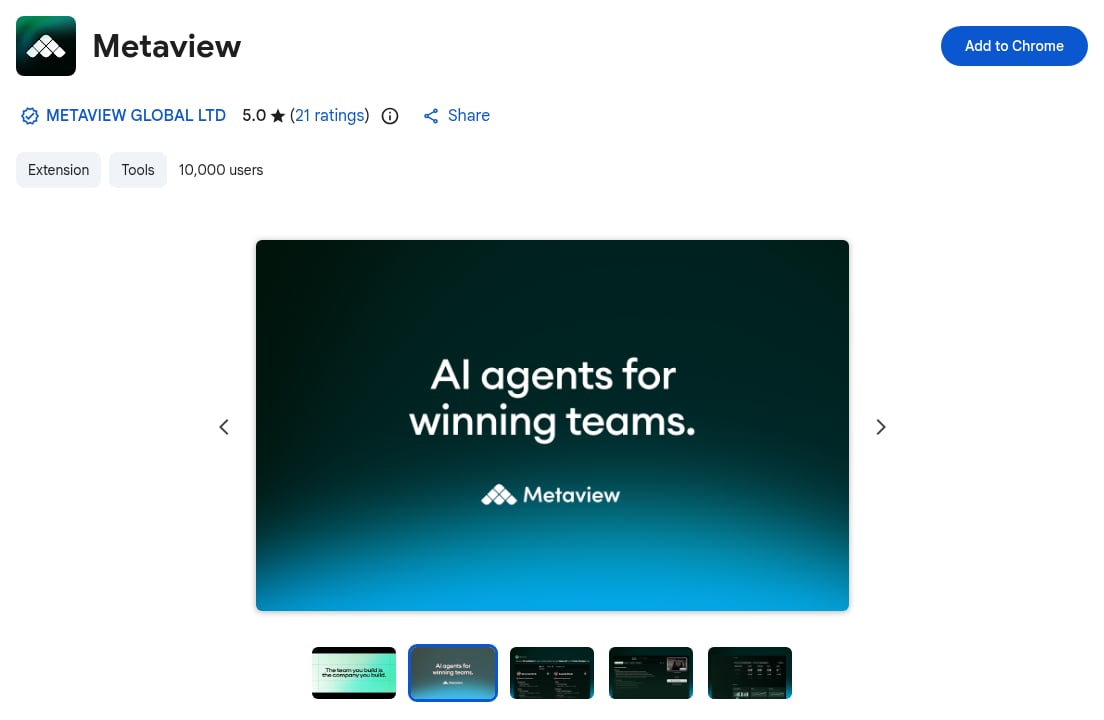
Go to the Chrome Web Store, find the Metaview extension, and click Add to Chrome, then Add Extension.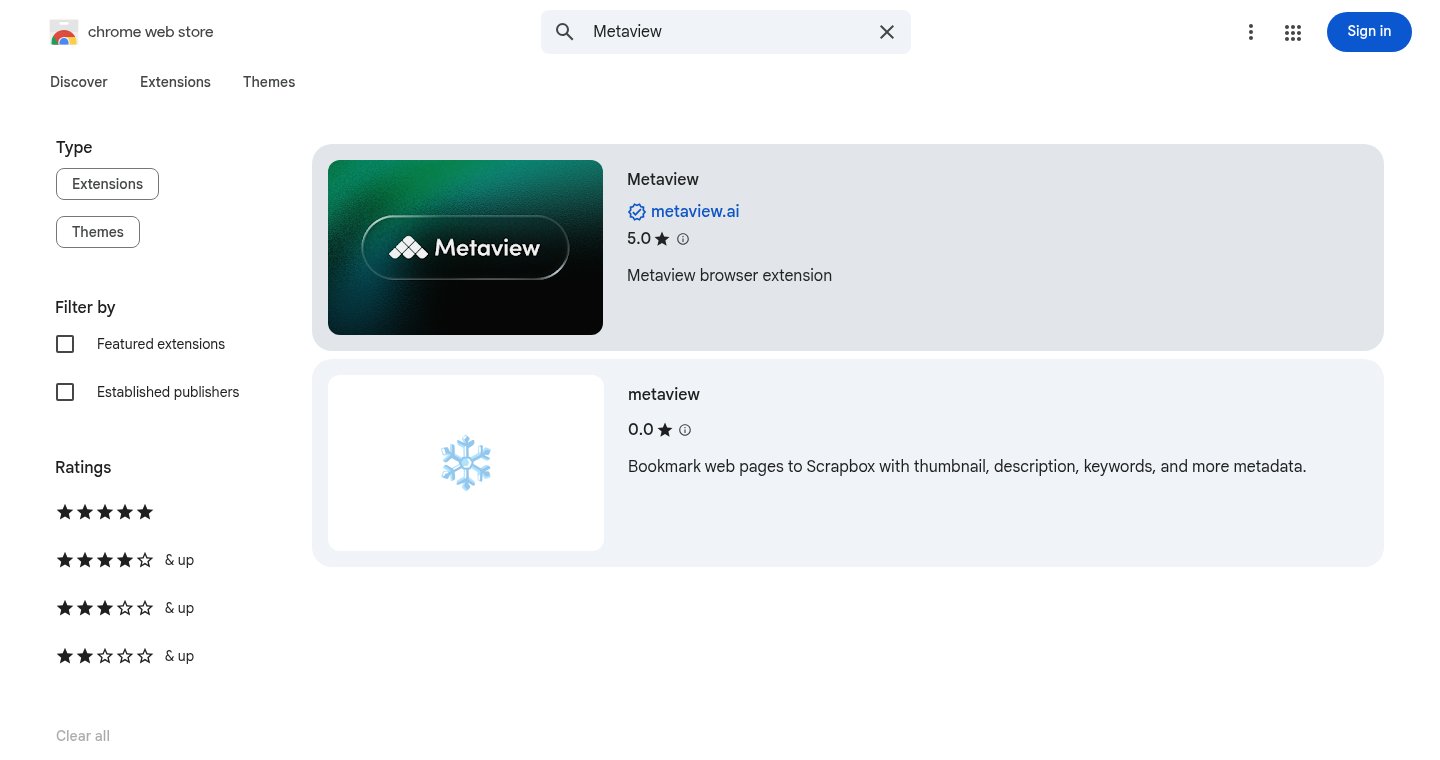
Pin it to your toolbar
Click the puzzle icon in your browser toolbar and pin the Metaview extension so you have easy access to it.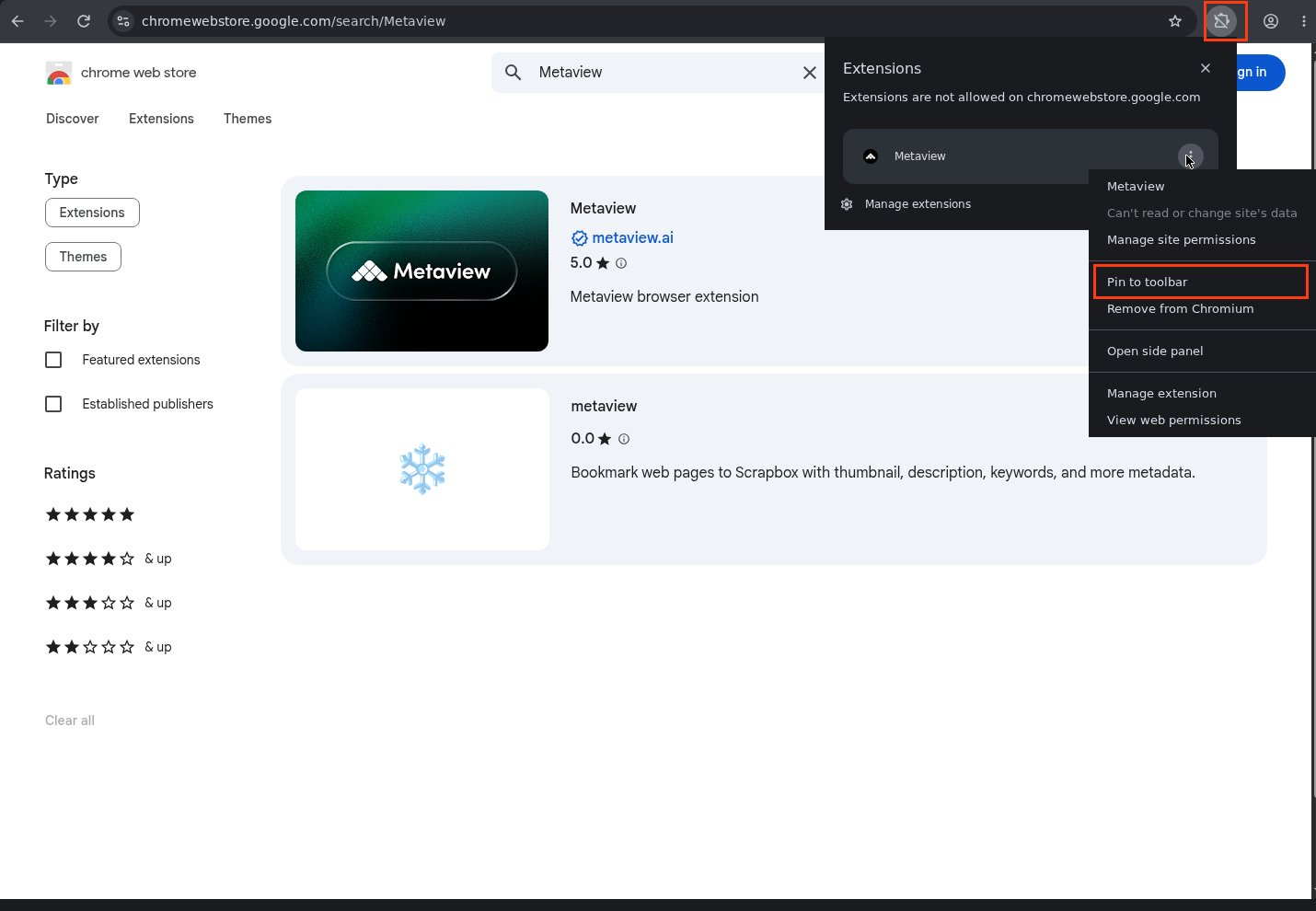
Log in
Click the Metaview icon to open the side panel. On first use, you’ll see a Log in button. Click it to sign in with your normal Metaview credentials. The sign-in window closes automatically once authenticated — no extra setup needed.Your ATS (Greenhouse or Ashby) must be connected in your Metaview workspace settings before the extension can autofill scorecards. If it’s not connected, the extension will prompt you to set this up.
Browser compatibility
The Metaview extension is a Chrome extension available from the Chrome Web Store. It is compatible with:- Google Chrome
- Microsoft Edge - install from the Chrome Web Store using the same steps