> ## Documentation Index
> Fetch the complete documentation index at: https://support.metaview.ai/llms.txt
> Use this file to discover all available pages before exploring further.
# Workday Browser Extension
> Metaview helps you complete Workday interview feedback by autofilling objective questions using your interview conversations.
**Before you start**
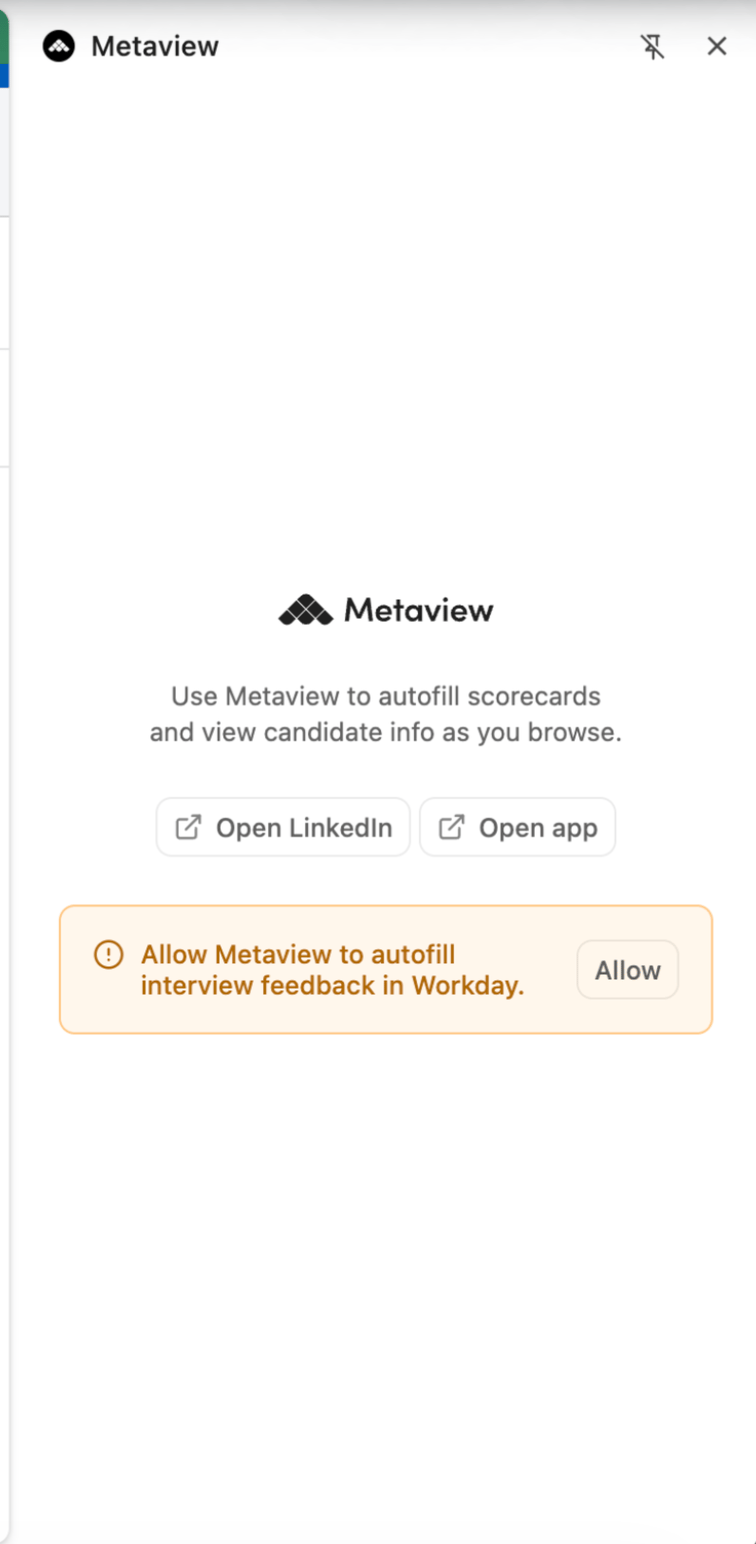
Install the [Metaview browser extension](https://support.metaview.ai/about-browser-extension) and sign in. Your Metaview workspace must be connected to Workday. Open Workday and click the Metaview extension icon. On first use, click `Allow` in the side panel and approve the browser’s permission request.
**Before you start**
Install the [Metaview browser extension](https://support.metaview.ai/about-browser-extension) and sign in with your Metaview account. Your workspace must be connected to Workday. If the integration hasn’t been set up, ask your workspace administrator to follow the [Workday integration guide](https://support.metaview.ai/integrations/ats-integrations/workday).
Open Workday and click the Metaview icon in your browser toolbar to open the side panel. On first use, you’ll see a prompt to allow Metaview to autofill interview feedback in Workday. Click `Allow` and approve the browser’s permission request.
 **Open your interview feedback task in Workday**
Open the `Give Interview Feedback` task for the interview you want to complete. Once you’ve allowed Workday access, you’ll see a Metaview banner on the editable feedback form. This is where you select the conversation and start autofill.
The browser extension only works on editable `Give Interview Feedback` tasks. It does not autofill other Workday pages or read-only feedback forms. Make sure you have opened a task where you can still enter feedback.
**Pick your conversation**
In the Metaview banner, click `Pick a conversation from Metaview` to open the side panel. Browse your conversations or use `Search` to find the relevant interview. Check that you’ve selected the conversation for the candidate and interview you’re writing feedback about.
**Click Autofill with Metaview**
Click `Autofill with Metaview` on the feedback form. Metaview uses the questions in your form and information from your selected conversation to draft objective answers, such as a summary of the candidate’s experience, skills, or technologies discussed.
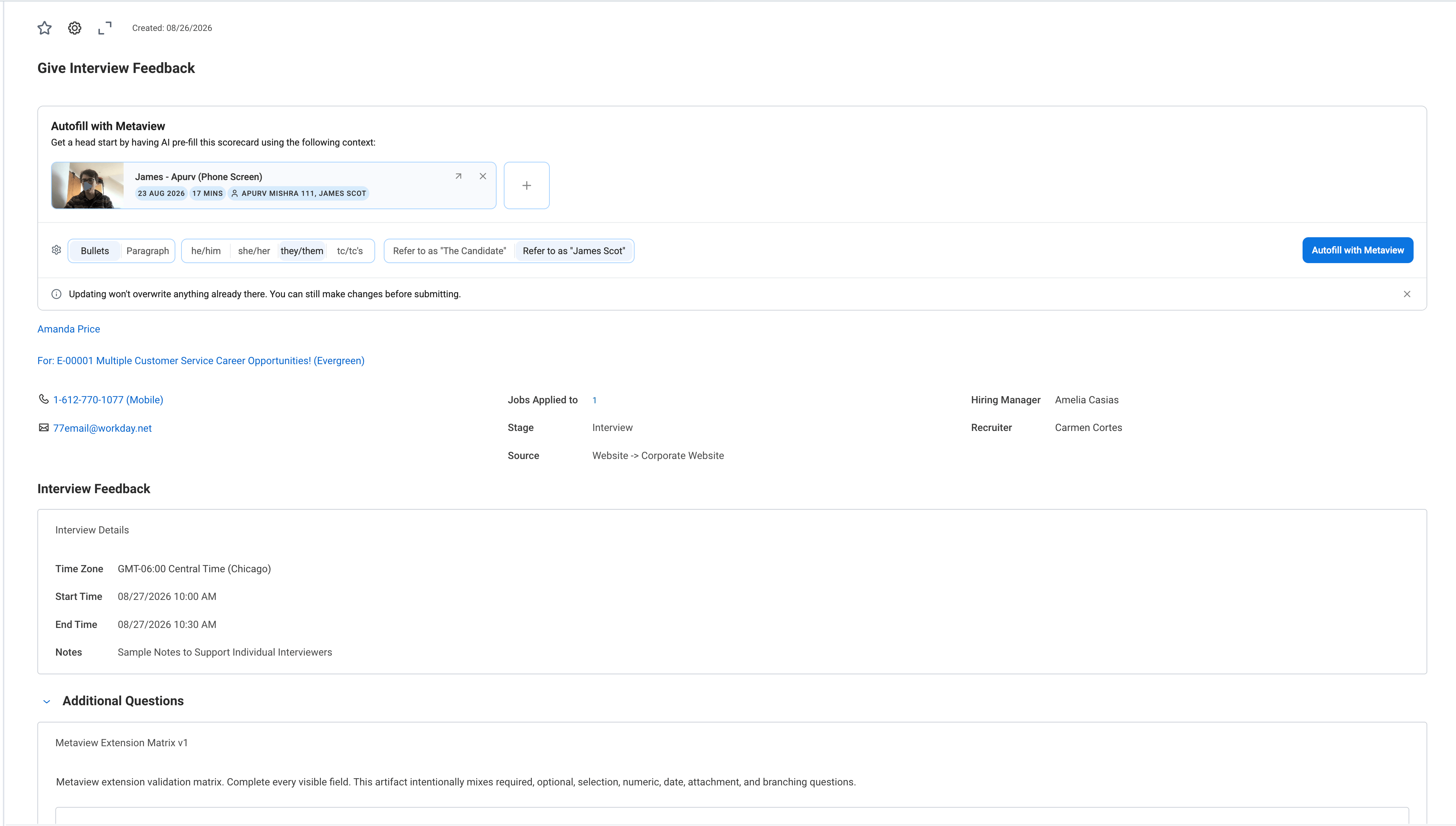 Questions that require your personal judgement are left for you to complete. A question may also remain blank if the conversation doesn’t contain enough relevant information.
Your existing answers are preserved. If a multiline feedback field already contains text, Metaview adds its generated content below that text, separated by a divider. Existing selections and single-line answers are left unchanged.
**Review, personalize, and submit**
Read through each autofilled answer and edit it as needed. Complete any remaining questions, select your `Overall Rating`, and add your evaluation and hiring recommendation.
Metaview doesn’t fill in `Overall Rating`, so be sure to select it yourself before submitting your feedback.
When you’re ready, save or submit the feedback using Workday’s controls. Autofill adds content to the form; it does not save or submit the feedback for you.
This documentation is built and hosted on [Mintlify](https://mintlify.com), a developer documentation platform.