> ## Documentation Index
> Fetch the complete documentation index at: https://support.metaview.ai/llms.txt
> Use this file to discover all available pages before exploring further.
# Call Details
> Manage and update call titles, participants, and properties
Metaview will automatically extract information from your calendar invite or your ATS.
## Updating the call participant's name
Metaview will automatically extract the candidate's name from the calendar invite or your ATS. You can add or correct any participant's, including the candidate's, name.
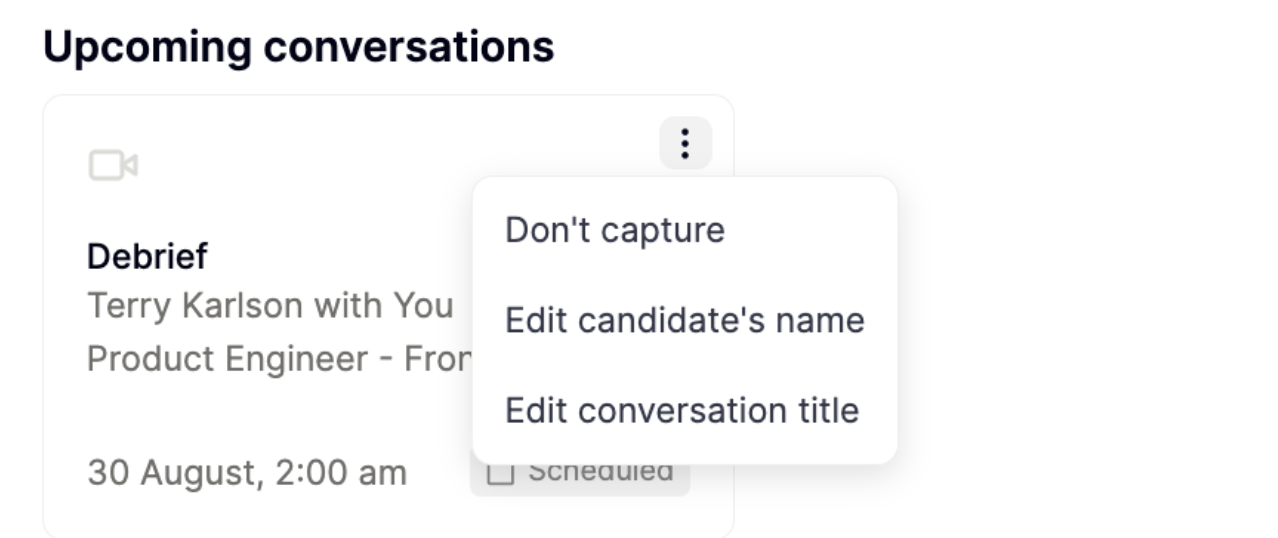
* Before the call, on your Metaview home page under **Upcoming Conversations,** click `⋮` (3 dots) and then `Edit the candidate's name`.
 * After the call, click on the recording tile in the top right-hand corner of your notes to open up the transcript, and under **Properties**, select `Participants` to view the list of people associated with the call. If you are using the legacy notes version, you will find this option under the **Information** tab. Click `Edit` on the participant to correct their name, and click `Done` to save.
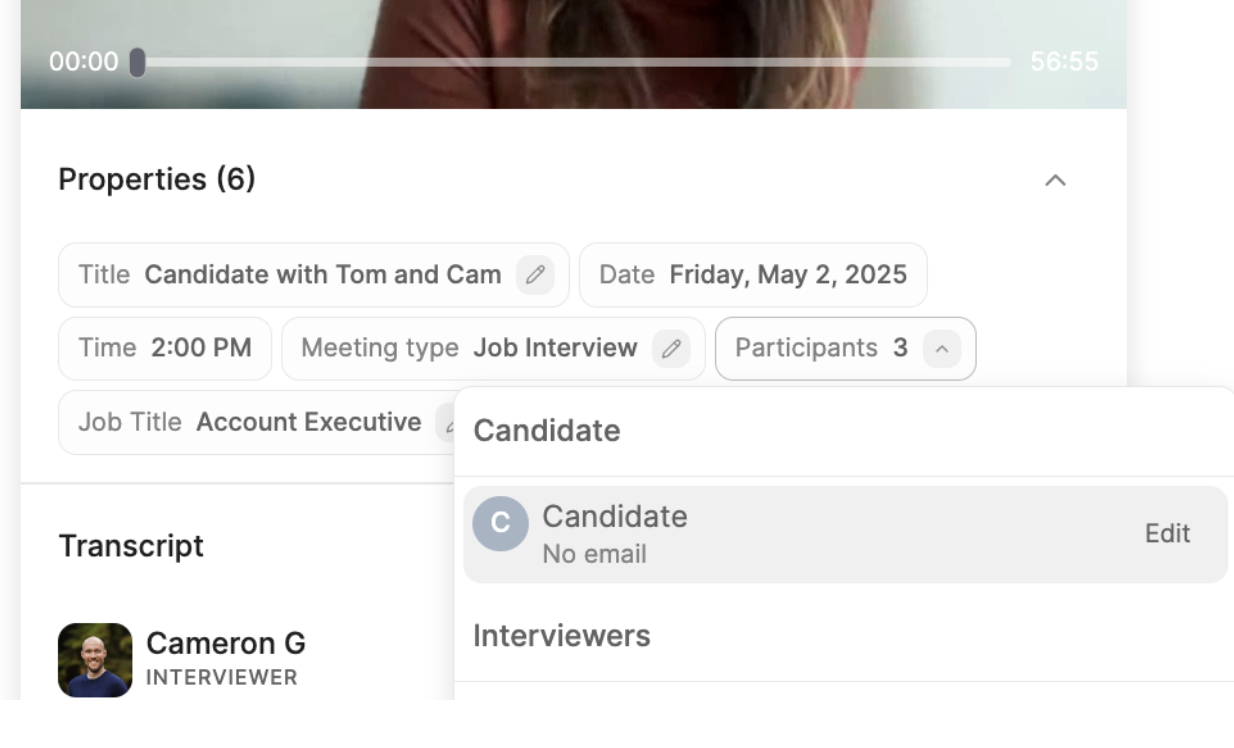 Click on `Participants`. Select the participant and click `Edit`.
This feature is **only for correcting misspelled or adding missing names.** Do not use this feature if you want to change the participant that was on the call. See Assigning participants for more details on how to change participant assignments.
## Adding or removing participants
To add a participant who did not speak on a call, click on the recording tile in the top right-hand corner of your notes to open up the transcript and view the participant list under the call **properties.** Click `on``Add others` to select the dropdown menu, or add a new user manually. If you add their email, they may get an email notification and access to the call on their Metaview account.
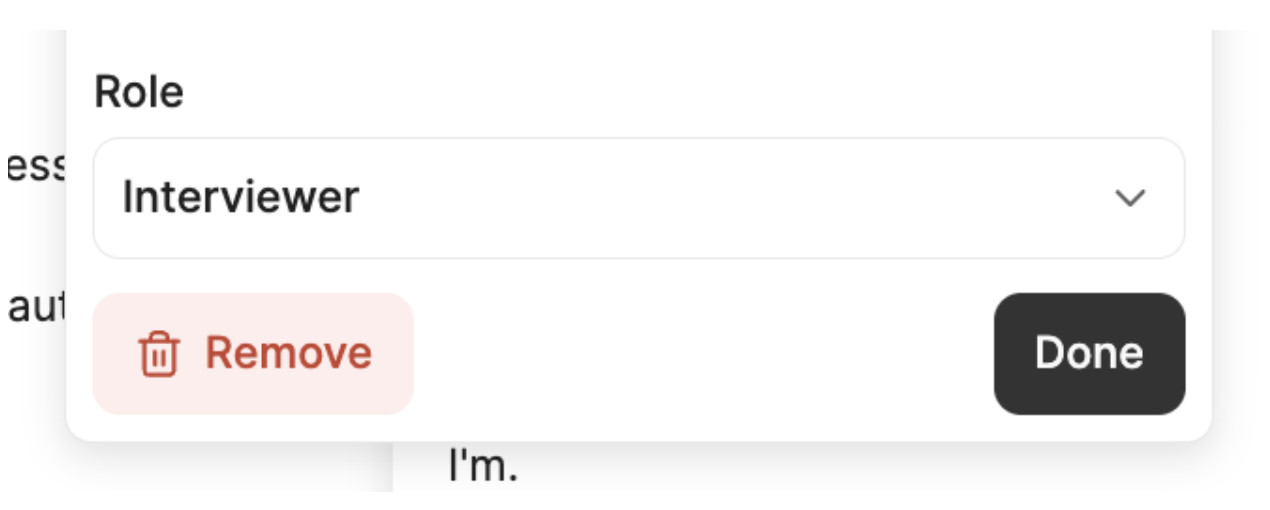
Alternatively, to remove a participant and revoke their access to the call, simply click on the user and select `Remove`.
Click on `Participants`. Select the participant and click `Edit`.
This feature is **only for correcting misspelled or adding missing names.** Do not use this feature if you want to change the participant that was on the call. See Assigning participants for more details on how to change participant assignments.
## Adding or removing participants
To add a participant who did not speak on a call, click on the recording tile in the top right-hand corner of your notes to open up the transcript and view the participant list under the call **properties.** Click `on``Add others` to select the dropdown menu, or add a new user manually. If you add their email, they may get an email notification and access to the call on their Metaview account.
Alternatively, to remove a participant and revoke their access to the call, simply click on the user and select `Remove`.
 ## Updating the call title
Metaview will automatically generate a call title for you. You can update a call title before or after the call.
* Before the call on your Metaview home page under **Upcoming Conversations,** click `⋮` (3 dots) and then `Edit conversation title`.
## Updating the call title
Metaview will automatically generate a call title for you. You can update a call title before or after the call.
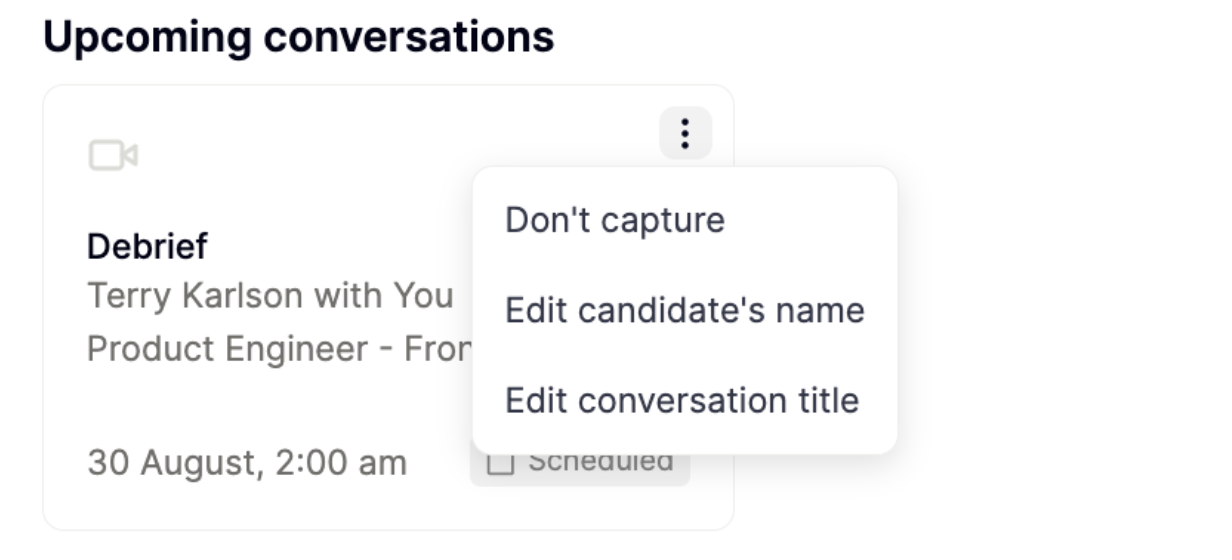
* Before the call on your Metaview home page under **Upcoming Conversations,** click `⋮` (3 dots) and then `Edit conversation title`.
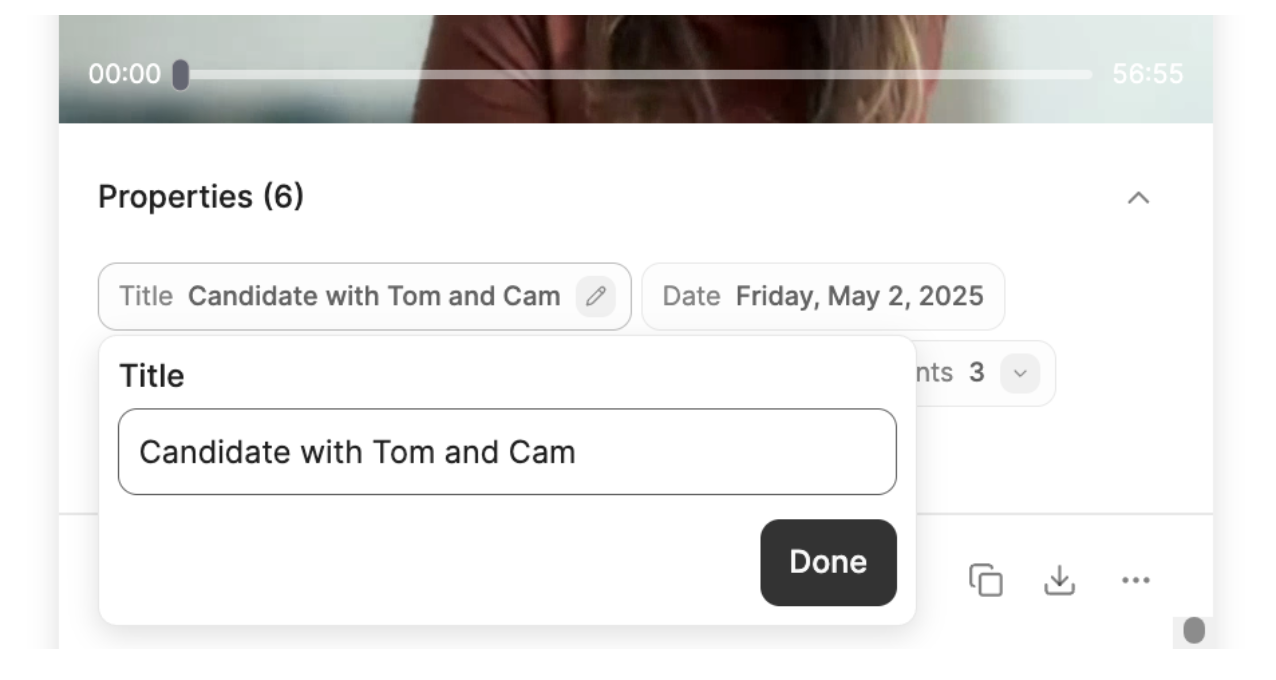
 * After the call, click on the recording tile in the top right-hand corner of your notes to open up the transcript and view the meeting title under the call **properties**. If you are still using the legacy notes version, you will find the option in the **Information** tab. Click `on``✏️` (pencil) to edit the current title of the conversation and `Done` to save.
 Only the **Job Interview** and **Candidate** **Debrief** conversation types automatically sync with your ATS. If you want to sync a conversation to your ATS, make sure that the correct conversation type is selected, and that your call details and/or candidate match the data in your ATS.
## Call properties
Call properties help you **organize, search, and filter your calls** more effectively. Metaview automatically fills in properties like candidate name, role, or interviewer using details from your calendar invites or ATS. You can also add **custom properties** on each call — for example, to tag a call with a specific project, team, hiring track, or campaign.
These properties make it easier to:
* **Group related calls** (e.g. by project or hiring round)
* **Search for specific calls** using filters on the Home page
* **Create dynamic reports** that automatically include calls matching certain criteria. See Reports for details.
Custom properties are especially useful if you want more control over how calls are categorized, or if you're not using an ATS integration. Custom properties can be a Date, Person, or Text field.
Only the **Job Interview** and **Candidate** **Debrief** conversation types automatically sync with your ATS. If you want to sync a conversation to your ATS, make sure that the correct conversation type is selected, and that your call details and/or candidate match the data in your ATS.
## Call properties
Call properties help you **organize, search, and filter your calls** more effectively. Metaview automatically fills in properties like candidate name, role, or interviewer using details from your calendar invites or ATS. You can also add **custom properties** on each call — for example, to tag a call with a specific project, team, hiring track, or campaign.
These properties make it easier to:
* **Group related calls** (e.g. by project or hiring round)
* **Search for specific calls** using filters on the Home page
* **Create dynamic reports** that automatically include calls matching certain criteria. See Reports for details.
Custom properties are especially useful if you want more control over how calls are categorized, or if you're not using an ATS integration. Custom properties can be a Date, Person, or Text field.
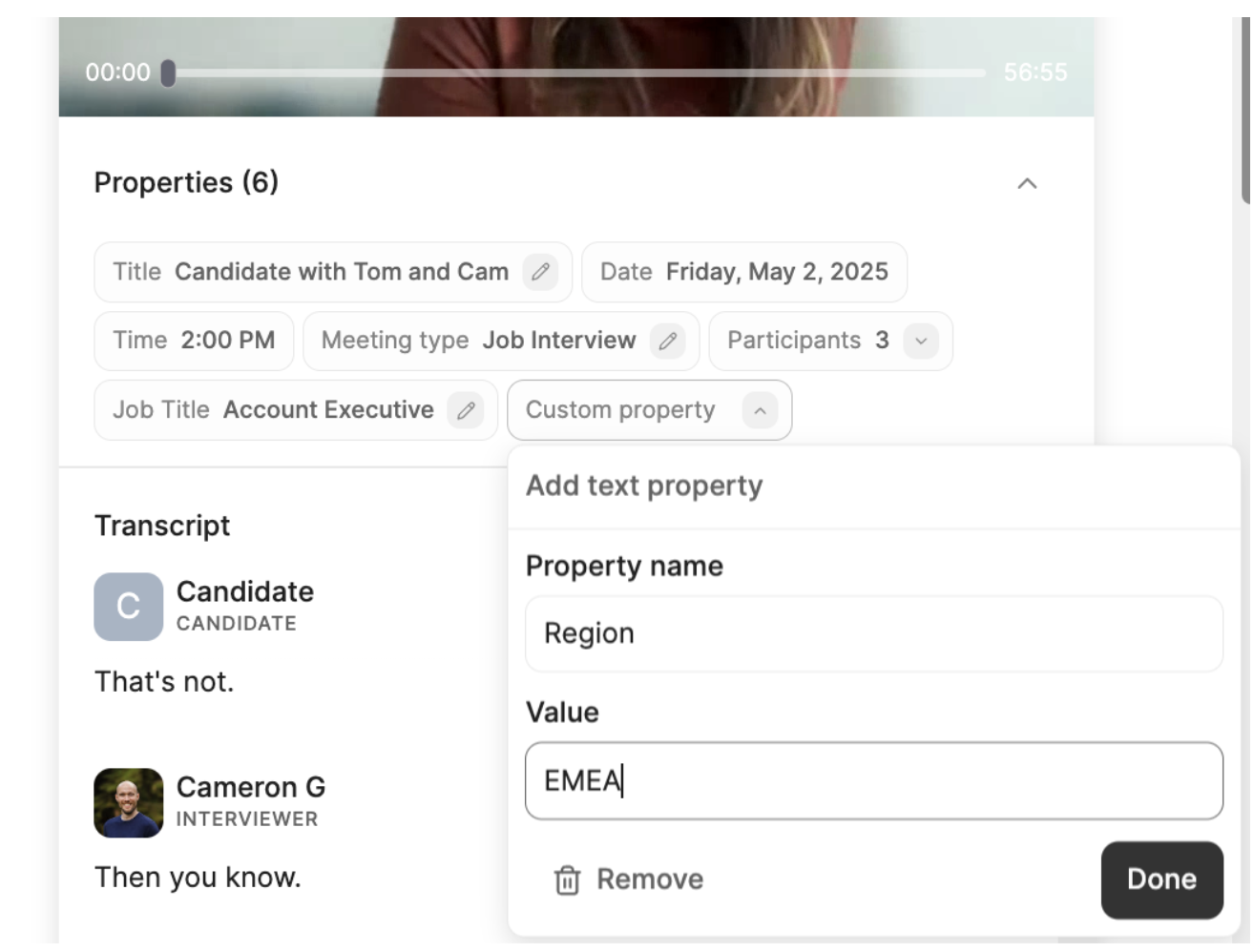 Under properties, click on `Add Property`. You can also edit or `Remove` certain properties as required.
## Meeting type
Metaview will automatically detect the type of conversation that was captured. The meeting type found in your properties helps Metaview generate better notes for you according to the conversation context:
* **Job interview:** For conversations with a job candidate.
* **Candidate debrief:** For internal debrief conversations *without* a candidate present.
* **Reference check:** For conversations with a candidate's reference *without* the candidate present.
* **Role intake:** For conversations between recruiters and hiring managers.
* **Other:** For all other types of meetings.
Under properties, click on `Add Property`. You can also edit or `Remove` certain properties as required.
## Meeting type
Metaview will automatically detect the type of conversation that was captured. The meeting type found in your properties helps Metaview generate better notes for you according to the conversation context:
* **Job interview:** For conversations with a job candidate.
* **Candidate debrief:** For internal debrief conversations *without* a candidate present.
* **Reference check:** For conversations with a candidate's reference *without* the candidate present.
* **Role intake:** For conversations between recruiters and hiring managers.
* **Other:** For all other types of meetings.
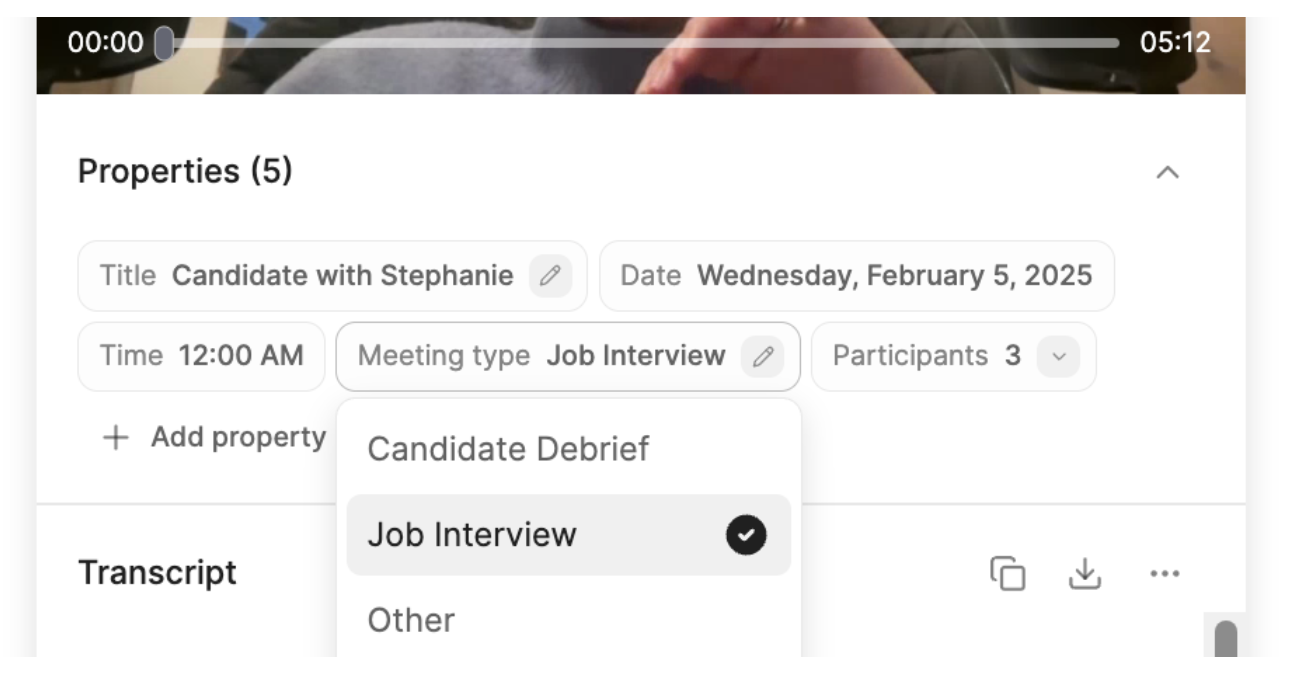 * Click on the` recording tile` in the top right-hand corner of your notes to open up the transcript and view the meeting type under the call properties.
Use the **Meeting Type** dropdown to change the meeting type. Please note that some meeting types may limit your ability to change pronouns or identifiers, or to sync your calls with your ATS.
* Click on the` recording tile` in the top right-hand corner of your notes to open up the transcript and view the meeting type under the call properties.
Use the **Meeting Type** dropdown to change the meeting type. Please note that some meeting types may limit your ability to change pronouns or identifiers, or to sync your calls with your ATS.