> ## Documentation Index
> Fetch the complete documentation index at: https://support.metaview.ai/llms.txt
> Use this file to discover all available pages before exploring further.
# Assigning Participants
> Learn how to assign roles and identify participants
Metaview automatically detects participants in your conversations and assigns their roles (interviewer or candidate) based on the calendar invite details. Occasionally, Metaview won't get all the details right or will not be able to identify a participant. This also applies if you invite Metaview using the Inviting to an ongoing call option. In those situations, you will be prompted to assign speakers in the transcript.
 ## Understanding roles
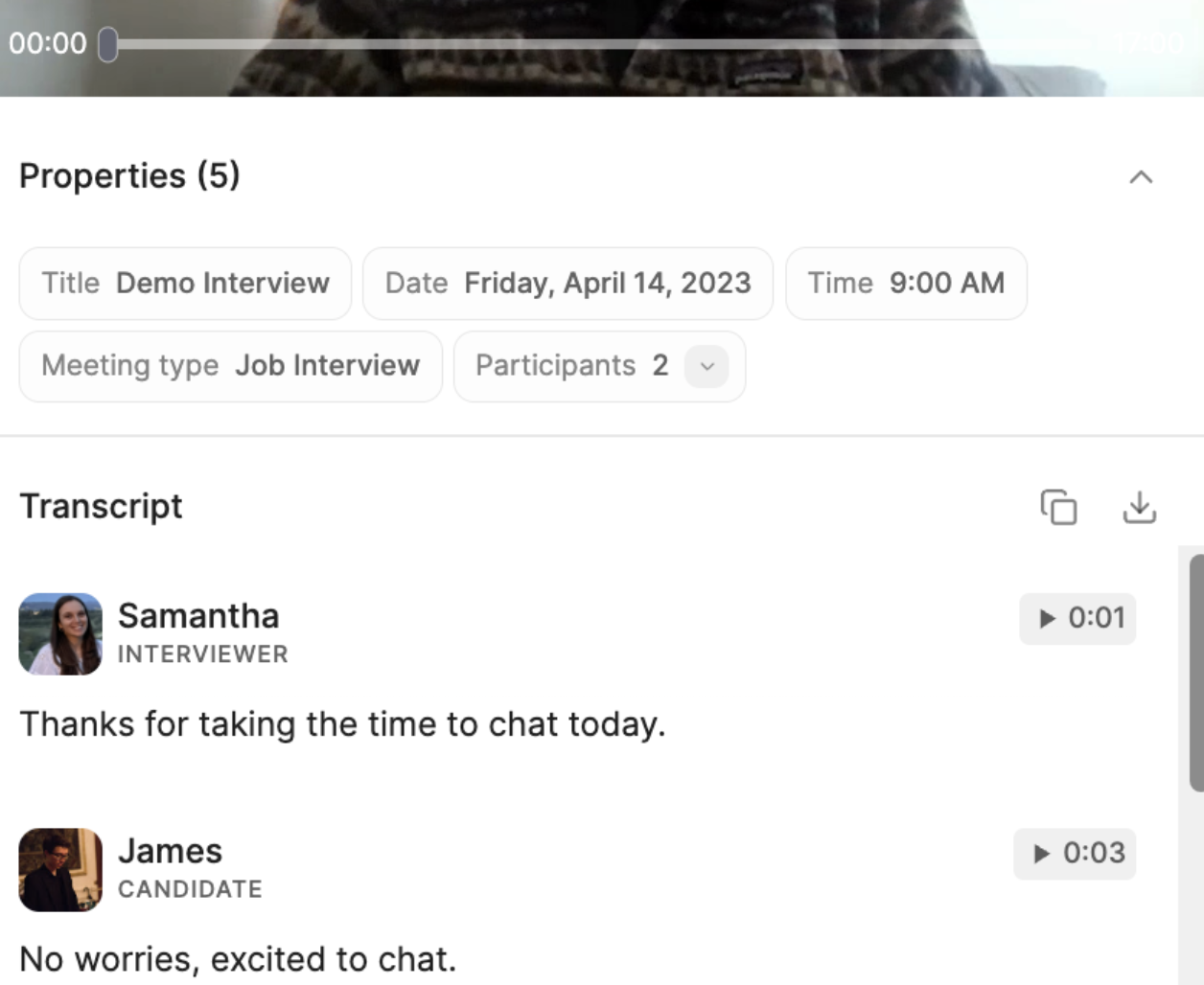
In a Metaview transcript, call participants can either have an "interviewer" or a "candidate" role.
* **Interviewer:** By default, anyone from inside your organization who is invited to a call is labeled as an interviewer. Interviewers receive email notifications and can access notes for their calls through their Metaview account.
* **Candidate:** By default, anyone from outside your organization who is invited to a call is labeled as a candidate. Candidates **do not receive** email notifications and **cannot** access notes for their calls, even if they have a Metaview account.
## Understanding roles
In a Metaview transcript, call participants can either have an "interviewer" or a "candidate" role.
* **Interviewer:** By default, anyone from inside your organization who is invited to a call is labeled as an interviewer. Interviewers receive email notifications and can access notes for their calls through their Metaview account.
* **Candidate:** By default, anyone from outside your organization who is invited to a call is labeled as a candidate. Candidates **do not receive** email notifications and **cannot** access notes for their calls, even if they have a Metaview account.
 See [Access](/using-ai-notes/notes-properties/access) documentation for more information on who has access to recordings, transcripts, and notes.
## Assigning a candidate
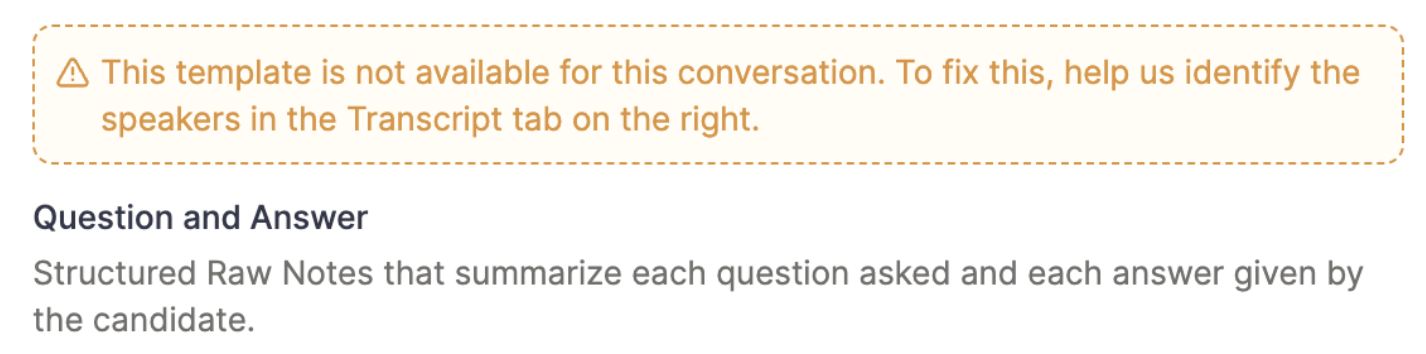
Assigning a candidate is required for the **Question and Answer** template and for the TLDR functionality. Both rely on what a specific call participant (the "candidate") said during the conversation, so that person needs to be identified.
See [Access](/using-ai-notes/notes-properties/access) documentation for more information on who has access to recordings, transcripts, and notes.
## Assigning a candidate
Assigning a candidate is required for the **Question and Answer** template and for the TLDR functionality. Both rely on what a specific call participant (the "candidate") said during the conversation, so that person needs to be identified.
 Call participants who should not receive email notifications or be able to access the call notes should also be labeled as candidates.
## Assigning unknown speakers
Click `on the recording tile in the top right-hand corner of your notes to open up the transcript`, where you will be able to identify speakers and assign roles.
1. Click `on the``✏️` (pencil) icon of the Speaker you want to correct, or on the Unknown Speaker you wish to assign.
Call participants who should not receive email notifications or be able to access the call notes should also be labeled as candidates.
## Assigning unknown speakers
Click `on the recording tile in the top right-hand corner of your notes to open up the transcript`, where you will be able to identify speakers and assign roles.
1. Click `on the``✏️` (pencil) icon of the Speaker you want to correct, or on the Unknown Speaker you wish to assign.
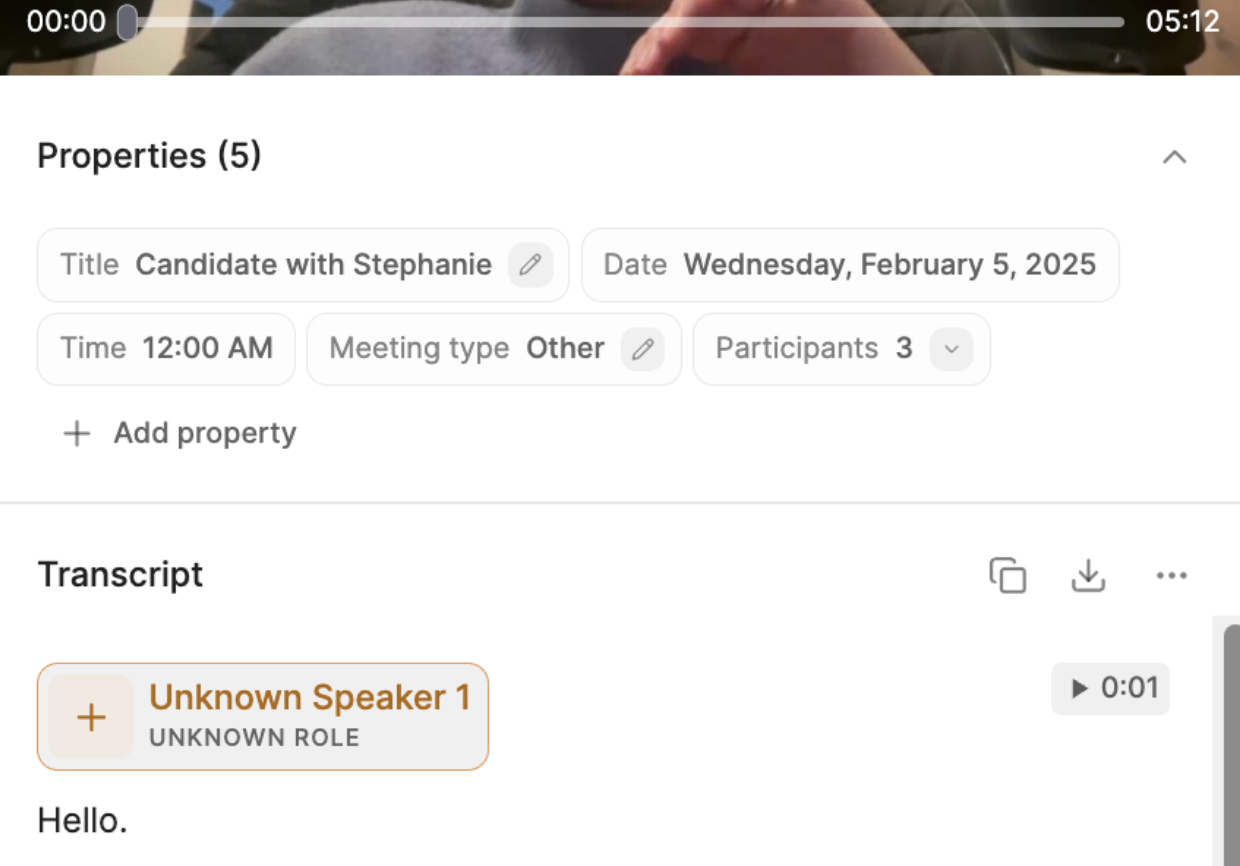 2. Identify the speaker from the list of attendees pulled from the calendar invite, or select another participant, and pick their role (`Interviewer`, `Candidate`) from the drop-down.
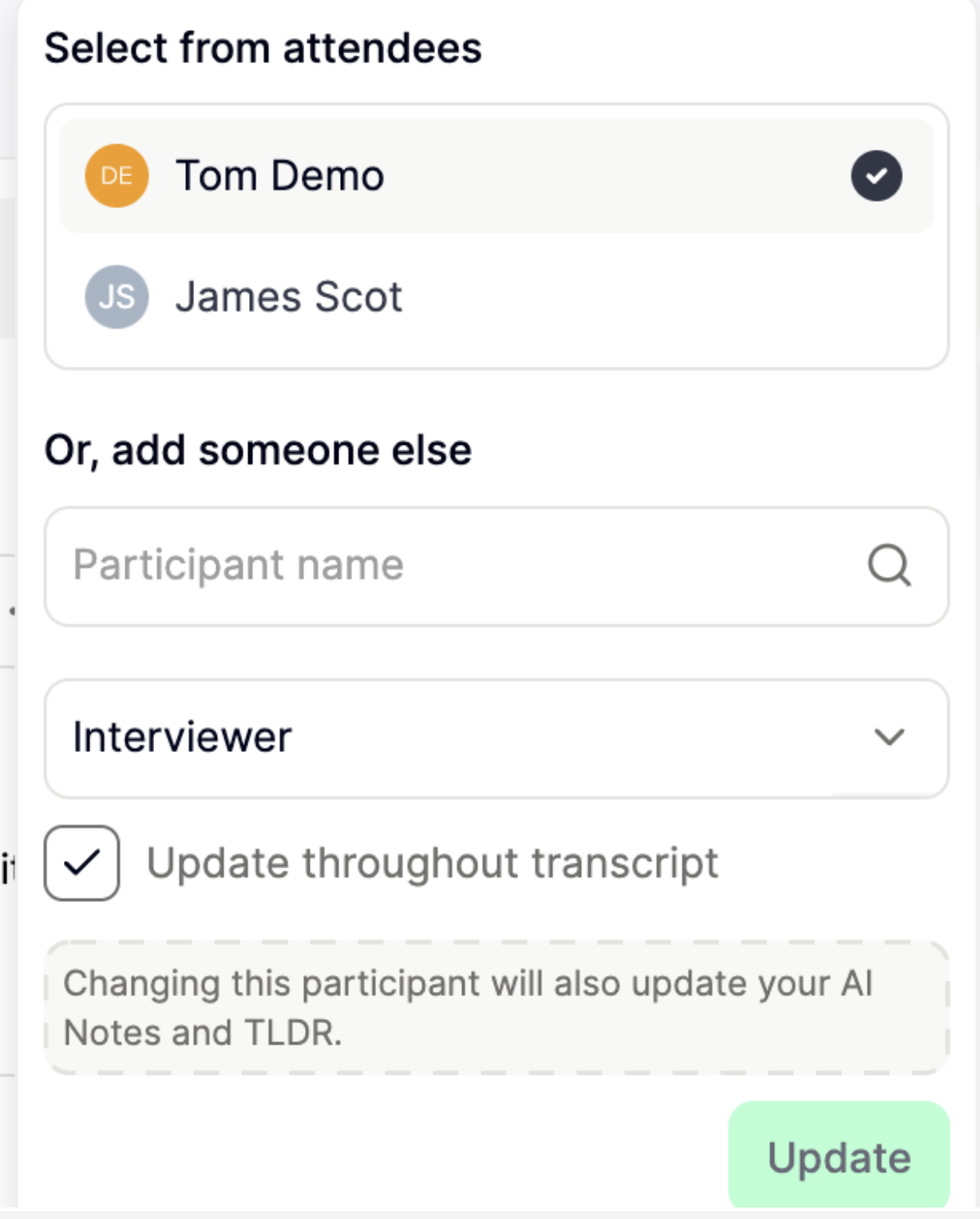 3. Click `Update` to save your changes. Notes will be reprocessed.
Any new **interviewers** you add to the transcript will immediately have access to the call notes.
## Correcting speaker assignments
You can correct existing speaker assignments in the transcript if you believe that Metaview has automatically assigned the wrong speaker. If you just want to correct someone's name, please follow the instructions under Call details to update the participant's name.
To correct a speaker in the transcript, click on the recording tile in the top right-hand corner of your notes to open up the transcript. When you hover over the name, a pencil icon will show up. Click on the`✏️` (pencil) to edit.
3. Click `Update` to save your changes. Notes will be reprocessed.
Any new **interviewers** you add to the transcript will immediately have access to the call notes.
## Correcting speaker assignments
You can correct existing speaker assignments in the transcript if you believe that Metaview has automatically assigned the wrong speaker. If you just want to correct someone's name, please follow the instructions under Call details to update the participant's name.
To correct a speaker in the transcript, click on the recording tile in the top right-hand corner of your notes to open up the transcript. When you hover over the name, a pencil icon will show up. Click on the`✏️` (pencil) to edit.
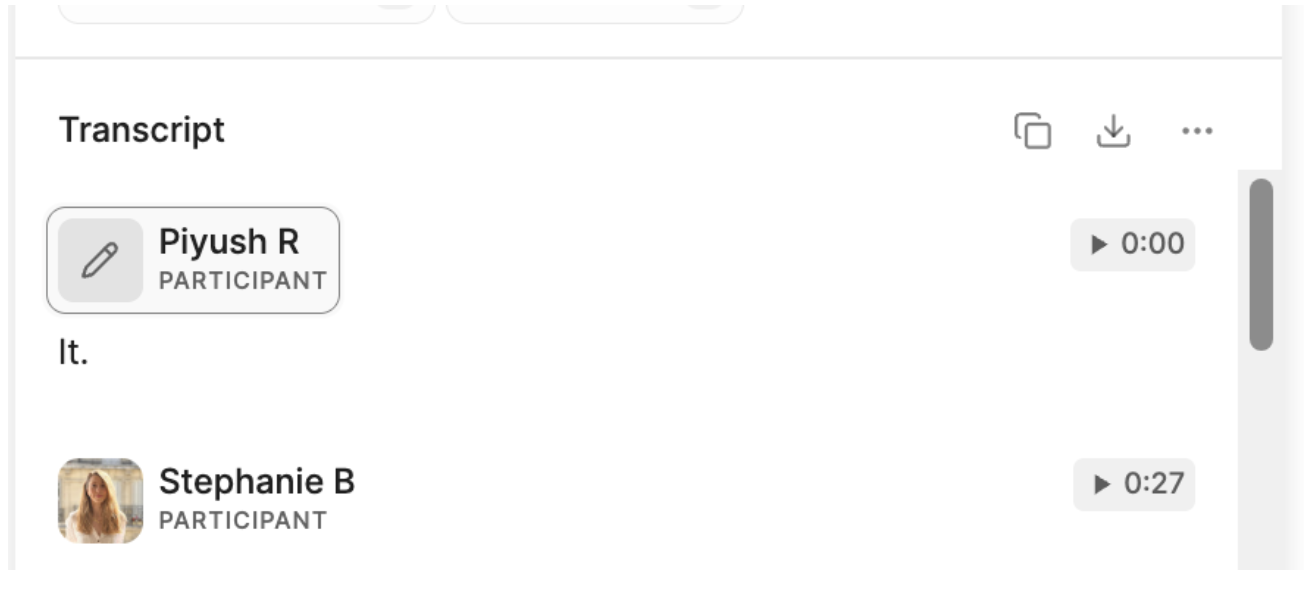 You will see a pop-up menu that provides you with the option of correcting the participant by selecting from a list of other meeting attendees or by creating a new participant. Make the necessary changes and click `Update`.
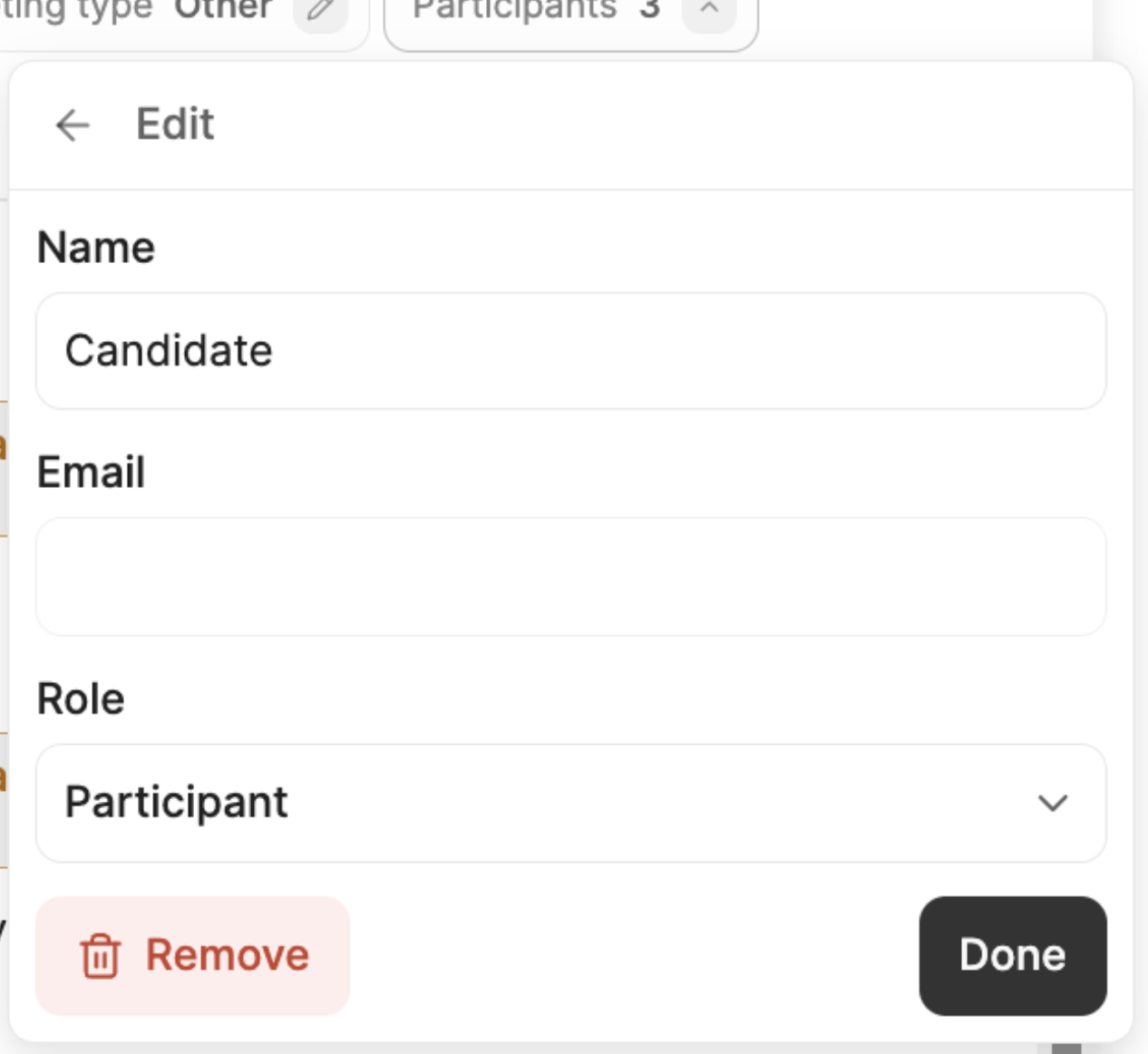
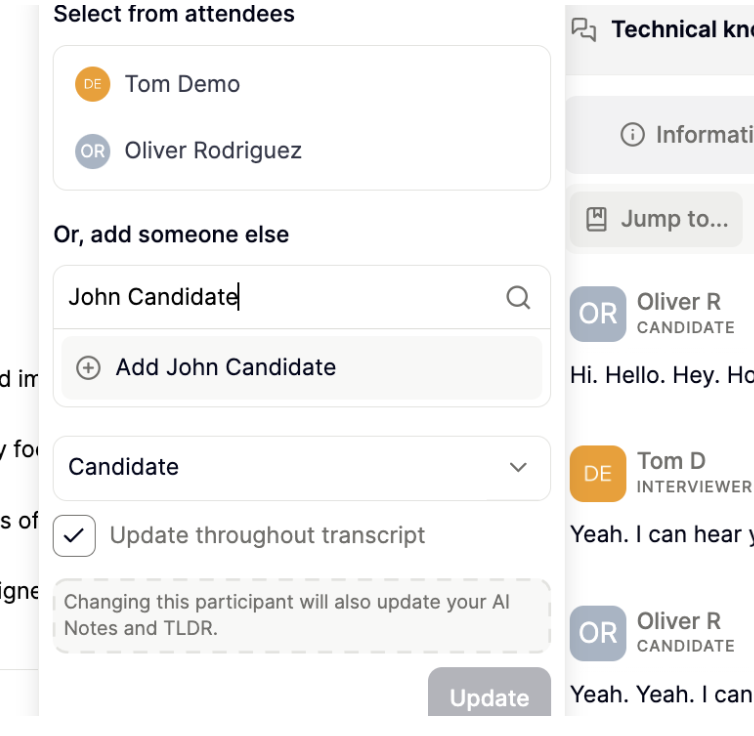 If you also want to remove any participants from a conversation, go to the **Information** tab. Under **Participants**, click on the participant you want to remove and click `Remove participant`.