> ## Documentation Index
> Fetch the complete documentation index at: https://support.metaview.ai/llms.txt
> Use this file to discover all available pages before exploring further.
# Transcript And Recording Legacy
> Learn about Transcript And Recording Legacy in Metaview.
When Metaview is on a call, it will record the audio and provide you with a full transcript of the call under the **Transcript** tab. By default, video conference calls will also have a video recording, and phone calls will have an audio recording that you can playback.
This article covers the legacy version of our transcript view and recording playback which is being **deprecated**. To take advantage of the latest features and improvements, we recommend switching to **AI Notes 2.0**. Click `the``Switch to 2.0` to get started.
## Playing back your call
At the bottom of the **Transcript** tab, you will find playback options for your call recording. They include:
* Play / Pause
* Go back 5 seconds / skip ahead 5 seconds
* Adjust playback speed (from 1x to 2x)
* Maximize/minimize the playback screen
* Scroll bar showing progress and the recording duration
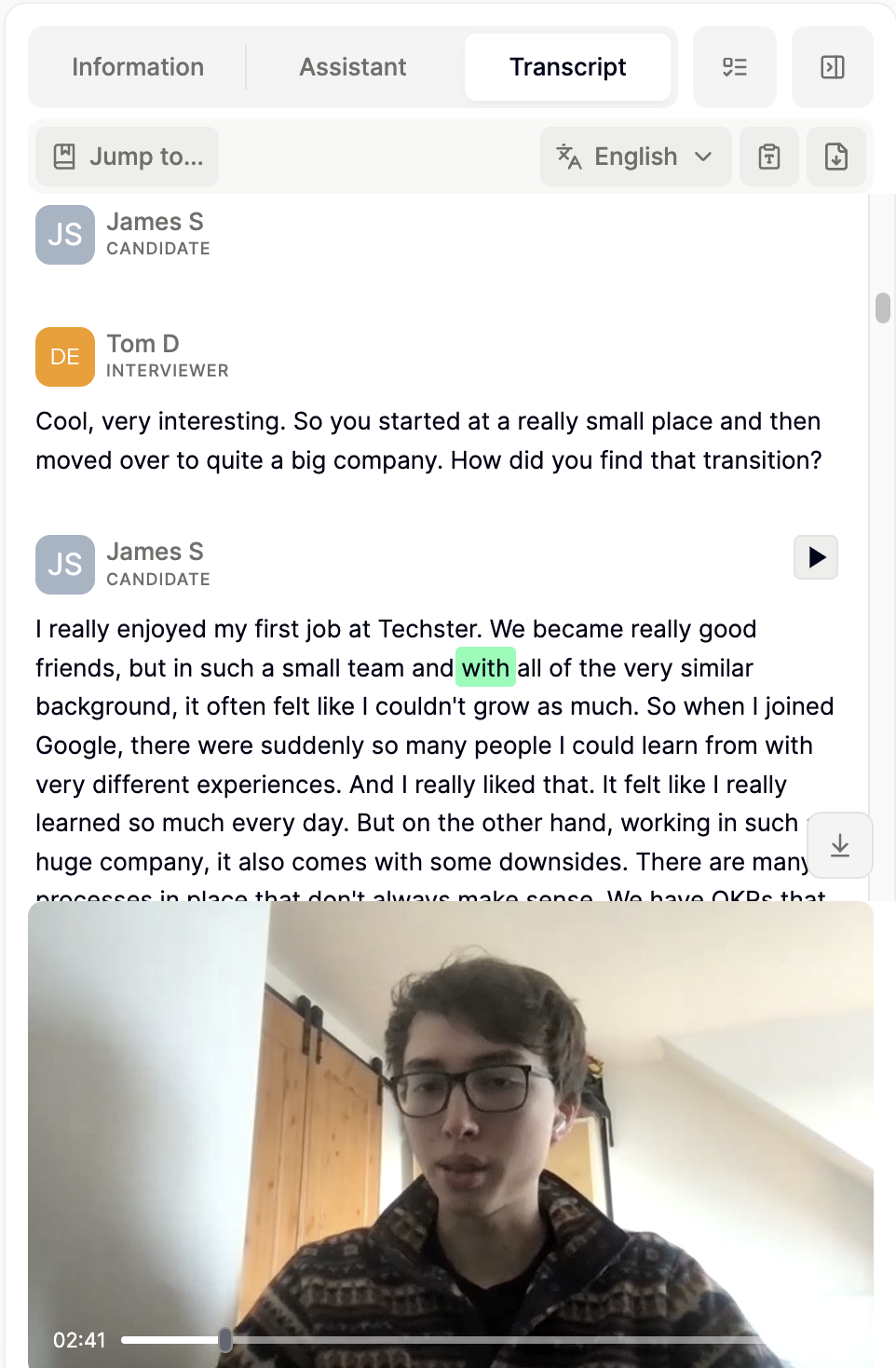
When you play the recording, you can opt to follow along in the transcript. A green highlight will move through the transcript as the recording plays.
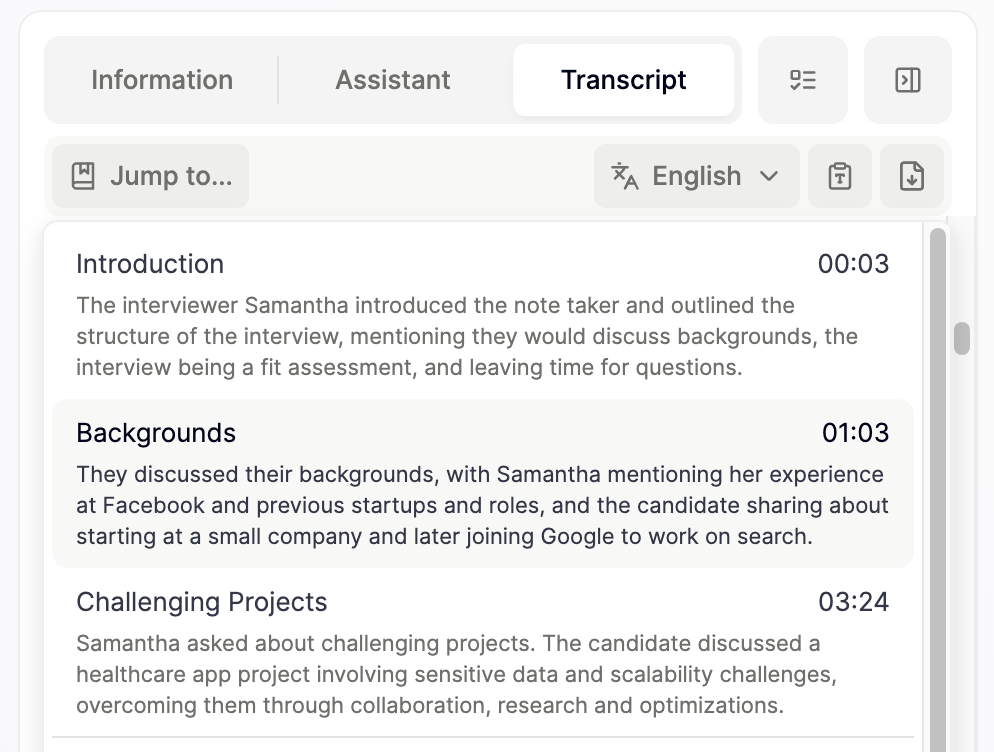
To review a specific part of the call without having to go through the entire call, click `Jump to ...` under the **Transcript** tab to see automatically generated sections that you can skip to.
## Correcting the language
Metaview works in over 50 languages and will attempt to auto-detect the language spoken during your calls for accurate transcription. If you want to change the language of your notes, please find the instructions in the Adjusting your notes section.
See the full list of supported languages
Afrikaans
Arabic
Armenian
Azerbaijani
Belarusian
Bosnian
Bulgarian
Catalan
Croatian
Czech
Danish
Dutch
English
Estonian
Farsi
Finnish
French
Galician
German
Greek
Hebrew
Hindi
Hungarian
Icelandic
Indonesian
Italian
Japanese
Kannada
Kazakh
Korean
Latvian
Lithuanian
Macedonian
Malay
Mandarin
Marathi
Nepali
Norwegian
Polish
Portuguese
Romanian
Russian
Serbian
Slovak
Slovenian
Spanish
Swahili
Swedish
Tagalog
Tamil
Telugu
Thai
Turkish
Ukrainian
Urdu
Vietnamese\
Welsh
Conversations in languages that Metaview does not support or that have not been correctly identified will show up on your home page as unavailable.
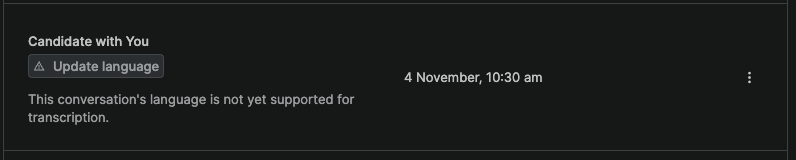
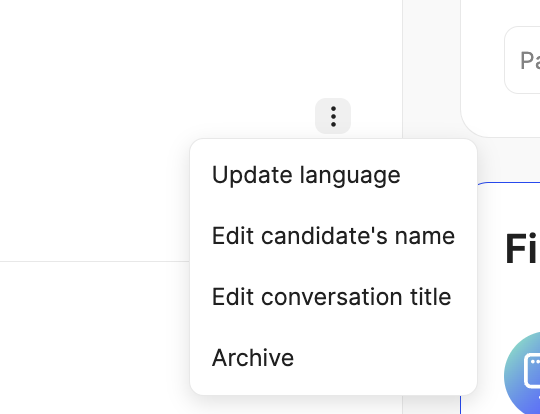
If the call is unavailable on your home page due to the language not being identified correctly, you can update it manually by clicking `Update language` or accessing the call's menu option (3 dots) and selecting `Update language`.
In some circumstances, Metaview may incorrectly detect the language spoken during the call and will not correctly transcribe the call. You can easily correct this by clicking the `文A ` icon (found under the Transcript tab) and select the correct language from the dropdown.
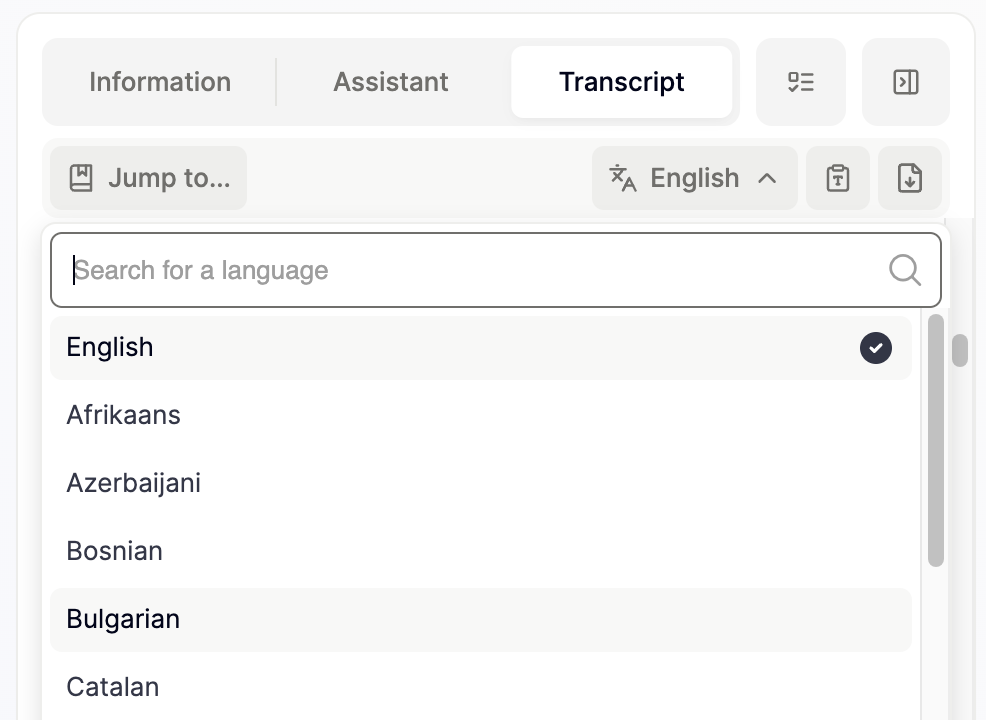
When you change the language, Metaview will attempt to retranscribe your call using the selected language. This will take a few minutes to complete.
Metaview currently only supports transcription in one language at a time for a given conversation. If your call had two or more languages spoken, you will need to select one language at time. Unfortunately, only the parts spoken in the selected language will be available.
Metaview also allows you to translate your AI Notes and TLDR so that they can be shared with multi-lingual teams regardless of the language of the conversation in the transcript.
## Redacting content
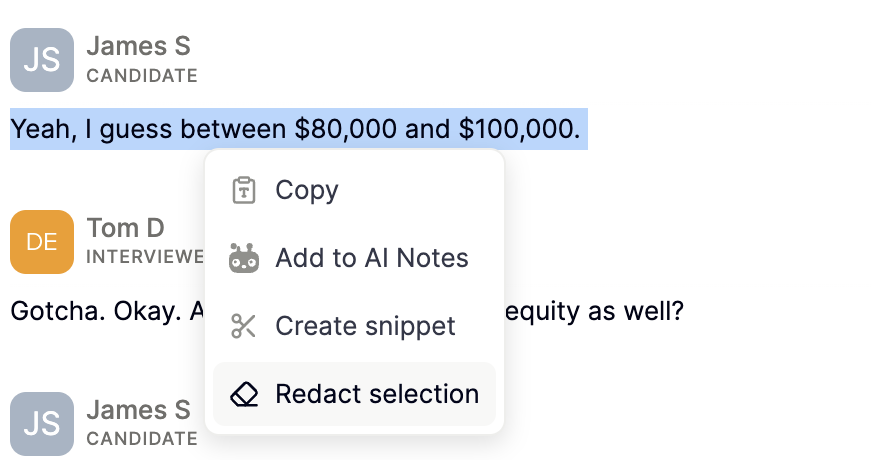
To redact specific parts of the transcript and video, and prevent them from being viewed by other colleagues that have access to the call, simply select the parts that you want to redact, right-click, and select `Redact selection`.
Please contact [support@metaview.ai](mailto:support@metaview.ai) if you have any questions.