Elyse shows you how to use Snippets.
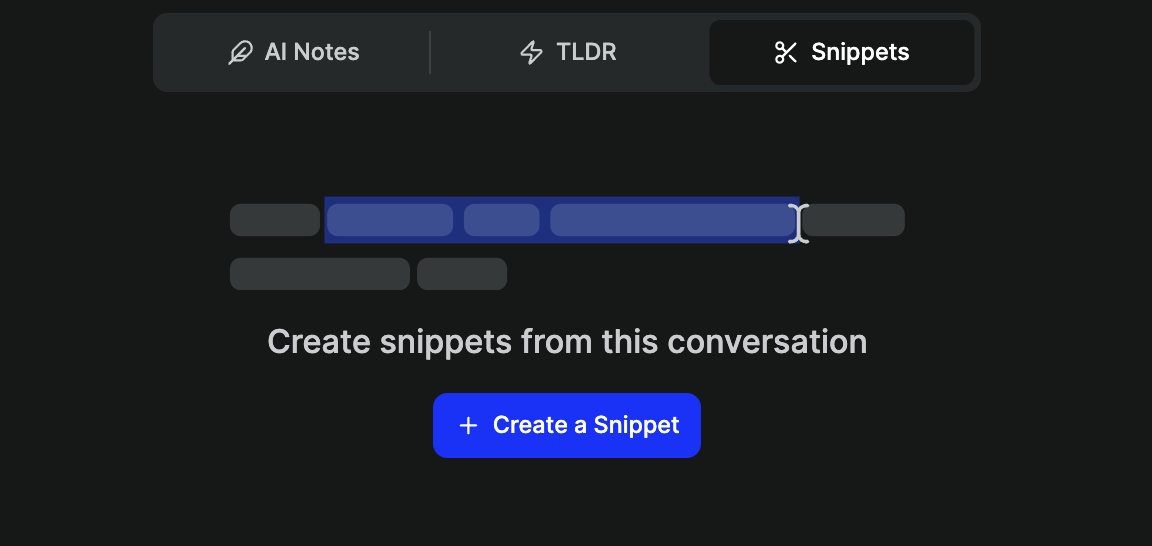 You will then see the transcript and video recording of the call. Select the `parts of the transcript` that you wanted included in the snippet, add a title and notes, and `Create Snippet`.
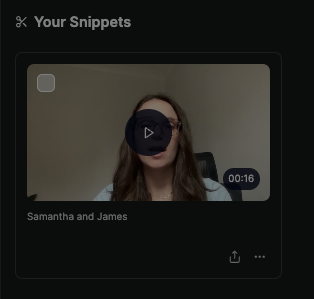
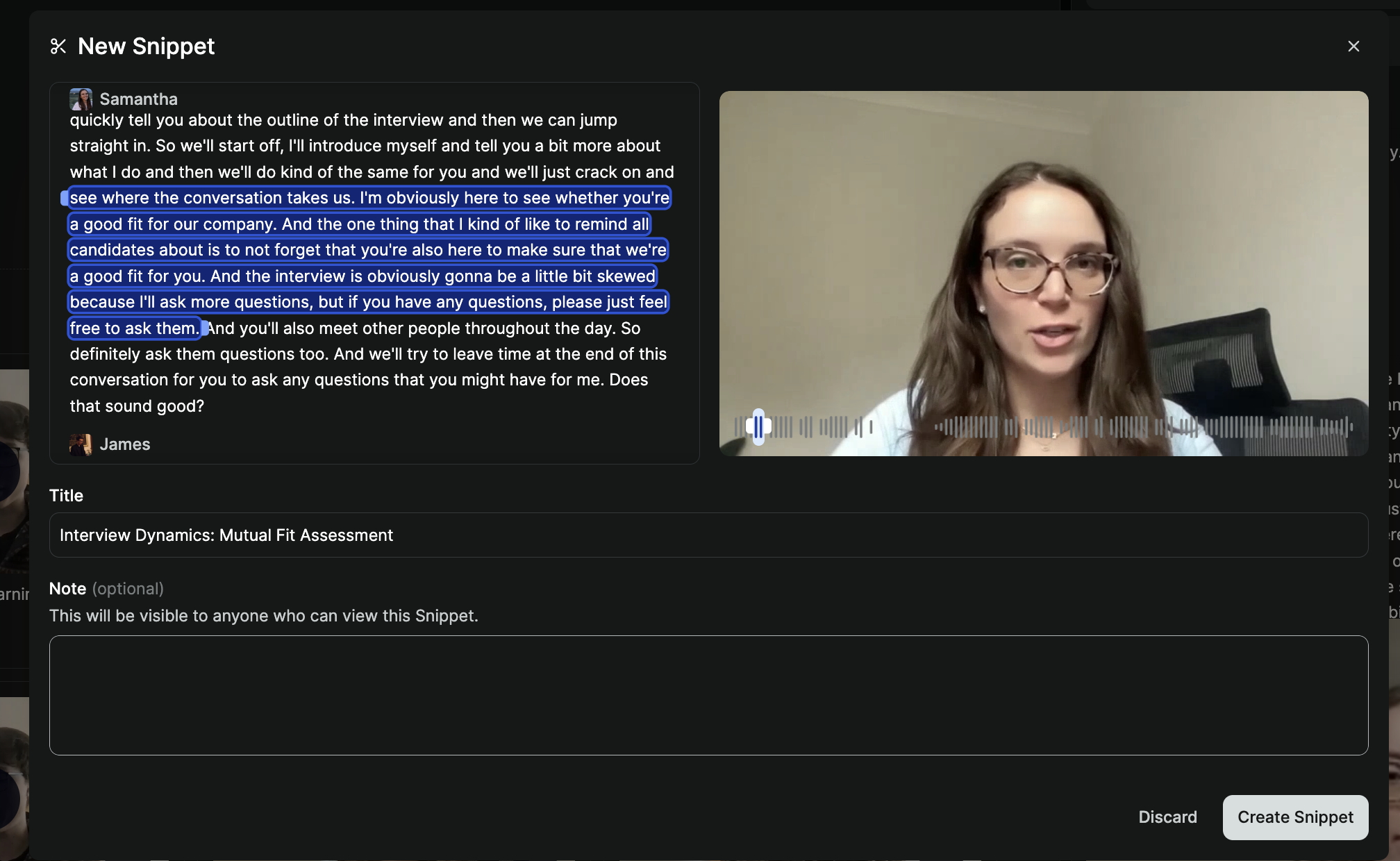 A short clip of the part you selected will be created that you can then share with others.
## Sharing snippets
After you have created a snippet, you can easily share it with specific individuals, with members of your team, or with external users (they don't even need to have a Metaview account to view it).
Once you have created your Snippet, click the `📤 (upload symbol)` .
A short clip of the part you selected will be created that you can then share with others.
## Sharing snippets
After you have created a snippet, you can easily share it with specific individuals, with members of your team, or with external users (they don't even need to have a Metaview account to view it).
Once you have created your Snippet, click the `📤 (upload symbol)` .
 You can then select the sharing options and link expiry (if desired). Select the `Anyone with the link` option if the **trusted people** you intend to share the Snippet with do not have a Metaview account. Once you have selected the setting, click `Copy share link` to copy your Snippet link.
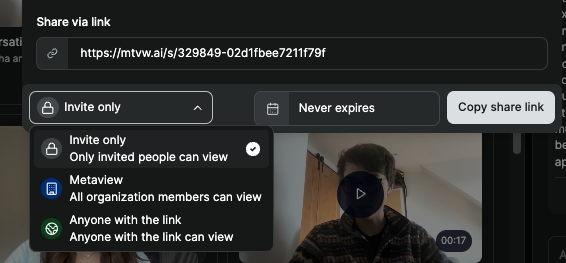 Sharing functionalities for snippets work very similarly to the sharing of call transcripts and notes, see Sharing for details. You can always immediately disable a shared snippet by changing the link access settings back to "Invite only".
You can also download the video of your created Snippets.
Sharing functionalities for snippets work very similarly to the sharing of call transcripts and notes, see Sharing for details. You can always immediately disable a shared snippet by changing the link access settings back to "Invite only".
You can also download the video of your created Snippets.