> ## Documentation Index
> Fetch the complete documentation index at: https://support.metaview.ai/llms.txt
> Use this file to discover all available pages before exploring further.
# Sequences Agent
> Build and manage outreach by chatting with Metaview's agent — no step-by-step setup.
You already have the outreach in mind: who you want to reach, what you want to say, and how you want to engage them. Turning that idea into a sequence means putting all the pieces together — writing each step, personalising the copy, choosing channels, pacing the cadence, and enrolling candidates. The Sequences Agent lets you skip the setup work and get there in a quick conversation.
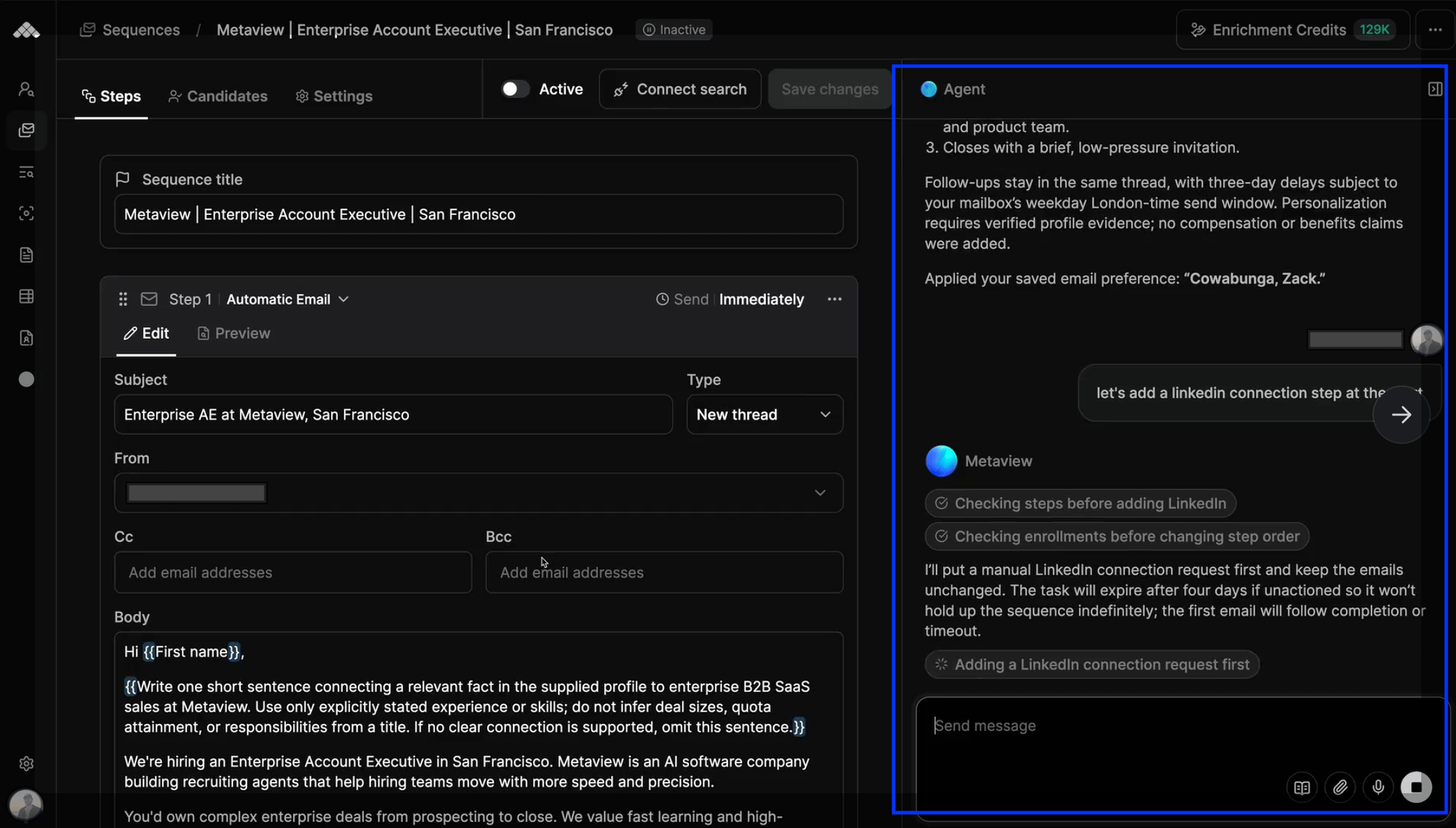
The Sequences Agent is a chat panel that sits on the right of every sequence you can edit. Tell it who you want to reach and what you want to say, and it drafts the full campaign — steps, channels, copy, cadence, and candidate list — ready for you to review before anything is sent.
 ## How the Sequences Agent Works
Open any existing sequence, or start a new one from the Sequences page. The agent chat opens automatically on the right — there's nothing to turn on.
Tell the agent who you're reaching out to and what the message should feel like — a role, an audience, a tone, any objections you want to pre-empt. You can also attach context: paste in a job description, drop in a link, or add a file to help the agent write something specific.
The agent builds the full sequence in the editor next to the chat: name, steps, channels, copy, and cadence. Edit anything directly, or ask the agent to rewrite a step, change a channel, or adjust the timing in plain language.
Point the agent at one of your Sourcing searches and it adds the shortlisted candidates for you. You can also add candidates manually from the `Candidates` tab, in bulk via CSV, or by linking a search — see [Sourcing to Sequences](/sourcing/sourcing-to-sequences).
When a candidate is missing an email or phone number, the agent proposes an enrichment inline, shows the credit cost, and waits for you to approve before running it. Approved enrichment runs in the background, and any enrollments that were paused waiting for contact details resume automatically as soon as the details are found. If your workspace is out of credits, the agent tells you instead of running the lookup. See [Enrichment Credits](/sequences/enrichment-credits) for how credits work.
Nothing goes out until you activate the sequence from the dashboard. Once it's live, you can keep using the agent to pause, resume, cancel, or skip a step for an individual candidate — and ask it to rewrite a specific candidate's subject, body, or timing, or send their next step immediately.
Everything behind these steps — step types, cadence, activation rules, stop conditions, and metrics — is covered in [Sequences Overview](/sequences/overview). The agent drafts, proposes, and shows you what it's about to do first.
While the agent is working on a sequence, it locks the sequence so you can't accidentally edit it at the same time. The lock lifts as soon as the agent finishes its turn.
## Sequences Knowledge
Sequences Knowledge is the set of standing instructions the agent follows every time it builds or edits a sequence for you. Use it for the rules you don't want to repeat:
* "Always make my first step a LinkedIn connection request."
* *"Keep emails under 100 words."*
* *"Sign off with 'Thanks' not 'Best regards'."*
* *"Default to a 4-day gap between email steps."*
* *"Always include a privacy notice in my* [Candidate Outreach](/sourcing/sourcing-best-practices#candidate-outreach)."
You can set Knowledge for yourself personally, or for your whole workspace so your team's sequences follow the same patterns. Each person can also enable or disable individual Knowledge items for their own account without changing them for anyone else. When the agent applies a saved rule, it tells you which one it used.
If you give the agent a durable preference in chat — "always end with a question", "always request meeting availability" — it may offer to save that preference as Knowledge for you. You accept or ignore the suggestion with one click; nothing is saved until you approve it.
Sequences Knowledge is separate from [Sourcing knowledge](/sourcing/overview). Rules you add here only affect sequences; rules you add in Sourcing only affect searches.
## Adjusting mailbox sending controls
You can ask the agent to adjust a mailbox's sending controls — daily cap, hourly cap, spacing between emails, or send schedule — without opening the settings page. The agent will warn you first if the change affects other active sequences using that mailbox, and only the mailbox owner can change their own mailbox's send settings. For the full set of mailbox and sequence settings, see [Sequences Settings](/sequences/sequences-settings).
## Who can see the agent
The agent chat is visible on sequences you can edit. If you're viewing a sequence you can't edit — for example, an admin looking at another user's sequence read-only — the chat doesn't appear.
## Reviewing what the agent built
Everything the agent creates lands in the normal sequence editor, so you can:
* Edit any step by hand before activating
* Change senders, cadence, or channels
* Add or remove candidates
* Activate the sequence yourself with the toggle on the dashboard
A sequence drafted by the agent starts inactive, so you can go through it step by step before a single candidate is contacted. See [Sequences Overview](/sequences/overview) for how activation and candidate enrollment work.
***
Hit a problem, or looking for a more specific answer? See [Sequences FAQs](/sequences/sequences-faqs).
This documentation is built and hosted on [Mintlify](https://mintlify.com), a developer documentation platform.
## How the Sequences Agent Works
Open any existing sequence, or start a new one from the Sequences page. The agent chat opens automatically on the right — there's nothing to turn on.
Tell the agent who you're reaching out to and what the message should feel like — a role, an audience, a tone, any objections you want to pre-empt. You can also attach context: paste in a job description, drop in a link, or add a file to help the agent write something specific.
The agent builds the full sequence in the editor next to the chat: name, steps, channels, copy, and cadence. Edit anything directly, or ask the agent to rewrite a step, change a channel, or adjust the timing in plain language.
Point the agent at one of your Sourcing searches and it adds the shortlisted candidates for you. You can also add candidates manually from the `Candidates` tab, in bulk via CSV, or by linking a search — see [Sourcing to Sequences](/sourcing/sourcing-to-sequences).
When a candidate is missing an email or phone number, the agent proposes an enrichment inline, shows the credit cost, and waits for you to approve before running it. Approved enrichment runs in the background, and any enrollments that were paused waiting for contact details resume automatically as soon as the details are found. If your workspace is out of credits, the agent tells you instead of running the lookup. See [Enrichment Credits](/sequences/enrichment-credits) for how credits work.
Nothing goes out until you activate the sequence from the dashboard. Once it's live, you can keep using the agent to pause, resume, cancel, or skip a step for an individual candidate — and ask it to rewrite a specific candidate's subject, body, or timing, or send their next step immediately.
Everything behind these steps — step types, cadence, activation rules, stop conditions, and metrics — is covered in [Sequences Overview](/sequences/overview). The agent drafts, proposes, and shows you what it's about to do first.
While the agent is working on a sequence, it locks the sequence so you can't accidentally edit it at the same time. The lock lifts as soon as the agent finishes its turn.
## Sequences Knowledge
Sequences Knowledge is the set of standing instructions the agent follows every time it builds or edits a sequence for you. Use it for the rules you don't want to repeat:
* "Always make my first step a LinkedIn connection request."
* *"Keep emails under 100 words."*
* *"Sign off with 'Thanks' not 'Best regards'."*
* *"Default to a 4-day gap between email steps."*
* *"Always include a privacy notice in my* [Candidate Outreach](/sourcing/sourcing-best-practices#candidate-outreach)."
You can set Knowledge for yourself personally, or for your whole workspace so your team's sequences follow the same patterns. Each person can also enable or disable individual Knowledge items for their own account without changing them for anyone else. When the agent applies a saved rule, it tells you which one it used.
If you give the agent a durable preference in chat — "always end with a question", "always request meeting availability" — it may offer to save that preference as Knowledge for you. You accept or ignore the suggestion with one click; nothing is saved until you approve it.
Sequences Knowledge is separate from [Sourcing knowledge](/sourcing/overview). Rules you add here only affect sequences; rules you add in Sourcing only affect searches.
## Adjusting mailbox sending controls
You can ask the agent to adjust a mailbox's sending controls — daily cap, hourly cap, spacing between emails, or send schedule — without opening the settings page. The agent will warn you first if the change affects other active sequences using that mailbox, and only the mailbox owner can change their own mailbox's send settings. For the full set of mailbox and sequence settings, see [Sequences Settings](/sequences/sequences-settings).
## Who can see the agent
The agent chat is visible on sequences you can edit. If you're viewing a sequence you can't edit — for example, an admin looking at another user's sequence read-only — the chat doesn't appear.
## Reviewing what the agent built
Everything the agent creates lands in the normal sequence editor, so you can:
* Edit any step by hand before activating
* Change senders, cadence, or channels
* Add or remove candidates
* Activate the sequence yourself with the toggle on the dashboard
A sequence drafted by the agent starts inactive, so you can go through it step by step before a single candidate is contacted. See [Sequences Overview](/sequences/overview) for how activation and candidate enrollment work.
***
Hit a problem, or looking for a more specific answer? See [Sequences FAQs](/sequences/sequences-faqs).
This documentation is built and hosted on [Mintlify](https://mintlify.com), a developer documentation platform.