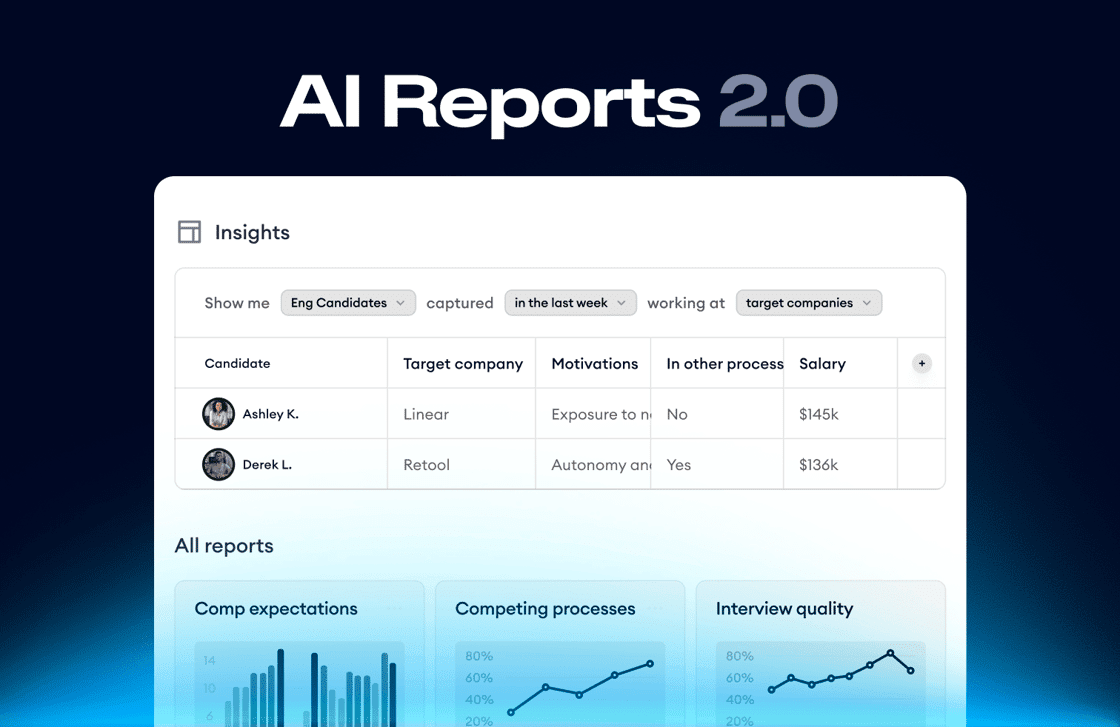
 ## Find the conversations you care about
With **Reports**, you can search for whatever conversations you need based on what was mentioned in them. On top of that, you can use legacy ATS properties (e.g., Interview Stage) to further narrow down the list of conversations.
Here are a few examples of queries you can search with AI Reports:
* *Show me all the recruiter screens for Senior Backend Engineers in the past 3 months where the candidate mentioned experience with LLMs*
* *Find all candidates who rejected our offer and who asked about our company culture*
* *Show me all intake calls where the client mentioned working with other agencies*
Whatever you’re looking for, you can find it with Reports.
## Find the conversations you care about
With **Reports**, you can search for whatever conversations you need based on what was mentioned in them. On top of that, you can use legacy ATS properties (e.g., Interview Stage) to further narrow down the list of conversations.
Here are a few examples of queries you can search with AI Reports:
* *Show me all the recruiter screens for Senior Backend Engineers in the past 3 months where the candidate mentioned experience with LLMs*
* *Find all candidates who rejected our offer and who asked about our company culture*
* *Show me all intake calls where the client mentioned working with other agencies*
Whatever you’re looking for, you can find it with Reports.
Elyse shows you how to use AI Reports to pull salary benchmark data.
Start with one of Metaview's default **Reports**, one shared by your colleagues, or create your own from scratch by clicking `+ New View`.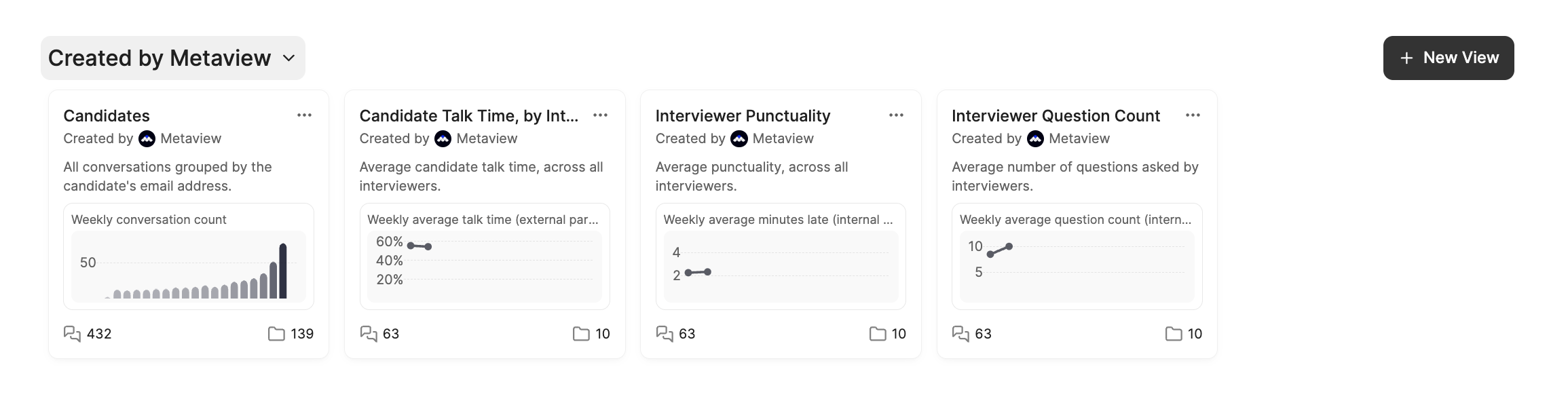 ## Powerful search and filtering
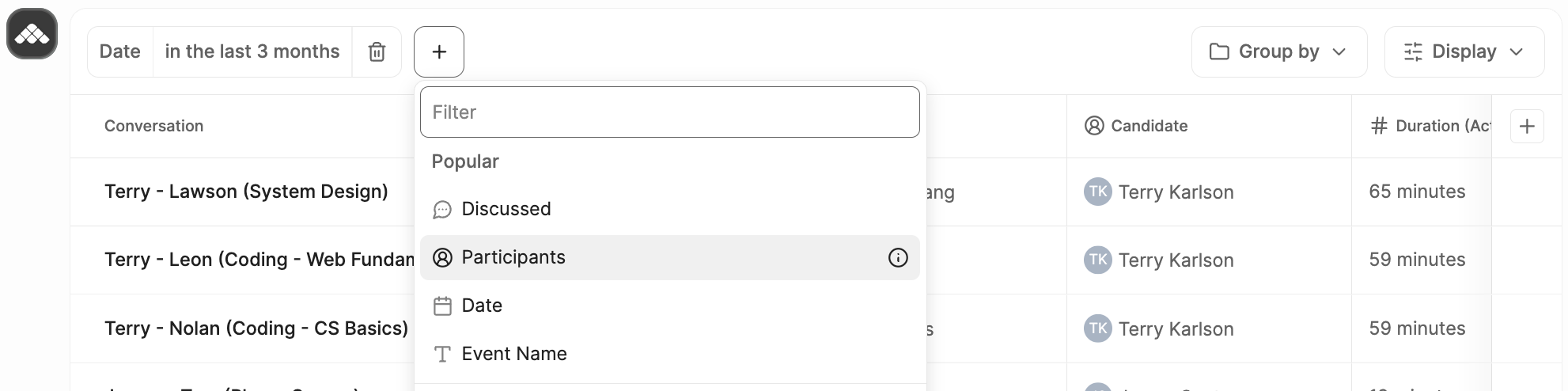
Use **filters** as a powerful way to search and narrow down conversations in Metaview. You can use them to quickly find a specific call (for example, based on **date**, **participants**, **role**, or **job title**) — or to build a report/table of conversations that match certain criteria for deeper analysis.
You’ll only be able to search and report on conversations you have access to. For more details, see [Access](/using-ai-notes/notes-properties/access) rules.
Filters can narrow conversations using different types of properties, including:
* **Event** properties from calendar metadata (e.g. Job Title, Date)
* **Conversational** (conversation content): filter by specific **topics or keywords mentioned** or not mentioned during the conversation — e.g. show all interviews where the candidate mentioned *“remote work”* or *“compensation”*
* **ATS** properties pulled from your ATS integration (e.g. stage, department, application status)
* **Custom** properties (if configured)
You can combine multiple filters to quickly find the subset of conversations that match your criteria.
## Powerful search and filtering
Use **filters** as a powerful way to search and narrow down conversations in Metaview. You can use them to quickly find a specific call (for example, based on **date**, **participants**, **role**, or **job title**) — or to build a report/table of conversations that match certain criteria for deeper analysis.
You’ll only be able to search and report on conversations you have access to. For more details, see [Access](/using-ai-notes/notes-properties/access) rules.
Filters can narrow conversations using different types of properties, including:
* **Event** properties from calendar metadata (e.g. Job Title, Date)
* **Conversational** (conversation content): filter by specific **topics or keywords mentioned** or not mentioned during the conversation — e.g. show all interviews where the candidate mentioned *“remote work”* or *“compensation”*
* **ATS** properties pulled from your ATS integration (e.g. stage, department, application status)
* **Custom** properties (if configured)
You can combine multiple filters to quickly find the subset of conversations that match your criteria.
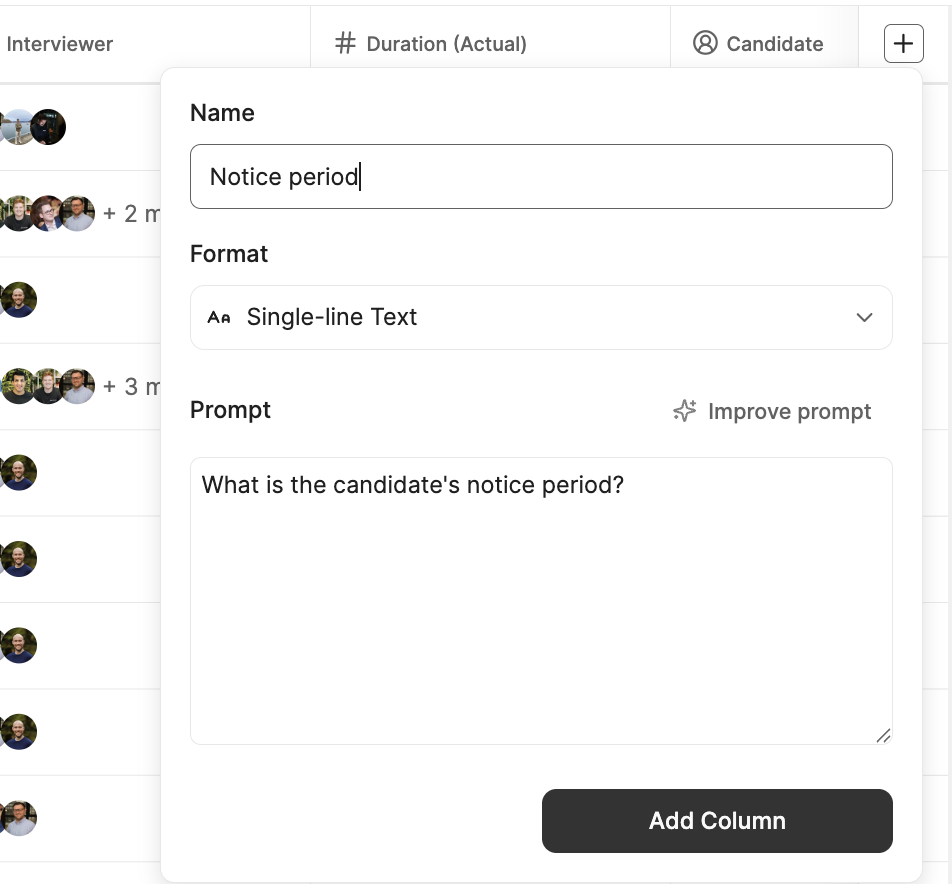
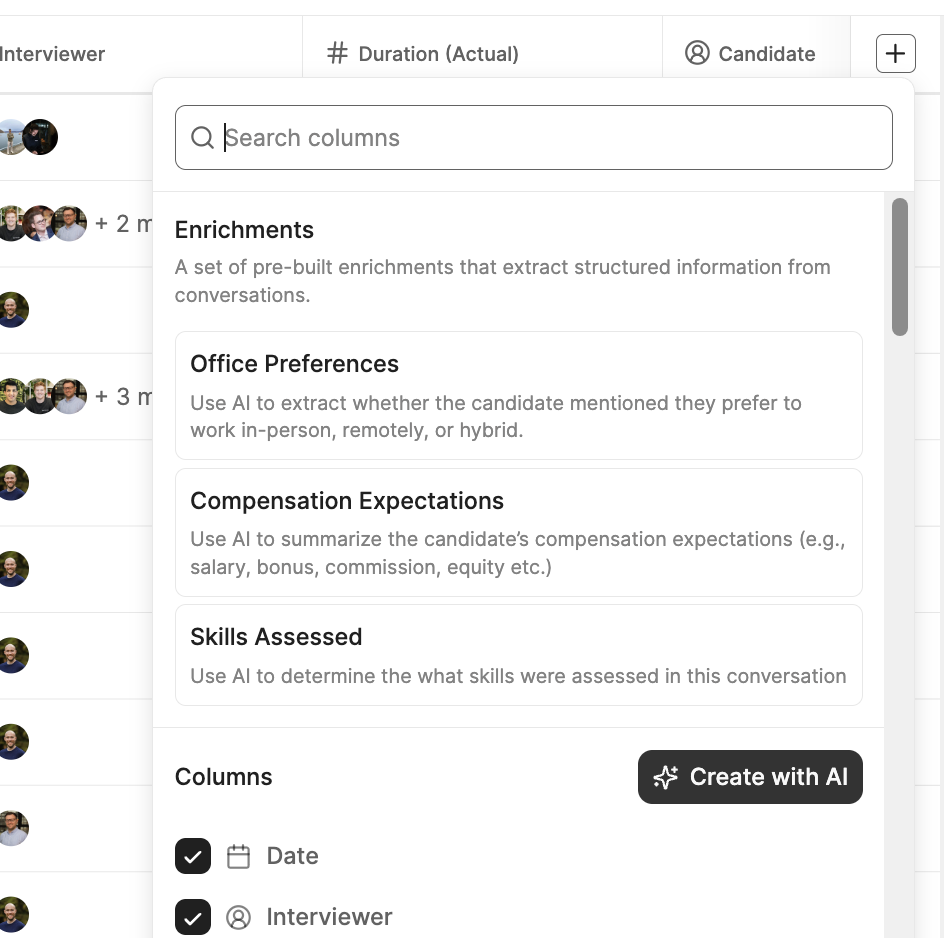 AI columns let you extract structured information from each conversation using a prompt (e.g. *"What salary did the candidate ask for?"* or *"Did the candidate mention remote work? (Yes/No)"*). Metaview runs the prompt across all conversations in your filtered report and fills the column with results using a consistent return type such as **Numbers**, **Currency**, **Yes/No**, or **text** .
When creating or editing an AI column, you can also click `✨ Improve prompt` to automatically rewrite your prompt into a clearer, more structured version helping you extract more consistent results.
AI columns let you extract structured information from each conversation using a prompt (e.g. *"What salary did the candidate ask for?"* or *"Did the candidate mention remote work? (Yes/No)"*). Metaview runs the prompt across all conversations in your filtered report and fills the column with results using a consistent return type such as **Numbers**, **Currency**, **Yes/No**, or **text** .
When creating or editing an AI column, you can also click `✨ Improve prompt` to automatically rewrite your prompt into a clearer, more structured version helping you extract more consistent results.
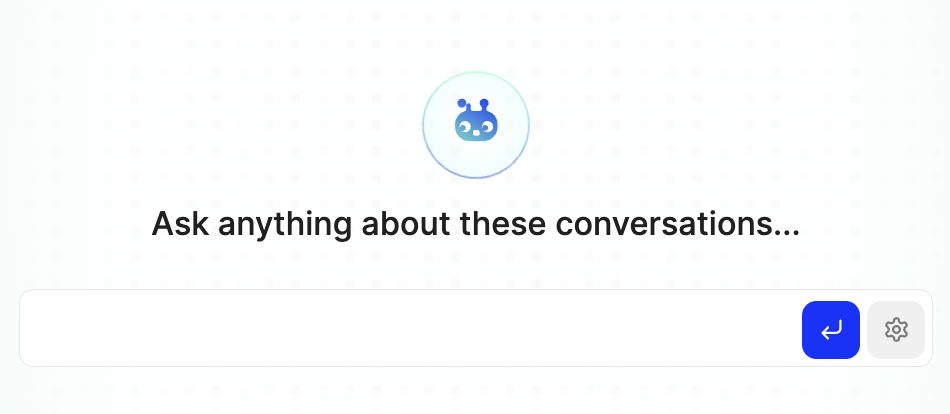
 If you want to ask broader questions across multiple conversations (instead of extracting a single field per conversation), go to the `Assistant` tab. This works like the Assistant for one conversation, but answers your question using all conversations currently included in the Report.
 ## Create charts
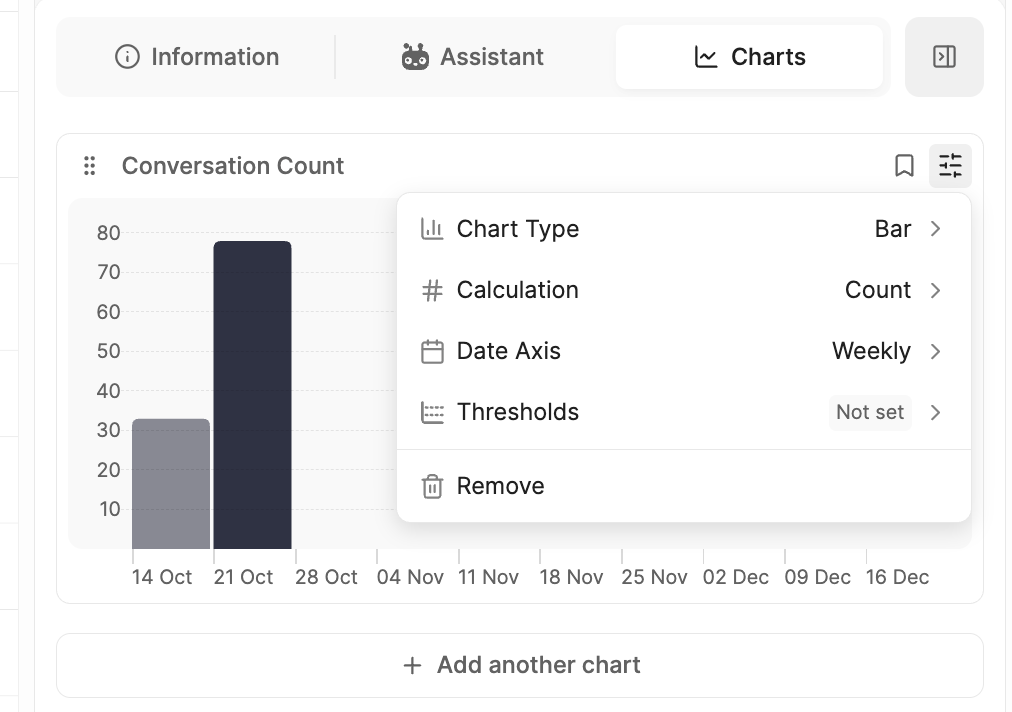
You can easily create visualizations of your conversations. Click on the `Charts` tab, then `Create a chart`. You can select the metrics you want to include in your chart, change the type, date axis, and other criteria.
## Create charts
You can easily create visualizations of your conversations. Click on the `Charts` tab, then `Create a chart`. You can select the metrics you want to include in your chart, change the type, date axis, and other criteria.
 ## Get notifications
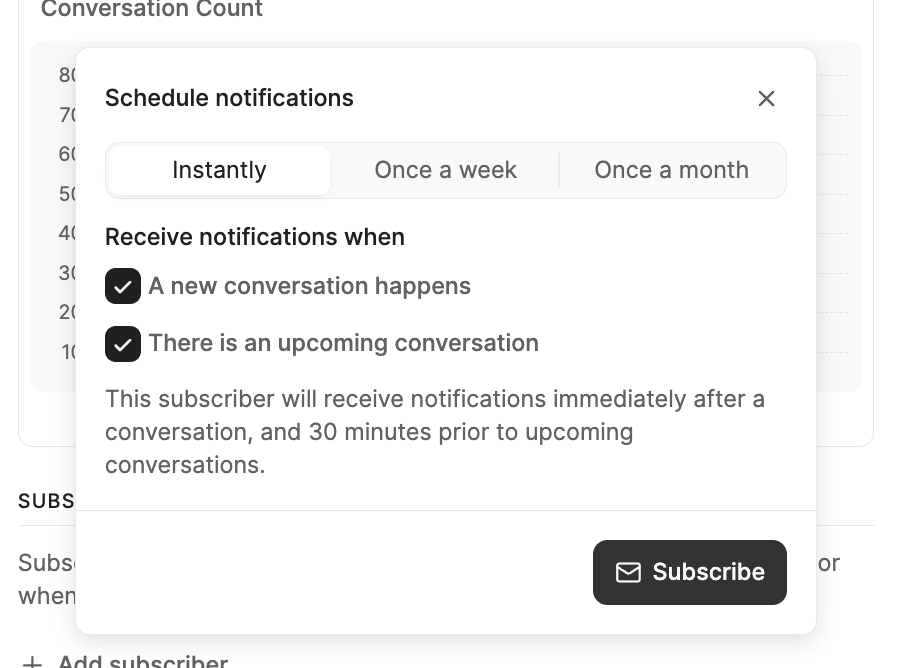
Every time a new conversation matching your View gets added to Metaview, you can choose to be alerted so you’ll never miss a conversation you care about. Teammates can also subscribe to alerts and you can seamlessly share lists of conversations with whoever you want. Under the Information tab, click on `Add Subscriber`, customize your notification schedule, and click `Subscribe`.
## Get notifications
Every time a new conversation matching your View gets added to Metaview, you can choose to be alerted so you’ll never miss a conversation you care about. Teammates can also subscribe to alerts and you can seamlessly share lists of conversations with whoever you want. Under the Information tab, click on `Add Subscriber`, customize your notification schedule, and click `Subscribe`.
 ## Download reports
You can download reports from Metaview into CSV format for easier offline analysis and data aggregation. You can find the **Actions** section in the `Information` tab. Once there, click on `Download` to get a CSV.
## Download reports
You can download reports from Metaview into CSV format for easier offline analysis and data aggregation. You can find the **Actions** section in the `Information` tab. Once there, click on `Download` to get a CSV.
Cameron shows you how to download reports.