> ## Documentation Index
> Fetch the complete documentation index at: https://support.metaview.ai/llms.txt
> Use this file to discover all available pages before exploring further.
# Sourcing Overview
> Use the AI Sourcing Agent to find candidates in minutes.
[AI Sourcing](https://my.metaview.app/sourcing) is Metaview’s AI‑powered sourcing agent that helps you find candidates for any role. You describe what you’re looking for and Metaview will help you source matching candidates.
## How AI Sourcing Works
1. **Describe the candidate you want**
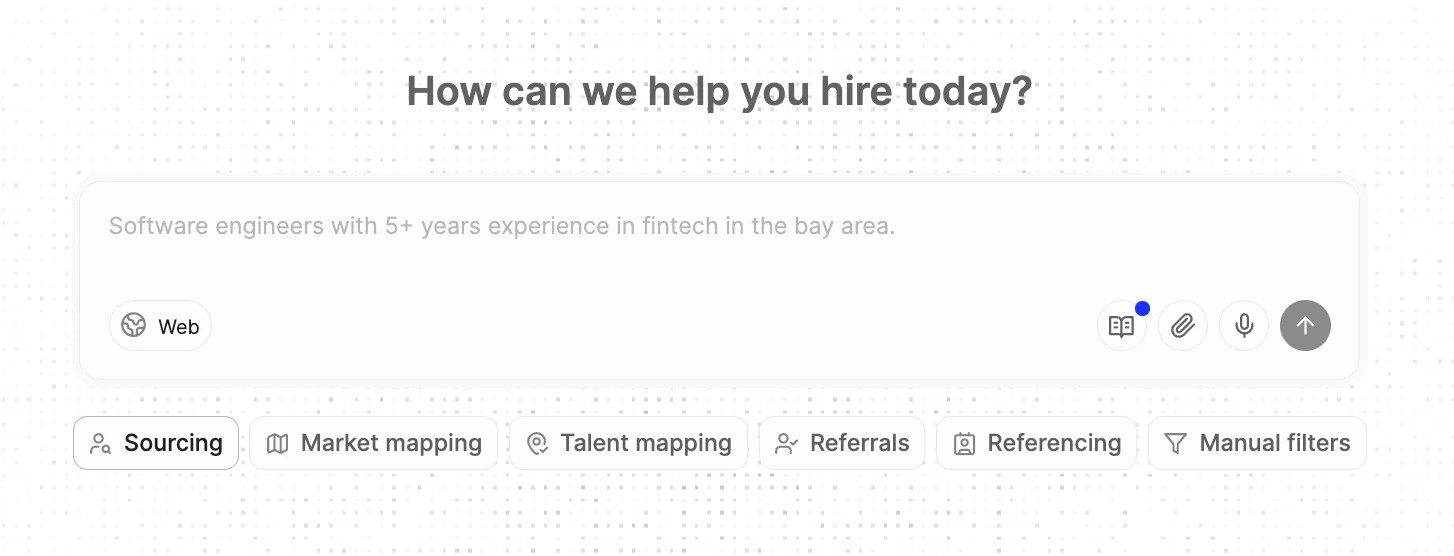
To start a search, open Metaview, click `Sourcing` in the sidebar, and type what you're looking for in plain English. You can also use the `mic` button to dictate your search criteria instead of typing.
**Example**: “Product engineer with 5+ years of experience, based in San Francisco, big tech background, strong Python.”
2. **Add documents**
To make your search more precise, you can also attach a job description or other role documents. This step is optional, but we recommend it — the extra context helps Metaview generate a more complete and accurate Candidate Profile, so you can move faster through setup. Click the `📎` (paperclip) to select documents to upload, or paste them directly in the chat window.
3. **Refine the Candidate Profile**
Using your prompt and any attached documents, Metaview will generate a **draft** Ideal Candidate Profile (ICP) that summarizes the key role requirements (experience, skills, etc). Review and refine it, and once it looks right, click `Accept` to start sourcing candidates.
4. **Review sourced candidates**
Once you accept the candidate profile, Metaview will kick off the search and transparently show the steps and reasoning it’s using to find candidates based on your approved profile. When the search completes, Metaview presents a list of candidates in a **Candidate Pack** for review with links to external profiles where available.
5. **Provide feedback to refine results**
As you review, mark candidates as `Yes`/ ` Maybe`/ `No` and add feedback. After a few ratings, you can refine the search and Metaview will adjust results to match your preferences. If you want to change your search criteria, you can also edit or delete a previous message. Metaview will re-run the search from that point in the conversation.
Want to get better results faster? Read the [Sourcing Guide](/guides/tutorials/sourcing-guide) and for ICP best practices, calibration tips, and advanced prompting. For
6. **Enrich contact details for potential candidates**
Candidate profiles provided through Sourcing include professional information and may contain links to publicly available public professional profiles or to the candidate’s profile in your ATS, where available. Metaview also offers an optional contact enrichment feature, powered by third-party providers. This allows you to retrieve additional email and phone contact details to support your outreach. Our standard Sourcing subscriptions include a limited number of free enrichment credits, with the option to easily purchase more as needed. See [here](/enrichment-credits) for details.
7. **Reach out to potential candidates**
Once you've identified the right people and enriched profiles with contact details, you can contact them directly from Metaview using [Sequences](/sending-sequences). Select the candidates you want to reach out to from your Candidate Pack and click `Add to sequence` in the bottom right corner.
## Other Ways to Kick Off a Search
These options help you jump into sourcing with less setup by generating the starting context automatically based on existing calls you have captured on Metaview.
* **From a role intake call:** If Metaview is present on a role intake call, it can use the call transcript to draft the initial search and generate candidates based on the discussion.
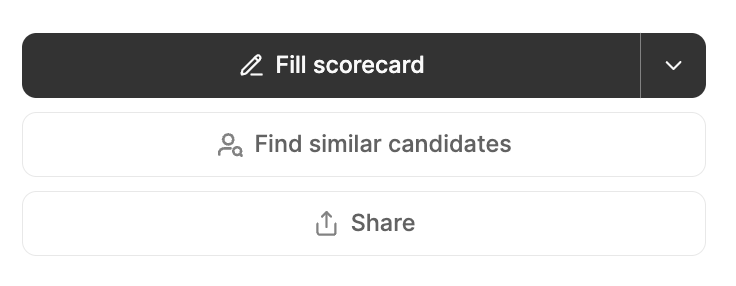
* **Find candidates similar to someone you just interviewed:** Open any interview and click `Find similar candidates` to source more profiles like the person you just spoke to.
## Workflow improvements
These features help you move faster, reuse context, and keep sourcing connected to your workflow.
* **Collaborate with your team:** Add comments directly on candidate profiles so your team’s feedback, decisions, and reasoning stay in one place. `@mention` teammates to bring them into the search (they’ll receive your comment by email), or tag `@Metaview` to ask questions about the candidate's profile and use team feedback to refine the search.
* **Personal and Workspace Knowledge:** Save and reuse sourcing preferences so you don’t have to rewrite the same instructions every time. Click the `📖 (book)` icon to add new knowledge for yourself or for your workspace (so your whole team can reuse it), and enable/disable knowledge items for any specific search.
* **Add candidates to your ATS:** Once you’ve shortlisted candidates, push them directly into your ATS to stay organized.
* **Expand your search to your existing applicant pool:** Expand your searches to include candidates already in your ATS and within your Metaview workspace. When enabled, your searches can surface “CV-invisible” insights from interviews — like motivations, career goals, and preferences.
* **Organize, Find and Share agent sessions**: Click the History panel on the left to expand it and access your past Sourcing and Research agent sessions. Use the search field to quickly find a session, then click the `...` (three dots) menu to manage it. From there, you can `Pin`, `Rename`, `Delete`, or `Share` the session. To learn more about sharing with colleagues and collaborators in Metaview, see our [Sharing](/using-ai-notes/notes-properties/sharing) functionality.
* **Use through MCP:** Connect Metaview to an MCP-compatible AI tool, such as Claude or Cursor, to run sourcing workflows from your AI assistant. You can manage searches, review surfaced candidates, give feedback, and ask sourcing reporting questions in plain English. See [here](/integrations/mcp-integration/mcp-overview) for details.
* **Research mode:** Use `Research` mode when you want to understand the market — for example role trends, hiring flows, or employer growth. It uses structured prompts and returns tables, charts, profiles, or reports.
* **Export candidate packs:** Download Candidate Packs as a CSV for use in other outreach workflows. You can choose to include only candidates with emails and optionally enrich missing emails before exporting.
* **Create Application Reviews from a sourcing search:** Move from Sourcing into inbound application reviews faster. When Metaview detects a matching ATS role without an [Application Review](/recruiting-platform/application-review), it can help you create one using your Sourcing ICP added as context.
## Where Does the Candidate Data Come From?
Metaview helps you source candidates by providing candidate profile data from vetted third-party providers with broad global coverage. Candidate profiles are built from publicly available professional information such as job titles, work history, education, and skills. We review provider coverage and data quality on an ongoing basis.
If you connect a supported ATS (see list below) and enable it for search, Metaview can also surface relevant candidates from your own ATS alongside external results. These candidates will be clearly marked with an ATS icon and linked to their existing profile. This can help you rediscover candidates who have previously applied or were considered for other roles, but may be a strong fit for your current needs.
* [Ashby](/integrations/ats-integrations/ashby)
* [Bullhorn](/integrations/ats-integrations/bullhorn)
* [Ezekia](/integrations/ats-integrations/ezekia)
* [Gem ATS](/integrations/ats-integrations/gem-ats)
* [Greenhouse](/integrations/ats-integrations/greenhouse)
* [**iCIMS**](/integrations/ats-integrations/icims)
* [JobAdder](/integrations/ats-integrations/jobadder)
* [**Jobvite**](/integrations/ats-integrations/jobvite)
* [Lever](/integrations/ats-integrations/lever)
* [Loxo](/integrations/ats-integrations/loxo)
* [**Oracle Recruiting Cloud**](/integrations/ats-integrations/oracle-recruiting-cloud)
* [Pinpoint](/integrations/ats-integrations/pinpoint)
* [Recruitee](/integrations/ats-integrations/recruitee)
* [Recruiterflow](/integrations/ats-integrations/recruiterflow)
* [SmartRecruiters](/integrations/ats-integrations/smartrecruiters)
* [**Spark Hire Recruit**](/integrations/ats-integrations/spark-hire-recruit)
* [Teamtailor](/integrations/ats-integrations/teamtailor)
* [Thrive](/integrations/ats-integrations/thrive)
* [Workable](/integrations/ats-integrations/workable)
* [**Zoho Recruit**](/integrations/ats-integrations/zoho-recruit)
We suggest ensuring you have an appropriate legal basis for sourcing, that your privacy notice covers candidate sourcing, and that your first outreach includes a short disclosure explaining how you found the candidate and how they can exercise their rights, such as requesting deletion or opting out of future contact. This helps you meet common privacy expectations across jurisdictions and keeps your outreach transparent.
## Troubleshooting
### I'm blocked from running searches or seeing candidates
You may be on a **Free** (trial) Sourcing seat. Free seats have restricted access, including caps on the number of searches you can run and the candidates you can view. If you need unlimited access, you can upgrade to a **Pro** or **Max** Sourcing seat.
For up-to-date pricing plans, please see [https://www.metaview.ai/pricing](https://www.metaview.ai/pricing)
### I'm prompted to upgrade, but I've already paid
If you’re seeing an upgrade prompt even though your team has purchased sourcing, it usually means a paid sourcing seat hasn’t been assigned to your account yet, or you have reached your monthly search limit on the **Pro** subscription. Purchased sourcing seats aren’t automatically tied to a specific person — your team admin assigns them to individual users and can reassign them at any time as team needs change. To get unlimited access, check with your team admin to confirm that you’ve been assigned a **Max** sourcing subscription. For more details, see [Managing your team](/account-management/managing-your-team).
### Where can I see sourcing usage and seat assignments?
You can see sourcing usage and seat assignment on the [Team Management](/account-management/managing-your-team).
### I hit a limit even though I’m on a Max (paid) Sourcing seat
If you’re on a Max sourcing seat and hit a limit, don’t worry — this usually just means you’ve reached the maximum length for a single search or chat. To keep going, simply copy the most recent Ideal Candidate Profile (ICP), start a new search, and paste the ICP into the new conversation. You can then continue refining and sourcing from there without losing your progress.
### How do Sourcing credits work?
Sourcing credits are used when you find candidate profiles through Sourcing. Metaview uses professional profile data to help surface candidates who may be a good fit for your approved Ideal Candidate Profile. While we apply quality filters and use your feedback to improve results, some candidates may occasionally be unavailable, outdated, duplicated, incorrectly matched, or not suitable for the role. For this reason, sourcing credits are **non-refundable** once used.
Free trial and entry-level Sourcing subscriptions include a limit on the number of candidates you can source. Sourcing credits on the free plan do not refresh. Pro plan sourcing credits refresh every calendar month, but unused credits do not roll over. If you’re on the Max plan, you can run unlimited monthly searches and source unlimited candidates.
Sourcing credits are separate from [enrichment credits](/enrichment-credits). Sourcing credits help you find candidate profiles, while enrichment credits let you unlock additional contact details (email addresses or phone numbers) for outreach. Every workspace includes a limited number of complimentary enrichment credits, and top-ups are available if you need more. Please see [here](/enrichment-credits) for more details.
### Why am I seeing candidates before the search has finished?
These are Instant matches. They appear as soon as you approve the Candidate Profile, giving you an early set of candidates to review while Metaview continues the full search in the background. Instant matches are useful for quickly checking whether the search is headed in the right direction. They’re based on the core filters in your brief, such as location, role, seniority, company, and industry, and they’re free to review.
Because they’re only a quick first pass, some candidates may be less relevant than the final results. They haven’t been fully tailored against your complete Candidate Profile yet. Once the full search is complete, Metaview will show the final reviewed Candidate Pack. Only completed Candidate Packs count toward Sourcing credits.
### How long do searches take?
Searches often take a few minutes, but may take longer depending on the complexity of the role, the search criteria, and the amount of research needed. While the full search runs, you may see Instant matches first — these give you an early set of profiles to review before the final sourced list is ready.
### Do I need to stay on the page while the full search runs?
No. Once you approve the Candidate Profile, Metaview will continue running the search in the background. You can leave the page or close the tab and come back to the search later from your Sourcing history. You’ll also receive an email notification when the full search is complete.
 ## Workflow improvements
These features help you move faster, reuse context, and keep sourcing connected to your workflow.
* **Collaborate with your team:** Add comments directly on candidate profiles so your team’s feedback, decisions, and reasoning stay in one place. `@mention` teammates to bring them into the search (they’ll receive your comment by email), or tag `@Metaview` to ask questions about the candidate's profile and use team feedback to refine the search.
* **Personal and Workspace Knowledge:** Save and reuse sourcing preferences so you don’t have to rewrite the same instructions every time. Click the `📖 (book)` icon to add new knowledge for yourself or for your workspace (so your whole team can reuse it), and enable/disable knowledge items for any specific search.
* **Add candidates to your ATS:** Once you’ve shortlisted candidates, push them directly into your ATS to stay organized.
* **Expand your search to your existing applicant pool:** Expand your searches to include candidates already in your ATS and within your Metaview workspace. When enabled, your searches can surface “CV-invisible” insights from interviews — like motivations, career goals, and preferences.
* **Organize, Find and Share agent sessions**: Click the History panel on the left to expand it and access your past Sourcing and Research agent sessions. Use the search field to quickly find a session, then click the `...` (three dots) menu to manage it. From there, you can `Pin`, `Rename`, `Delete`, or `Share` the session. To learn more about sharing with colleagues and collaborators in Metaview, see our [Sharing](/using-ai-notes/notes-properties/sharing) functionality.
* **Use through MCP:** Connect Metaview to an MCP-compatible AI tool, such as Claude or Cursor, to run sourcing workflows from your AI assistant. You can manage searches, review surfaced candidates, give feedback, and ask sourcing reporting questions in plain English. See [here](/integrations/mcp-integration/mcp-overview) for details.
* **Research mode:** Use `Research` mode when you want to understand the market — for example role trends, hiring flows, or employer growth. It uses structured prompts and returns tables, charts, profiles, or reports.
* **Export candidate packs:** Download Candidate Packs as a CSV for use in other outreach workflows. You can choose to include only candidates with emails and optionally enrich missing emails before exporting.
* **Create Application Reviews from a sourcing search:** Move from Sourcing into inbound application reviews faster. When Metaview detects a matching ATS role without an [Application Review](/recruiting-platform/application-review), it can help you create one using your Sourcing ICP added as context.
## Where Does the Candidate Data Come From?
Metaview helps you source candidates by providing candidate profile data from vetted third-party providers with broad global coverage. Candidate profiles are built from publicly available professional information such as job titles, work history, education, and skills. We review provider coverage and data quality on an ongoing basis.
If you connect a supported ATS (see list below) and enable it for search, Metaview can also surface relevant candidates from your own ATS alongside external results. These candidates will be clearly marked with an ATS icon and linked to their existing profile. This can help you rediscover candidates who have previously applied or were considered for other roles, but may be a strong fit for your current needs.
## Workflow improvements
These features help you move faster, reuse context, and keep sourcing connected to your workflow.
* **Collaborate with your team:** Add comments directly on candidate profiles so your team’s feedback, decisions, and reasoning stay in one place. `@mention` teammates to bring them into the search (they’ll receive your comment by email), or tag `@Metaview` to ask questions about the candidate's profile and use team feedback to refine the search.
* **Personal and Workspace Knowledge:** Save and reuse sourcing preferences so you don’t have to rewrite the same instructions every time. Click the `📖 (book)` icon to add new knowledge for yourself or for your workspace (so your whole team can reuse it), and enable/disable knowledge items for any specific search.
* **Add candidates to your ATS:** Once you’ve shortlisted candidates, push them directly into your ATS to stay organized.
* **Expand your search to your existing applicant pool:** Expand your searches to include candidates already in your ATS and within your Metaview workspace. When enabled, your searches can surface “CV-invisible” insights from interviews — like motivations, career goals, and preferences.
* **Organize, Find and Share agent sessions**: Click the History panel on the left to expand it and access your past Sourcing and Research agent sessions. Use the search field to quickly find a session, then click the `...` (three dots) menu to manage it. From there, you can `Pin`, `Rename`, `Delete`, or `Share` the session. To learn more about sharing with colleagues and collaborators in Metaview, see our [Sharing](/using-ai-notes/notes-properties/sharing) functionality.
* **Use through MCP:** Connect Metaview to an MCP-compatible AI tool, such as Claude or Cursor, to run sourcing workflows from your AI assistant. You can manage searches, review surfaced candidates, give feedback, and ask sourcing reporting questions in plain English. See [here](/integrations/mcp-integration/mcp-overview) for details.
* **Research mode:** Use `Research` mode when you want to understand the market — for example role trends, hiring flows, or employer growth. It uses structured prompts and returns tables, charts, profiles, or reports.
* **Export candidate packs:** Download Candidate Packs as a CSV for use in other outreach workflows. You can choose to include only candidates with emails and optionally enrich missing emails before exporting.
* **Create Application Reviews from a sourcing search:** Move from Sourcing into inbound application reviews faster. When Metaview detects a matching ATS role without an [Application Review](/recruiting-platform/application-review), it can help you create one using your Sourcing ICP added as context.
## Where Does the Candidate Data Come From?
Metaview helps you source candidates by providing candidate profile data from vetted third-party providers with broad global coverage. Candidate profiles are built from publicly available professional information such as job titles, work history, education, and skills. We review provider coverage and data quality on an ongoing basis.
If you connect a supported ATS (see list below) and enable it for search, Metaview can also surface relevant candidates from your own ATS alongside external results. These candidates will be clearly marked with an ATS icon and linked to their existing profile. This can help you rediscover candidates who have previously applied or were considered for other roles, but may be a strong fit for your current needs.
 For up-to-date pricing plans, please see [https://www.metaview.ai/pricing](https://www.metaview.ai/pricing)
### I'm prompted to upgrade, but I've already paid
If you’re seeing an upgrade prompt even though your team has purchased sourcing, it usually means a paid sourcing seat hasn’t been assigned to your account yet, or you have reached your monthly search limit on the **Pro** subscription. Purchased sourcing seats aren’t automatically tied to a specific person — your team admin assigns them to individual users and can reassign them at any time as team needs change. To get unlimited access, check with your team admin to confirm that you’ve been assigned a **Max** sourcing subscription. For more details, see [Managing your team](/account-management/managing-your-team).
### Where can I see sourcing usage and seat assignments?
You can see sourcing usage and seat assignment on the [Team Management](/account-management/managing-your-team).
For up-to-date pricing plans, please see [https://www.metaview.ai/pricing](https://www.metaview.ai/pricing)
### I'm prompted to upgrade, but I've already paid
If you’re seeing an upgrade prompt even though your team has purchased sourcing, it usually means a paid sourcing seat hasn’t been assigned to your account yet, or you have reached your monthly search limit on the **Pro** subscription. Purchased sourcing seats aren’t automatically tied to a specific person — your team admin assigns them to individual users and can reassign them at any time as team needs change. To get unlimited access, check with your team admin to confirm that you’ve been assigned a **Max** sourcing subscription. For more details, see [Managing your team](/account-management/managing-your-team).
### Where can I see sourcing usage and seat assignments?
You can see sourcing usage and seat assignment on the [Team Management](/account-management/managing-your-team).
 ### I hit a limit even though I’m on a Max (paid) Sourcing seat
If you’re on a Max sourcing seat and hit a limit, don’t worry — this usually just means you’ve reached the maximum length for a single search or chat. To keep going, simply copy the most recent Ideal Candidate Profile (ICP), start a new search, and paste the ICP into the new conversation. You can then continue refining and sourcing from there without losing your progress.
### How do Sourcing credits work?
Sourcing credits are used when you find candidate profiles through Sourcing. Metaview uses professional profile data to help surface candidates who may be a good fit for your approved Ideal Candidate Profile. While we apply quality filters and use your feedback to improve results, some candidates may occasionally be unavailable, outdated, duplicated, incorrectly matched, or not suitable for the role. For this reason, sourcing credits are **non-refundable** once used.
Free trial and entry-level Sourcing subscriptions include a limit on the number of candidates you can source. Sourcing credits on the free plan do not refresh. Pro plan sourcing credits refresh every calendar month, but unused credits do not roll over. If you’re on the Max plan, you can run unlimited monthly searches and source unlimited candidates.
Sourcing credits are separate from [enrichment credits](/enrichment-credits). Sourcing credits help you find candidate profiles, while enrichment credits let you unlock additional contact details (email addresses or phone numbers) for outreach. Every workspace includes a limited number of complimentary enrichment credits, and top-ups are available if you need more. Please see [here](/enrichment-credits) for more details.
### Why am I seeing candidates before the search has finished?
These are Instant matches. They appear as soon as you approve the Candidate Profile, giving you an early set of candidates to review while Metaview continues the full search in the background. Instant matches are useful for quickly checking whether the search is headed in the right direction. They’re based on the core filters in your brief, such as location, role, seniority, company, and industry, and they’re free to review.
Because they’re only a quick first pass, some candidates may be less relevant than the final results. They haven’t been fully tailored against your complete Candidate Profile yet. Once the full search is complete, Metaview will show the final reviewed Candidate Pack. Only completed Candidate Packs count toward Sourcing credits.
### How long do searches take?
Searches often take a few minutes, but may take longer depending on the complexity of the role, the search criteria, and the amount of research needed. While the full search runs, you may see Instant matches first — these give you an early set of profiles to review before the final sourced list is ready.
### Do I need to stay on the page while the full search runs?
No. Once you approve the Candidate Profile, Metaview will continue running the search in the background. You can leave the page or close the tab and come back to the search later from your Sourcing history. You’ll also receive an email notification when the full search is complete.
### I hit a limit even though I’m on a Max (paid) Sourcing seat
If you’re on a Max sourcing seat and hit a limit, don’t worry — this usually just means you’ve reached the maximum length for a single search or chat. To keep going, simply copy the most recent Ideal Candidate Profile (ICP), start a new search, and paste the ICP into the new conversation. You can then continue refining and sourcing from there without losing your progress.
### How do Sourcing credits work?
Sourcing credits are used when you find candidate profiles through Sourcing. Metaview uses professional profile data to help surface candidates who may be a good fit for your approved Ideal Candidate Profile. While we apply quality filters and use your feedback to improve results, some candidates may occasionally be unavailable, outdated, duplicated, incorrectly matched, or not suitable for the role. For this reason, sourcing credits are **non-refundable** once used.
Free trial and entry-level Sourcing subscriptions include a limit on the number of candidates you can source. Sourcing credits on the free plan do not refresh. Pro plan sourcing credits refresh every calendar month, but unused credits do not roll over. If you’re on the Max plan, you can run unlimited monthly searches and source unlimited candidates.
Sourcing credits are separate from [enrichment credits](/enrichment-credits). Sourcing credits help you find candidate profiles, while enrichment credits let you unlock additional contact details (email addresses or phone numbers) for outreach. Every workspace includes a limited number of complimentary enrichment credits, and top-ups are available if you need more. Please see [here](/enrichment-credits) for more details.
### Why am I seeing candidates before the search has finished?
These are Instant matches. They appear as soon as you approve the Candidate Profile, giving you an early set of candidates to review while Metaview continues the full search in the background. Instant matches are useful for quickly checking whether the search is headed in the right direction. They’re based on the core filters in your brief, such as location, role, seniority, company, and industry, and they’re free to review.
Because they’re only a quick first pass, some candidates may be less relevant than the final results. They haven’t been fully tailored against your complete Candidate Profile yet. Once the full search is complete, Metaview will show the final reviewed Candidate Pack. Only completed Candidate Packs count toward Sourcing credits.
### How long do searches take?
Searches often take a few minutes, but may take longer depending on the complexity of the role, the search criteria, and the amount of research needed. While the full search runs, you may see Instant matches first — these give you an early set of profiles to review before the final sourced list is ready.
### Do I need to stay on the page while the full search runs?
No. Once you approve the Candidate Profile, Metaview will continue running the search in the background. You can leave the page or close the tab and come back to the search later from your Sourcing history. You’ll also receive an email notification when the full search is complete.