> ## Documentation Index
> Fetch the complete documentation index at: https://support.metaview.ai/llms.txt
> Use this file to discover all available pages before exploring further.
# Record a Conversation
> Record a conversation directly from your browser
Metaview allows you to record a conversation directly from your account home page using your laptop’s microphone. Once the recording is complete, you can upload it to Metaview for transcription and AI-generated notes.
This is useful for conversations that do not happen on a supported video conferencing platform or for in-person conversations.
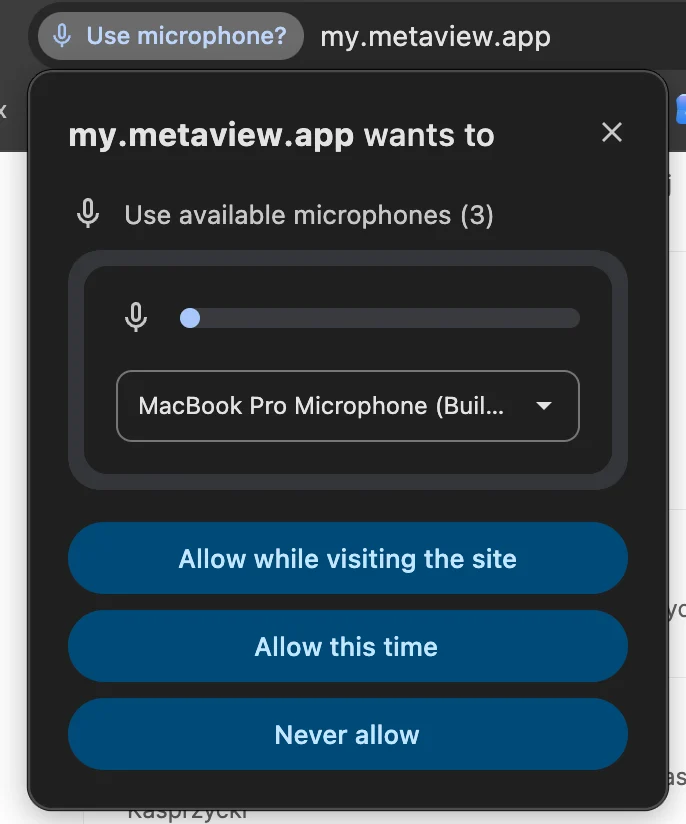
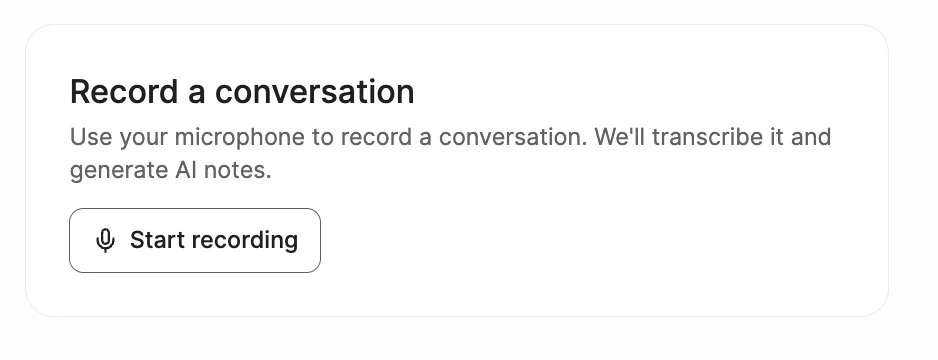 1. Click `Start recording` on your Metaview account home page. You may be required to allow microphone access when prompted by your browser. Select your microphone and `Allow while visiting the site` on your browser pop-up to proceed with recording.
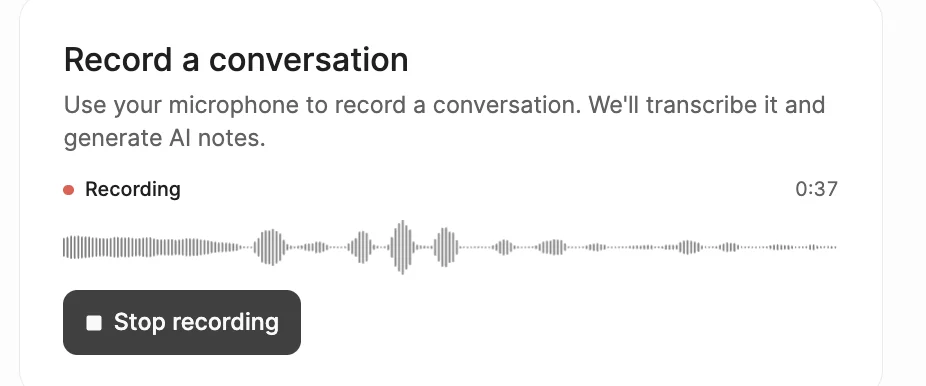
 2. When the conversation is finished, click `Stop recording`. For longer live conversations, we recommend splitting the recording into roughly 1-hour chunks where possible. We also recommend limiting individual recorded conversations to a maximum of 3 hours.
 Please note that if you close your browser or your computer shuts down, locks or crashed before successfully completing the recording, your recording may not be saved and will not be recoverable.
3. You will then be taken through the upload flow. Enter the details for your recording, add participants if needed, and click `Upload` to Metaview. \\
Please note that if you close your browser or your computer shuts down, locks or crashed before successfully completing the recording, your recording may not be saved and will not be recoverable.
3. You will then be taken through the upload flow. Enter the details for your recording, add participants if needed, and click `Upload` to Metaview. \\
 4. Your recording will be transcribed and your notes will be available within a few minutes on your [Metaview home page](https://my.metaview.app/). They will not necessarily appear at the top of the page, you may need to scroll down your list to the start time you have provided when uploading the recording.
5. Please note that the normal [Access](/using-ai-notes/notes-properties/access) rules still apply, so only call participants listed as interviewers and admins will have access by default to the transcript and notes. Therefore, even if you are the one recording and uploading the conversation, if you do not include yourself as a participant with the **role of Interviewer**, once the conversation is uploaded and processed, **it will not show up** in your conversations.
6. Once the upload is completed, you may need to manually assign speakers in the conversation, as Metaview won't know **who** is speaking **when** in the recording of your call or in-person meeting. Please see [Assigning participants](/using-ai-notes/notes-properties/assigning-participants) for details.
Recording quality may vary depending on your microphone, device, and environment. For best results, keep your laptop close to the speakers and record in a quiet environment.
If you encounter an unexpected error when recording or uploading your conversation, we recommend closing your current browser window, opening Metaview in a brand new browser tab, and trying again. If the issue persists, please reach out to [us](mailto:support@metaview.ai) with details of the error you encountered.
## Best Practices
**Before you start**
* If you have more than one input device, select the correct microphone in the browser prompt.
* Close any other app that might be using your mic (Zoom, Teams, Meet).
**Check that it's actually recording**
After you click `Start recording`, confirm the card shows all of these:
* A pulsing red dot next to **Recording**.
* A timer counting up — if it's stuck at `00:00`, something's wrong.
* A live waveform that moves when someone speaks. This is the most important check: if it stays flat while people are talking, the mic isn't picking up audio.
**During recordings**
* Keep your computer awake. If the device sleeps or the mic disconnects, the recording is interrupted and may be lost.
* Keep the device plugged in and the Metaview tab open.
* Use Chrome or Firefox for long or important recordings.
**Before uploading**
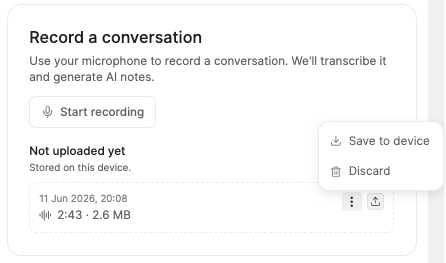
* Don't clear your browser data or site storage, switch device or browser, or use incognito/private mode — unsaved recordings live in this browser's local storage on this device until the upload completes.
4. Your recording will be transcribed and your notes will be available within a few minutes on your [Metaview home page](https://my.metaview.app/). They will not necessarily appear at the top of the page, you may need to scroll down your list to the start time you have provided when uploading the recording.
5. Please note that the normal [Access](/using-ai-notes/notes-properties/access) rules still apply, so only call participants listed as interviewers and admins will have access by default to the transcript and notes. Therefore, even if you are the one recording and uploading the conversation, if you do not include yourself as a participant with the **role of Interviewer**, once the conversation is uploaded and processed, **it will not show up** in your conversations.
6. Once the upload is completed, you may need to manually assign speakers in the conversation, as Metaview won't know **who** is speaking **when** in the recording of your call or in-person meeting. Please see [Assigning participants](/using-ai-notes/notes-properties/assigning-participants) for details.
Recording quality may vary depending on your microphone, device, and environment. For best results, keep your laptop close to the speakers and record in a quiet environment.
If you encounter an unexpected error when recording or uploading your conversation, we recommend closing your current browser window, opening Metaview in a brand new browser tab, and trying again. If the issue persists, please reach out to [us](mailto:support@metaview.ai) with details of the error you encountered.
## Best Practices
**Before you start**
* If you have more than one input device, select the correct microphone in the browser prompt.
* Close any other app that might be using your mic (Zoom, Teams, Meet).
**Check that it's actually recording**
After you click `Start recording`, confirm the card shows all of these:
* A pulsing red dot next to **Recording**.
* A timer counting up — if it's stuck at `00:00`, something's wrong.
* A live waveform that moves when someone speaks. This is the most important check: if it stays flat while people are talking, the mic isn't picking up audio.
**During recordings**
* Keep your computer awake. If the device sleeps or the mic disconnects, the recording is interrupted and may be lost.
* Keep the device plugged in and the Metaview tab open.
* Use Chrome or Firefox for long or important recordings.
**Before uploading**
* Don't clear your browser data or site storage, switch device or browser, or use incognito/private mode — unsaved recordings live in this browser's local storage on this device until the upload completes.