> ## Documentation Index
> Fetch the complete documentation index at: https://support.metaview.ai/llms.txt
> Use this file to discover all available pages before exploring further.
# Working With Your Notes
> How the notes page works: templates, editing, formatting, and sources
Your notes are usually ready within about five minutes of the call ending. Open a conversation from your [Metaview home page](https://my.metaview.app/) and you land on the notes page.
## What's on the notes page
| Where | What you'll find |
| ------------------------- | ---------------------------------------------------------------------------------------------------------------------------------------------------------- |
| **Summary** tab | Your notes, generated from the transcript using the selected [template](/notes/templates). This is the main view. |
| **TLDR** tab | A one-paragraph summary built from topics you choose. See [TLDR](/notes/tldr). |
| **Snippets** tab | Short shareable clips cut from the recording. See [Snippets](/notes/snippets). |
| **Sources** panel (right) | The recording and transcript, plus any extra context you've added. See [Transcript and recording](/notes/transcript-and-recording). |
| **Actions** panel (right) | Everything you can do with the conversation — share, export, add to a collection, source similar candidates, delete. See [Actions](#actions-you-can-take). |
| **Ask AI** (bottom right) | Ask questions about the conversation and get answers cited back to the transcript. See [Assistant](/notes/assistant). |
## How your notes get written
For each call, Metaview uses speech-to-text transcription to capture what was said. The full transcript is available to review alongside the recording. Based on the template you select, and any additional context or actions you add, Metaview uses the transcript and other available call context to generate your notes.
Besides the transcript, some context may be added automatically, such as messages sent in the meeting chat and context from screen sharing, such as coding, demos, or presentations. You can also [add more sources](#adding-sources) yourself, such as previous conversations or uploaded files.
## Selecting a template
Your notes are organized by the selected template, which you can change at any time by clicking `Use template`. Each template has a different purpose, and not every template suits every kind of call.
The template shapes the notes rather than the call, so it doesn't matter what order things came up in — and you do not need to choose a template ahead of time. You can try several on the same conversation and keep whichever writes it up best.
 For the full default template library, and how to build a template from your own scorecard or interview framework, see [Templates](/notes/templates).
## Editing your notes
Metaview AI-generated notes are fully editable and allow you to edit, delete, correct, supplement, and personalize the final output based on your observations, priorities, and judgment. Edit the notes directly in the notes editor in your browser window, and they will be saved automatically.
You might not be able to edit notes if they were shared with you. Please see [Share and export](/notes/share-and-export#editing-notes-shared-with-you) for details.
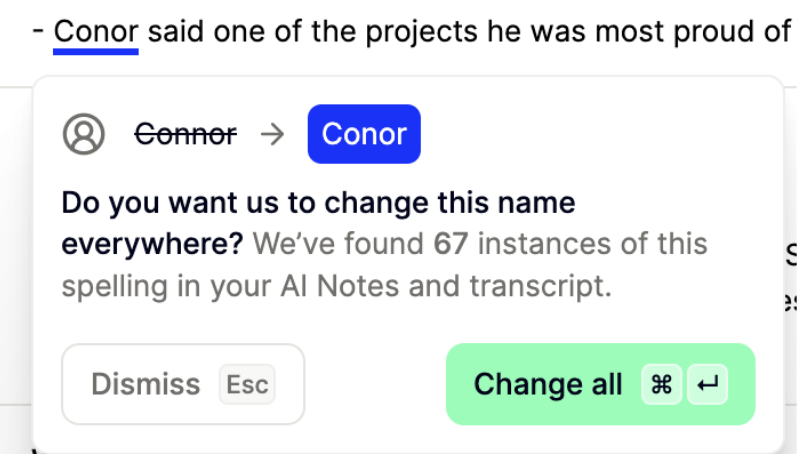
Metaview may sometimes mistranscribe certain words, especially proper nouns. If you correct the spelling of these words in your notes Metaview will prompt you to also update all other similar words found in the transcript and notes. Click `Change all` to fix all occurrences, or `Dismiss` to not apply any additional corrections.
For the full default template library, and how to build a template from your own scorecard or interview framework, see [Templates](/notes/templates).
## Editing your notes
Metaview AI-generated notes are fully editable and allow you to edit, delete, correct, supplement, and personalize the final output based on your observations, priorities, and judgment. Edit the notes directly in the notes editor in your browser window, and they will be saved automatically.
You might not be able to edit notes if they were shared with you. Please see [Share and export](/notes/share-and-export#editing-notes-shared-with-you) for details.
Metaview may sometimes mistranscribe certain words, especially proper nouns. If you correct the spelling of these words in your notes Metaview will prompt you to also update all other similar words found in the transcript and notes. Click `Change all` to fix all occurrences, or `Dismiss` to not apply any additional corrections.
 ## Formatting your notes
In the notes editor, you can format your notes with the following preset options:
* **Length**: `+ longer`, `- shorter`
* **Format**: `Bullet points`, `Paragraphs`
* **Pronouns**: `they/them`, `she/her`, `he/him`, `tc/tc's` (abbreviation for "the candidate")
* **Identifier**: `Refer to as "Candidate"`, `Refer to as [Candidate name]`
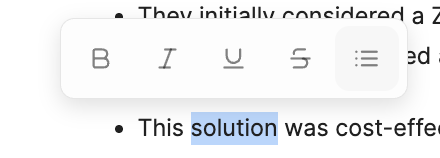
* Select from **bold,** *italic,* underline, and ~~strikethrough~~ by `highlighting` specific words.
## Formatting your notes
In the notes editor, you can format your notes with the following preset options:
* **Length**: `+ longer`, `- shorter`
* **Format**: `Bullet points`, `Paragraphs`
* **Pronouns**: `they/them`, `she/her`, `he/him`, `tc/tc's` (abbreviation for "the candidate")
* **Identifier**: `Refer to as "Candidate"`, `Refer to as [Candidate name]`
* Select from **bold,** *italic,* underline, and ~~strikethrough~~ by `highlighting` specific words.
 Metaview does not conduct any analysis to collect or try to infer the candidate's pronouns. The "They" pronoun is applied by default to all candidates and can be adjusted if needed by the user.
Some formatting options may not be available in all cases. Candidate preferred **Pronouns** and **Identifier** options are only available for **Job Interview** meeting types and as long as there is exactly one call participant labelled as a candidate. To change the meeting type and verify participant roles, see [Conversation details](/notes/conversation-details).
To display notes in a different language, see [Languages and translation](/notes/languages).
## Note sections
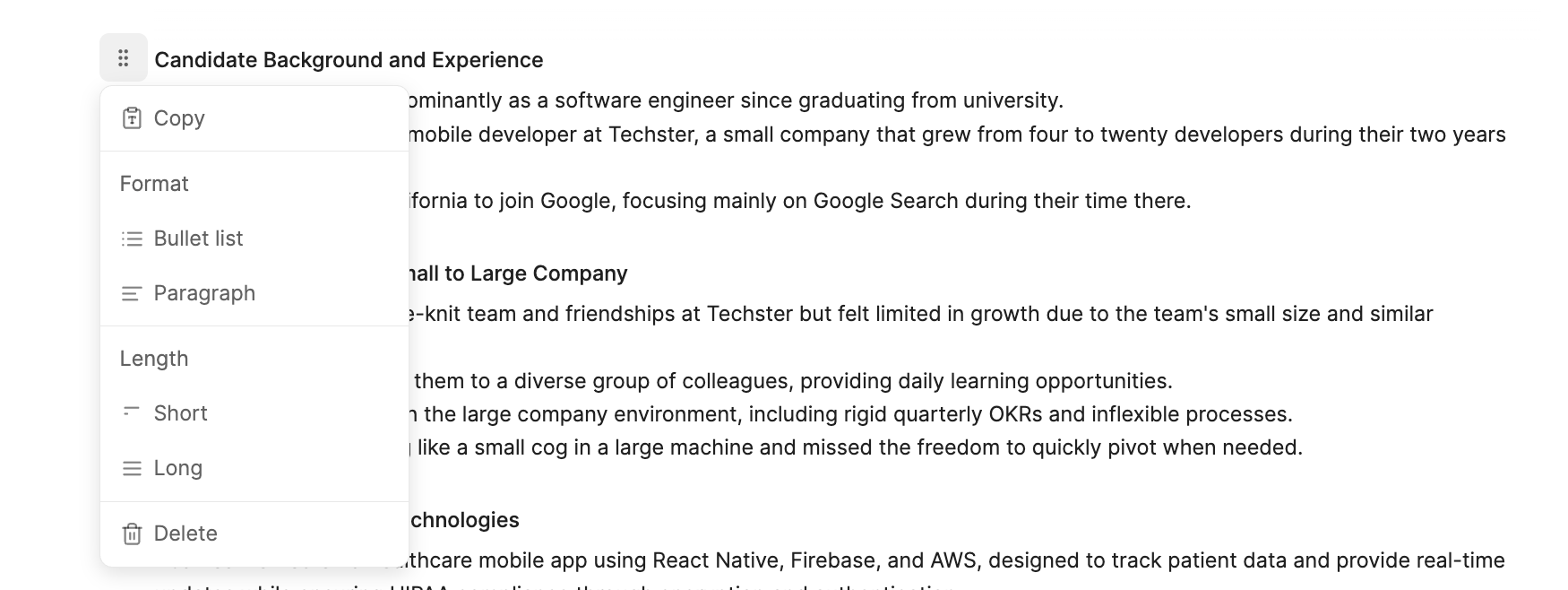
Each section in the notes can be reordered (drag the section by `⋮⋮` icon in the top-left corner). You can also copy, reformat, or delete each section individually by clicking on the `⋮⋮` icon.
Metaview does not conduct any analysis to collect or try to infer the candidate's pronouns. The "They" pronoun is applied by default to all candidates and can be adjusted if needed by the user.
Some formatting options may not be available in all cases. Candidate preferred **Pronouns** and **Identifier** options are only available for **Job Interview** meeting types and as long as there is exactly one call participant labelled as a candidate. To change the meeting type and verify participant roles, see [Conversation details](/notes/conversation-details).
To display notes in a different language, see [Languages and translation](/notes/languages).
## Note sections
Each section in the notes can be reordered (drag the section by `⋮⋮` icon in the top-left corner). You can also copy, reformat, or delete each section individually by clicking on the `⋮⋮` icon.
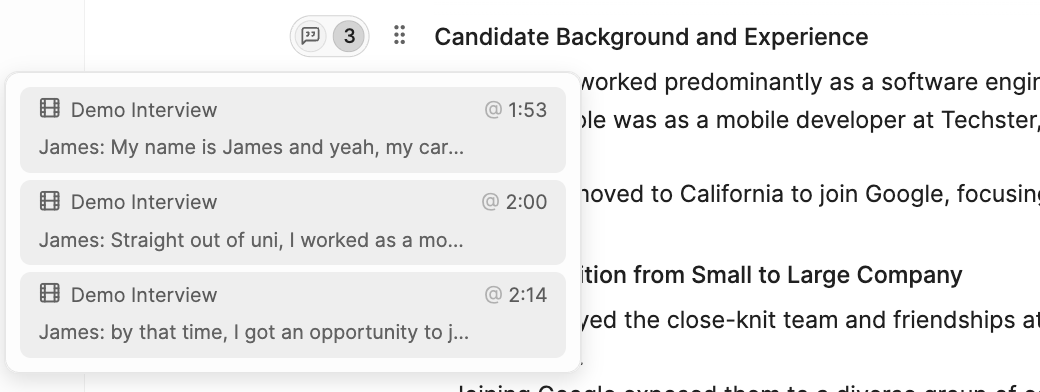
 To review the transcript and recording related to a section in the notes, click on the `💬` (speech balloon) for the relevant section. Click `on the segment`, and you will jump directly to the part of the transcription where the information was taken from. If the information is found in more than one location, you will see a number of instances and the ability to jump to each one.
 ## Adding sources
In addition to the recorded conversation, you can supplement your notes as well as your scorecard with additional previously captured conversations or additional context. Click on `+ New source` and either select past conversations on your Metaview account or upload a file. If you add additional sources, Metaview will generate notes for you based on the conversation **and** the additional sources you have added.
## Adding sources
In addition to the recorded conversation, you can supplement your notes as well as your scorecard with additional previously captured conversations or additional context. Click on `+ New source` and either select past conversations on your Metaview account or upload a file. If you add additional sources, Metaview will generate notes for you based on the conversation **and** the additional sources you have added.
Elyse introduces our new Multi-source feature!
**Pro tip:** This is especially useful if a conversation took place in multiple parts — whether intentionally (like a follow-up call) or unintentionally (e.g., if the original call was cut off). You can combine both recordings to generate a single, coherent set of notes.
The additional file can be a job description, the candidate's resume/CV, or other relevant document in a valid format (.TXT, .PDF, .DOC, .DOCX up to 50 MB).
Metaview may also suggest sources it has already found for you — for example a CV attached to the candidate's record in your ATS. Click `+` on a suggested source to include it.
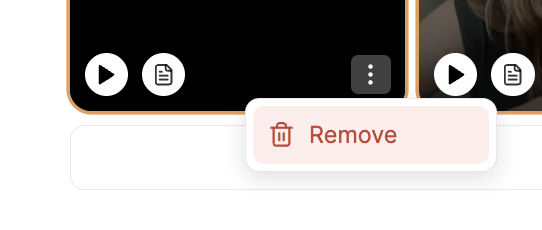
If you change your mind, you can easily remove additional sources. Click `on the` `⋮` (3 dots) to open the menu and select `Remove`.
 ## Version history
Metaview automatically saves snapshots of your notes, so you can review previous versions, compare changes (including manual edits, formatting, or template changes), and revert if needed. Click `Version` at the bottom of the notes editor, select a previous version, turn on `Compare` to see what changed, and click `Use this version` to restore that version.
## Version history
Metaview automatically saves snapshots of your notes, so you can review previous versions, compare changes (including manual edits, formatting, or template changes), and revert if needed. Click `Version` at the bottom of the notes editor, select a previous version, turn on `Compare` to see what changed, and click `Use this version` to restore that version.
 ## Actions you can take
The **Actions** panel on the right of the notes page is where the conversation connects to the rest of your workflow.
Copy or download notes, push them to your ATS, fill a scorecard, send to Zapier, or share the conversation with colleagues and people outside your workspace.
Group the call with everything else for that role, client, or project — and share the whole group in one go.
Use the person you just interviewed as the brief for a new sourcing search.
Jump to the matched candidate record, or open their public professional profile.
Open the scorecard your call was matched to and fill it from your notes.
Remove a conversation entirely, or redact selected content from everything derived from it.
Who can see a conversation in the first place — and how to give or revoke that access — is covered in [Access](/notes/access).
## Feedback on Notes
We strive to provide the highest quality and most accurate notes for talent conversations, but we can't do it without your help! Your feedback is greatly appreciated and is closely monitored by our product team and tracked by our leadership.
If you'd like to share your thoughts on the quality, accuracy, usability, or overall usefulness of your notes, please use the feedback submission feature located at the bottom of your notes.
## Actions you can take
The **Actions** panel on the right of the notes page is where the conversation connects to the rest of your workflow.
Copy or download notes, push them to your ATS, fill a scorecard, send to Zapier, or share the conversation with colleagues and people outside your workspace.
Group the call with everything else for that role, client, or project — and share the whole group in one go.
Use the person you just interviewed as the brief for a new sourcing search.
Jump to the matched candidate record, or open their public professional profile.
Open the scorecard your call was matched to and fill it from your notes.
Remove a conversation entirely, or redact selected content from everything derived from it.
Who can see a conversation in the first place — and how to give or revoke that access — is covered in [Access](/notes/access).
## Feedback on Notes
We strive to provide the highest quality and most accurate notes for talent conversations, but we can't do it without your help! Your feedback is greatly appreciated and is closely monitored by our product team and tracked by our leadership.
If you'd like to share your thoughts on the quality, accuracy, usability, or overall usefulness of your notes, please use the feedback submission feature located at the bottom of your notes.
 Using this feature is the **most effective way** to share feedback, as it logs your input directly to your activity session. This allows our team to quickly investigate and address any issues or suggestions, ensuring we continue to deliver the best possible experience for you.