> ## Documentation Index
> Fetch the complete documentation index at: https://support.metaview.ai/llms.txt
> Use this file to discover all available pages before exploring further.
# Transcript And Recording
> The raw record of the call — and how to check your notes against it
Notes are a summary, and summaries can be wrong or lose nuance. The transcript and recording are how you check — before you send a summary to a hiring manager, defend a decision in a debrief, or answer "are you sure they said that?".
This is also what makes AI-written notes safe to rely on. Nothing in your notes is unverifiable: every line came from a specific moment you can go and listen to.
## What gets captured
| How the call was captured | What you get |
| ---------------------------------------------------------------- | ---------------------------------------------------------- |
| Video conference | Video recording, audio, and full transcript |
| Phone call | Audio recording and full transcript |
| [Uploaded recording](/notes/capturing-calls/upload-recordings) | Whatever you uploaded — video or audio — plus a transcript |
| [Imported transcript](/notes/capturing-calls/import-transcripts) | Transcript only; there is no recording to play back |
Workspaces can be configured to capture **audio only**, with no video recording, for compliance or policy reasons — and individual participants can decline video. Where that applies, playback is audio and [Snippets](/notes/snippets) are unavailable. See [Privacy configurations](/account-management/privacy-and-security/privacy-configurations).
## Open the recording and transcript
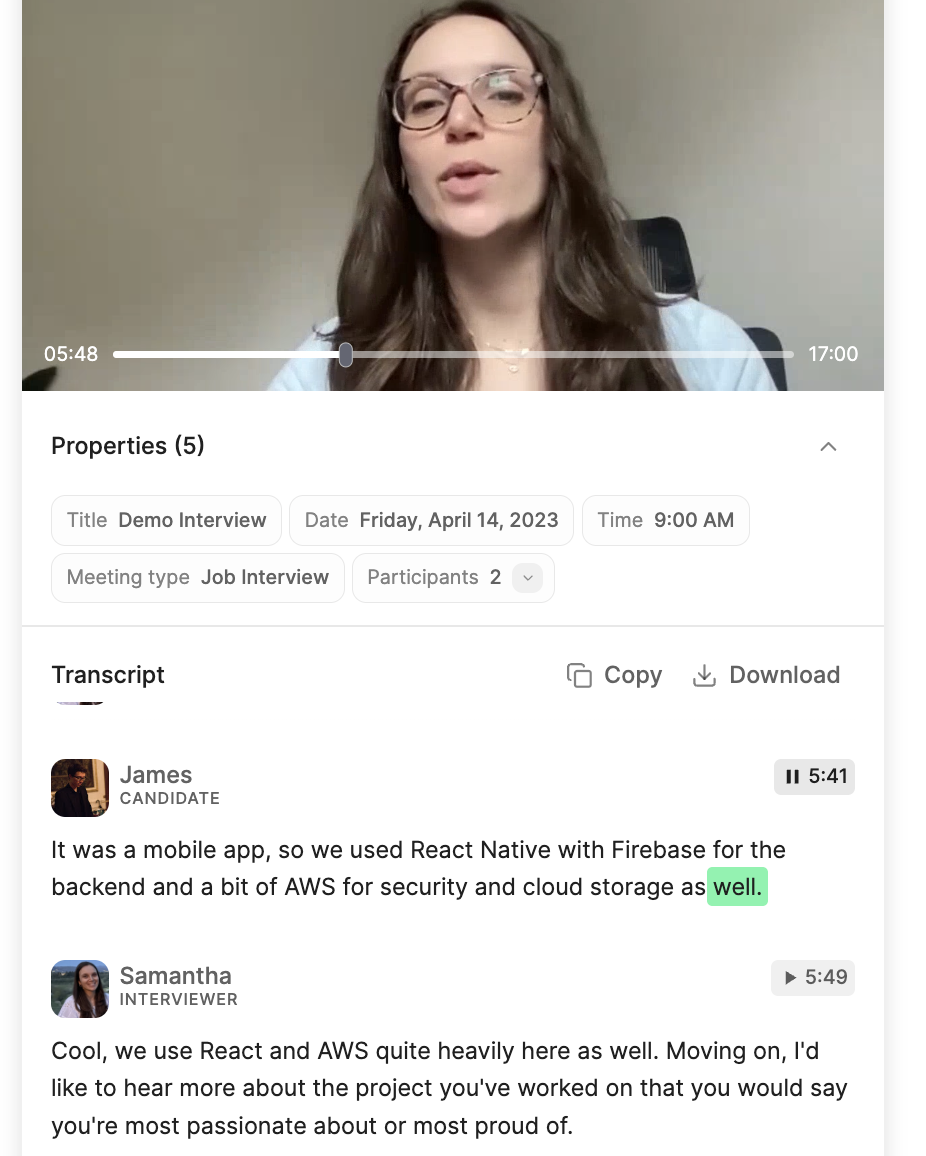
Click `on the video title` (or audio if video is not available) in the **Sources** panel to open the **recording** and the **full transcript** of the call.
Playback options include:
* Play / Pause
* Go back 5 seconds / skip ahead 5 seconds
* Adjust playback speed (from 1x to 2x)
* Maximize/minimize the playback screen
* The scroll bar with progress and the recording duration
When you play the recording, you can opt to follow along in the transcript. A green highlight will move through the transcript as the recording plays.
 ## Jumping to the moment behind a note
Scrubbing a recording to find something is slow. Work backwards from your notes instead: click the `💬` (speech balloon) on a notes section to see the transcript segments it was drawn from, then click a segment to jump straight to that point in the recording. Where a claim came from more than one place in the conversation, you'll see a count and can step through each occurrence.
This is the fastest way to answer a specific question about a call, and a good habit before forwarding notes to someone else. See [Note sections](/notes/working-with-notes#note-sections).
If you'd rather ask a question than read, the [Assistant](/notes/assistant) answers from the same transcript and cites the moments it used. And to send someone the moment itself rather than a description of it, cut a [snippet](/notes/snippets).
## Copy or download
You can **copy** or **download** the transcript of your call. The recording (if available) can also be downloaded.
## Jumping to the moment behind a note
Scrubbing a recording to find something is slow. Work backwards from your notes instead: click the `💬` (speech balloon) on a notes section to see the transcript segments it was drawn from, then click a segment to jump straight to that point in the recording. Where a claim came from more than one place in the conversation, you'll see a count and can step through each occurrence.
This is the fastest way to answer a specific question about a call, and a good habit before forwarding notes to someone else. See [Note sections](/notes/working-with-notes#note-sections).
If you'd rather ask a question than read, the [Assistant](/notes/assistant) answers from the same transcript and cites the moments it used. And to send someone the moment itself rather than a description of it, cut a [snippet](/notes/snippets).
## Copy or download
You can **copy** or **download** the transcript of your call. The recording (if available) can also be downloaded.
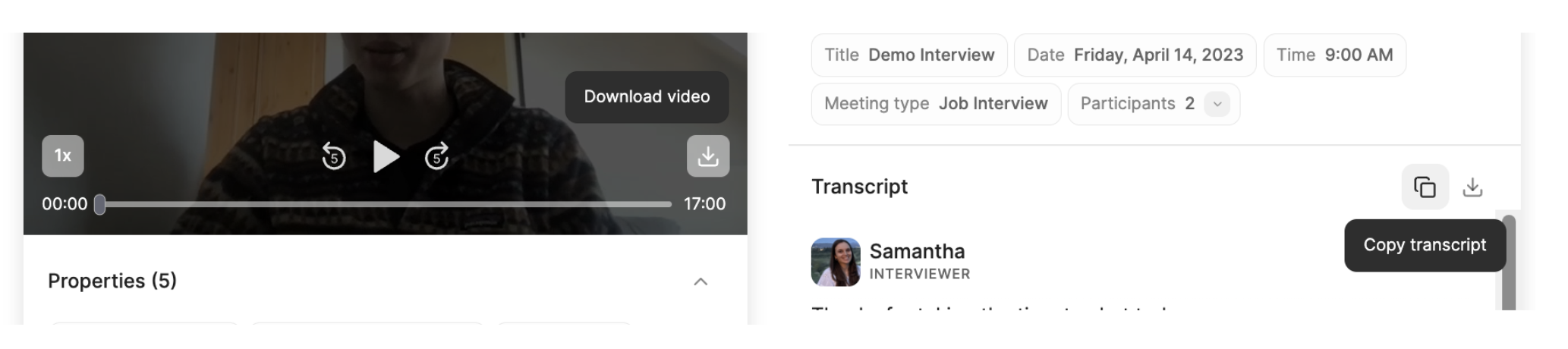 *To download the recording, click on "Download video" or "Download audio" (for audio only recordings). You can also copy or download the full transcription.*
Downloading is also how you respond to a data subject access request — see [Access and deletion requests](/account-management/privacy-and-security/access-and-deletion-requests).
## Who can see it, and for how long
The recording and transcript are visible to exactly the people who have access to the conversation — call participants from the owning workspace, account admins, and anyone it has been shared with. There is no separate permission for the recording. See [Access and permissions](/notes/access).
Your organization decides how long recordings, transcripts, and notes are retained, and can have them deleted automatically on that schedule. Once a retention window passes, the recording is gone for everyone and is not recoverable. See [Privacy configurations](/account-management/privacy-and-security/privacy-configurations).
You can also share a conversation's notes or transcript **without** the recording — see [Sharing without recordings](/notes/share-and-export#sharing-without-recordings).
## When the transcript looks wrong
| What you're seeing | What to do |
| ------------------------------------------------------------- | ----------------------------------------------------------------------------------------------------------------------------------------------------------------------------- |
| Garbled text, or text in the wrong language | Metaview misidentified the spoken language. See [Fixing the transcription language](/notes/languages#fixing-the-transcription-language). |
| Lines attributed to the wrong person, or an "Unknown Speaker" | Reassign the speaker in the transcript; notes are regenerated afterwards. See [Participants](/notes/participants). |
| A name or technical term misspelled throughout | Correct it once in your notes and Metaview offers to fix every other occurrence. See [Editing your notes](/notes/working-with-notes#editing-your-notes). |
| Words missing where people talked over each other | Overlapping speakers and background noise are hard to transcribe accurately — for anyone. See [Limitations to be aware of](/notes/best-practices#limitations-to-be-aware-of). |
| Something that was never said aloud isn't there | Expected: Metaview captures only spoken content. Add the context yourself when you review the notes. |
| No transcript at all, or the call shows as "Unavailable" | Check the status message on your home page — [Notes FAQs](/notes/notes-faqs#why-did-metaview-not-join-my-call) explains each one. |
## Removing part of a conversation
To take something out of the transcript, recording, and notes at once — a detail a candidate asked you not to keep, or information that shouldn't have been discussed — select it in the transcript and redact it. Redaction is irreversible and applies to everyone with access, including you. See [Deleting and redacting](/notes/deleting-notes#redacting-selected-content).
*To download the recording, click on "Download video" or "Download audio" (for audio only recordings). You can also copy or download the full transcription.*
Downloading is also how you respond to a data subject access request — see [Access and deletion requests](/account-management/privacy-and-security/access-and-deletion-requests).
## Who can see it, and for how long
The recording and transcript are visible to exactly the people who have access to the conversation — call participants from the owning workspace, account admins, and anyone it has been shared with. There is no separate permission for the recording. See [Access and permissions](/notes/access).
Your organization decides how long recordings, transcripts, and notes are retained, and can have them deleted automatically on that schedule. Once a retention window passes, the recording is gone for everyone and is not recoverable. See [Privacy configurations](/account-management/privacy-and-security/privacy-configurations).
You can also share a conversation's notes or transcript **without** the recording — see [Sharing without recordings](/notes/share-and-export#sharing-without-recordings).
## When the transcript looks wrong
| What you're seeing | What to do |
| ------------------------------------------------------------- | ----------------------------------------------------------------------------------------------------------------------------------------------------------------------------- |
| Garbled text, or text in the wrong language | Metaview misidentified the spoken language. See [Fixing the transcription language](/notes/languages#fixing-the-transcription-language). |
| Lines attributed to the wrong person, or an "Unknown Speaker" | Reassign the speaker in the transcript; notes are regenerated afterwards. See [Participants](/notes/participants). |
| A name or technical term misspelled throughout | Correct it once in your notes and Metaview offers to fix every other occurrence. See [Editing your notes](/notes/working-with-notes#editing-your-notes). |
| Words missing where people talked over each other | Overlapping speakers and background noise are hard to transcribe accurately — for anyone. See [Limitations to be aware of](/notes/best-practices#limitations-to-be-aware-of). |
| Something that was never said aloud isn't there | Expected: Metaview captures only spoken content. Add the context yourself when you review the notes. |
| No transcript at all, or the call shows as "Unavailable" | Check the status message on your home page — [Notes FAQs](/notes/notes-faqs#why-did-metaview-not-join-my-call) explains each one. |
## Removing part of a conversation
To take something out of the transcript, recording, and notes at once — a detail a candidate asked you not to keep, or information that shouldn't have been discussed — select it in the transcript and redact it. Redaction is irreversible and applies to everyone with access, including you. See [Deleting and redacting](/notes/deleting-notes#redacting-selected-content).