> ## Documentation Index
> Fetch the complete documentation index at: https://support.metaview.ai/llms.txt
> Use this file to discover all available pages before exploring further.
# Share And Export
> Get notes out of Metaview, and give people access to a conversation
There are two different things you might mean by sharing a call, and they behave differently:
* **Export** takes the notes out of Metaview — a copy, a PDF, a push to your ATS or Zapier. The recipient never needs Metaview.
* **Share** gives someone access to the conversation itself in Metaview — notes, transcript, and recording — with access you can revoke later.
Both live in the **Actions** panel on the right of the notes page, under `Share & export`.
## Exporting your notes
Once you've selected your preferred template, adjusted the formatting, and made any edits or additions, you can get your notes out in the following ways:
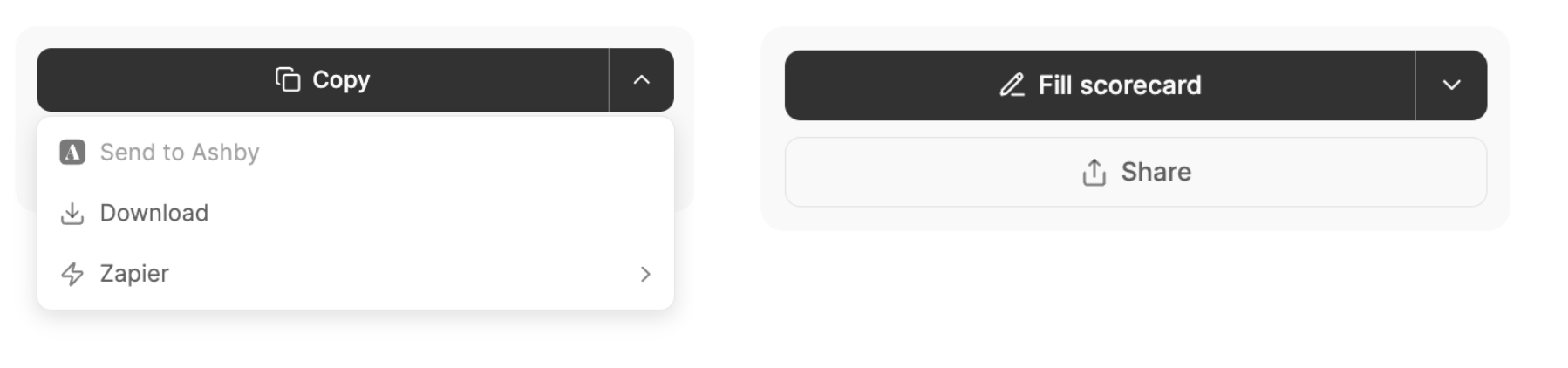
* Copy the text by clicking `Copy`
* To download a PDF, select `⬇️` (dropdown) for more options and `Download`
* To push your notes to other tools you use including your CRM, Google Drive, Slack or Notion, select `⬇️` (dropdown) for more options and `Push to Zapier`. See [Zapier overview](/integrations/zapier-integrations/zapier-overview) for details on setting up Zapier for your account. Once Zapier is set up, you will be able to select where you want to send your notes with one click.
 ### Send to your ATS
If you have an ATS integration and the necessary permissions to post AI notes to the matched **candidate profile**, click `Send to `.
If your ATS supports scorecards and your call was matched to one, you can open it with `Fill Scorecard` (or `View scorecard`) and complete it alongside your notes.
*If your call was matched to an interview or scorecard in your ATS, you will see options to send notes directly to your ATS or to fill out your scorecard.*
If you have an integration, but the **Send to ATS** button is disabled, you either don't have permission to post to the candidate profile, or Metaview could not match this conversation to a candidate in your ATS.
## Sharing a conversation
On the right-hand side of the notes page, click on `Share` to get started. The option to share summary will **not be available** if you are accessing notes that have been shared with you.
You will see a pop-up menu with a list of all accounts that already have access to this call.
Please note that sharing a conversation doesn’t override seat limits. If the person trying to access a shared conversation is on a **Free** seat, the usual Free seat restrictions still apply — including any limits on viewing historical calls and monthly quotas. That means, in some cases, they may not be able to access the shared conversation unless they have been assigned a Pro seat.
### With colleagues
On your notes page, select the `Share`. In the **Share conversation** popup window, enter your teammate's email in the field and click `Share`. They will receive an email alerting them that you have shared a conversation on Metaview with them. To access the conversation they will need to create or log in to their Metaview account.
Please note that you will not be able to share a conversation with someone that is not part of your workspace using this option. If you want to share a conversation with someone outside your workspace, use the sharing option for people **Outside your workspace** described below.
### Within your workspace
On your notes page, select the `Share`. In the **Share conversation** popup window, under **Who can access**, click on the drop down and select the `All workspace members can view ` option. Click `Copy`. Share the generated link with anyone in your workspace. To access the conversation they will need to create or log in to their Metaview account.
### Send to your ATS
If you have an ATS integration and the necessary permissions to post AI notes to the matched **candidate profile**, click `Send to `.
If your ATS supports scorecards and your call was matched to one, you can open it with `Fill Scorecard` (or `View scorecard`) and complete it alongside your notes.
*If your call was matched to an interview or scorecard in your ATS, you will see options to send notes directly to your ATS or to fill out your scorecard.*
If you have an integration, but the **Send to ATS** button is disabled, you either don't have permission to post to the candidate profile, or Metaview could not match this conversation to a candidate in your ATS.
## Sharing a conversation
On the right-hand side of the notes page, click on `Share` to get started. The option to share summary will **not be available** if you are accessing notes that have been shared with you.
You will see a pop-up menu with a list of all accounts that already have access to this call.
Please note that sharing a conversation doesn’t override seat limits. If the person trying to access a shared conversation is on a **Free** seat, the usual Free seat restrictions still apply — including any limits on viewing historical calls and monthly quotas. That means, in some cases, they may not be able to access the shared conversation unless they have been assigned a Pro seat.
### With colleagues
On your notes page, select the `Share`. In the **Share conversation** popup window, enter your teammate's email in the field and click `Share`. They will receive an email alerting them that you have shared a conversation on Metaview with them. To access the conversation they will need to create or log in to their Metaview account.
Please note that you will not be able to share a conversation with someone that is not part of your workspace using this option. If you want to share a conversation with someone outside your workspace, use the sharing option for people **Outside your workspace** described below.
### Within your workspace
On your notes page, select the `Share`. In the **Share conversation** popup window, under **Who can access**, click on the drop down and select the `All workspace members can view ` option. Click `Copy`. Share the generated link with anyone in your workspace. To access the conversation they will need to create or log in to their Metaview account.
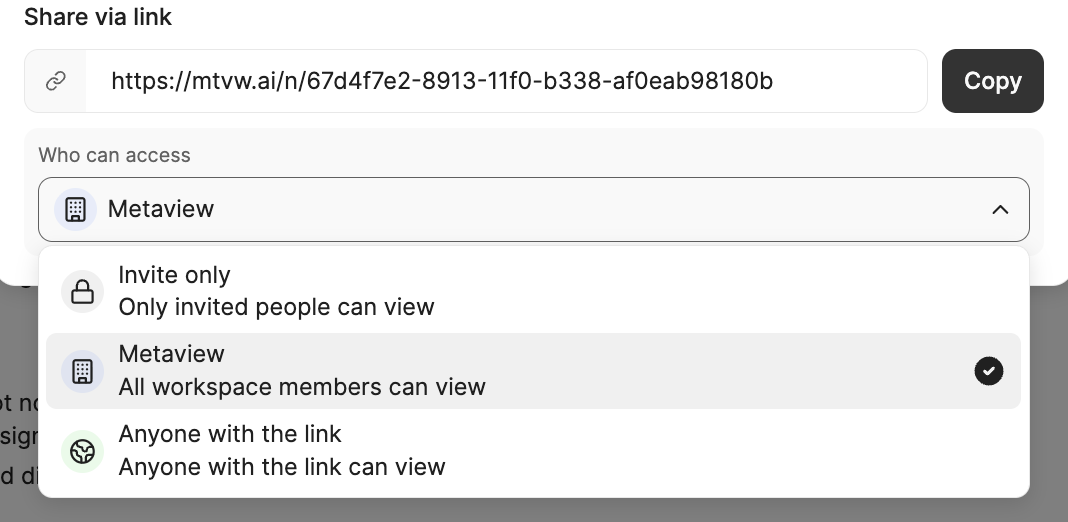 To disable a general access link that has been shared, you can change the **Who can access** option back to `Invite Only - only invited people can view`**.** Once a call is deleted, it will not be available via this link.
### Outside your workspace
You can share notes, transcripts, and recordings with individuals outside your company, or who don't have a Metaview account. On your notes page, select the `Share`.
In the pop-up window, under **Who can access**, click on the drop-down and select the `Anyone with the link - Anyone with a link can view` option. Click `Copy`. Share the generated link with anyone that you want to share this conversation with.
To disable a general access link that has been shared, you can change the **Who can access** option back to `Invite Only - only invited people can view`**.** Once a call is deleted, it will not be available via this link.
### Outside your workspace
You can share notes, transcripts, and recordings with individuals outside your company, or who don't have a Metaview account. On your notes page, select the `Share`.
In the pop-up window, under **Who can access**, click on the drop-down and select the `Anyone with the link - Anyone with a link can view` option. Click `Copy`. Share the generated link with anyone that you want to share this conversation with.
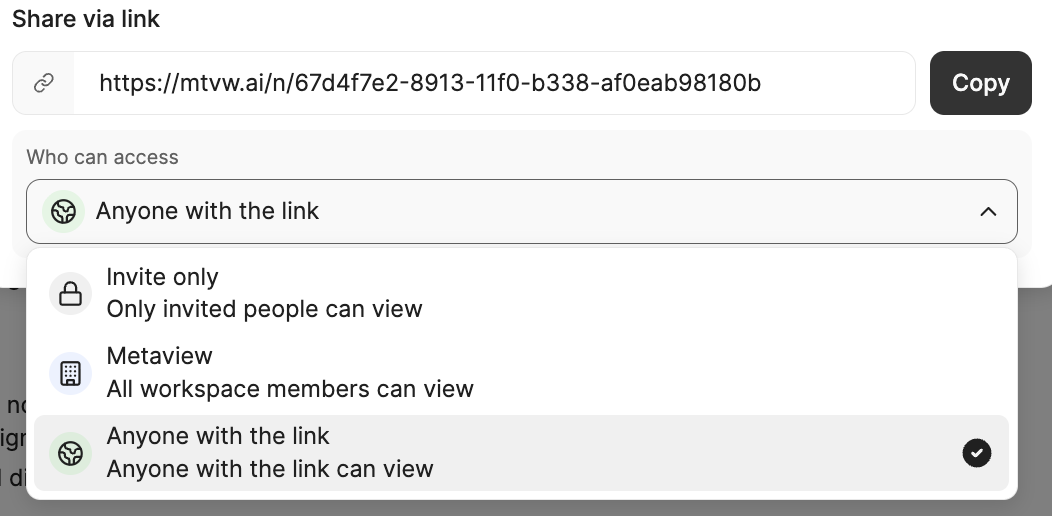 A Metaview account is **not required** for the recipient to access shared notes with this setting. Anyone you share this link with can therefore access your shared call transcript and notes anonymously.
To disable a general access link that has been shared, you can change the **General access** option back to `Invite Only - only invited people invited can view`**.** Once a call is deleted, it will not be available via this link.
## Sharing a collection
If you keep sharing the same group of calls — everything for one role, or a set of example interviews for someone to shadow — you can share a whole [collection](/notes/collections) instead of each conversation individually. Open the collection's `...` menu and select `Share`.
A collection offers the same three levels of access described above — specific people, anyone in your workspace, or anyone with the link — though the collection share menu labels them slightly differently. People you invite get read-only access to the collection and the conversations in it, including any you add to it later. See [Share a collection](/notes/collections#share-a-collection) for what read-only access to a collection allows.
## Sharing a snippet
To send a colleague one moment from a call rather than the whole conversation, cut a [snippet](/notes/snippets) and share that instead. Snippet sharing works the same way as conversation sharing, including the `Anyone with the link` option for people without a Metaview account.
## Sharing without recordings
You can share just the notes or the transcript of a conversation without the recording. Please see [Access and deletion requests](/account-management/privacy-and-security/access-and-deletion-requests) for more information on how to download the transcript or notes.
## Editing notes shared with you
The initial version of the notes that you will share will appear as **Read Only**. They will not be able to edit notes, change the template or use other formatting changes. This is **intentional** as is meant to ensure your collaborators see the notes exactly as you shared them. A banner will appear explaning why this version of the notes is not available for editing.
A Metaview account is **not required** for the recipient to access shared notes with this setting. Anyone you share this link with can therefore access your shared call transcript and notes anonymously.
To disable a general access link that has been shared, you can change the **General access** option back to `Invite Only - only invited people invited can view`**.** Once a call is deleted, it will not be available via this link.
## Sharing a collection
If you keep sharing the same group of calls — everything for one role, or a set of example interviews for someone to shadow — you can share a whole [collection](/notes/collections) instead of each conversation individually. Open the collection's `...` menu and select `Share`.
A collection offers the same three levels of access described above — specific people, anyone in your workspace, or anyone with the link — though the collection share menu labels them slightly differently. People you invite get read-only access to the collection and the conversations in it, including any you add to it later. See [Share a collection](/notes/collections#share-a-collection) for what read-only access to a collection allows.
## Sharing a snippet
To send a colleague one moment from a call rather than the whole conversation, cut a [snippet](/notes/snippets) and share that instead. Snippet sharing works the same way as conversation sharing, including the `Anyone with the link` option for people without a Metaview account.
## Sharing without recordings
You can share just the notes or the transcript of a conversation without the recording. Please see [Access and deletion requests](/account-management/privacy-and-security/access-and-deletion-requests) for more information on how to download the transcript or notes.
## Editing notes shared with you
The initial version of the notes that you will share will appear as **Read Only**. They will not be able to edit notes, change the template or use other formatting changes. This is **intentional** as is meant to ensure your collaborators see the notes exactly as you shared them. A banner will appear explaning why this version of the notes is not available for editing.
 If you have been shared a conversation and need to make edits or use a different template, you will need to reload the shared notes as explained below:
1. Login to your Metaview account (make sure you are logged into the account that is associated with the email that has been used to share the notes with you)
2. Click on the Metaview logo in the top left corner to open the menu panel, and select **Home**.
3. Go to the **Shared with me** tab
4. Select the shared conversation
5. Proceed to edit the notes, change the template and make any necessary changes as needed.
## List of shared conversations
Any calls that were shared with you will appear under the **Shared with me** tab on your homepage.

Sharing controls who you deliberately grant access to. Who gets access to a conversation **by default** — participants, event organizers, admins, and recruiters — is covered in [Access](/notes/access).
If you have been shared a conversation and need to make edits or use a different template, you will need to reload the shared notes as explained below:
1. Login to your Metaview account (make sure you are logged into the account that is associated with the email that has been used to share the notes with you)
2. Click on the Metaview logo in the top left corner to open the menu panel, and select **Home**.
3. Go to the **Shared with me** tab
4. Select the shared conversation
5. Proceed to edit the notes, change the template and make any necessary changes as needed.
## List of shared conversations
Any calls that were shared with you will appear under the **Shared with me** tab on your homepage.

Sharing controls who you deliberately grant access to. Who gets access to a conversation **by default** — participants, event organizers, admins, and recruiters — is covered in [Access](/notes/access).