> ## Documentation Index
> Fetch the complete documentation index at: https://support.metaview.ai/llms.txt
> Use this file to discover all available pages before exploring further.
# Deleting And Redacting
> Remove a conversation entirely, or redact selected content from it
There are two ways to remove content from a captured conversation, and they do different things:
| | What it removes | Who it affects |
| ---------- | --------------------------------------------------------------------------------------- | ------------------------------------------------------- |
| **Delete** | The whole conversation — recording, transcript, notes, and everything derived from them | Everyone in the workspace and anyone it was shared with |
| **Redact** | Only the content you select, wherever it appears | Everyone with access, including you |
Both are **irreversible**.
## Deleting a conversation
You can delete any conversation you have access to, and admins can delete any conversation across the workspace.
1. Open the conversation you want to delete.
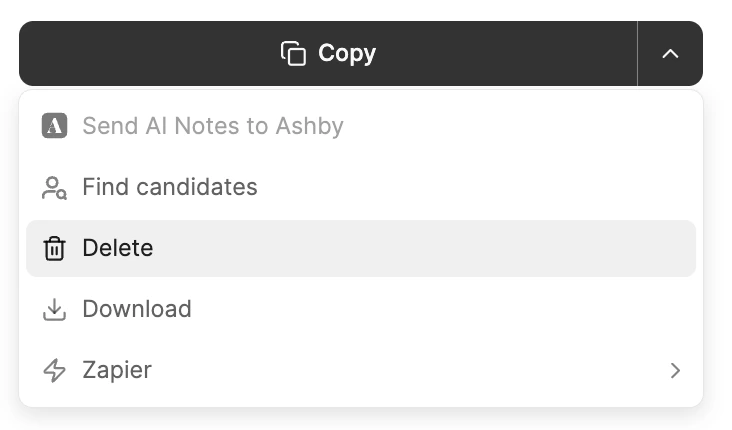
2. Open the **Actions** panel on the right of the notes editor.
3. Select `Delete`.
4. Confirm when asked: *"Delete this conversation for everyone? This action cannot be undone."*
 Conversations that were **shared with you** cannot be deleted directly — the delete option appears greyed out. Contact the conversation owner or your team's admin instead.
For conversations that were **not captured** or that are currently **blocked**, open the `⋮` (3 dots) menu on the conversation in your Notes list and select `Archive` or `Delete`. Archiving only moves the entry to the **Archive** list; it does not delete anything.
Calls deleted by other participants, by your account admin, or automatically under your organization's data retention settings are deleted for all users and are not recoverable. See [Privacy configurations](/account-management/privacy-and-security/privacy-configurations) for retention settings.
## Redacting selected content
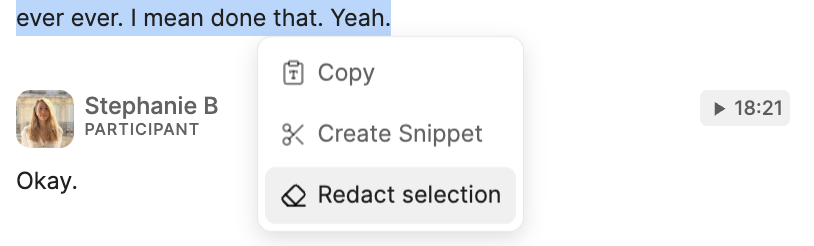
To start a redaction, select the content you want to remove in the transcript, then choose to redact it.
Redacting the selected content from a conversation hides it from everyone who has access to it, including you, other team members, and people you have shared it with. Redactions apply to the transcription, recording, summarized notes, and any other derived content such as [TLDRs](/notes/tldr) or [Snippets](/notes/snippets).
Once triggered, the process takes a few minutes to complete, and you won't be able to access the video recording or the Notes while it runs.
Conversations that were **shared with you** cannot be deleted directly — the delete option appears greyed out. Contact the conversation owner or your team's admin instead.
For conversations that were **not captured** or that are currently **blocked**, open the `⋮` (3 dots) menu on the conversation in your Notes list and select `Archive` or `Delete`. Archiving only moves the entry to the **Archive** list; it does not delete anything.
Calls deleted by other participants, by your account admin, or automatically under your organization's data retention settings are deleted for all users and are not recoverable. See [Privacy configurations](/account-management/privacy-and-security/privacy-configurations) for retention settings.
## Redacting selected content
To start a redaction, select the content you want to remove in the transcript, then choose to redact it.
Redacting the selected content from a conversation hides it from everyone who has access to it, including you, other team members, and people you have shared it with. Redactions apply to the transcription, recording, summarized notes, and any other derived content such as [TLDRs](/notes/tldr) or [Snippets](/notes/snippets).
Once triggered, the process takes a few minutes to complete, and you won't be able to access the video recording or the Notes while it runs.
 Redactions are **irreversible**. There is no way to restore redacted content afterwards.
## Data subject requests
If you're handling a GDPR access or erasure request rather than ordinary housekeeping, see [Access and deletion requests](/account-management/privacy-and-security/access-and-deletion-requests) for how to export a participant's data before deleting it.
Redactions are **irreversible**. There is no way to restore redacted content afterwards.
## Data subject requests
If you're handling a GDPR access or erasure request rather than ordinary housekeeping, see [Access and deletion requests](/account-management/privacy-and-security/access-and-deletion-requests) for how to export a participant's data before deleting it.