> ## Documentation Index
> Fetch the complete documentation index at: https://support.metaview.ai/llms.txt
> Use this file to discover all available pages before exploring further.
# Collections
> Organize related conversations into nested, shareable collections.
Collections help you organize conversations by role, project, customer, or topic. A conversation can belong to more than one collection, and deleting a collection does not delete its conversations.
## Create and organize collections
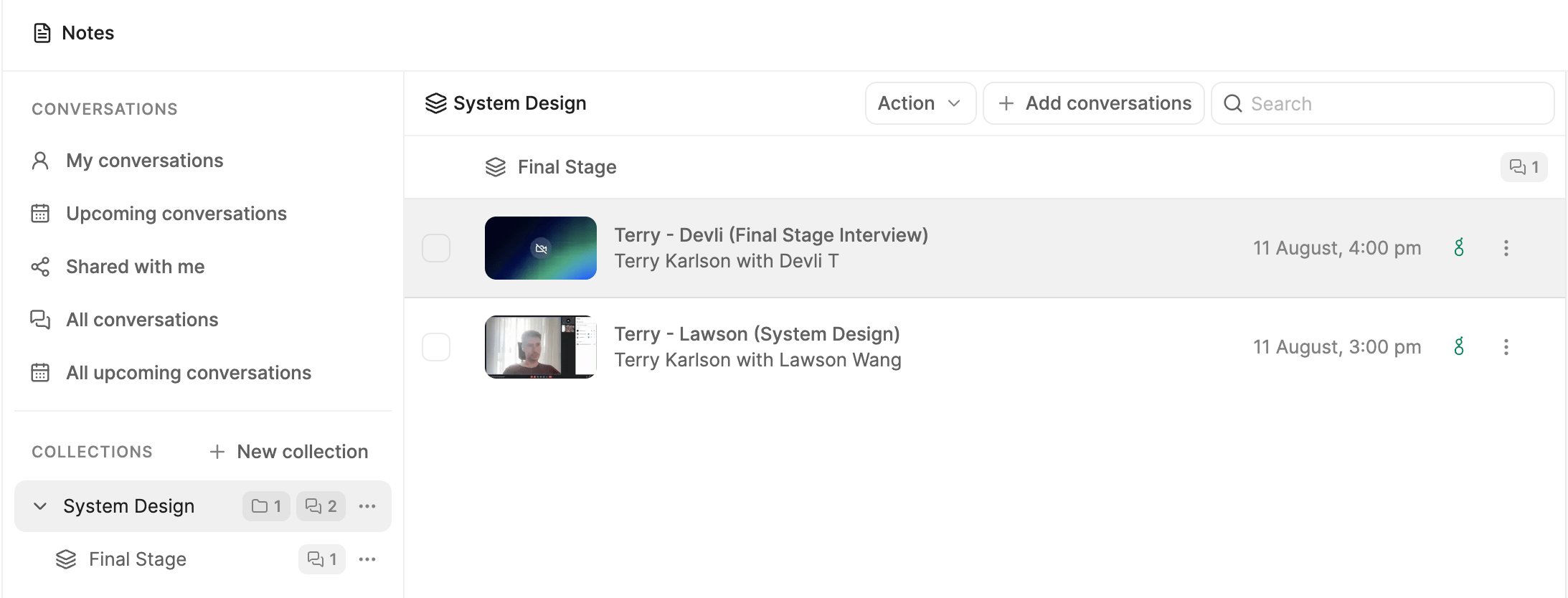
In the Notes conversation rail:
1. Select `New collection`.
2. Enter a name and create the collection.
3. Add conversations with `Add conversations`, by selecting conversations and choosing `Action` > `Add to collection`, or by dragging them into the collection.
Open a collection's `...` menu to:
* `Create sub-collection`
* `Add to collection` to move it under another collection
* `Pin` or `Unpin`
* `Rename`
* `Share`
* `Delete`
You can also drag collections to rearrange or nest them. Select `Remove from collection` to remove a conversation without deleting it from Notes.
 ## Share a collection
Open the collection menu and select `Share`. Depending on your workspace sharing policy, you can share with:
* `Only specific people`
* `Anyone in `
* `Anyone with the link`
People you invite receive read-only access to the shared collection and the conversations available through it. Future conversations added to the collection are included while they retain access.
A person with read-only access can pin the collection and copy selected conversations into a collection they can edit, but cannot rename, reorganize, share, or delete the shared collection.
Sharing a collection is separate from sharing one conversation or one set of Notes. See [Sharing](/using-ai-notes/notes-properties/sharing) for conversation-level access.
## Removing a call from the collection
Go to the call you wish to remove from the collection, click the call's `...` and select `Remove from collection`
## Share a collection
Open the collection menu and select `Share`. Depending on your workspace sharing policy, you can share with:
* `Only specific people`
* `Anyone in `
* `Anyone with the link`
People you invite receive read-only access to the shared collection and the conversations available through it. Future conversations added to the collection are included while they retain access.
A person with read-only access can pin the collection and copy selected conversations into a collection they can edit, but cannot rename, reorganize, share, or delete the shared collection.
Sharing a collection is separate from sharing one conversation or one set of Notes. See [Sharing](/using-ai-notes/notes-properties/sharing) for conversation-level access.
## Removing a call from the collection
Go to the call you wish to remove from the collection, click the call's `...` and select `Remove from collection`
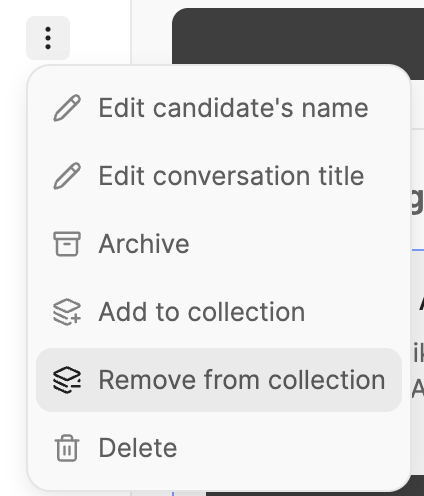 Please Note: If you select `Delete` , it will delete the call from the entire workspace and will no longer be recoverable.
## Delete a collection
Select `Delete` from the collection menu and confirm the action. The collection and its sub-collection structure are removed, but the conversations remain available in their other Notes views and collections.
Please Note: If you select `Delete` , it will delete the call from the entire workspace and will no longer be recoverable.
## Delete a collection
Select `Delete` from the collection menu and confirm the action. The collection and its sub-collection structure are removed, but the conversations remain available in their other Notes views and collections.