> ## Documentation Index
> Fetch the complete documentation index at: https://support.metaview.ai/llms.txt
> Use this file to discover all available pages before exploring further.
# Google Meet
> Use Metaview for your Google Meet video conference calls
Metaview seamlessly captures meetings through Google Meet. Just add Metaview as a participant to your Google Meet video call and we’ll automatically record, transcribe, and summarize everything. No changes to your existing workflow are required.
## Joining Google Meet calls
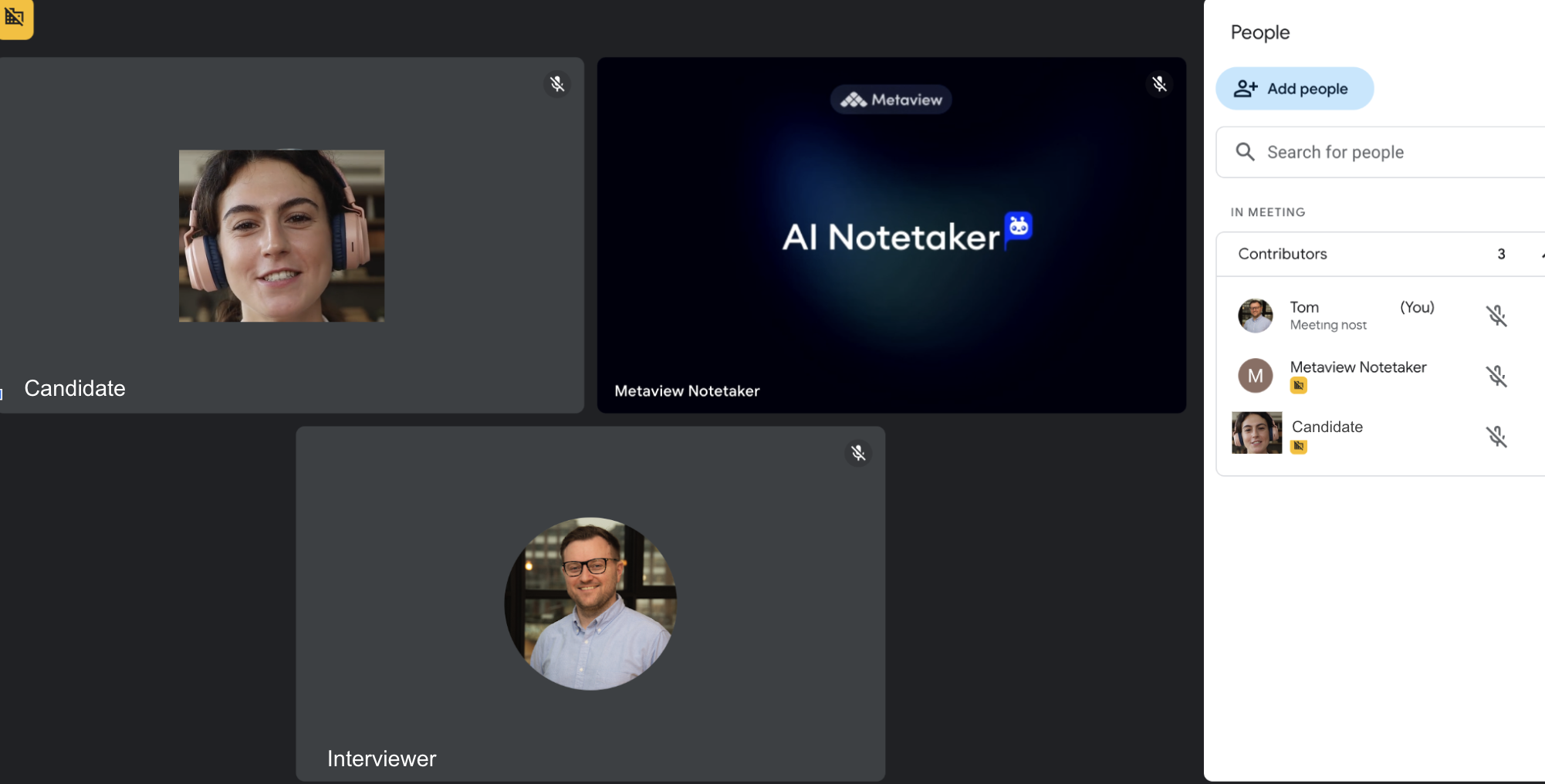
Metaview will join scheduled Google Meet calls autonomously up to 2 minutes prior to the scheduled start time. You will know that Metaview Notetaker is capturing notes for you when it appears as a guest participant in your Google Meet.
## Allowing the Notetaker bot into the call
If your Google Meet settings require meeting hosts to admit guests, the Notetaker will need to wait in the Google Meet "waiting room" and will send this request notification to the meeting host. Metaview will not capture any notes for you until it has been admitted into the meeting.
Starting in late March 2026, Google Meet flags all meeting bots — including Metaview — with a "potential risks" label in the waiting room. This is a Google-wide change affecting all notetakers, not a Metaview issue. See [here](https://workspaceupdates.googleblog.com/2026/02/safeguarded-guest-admit-flow-in-google-meet.html) for details.
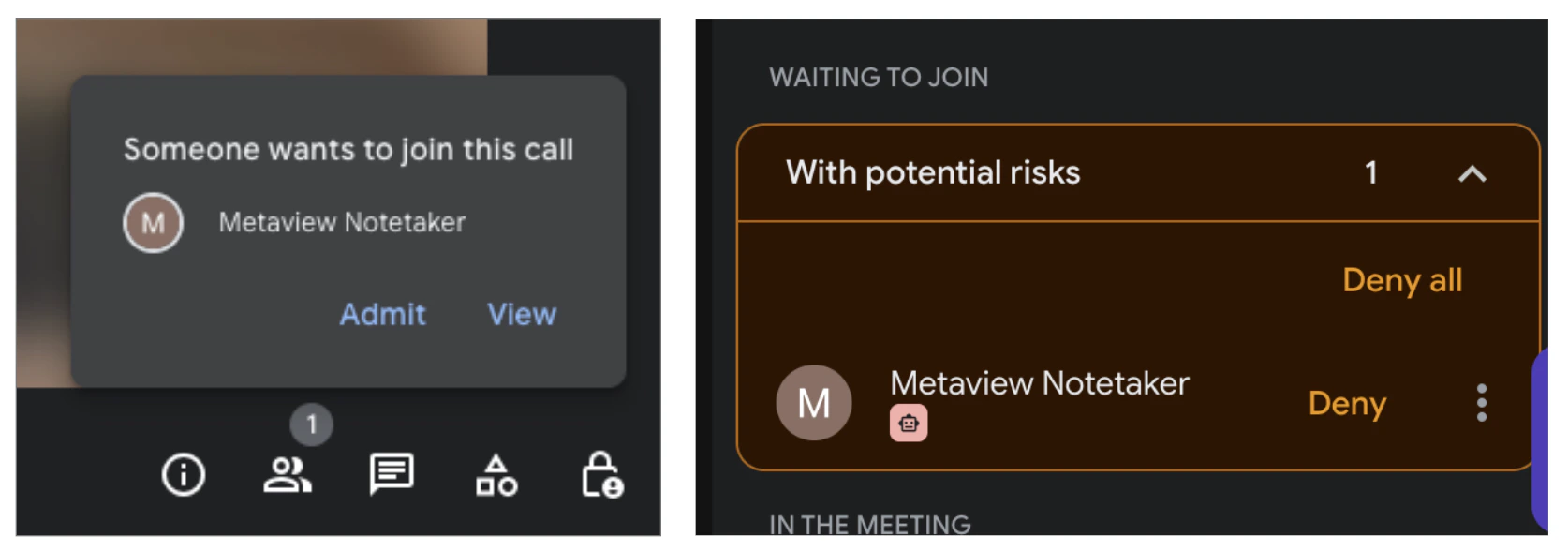 Whoever is the meeting host on the Google Meet call will need to admit the Notetaker bot **within 5 minutes** of the scheduled start time after which the Notetaker bot will kicked out of the Google Meet waiting room. If you use multiple Google accounts, make sure you are logged in to the same Google account as the one that organized the meeting. You should see the "**Meeting Host**" title next to your name in the participant tab.
If a call starts late, the bot may have already timed out and left the waiting room by the time the meeting host joins and admits the bot. We recommend using the Inviting to an ongoing call option.
## Ending your call
Metaview's Notetaker bot will stay on the Google Meet call until all participants have left, there is no audio for a extended period of time, or if the meeting is ended by the host. Your notes will be ready on your Metaview account within 5 minutes of the bot leaving the call.
If a meeting starts late — even if people have joined but are still muted — Metaview will leave after 5 minutes **if no audio is detected**. It assumes the meeting isn’t taking place.
If you’re waiting on the call, briefly unmute and say something (even a quick “hello”) so the bot detects audio — and make sure there’s occasional audio if the meeting is delayed. If there’s more than 5 minutes of silence at any point, Metaview may assume the meeting isn’t happening or has ended and will leave automatically.
## Removing the Notetaker bot before the end of the call
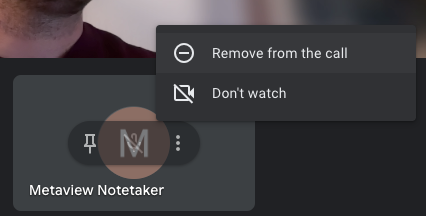
Call participants can easily remove Notetaker bot from an ongoing Google Meet. Meeting hosts can remove the bot directly from the meeting screen. Select `the bot`, click `⋮` (3 dots) and `Remove from the call`. If you remove the bot at the very start of the call, Metaview will not process any notes.
Whoever is the meeting host on the Google Meet call will need to admit the Notetaker bot **within 5 minutes** of the scheduled start time after which the Notetaker bot will kicked out of the Google Meet waiting room. If you use multiple Google accounts, make sure you are logged in to the same Google account as the one that organized the meeting. You should see the "**Meeting Host**" title next to your name in the participant tab.
If a call starts late, the bot may have already timed out and left the waiting room by the time the meeting host joins and admits the bot. We recommend using the Inviting to an ongoing call option.
## Ending your call
Metaview's Notetaker bot will stay on the Google Meet call until all participants have left, there is no audio for a extended period of time, or if the meeting is ended by the host. Your notes will be ready on your Metaview account within 5 minutes of the bot leaving the call.
If a meeting starts late — even if people have joined but are still muted — Metaview will leave after 5 minutes **if no audio is detected**. It assumes the meeting isn’t taking place.
If you’re waiting on the call, briefly unmute and say something (even a quick “hello”) so the bot detects audio — and make sure there’s occasional audio if the meeting is delayed. If there’s more than 5 minutes of silence at any point, Metaview may assume the meeting isn’t happening or has ended and will leave automatically.
## Removing the Notetaker bot before the end of the call
Call participants can easily remove Notetaker bot from an ongoing Google Meet. Meeting hosts can remove the bot directly from the meeting screen. Select `the bot`, click `⋮` (3 dots) and `Remove from the call`. If you remove the bot at the very start of the call, Metaview will not process any notes.
 Metaview interviewers and account admins can also remove Metaview from an ongoing call from their Metaview account home page. To do so, go to section "Completed interviews", click `⋮` (3 dots) of the ongoing call and select the `Remove bot` option. If you remove the bot at the start of the call, Metaview will not process the notes. Click `Confirm` and the bot will leave the Google Meet call within 30 seconds.

## Minimize or hide the Notetaker
Google Meet allows each participant to control how the meeting looks **for themselves**, and these controls are specific to Google Meet. You can change layouts (such as tiled or spotlight view), pin a participant, or adjust your view to focus on specific speakers. These settings only affect your own screen and do not change how others see the meeting.
Google’s instructions for changing layouts and managing participant views are available [here](https://support.google.com/meet/answer/7501121).
It’s not possible to hide or minimize the Metaview bot participant for all attendees at once. As with any meeting participant, the bot is visible to everyone. The meeting organizer or host can control whether the bot joins the meeting and can remove it if needed.
**Keeping the bot visible helps support transparency and compliance**. It helps participants understand that the meeting is being captured and by whom. Solutions that record or transcribe meetings without a visible participant may give the impression that this reduces distractions. However, the visible bot serves an important purpose: it acts as a clear reminder that recording or transcription is actively taking place.
Metaview has helped thousands of customers record talent conversations compliantly for more than five years. In our experience, participants generally appreciate clear notice when a conversation is being recorded or transcribed. In some cases, a participant may object. That is legitimate and may reflect a right under applicable privacy laws, an internal policy requirement, or simply a reasonable participant expectation.
For this reason, we [recommend informing participants and candidates in advance](/account-management/privacy-and-security/notifications) that Notetaker may be used during their upcoming call. If a participant objects, the bot can be disabled before the call begins.
## Customizing the Notetaker bot's appearance
Metaview shows up as a guest participant labeled as "\[your company name]'s Metaview Notetaker" on your Google Meet meetings. Admins can adjust the name of the Notetaker via the [Workspace Settings](/account-management/workspace-settings) under **Bot name**.
Please note that the selected Bot name applies to all users within your workspace.
Organizations on our **Enterprise plan** can customize this by adding your logo as shown below, please submit your request [here](https://forms.gle/QhgXi9wRzMMkHDg27) or have your account admin submit a logo to your team's customer success manager with the following specifications:
* SVG or PNG format
* Minimum 400px width
* Logo background must be transparent
Metaview interviewers and account admins can also remove Metaview from an ongoing call from their Metaview account home page. To do so, go to section "Completed interviews", click `⋮` (3 dots) of the ongoing call and select the `Remove bot` option. If you remove the bot at the start of the call, Metaview will not process the notes. Click `Confirm` and the bot will leave the Google Meet call within 30 seconds.

## Minimize or hide the Notetaker
Google Meet allows each participant to control how the meeting looks **for themselves**, and these controls are specific to Google Meet. You can change layouts (such as tiled or spotlight view), pin a participant, or adjust your view to focus on specific speakers. These settings only affect your own screen and do not change how others see the meeting.
Google’s instructions for changing layouts and managing participant views are available [here](https://support.google.com/meet/answer/7501121).
It’s not possible to hide or minimize the Metaview bot participant for all attendees at once. As with any meeting participant, the bot is visible to everyone. The meeting organizer or host can control whether the bot joins the meeting and can remove it if needed.
**Keeping the bot visible helps support transparency and compliance**. It helps participants understand that the meeting is being captured and by whom. Solutions that record or transcribe meetings without a visible participant may give the impression that this reduces distractions. However, the visible bot serves an important purpose: it acts as a clear reminder that recording or transcription is actively taking place.
Metaview has helped thousands of customers record talent conversations compliantly for more than five years. In our experience, participants generally appreciate clear notice when a conversation is being recorded or transcribed. In some cases, a participant may object. That is legitimate and may reflect a right under applicable privacy laws, an internal policy requirement, or simply a reasonable participant expectation.
For this reason, we [recommend informing participants and candidates in advance](/account-management/privacy-and-security/notifications) that Notetaker may be used during their upcoming call. If a participant objects, the bot can be disabled before the call begins.
## Customizing the Notetaker bot's appearance
Metaview shows up as a guest participant labeled as "\[your company name]'s Metaview Notetaker" on your Google Meet meetings. Admins can adjust the name of the Notetaker via the [Workspace Settings](/account-management/workspace-settings) under **Bot name**.
Please note that the selected Bot name applies to all users within your workspace.
Organizations on our **Enterprise plan** can customize this by adding your logo as shown below, please submit your request [here](https://forms.gle/QhgXi9wRzMMkHDg27) or have your account admin submit a logo to your team's customer success manager with the following specifications:
* SVG or PNG format
* Minimum 400px width
* Logo background must be transparent
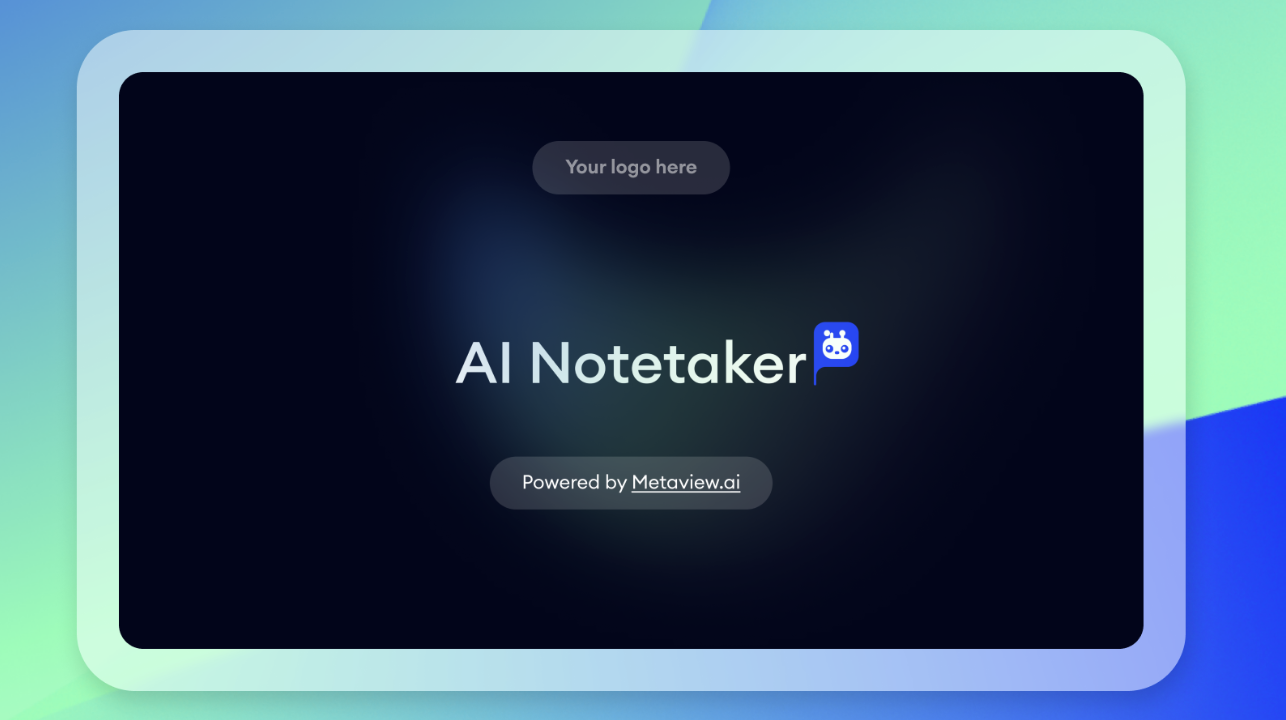 This option is only available for teams on the Enterprise plan. See [here](https://www.metaview.ai/pricing) for details.
## Invite Metaview to an ongoing Google Meet call
If you are in a Google Meet call and want to have Metaview join immediately, copy the meeting link from the browser address bar.
This option is only available for teams on the Enterprise plan. See [here](https://www.metaview.ai/pricing) for details.
## Invite Metaview to an ongoing Google Meet call
If you are in a Google Meet call and want to have Metaview join immediately, copy the meeting link from the browser address bar.
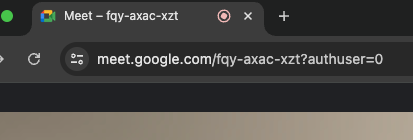 See here for more details here on where to paste the link: Inviting to an ongoing call.
## Changing your Google Meet settings
A Google Meet host or co-host can change these settings. In Google Calendar, select an upcoming event and click the ⚙️ gear icon to open **Video call options**.
See here for more details here on where to paste the link: Inviting to an ongoing call.
## Changing your Google Meet settings
A Google Meet host or co-host can change these settings. In Google Calendar, select an upcoming event and click the ⚙️ gear icon to open **Video call options**.
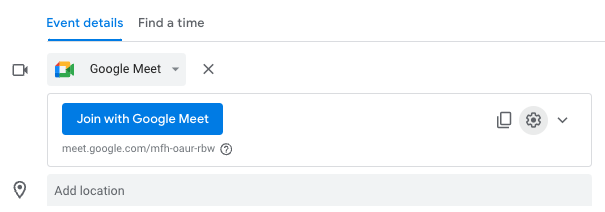 Under **Host controls**, **Meeting access type** controls who can join your meeting directly.
* **Open**: anyone can join directly. There is no waiting room, and the Metaview Notetaker can join automatically.
* **Trusted**: people in your organization and calendar invitees can join directly. Everyone else, including bots, is sent to the waiting room.
* **Restricted**: only explicitly invited participants can join directly. Everyone else, including bots, is sent to the waiting room.
Under **Host controls**, **Meeting access type** controls who can join your meeting directly.
* **Open**: anyone can join directly. There is no waiting room, and the Metaview Notetaker can join automatically.
* **Trusted**: people in your organization and calendar invitees can join directly. Everyone else, including bots, is sent to the waiting room.
* **Restricted**: only explicitly invited participants can join directly. Everyone else, including bots, is sent to the waiting room.
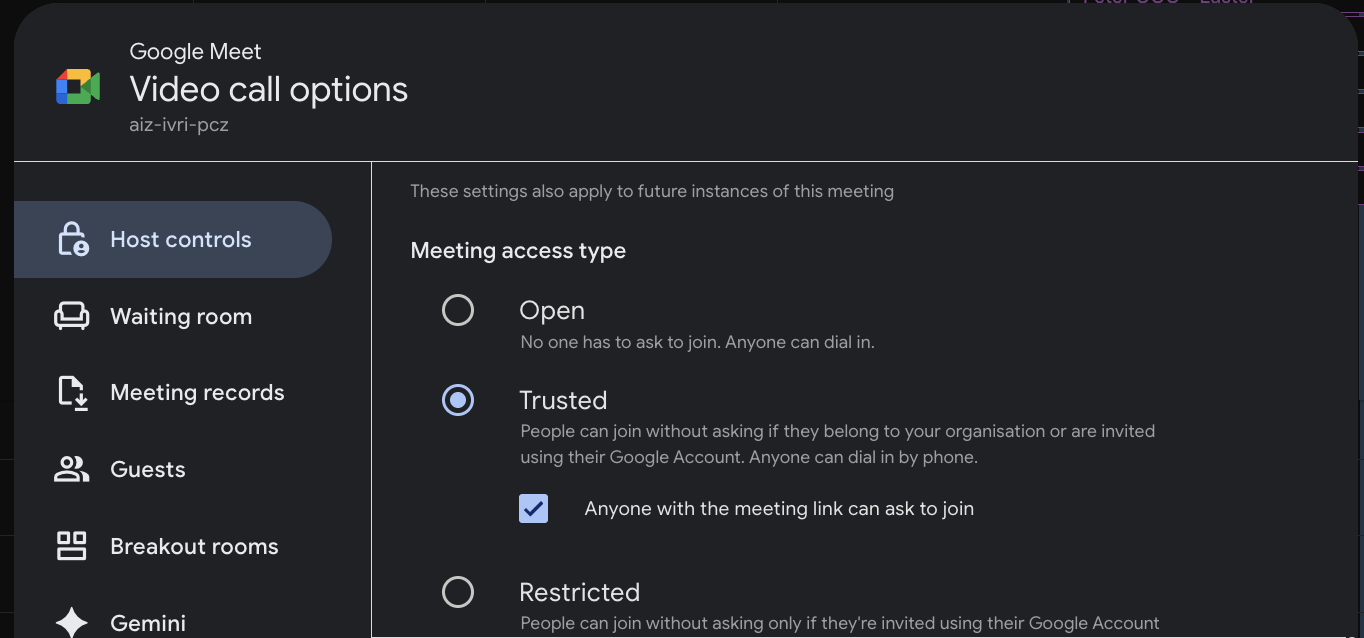 For reliable capture, we recommend setting **Meeting access type** to **Open**. If your company policy requires **Trusted** access, make sure **Waiting room** is enabled. You can also turn on **Bring in automatically** so the Notetaker is admitted when a host joins.
The **Waiting room** tab controls what happens to people who cannot join directly. If the waiting room is enabled, they wait until a host admits them. If it is disabled, they are blocked from joining.
For reliable capture, we recommend setting **Meeting access type** to **Open**. If your company policy requires **Trusted** access, make sure **Waiting room** is enabled. You can also turn on **Bring in automatically** so the Notetaker is admitted when a host joins.
The **Waiting room** tab controls what happens to people who cannot join directly. If the waiting room is enabled, they wait until a host admits them. If it is disabled, they are blocked from joining.
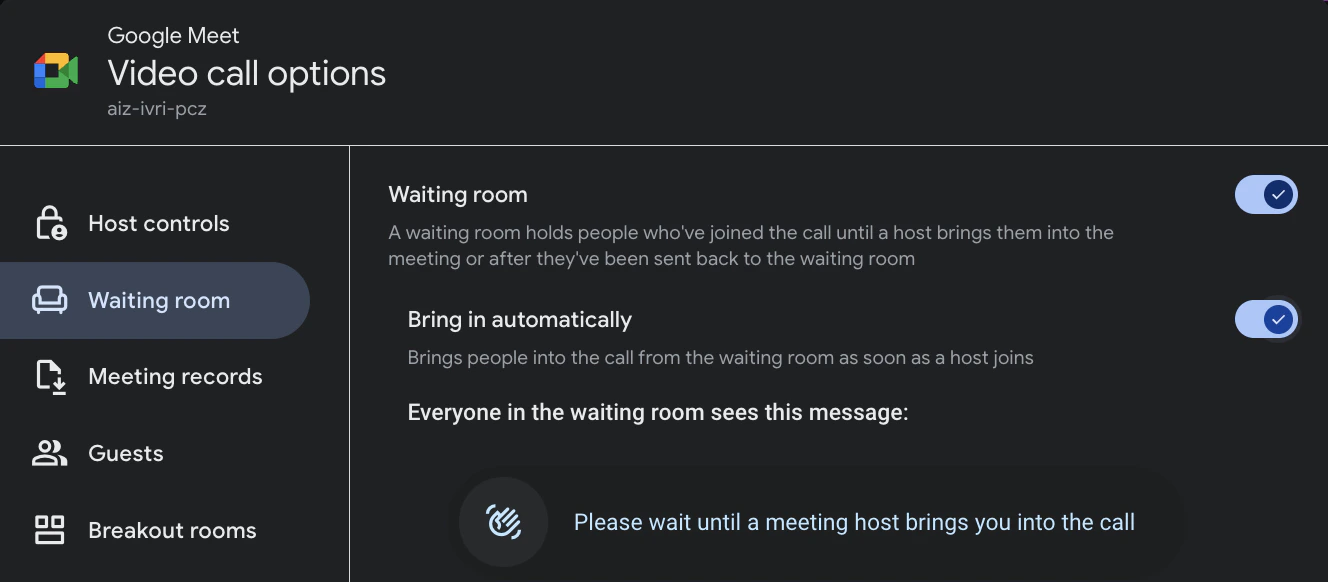 In short: Meeting access type determines who can join directly, and Waiting room determines what happens to everyone else.
Make the desired changes and click `Save`. If your Google Meet settings are controlled by your IT administrator, you may need to contact them to make these changes. For more details, visit the [Google Help Centre](https://support.google.com/meet/answer/9302870?hl=en\&ref_topic=14074844\&fl=1\&sjid=64975663551306226-NA).
## Troubleshooting
The most common reason Metaview does not capture a Google Meet call is that **the Notetaker was not admitted into the meeting**. This is usually caused by the meeting’s Google Meet access settings or by no Meet host being available to admit it.
### Why it happens
* **No host admitted the Notetaker in time.** If guests are held in a waiting room, a host must admit the Notetaker within 5 minutes of the scheduled start time. If it is not admitted in time, it will leave without recording.
* **No Meet host was present.** Only a host or co-host can admit guests from the waiting room. Non-hosts may not see the admit prompt.
* **The calendar organiser is not the Meet host.** If the Meet link was created by a scheduling tool, such as Ashby, Calendly, or Cal.com, the tool’s account may be the Meet host instead of the interviewer.
* **The Notetaker was blocked.** If **Meeting access type** is **Trusted** or **Restricted** and **Waiting room** is disabled, external guests, including bots, are blocked instead of held for admission.
If this happens often, review your Google Meet settings above or ask your Google Workspace admin to set meeting access and host-management defaults so notetakers can be admitted automatically.
In short: Meeting access type determines who can join directly, and Waiting room determines what happens to everyone else.
Make the desired changes and click `Save`. If your Google Meet settings are controlled by your IT administrator, you may need to contact them to make these changes. For more details, visit the [Google Help Centre](https://support.google.com/meet/answer/9302870?hl=en\&ref_topic=14074844\&fl=1\&sjid=64975663551306226-NA).
## Troubleshooting
The most common reason Metaview does not capture a Google Meet call is that **the Notetaker was not admitted into the meeting**. This is usually caused by the meeting’s Google Meet access settings or by no Meet host being available to admit it.
### Why it happens
* **No host admitted the Notetaker in time.** If guests are held in a waiting room, a host must admit the Notetaker within 5 minutes of the scheduled start time. If it is not admitted in time, it will leave without recording.
* **No Meet host was present.** Only a host or co-host can admit guests from the waiting room. Non-hosts may not see the admit prompt.
* **The calendar organiser is not the Meet host.** If the Meet link was created by a scheduling tool, such as Ashby, Calendly, or Cal.com, the tool’s account may be the Meet host instead of the interviewer.
* **The Notetaker was blocked.** If **Meeting access type** is **Trusted** or **Restricted** and **Waiting room** is disabled, external guests, including bots, are blocked instead of held for admission.
If this happens often, review your Google Meet settings above or ask your Google Workspace admin to set meeting access and host-management defaults so notetakers can be admitted automatically.