> ## Documentation Index
> Fetch the complete documentation index at: https://support.metaview.ai/llms.txt
> Use this file to discover all available pages before exploring further.
# Google Calendar
> Connect Google Calendar to Metaview for automatic scheduling
By integrating Metaview with Google Calendar, you'll benefit from Automatic scheduling so that Metaview will automatically record, transcribe, and summarize all of your recruiting meetings. Get your AI-powered notes every time—without having to do anything.
## Connecting Google Calendar
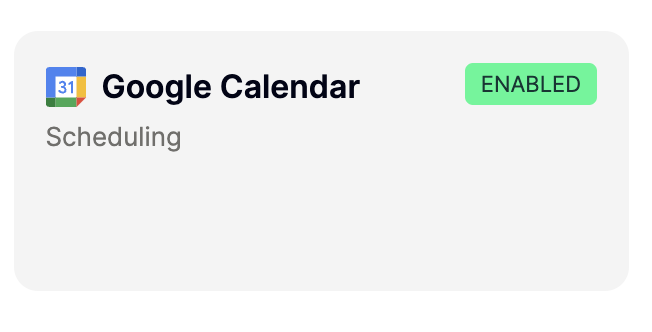
Check your [Integrations Settings](https://my.metaview.app/settings/integrations) for your current Google Calendar connection status. To connect your Google Calendar, simply click `Connect Calendar` and follow the authentication steps via the Google pop-up.
 The email associated with your Google Calendar **must match your account email.** Please note that Metaview does not allow you to connect a calendar associated with a personal **gmail.com** account.
Metaview currently only allows you to connect one calendar to your account, and that calendar must be associated to your account email. If you use multiple calendars, please see [Scheduling FAQs](/joining-your-calls/inviting-the-notetaker/scheduling-faqs) for suggested scheduling approaches.
## Permissions
To use Google Calendar, the following permissions need to be granted, which allow Metaview to view and edit events on all calendars you have access to in Google Calendar:
* View and edit on Calendar Scope: `https://www.googleapis.com/auth/calendar`
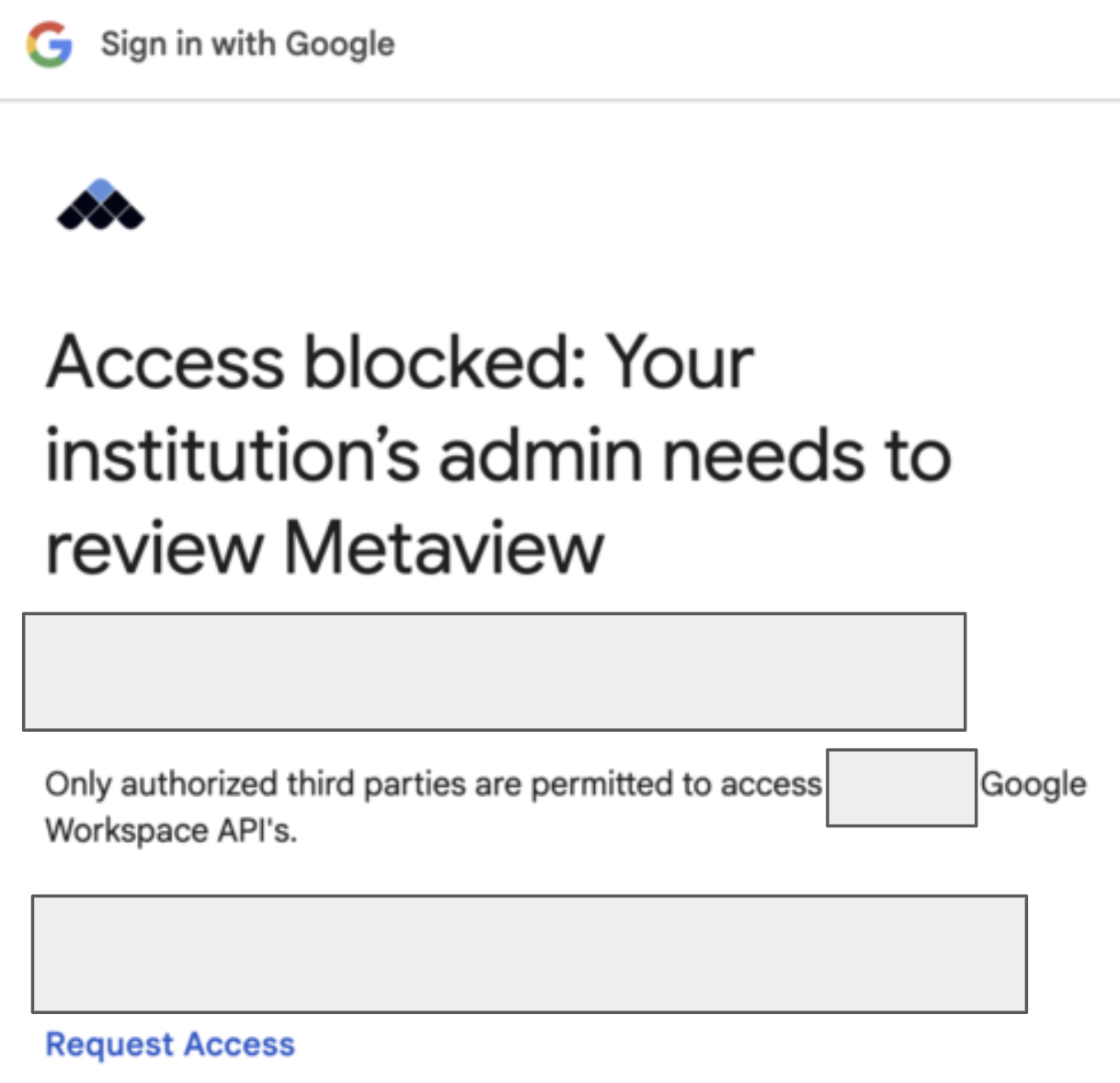
If your access is blocked, you may need to request **App Approval** from the IT department that manages your Google Workspace.
The email associated with your Google Calendar **must match your account email.** Please note that Metaview does not allow you to connect a calendar associated with a personal **gmail.com** account.
Metaview currently only allows you to connect one calendar to your account, and that calendar must be associated to your account email. If you use multiple calendars, please see [Scheduling FAQs](/joining-your-calls/inviting-the-notetaker/scheduling-faqs) for suggested scheduling approaches.
## Permissions
To use Google Calendar, the following permissions need to be granted, which allow Metaview to view and edit events on all calendars you have access to in Google Calendar:
* View and edit on Calendar Scope: `https://www.googleapis.com/auth/calendar`
If your access is blocked, you may need to request **App Approval** from the IT department that manages your Google Workspace.
 ## Troubleshooting
If you have trouble connecting your Google Calendar to Metaview, please try the following steps:
* Ensure the email associated with your calendar is the **same one** that you use to log in to your Metaview account.
* Check with your IT team if you need **special admin approval** to connect Google Calendar to Metaview
* Disable access to your calendar from your Google account privacy settings (as explained below) and attempt to **reconnect** to Metaview.
## Disabling Access
To stop Metaview from automatically scheduling your upcoming Google Calendar calls, you don't need to disconnect your calendar. You can simply disable Automatic scheduling on your account. Please see [Disabling Metaview ](/joining-your-calls/inviting-the-notetaker/disabling-metaview)for instructions. Your account administrator can also `Disable` automatic calendar scheduling feature in your [Workspace settings](https://my.metaview.app/settings/organization) for everyone on their team under **Join events in calendars**.
To **fully revoke** Metaview's access to your Google Calendar, go to your Google Privacy settings and remove Metaview [here](https://myaccount.google.com/connections).
## Troubleshooting
If you have trouble connecting your Google Calendar to Metaview, please try the following steps:
* Ensure the email associated with your calendar is the **same one** that you use to log in to your Metaview account.
* Check with your IT team if you need **special admin approval** to connect Google Calendar to Metaview
* Disable access to your calendar from your Google account privacy settings (as explained below) and attempt to **reconnect** to Metaview.
## Disabling Access
To stop Metaview from automatically scheduling your upcoming Google Calendar calls, you don't need to disconnect your calendar. You can simply disable Automatic scheduling on your account. Please see [Disabling Metaview ](/joining-your-calls/inviting-the-notetaker/disabling-metaview)for instructions. Your account administrator can also `Disable` automatic calendar scheduling feature in your [Workspace settings](https://my.metaview.app/settings/organization) for everyone on their team under **Join events in calendars**.
To **fully revoke** Metaview's access to your Google Calendar, go to your Google Privacy settings and remove Metaview [here](https://myaccount.google.com/connections).