> ## Documentation Index
> Fetch the complete documentation index at: https://support.metaview.ai/llms.txt
> Use this file to discover all available pages before exploring further.
# Calendly
> Connect Calendly to Metaview to automate scheduling
Metaview integrates seamlessly with Calendly. If you use Calendly for scheduling your interviews, connect Calendly with Metaview to enable the Automatic scheduling feature.
## How to connect Calendly
**1. Connect Calendly to Metaview**
Go to your account [Settings](https://my.metaview.app/settings/integrations) which you can find top left hand corner: click on the `Metaview logo` → `⚙️ (gear)`. Under `Integrations`, find `Connect Calendly` and authenticate to sync your Calendly account.
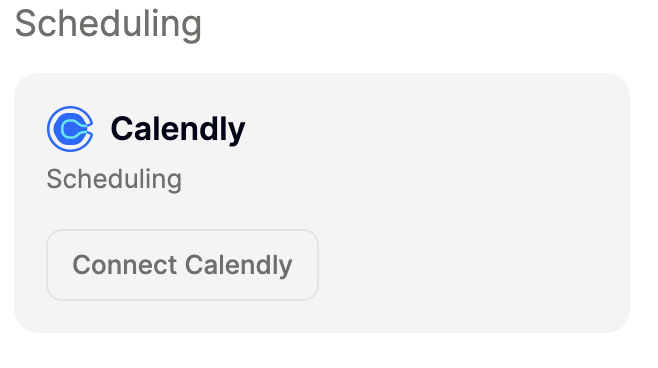 The email associated with the Calendly account should match that of your Metaview account.
**2. Select the events that you want Metaview to schedule automatically**
Metaview works with Calendly events configured for videoconference and phone calls.

**3. Verify your Calendly event configuration**
To ensure that your Calendly events are correctly picked up and scheduled reliably, please follow the steps below:
1. Log in to your Calendly account [here](https://calendly.com/event_types/user/me).
2. Select `your event` and Click on the `⚙️` (gear) icon and then `Edit`
3. Select `Event details`
4. For video conference calls: ensure that your video conference tool is connected to your Zoom account and selected under **Location**
The email associated with the Calendly account should match that of your Metaview account.
**2. Select the events that you want Metaview to schedule automatically**
Metaview works with Calendly events configured for videoconference and phone calls.

**3. Verify your Calendly event configuration**
To ensure that your Calendly events are correctly picked up and scheduled reliably, please follow the steps below:
1. Log in to your Calendly account [here](https://calendly.com/event_types/user/me).
2. Select `your event` and Click on the `⚙️` (gear) icon and then `Edit`
3. Select `Event details`
4. For video conference calls: ensure that your video conference tool is connected to your Zoom account and selected under **Location**
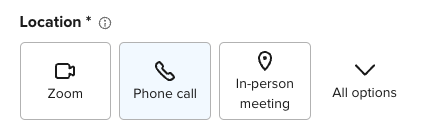
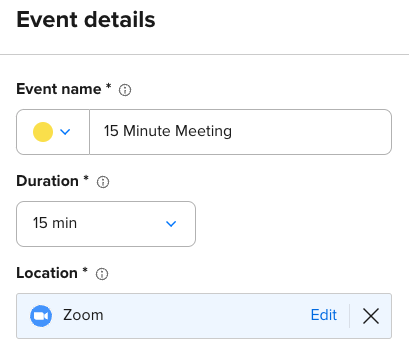 5. For phone calls: pick **Location** as `Phone call` and then use the `I will call my invitee` option.
 6. Click `Save and close` to save your updates. Repeat these steps 1-5 for any other events you want to be scheduled automatically with Metaview.
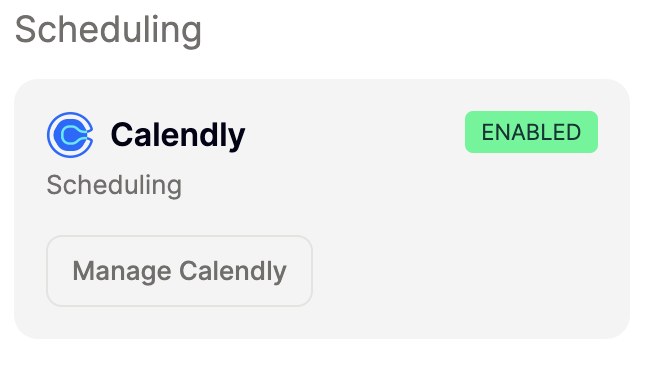
7. You can confirm that your Calendly is connected by checking the [Integration Settings](https://my.metaview.app/settings/integrations) page. It should say **Enabled**. Click `Manage Calendly` to change which events you want Metaview to automatically schedule.
6. Click `Save and close` to save your updates. Repeat these steps 1-5 for any other events you want to be scheduled automatically with Metaview.
7. You can confirm that your Calendly is connected by checking the [Integration Settings](https://my.metaview.app/settings/integrations) page. It should say **Enabled**. Click `Manage Calendly` to change which events you want Metaview to automatically schedule.
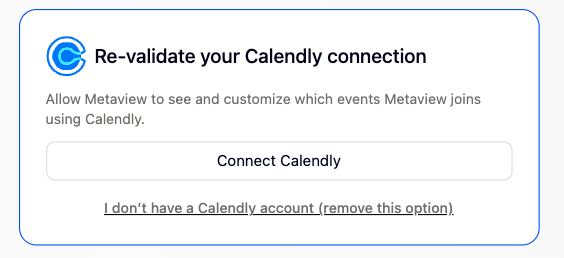
 ## Re-validate your Calendly connection
You will sometimes be required to confirm that you want Metaview to continue having access to your Calendly events.
Usually, this occurs every couple of months, but may also be triggered automatically in the case of password changes or other setting updates on your Calendly account. Metaview does not control this process and does not intentionally disconnect your Calendly account.
When this occurs, Metaview will send you an automated email requesting that you re-connect your Calendly account. Metaview will not be able to continue scheduling calls from Calendly until this step is completed. Simply go to your account and click on `Connect Calendly` and select the Calendly events you want Metaview to schedule.
## Re-validate your Calendly connection
You will sometimes be required to confirm that you want Metaview to continue having access to your Calendly events.
Usually, this occurs every couple of months, but may also be triggered automatically in the case of password changes or other setting updates on your Calendly account. Metaview does not control this process and does not intentionally disconnect your Calendly account.
When this occurs, Metaview will send you an automated email requesting that you re-connect your Calendly account. Metaview will not be able to continue scheduling calls from Calendly until this step is completed. Simply go to your account and click on `Connect Calendly` and select the Calendly events you want Metaview to schedule.
 ## Adding a candidate notification
For interviews scheduled via Calendly, you can optionally add a custom question that will allow a candidate to be notified, and to signal their preference with regards to having Metaview on their call during booking.
1. Go to `your`[Calendly home page](https://calendly.com/event_types/user/me) and click on `Edit` for each relevant event
## Adding a candidate notification
For interviews scheduled via Calendly, you can optionally add a custom question that will allow a candidate to be notified, and to signal their preference with regards to having Metaview on their call during booking.
1. Go to `your`[Calendly home page](https://calendly.com/event_types/user/me) and click on `Edit` for each relevant event
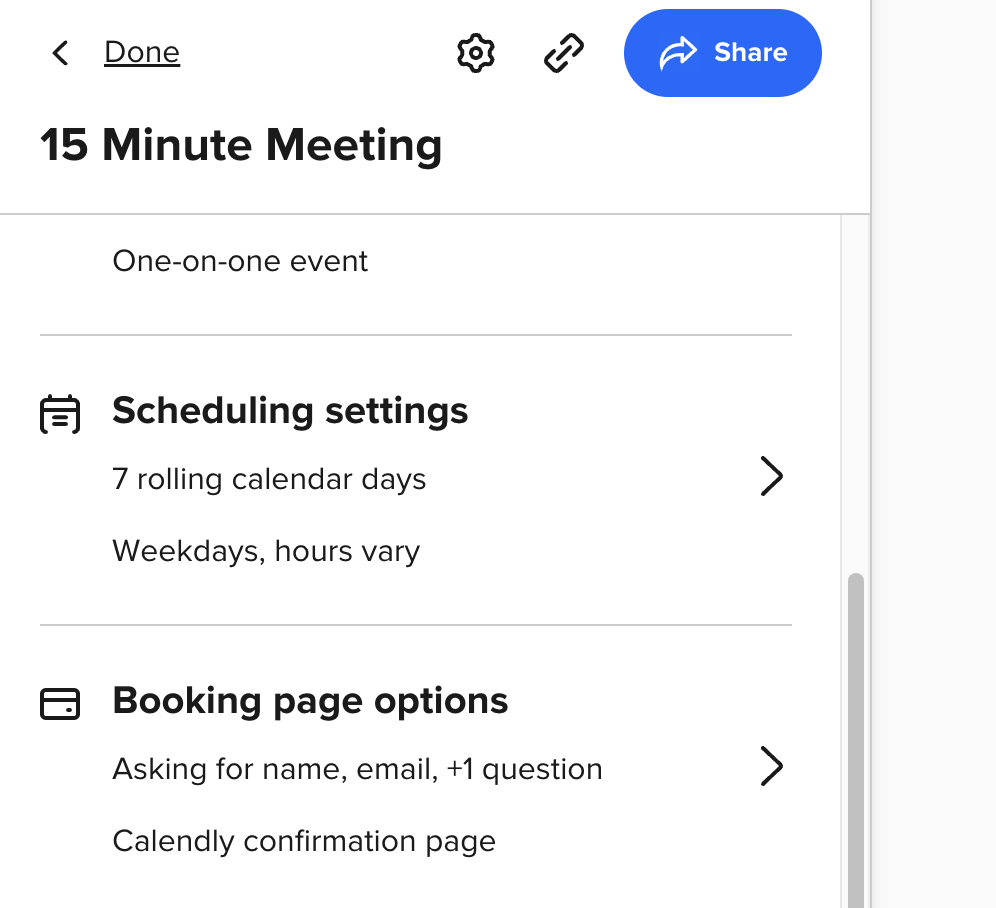
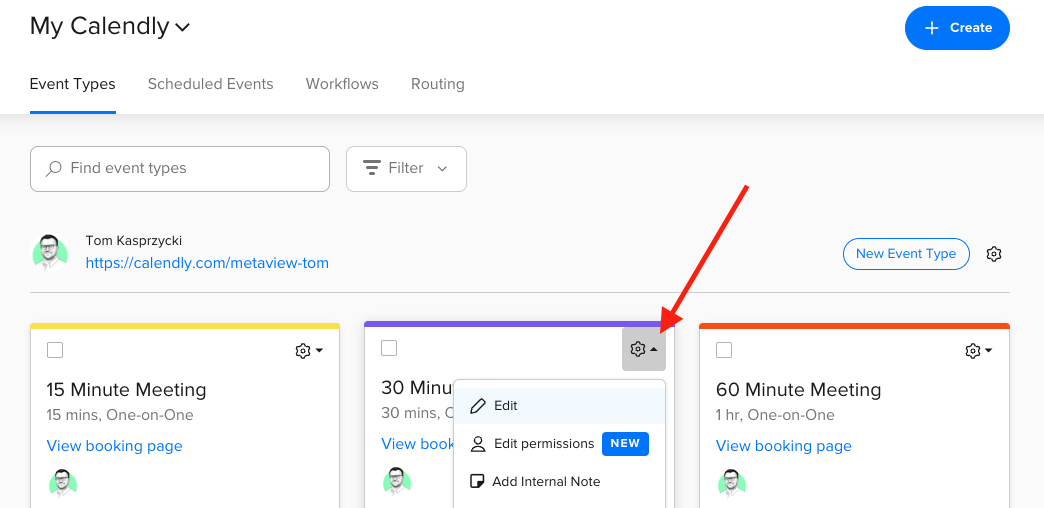 2. Once in the event type settings, select `Booking page options`
 3. Under `Invitee questions`, click on `+ Add New Question`
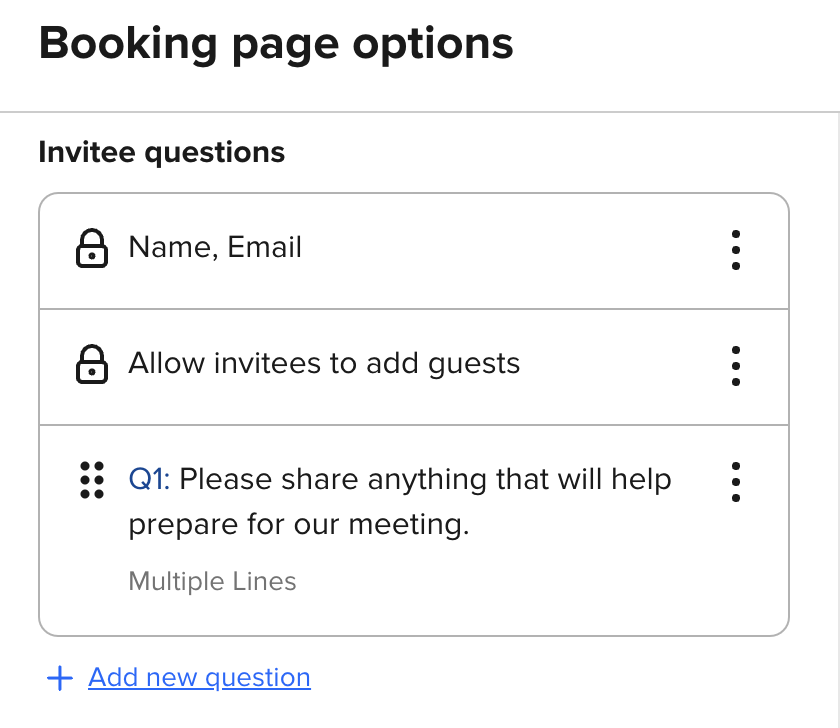 4. You can then add a new question related to Metaview. We recommend using a `dropdown` Answer Type
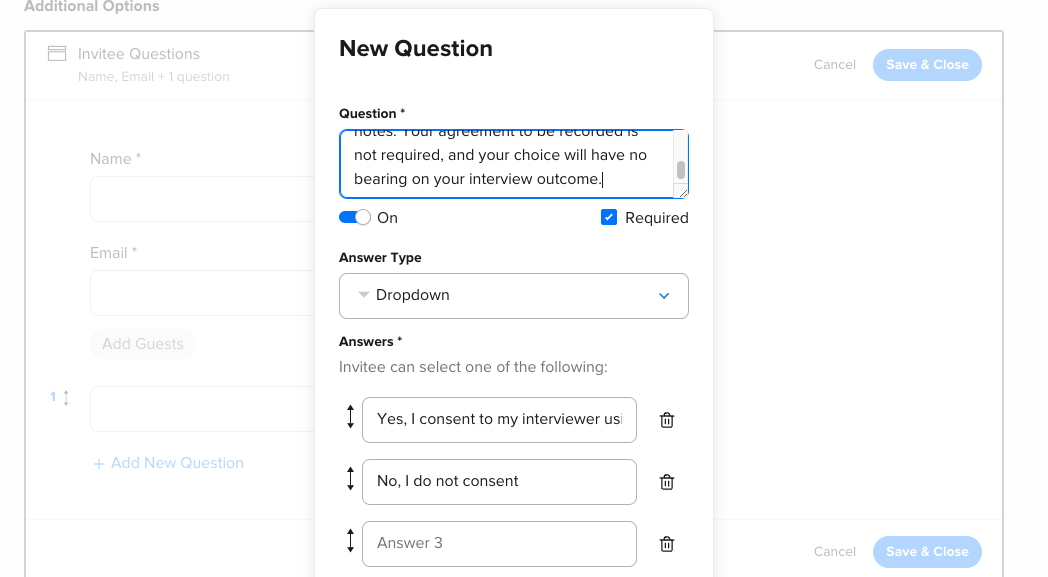 5. Please find the sample copy that you should personalize for your purposes. You can use the custom question to briefly introduce Metaview, its purpose and to give candidates an opportunity to indicate their preferences in advance of the call.
**Question**: *I use Metaview, an AI assistant, to help me with note-taking during interviews. Your agreement to be recorded is not required, and your choice will have no bearing on your interview outcome.*\
**Answer Option #1**\*: I agree to have Metaview take notes during my interview.\* \
**Answer Option #2**: *I do not agree for Metaview to be used during my interview.*
6. Click `Done` and `Save and Close` to save your changes.
7. Once implemented, Metaview will be automatically disabled for your future Calendly scheduled video conference calls if the candidate has opted out.
Please contact [our team](mailto:support@metaview.ai) if you have any questions.
## Disconnect Calendly
You can disconnect your Calendly account from your Metaview account. Go to your account [Settings](https://my.metaview.app/settings/integrations) which you can find top left hand corner: click on the `Metaview logo` and `⚙️ (gear)`. Under `Integrations`, find `Manage Calendly` . Select `Disconnect Calendly` and `Confirm`.
5. Please find the sample copy that you should personalize for your purposes. You can use the custom question to briefly introduce Metaview, its purpose and to give candidates an opportunity to indicate their preferences in advance of the call.
**Question**: *I use Metaview, an AI assistant, to help me with note-taking during interviews. Your agreement to be recorded is not required, and your choice will have no bearing on your interview outcome.*\
**Answer Option #1**\*: I agree to have Metaview take notes during my interview.\* \
**Answer Option #2**: *I do not agree for Metaview to be used during my interview.*
6. Click `Done` and `Save and Close` to save your changes.
7. Once implemented, Metaview will be automatically disabled for your future Calendly scheduled video conference calls if the candidate has opted out.
Please contact [our team](mailto:support@metaview.ai) if you have any questions.
## Disconnect Calendly
You can disconnect your Calendly account from your Metaview account. Go to your account [Settings](https://my.metaview.app/settings/integrations) which you can find top left hand corner: click on the `Metaview logo` and `⚙️ (gear)`. Under `Integrations`, find `Manage Calendly` . Select `Disconnect Calendly` and `Confirm`.
 Please note that **already scheduled Calendly events** will go ahead unless they are disabled. Please see [here](/joining-your-calls/inviting-the-notetaker/disabling-metaview) for details.