> ## Documentation Index
> Fetch the complete documentation index at: https://support.metaview.ai/llms.txt
> Use this file to discover all available pages before exploring further.
# Managing Your Team
> Set up and manage users, permissions, and activity in Metaview
Metaview allows you to manage your team's accounts at your company. You can access Team Management options [here](https://my.metaview.app/team-management) or from the sidebar menu on your Metaview account.
Some team management functionalities are only available to account administrators. If you believe that you should be an account administrator on your company's Metaview account, please reach out to your current admin so they can grant you access.
*Elyse shows you how to manage users via the Team Management hub.*
## Inviting users
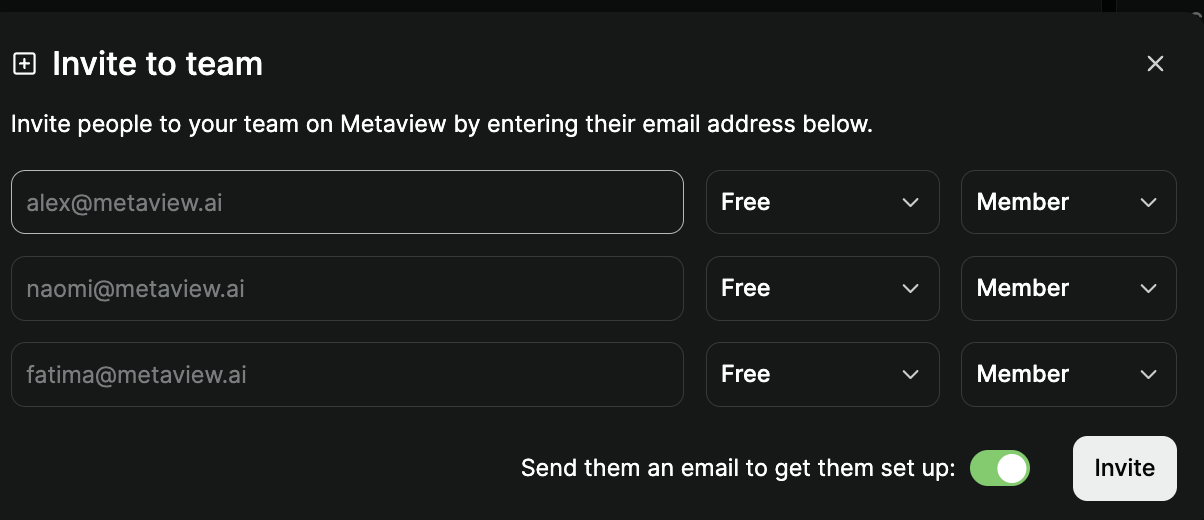
In the **Team** section on [Team Management](https://my.metaview.app/team-management), click on `Invite team` to invite people to your team on Metaview. When inviting colleagues, you can set:
* Seat type for AI Notes: `Pro` or `Free`
* Account role: `Member` or `Admin`
* Whether you want Metaview to send them an email invite. To prevent spam, **only the first invite** to a user will trigger an invite email.
 You can also invite team members listed under the **Not on Metaview** section. These are colleagues who are listed on your connected ATS system, or who were invitees or participants on calls that Metaview was invited to. These individuals have not yet created a Metaview account.
Please note you can only add colleagues that have an email address with a domain connected to your workspace on Metaview. If your workspace uses multiple email domains (e.g. google.com, google.co.uk, google.fr, google.ca) and you want them all managed on the same Metaview account, please have an account admin contact [Metaview](mailto:support@metaview.ai) so that we can add them.
## Assigning seats and roles
All team members at your workspace who have created a Metaview account are listed under the **People** section on [Team Management ](https://my.metaview.app/team-management)as shown below. Use the `🔎` (search) feature to find team members by their name or email (try both just in case).
You can also invite team members listed under the **Not on Metaview** section. These are colleagues who are listed on your connected ATS system, or who were invitees or participants on calls that Metaview was invited to. These individuals have not yet created a Metaview account.
Please note you can only add colleagues that have an email address with a domain connected to your workspace on Metaview. If your workspace uses multiple email domains (e.g. google.com, google.co.uk, google.fr, google.ca) and you want them all managed on the same Metaview account, please have an account admin contact [Metaview](mailto:support@metaview.ai) so that we can add them.
## Assigning seats and roles
All team members at your workspace who have created a Metaview account are listed under the **People** section on [Team Management ](https://my.metaview.app/team-management)as shown below. Use the `🔎` (search) feature to find team members by their name or email (try both just in case).
 ## Account roles
Each team member is assigned an **account** **role** that can be updated by admins.
* **Member**: Can only Access their interviews and those that have been shared with them
* **Admin**: Can Access all interviews in your workspace, and manage seats and roles. Please note admins on free plans are subject to feature and view limitations.
If you’re the first person from your company to sign up, you might be made the Workspace admin. Admins can manage users, and access, but your organization can update this at any time. If your only Admin has left your company, please contact [us](mailto:support@metaview.ai) your additional assistance.
## Seat types
Each team member is assigned a **seat type** that can be updated by admins. See our [Pricing](https://www.metaview.ai/pricing) for details on currently available plan types. Please note that subscriptions and seat assignments are per-user, so each person accessing Metaview must have their own user account and login.
**Notetaker**
* **Pro**: Paid subscription assigned to users with unlimited monthly calls.
* **Free**: Users on a free plan have restricted access to Metaview features and capped monthly conversations.
**Sourcing**
* **Max**: Paid subscription assigned to users enabling unlimited searches.
* **Pro**: Paid subscription assigned to users enabling a limited number of monthly searches.
* **Free**: Trial with restricted access and capped usage of candidate sourcing features.
Seats are designed for individual use, so they can’t be shared across multiple people, continuously rotated between users, or accessed through a shared login. For this reason, each seat can be reassigned once per calendar month, and each person using Metaview needs their own account.
We offer monthly and annual billing options, in addition to custom team packages to meet your needs. Please [contact](mailto:support@metaview.ai) our team for details, or book some time with us [here](https://www.metaview.ai/demo).
Changing a team member's seat type to **Free** will not cancel or alter any subscriptions associated with your company account. The existing subscription can be reassigned to another user. See [Managing Subscriptions](/account-management/managing-subscriptions) for details.
## Activity status
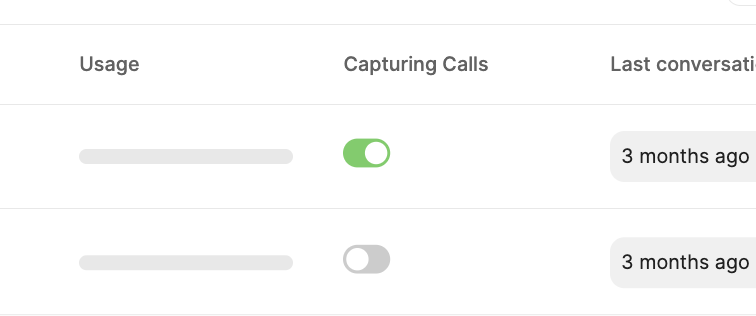
Each team member has an activity status under **Capturing calls.** Enabling Capture is required for Automatic scheduling features. To change a user's capture status, set toggle the switch `on` or `off`. Users can also manage their own capture status via [Personal settings](/account-management/personal-settings).
## Account roles
Each team member is assigned an **account** **role** that can be updated by admins.
* **Member**: Can only Access their interviews and those that have been shared with them
* **Admin**: Can Access all interviews in your workspace, and manage seats and roles. Please note admins on free plans are subject to feature and view limitations.
If you’re the first person from your company to sign up, you might be made the Workspace admin. Admins can manage users, and access, but your organization can update this at any time. If your only Admin has left your company, please contact [us](mailto:support@metaview.ai) your additional assistance.
## Seat types
Each team member is assigned a **seat type** that can be updated by admins. See our [Pricing](https://www.metaview.ai/pricing) for details on currently available plan types. Please note that subscriptions and seat assignments are per-user, so each person accessing Metaview must have their own user account and login.
**Notetaker**
* **Pro**: Paid subscription assigned to users with unlimited monthly calls.
* **Free**: Users on a free plan have restricted access to Metaview features and capped monthly conversations.
**Sourcing**
* **Max**: Paid subscription assigned to users enabling unlimited searches.
* **Pro**: Paid subscription assigned to users enabling a limited number of monthly searches.
* **Free**: Trial with restricted access and capped usage of candidate sourcing features.
Seats are designed for individual use, so they can’t be shared across multiple people, continuously rotated between users, or accessed through a shared login. For this reason, each seat can be reassigned once per calendar month, and each person using Metaview needs their own account.
We offer monthly and annual billing options, in addition to custom team packages to meet your needs. Please [contact](mailto:support@metaview.ai) our team for details, or book some time with us [here](https://www.metaview.ai/demo).
Changing a team member's seat type to **Free** will not cancel or alter any subscriptions associated with your company account. The existing subscription can be reassigned to another user. See [Managing Subscriptions](/account-management/managing-subscriptions) for details.
## Activity status
Each team member has an activity status under **Capturing calls.** Enabling Capture is required for Automatic scheduling features. To change a user's capture status, set toggle the switch `on` or `off`. Users can also manage their own capture status via [Personal settings](/account-management/personal-settings).
 ## Removing users
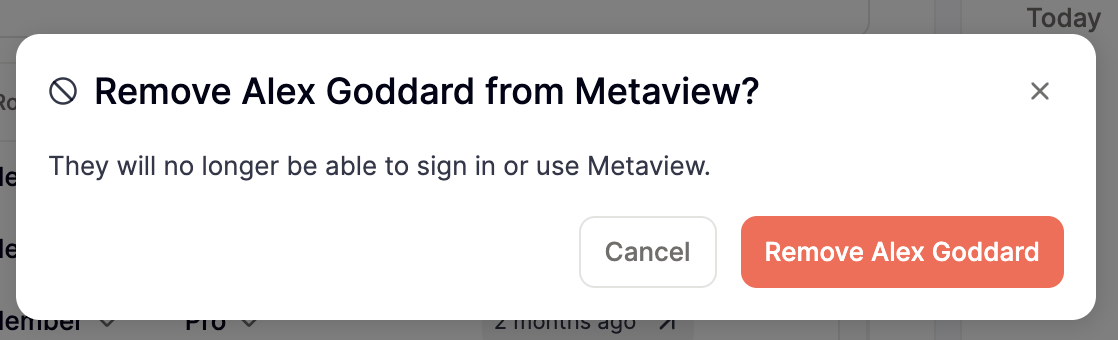
To remove Metaview access from a current user on your team or from a former employee, click on their account under the **Team** section on [Team Management](https://my.metaview.app/team-management) and click `Remove member`. Conversations for removed users will continue to be available to admins and other users with [Access](/using-ai-notes/notes-properties/access).
## Removing users
To remove Metaview access from a current user on your team or from a former employee, click on their account under the **Team** section on [Team Management](https://my.metaview.app/team-management) and click `Remove member`. Conversations for removed users will continue to be available to admins and other users with [Access](/using-ai-notes/notes-properties/access).
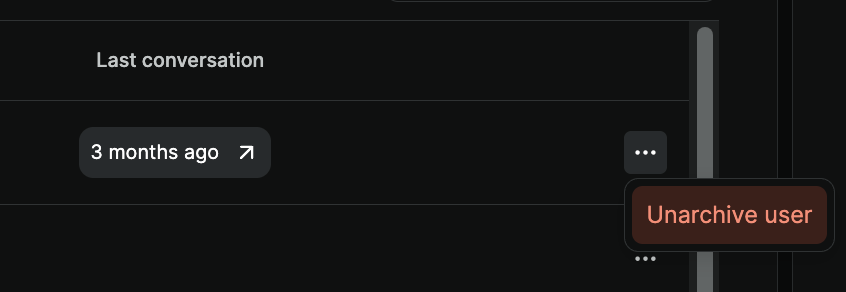
 Removed users will be found in the **Archived** section. Admins can unblock archived users by selecting the user and clicking the `Unarchive user` option.
 Archived users are **blocked** from accessing Metaview, but removing a user from Metaview will not cancel or alter any subscriptions associated with your company's account or delete their data. See Managing Subscriptions for details.
If your team has an ATS connected to Metaview with an employee sync feature, Metaview will match their status in your ATS. Employees deactivated from your ATS will also be automatically removed from Metaview.
Removing a user will not necessarily stop Metaview from joining all their calls. Interviewers can opt-out from Metaview joining their calls using the same form that is available to candidates for your workspace.
To request the deletion of a Metaview account including all associated data, please contact our [privacy team](mailto:privacy@metaview.ai).
## SCIM user provisioning
Metaview supports **SCIM user provisioning** as an optional way to manage team members through your company’s Identity Provider. SCIM can be enabled under `Settings` → `Integrations` → `Manage SCIM`. You will then be able to select your identity provider and follow the step-by-step self-serve setup instructions.
Archived users are **blocked** from accessing Metaview, but removing a user from Metaview will not cancel or alter any subscriptions associated with your company's account or delete their data. See Managing Subscriptions for details.
If your team has an ATS connected to Metaview with an employee sync feature, Metaview will match their status in your ATS. Employees deactivated from your ATS will also be automatically removed from Metaview.
Removing a user will not necessarily stop Metaview from joining all their calls. Interviewers can opt-out from Metaview joining their calls using the same form that is available to candidates for your workspace.
To request the deletion of a Metaview account including all associated data, please contact our [privacy team](mailto:privacy@metaview.ai).
## SCIM user provisioning
Metaview supports **SCIM user provisioning** as an optional way to manage team members through your company’s Identity Provider. SCIM can be enabled under `Settings` → `Integrations` → `Manage SCIM`. You will then be able to select your identity provider and follow the step-by-step self-serve setup instructions.
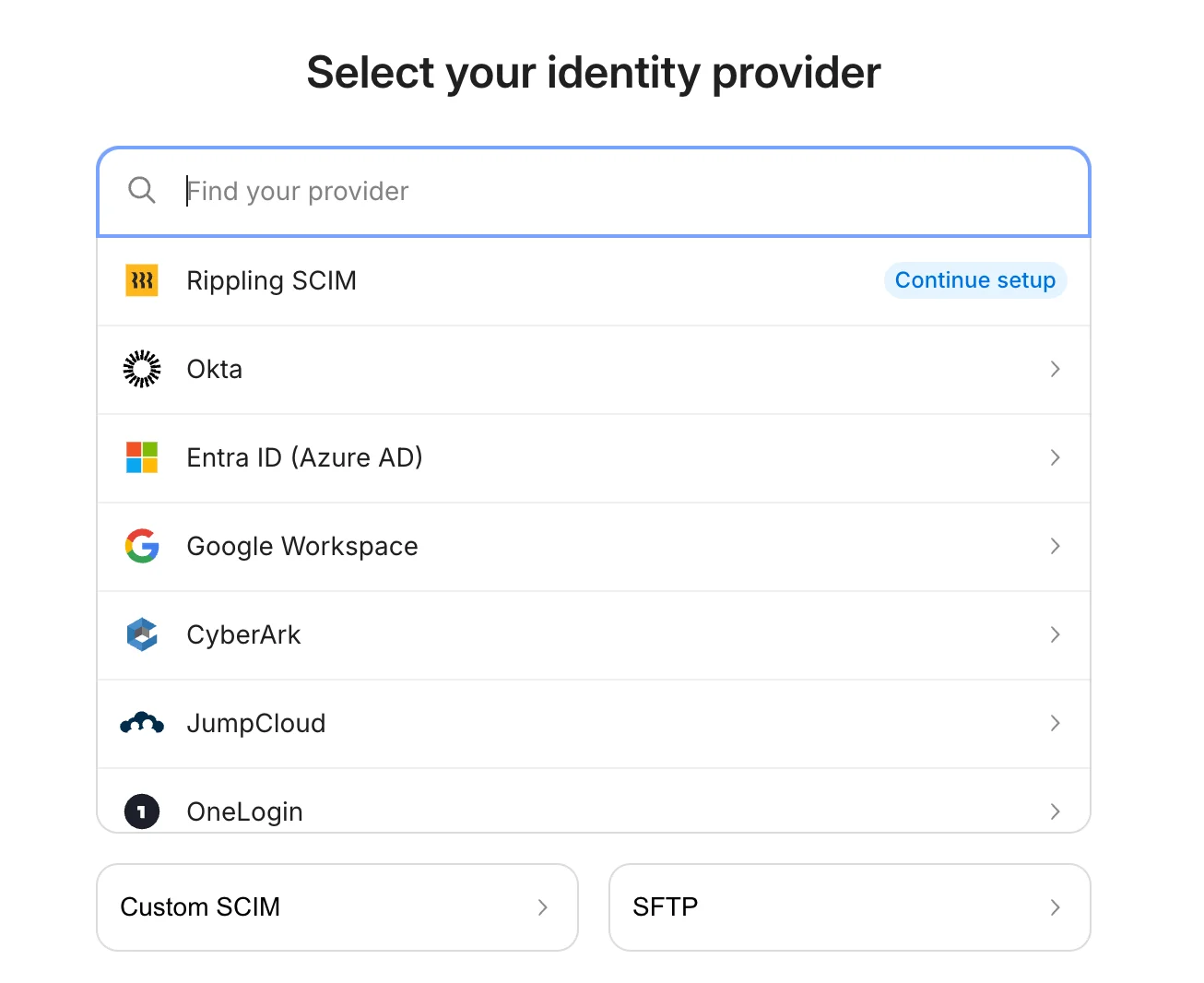 When enabled, SCIM allows user accounts to be **created and deactivated automatically** in Metaview based on changes made in your Identity Provider. This can help keep your Metaview workspace aligned with your organization’s employee directory.
Existing Metaview users are not changed when SCIM is enabled. New users provisioned via SCIM are created with a **Member** role and a **Free** seat by default. Roles and seat types continue to be managed directly on the Team Management page. SCIM does not control how users sign in. For login configuration, see our guide to [Single Sign-On](/integrations/authentication/sso) authentication.
## Assessing usage
To review your team’s Metaview usage, go to [Team Management](https://my.metaview.app/team-management).
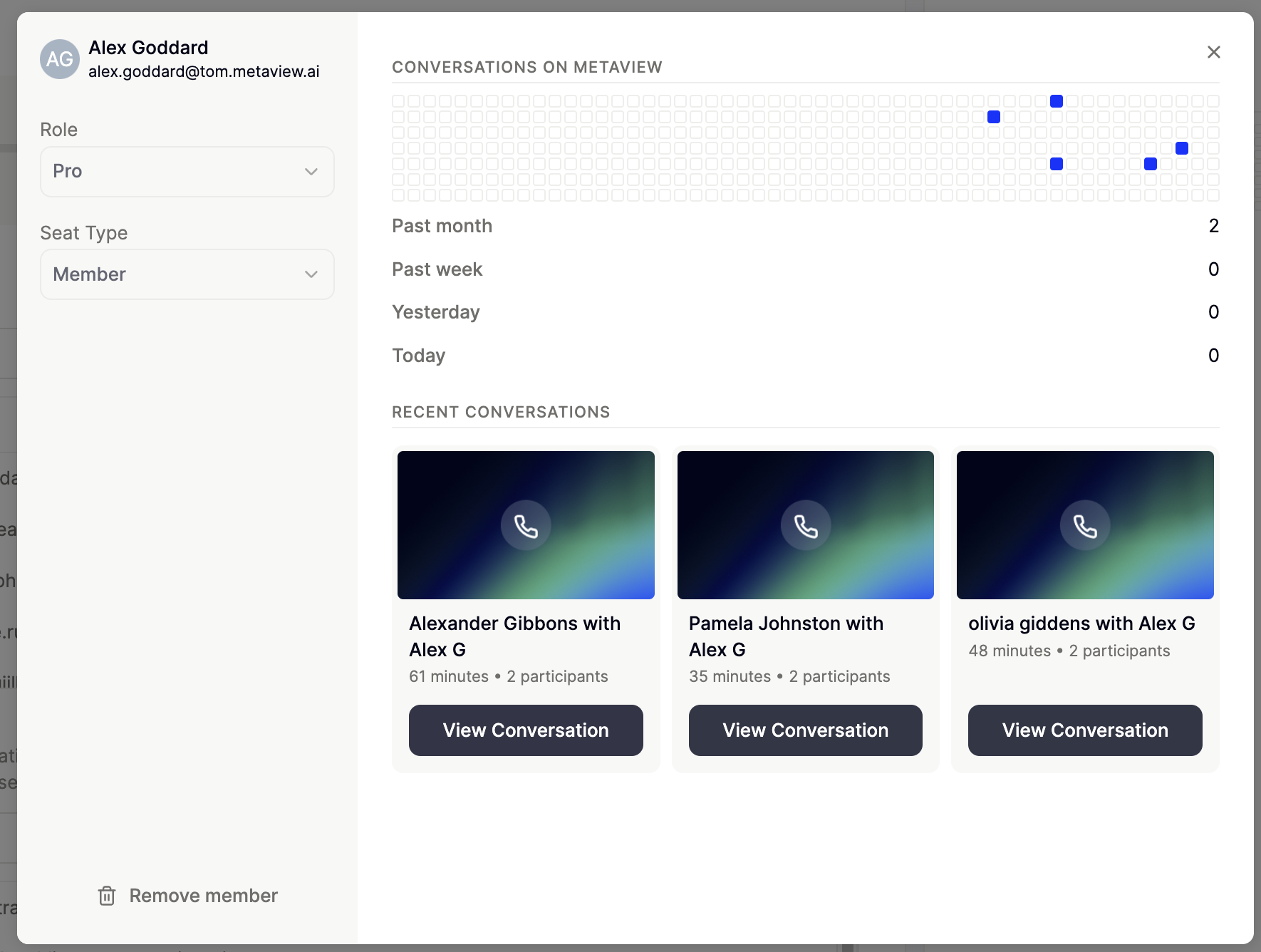
Use the **Notes usage** and **Sourcing usage** tabs in the sidebar to see team-wide activity, including recent usage trends and breakdowns by scheduling source, call channel, search type, and candidate stats. To review usage for a specific user, click a user under the **Active** section. Your [Access](/using-ai-notes/notes-properties/access) permissions determine which calls and details you can view.
For more detailed reporting, see [Reports](https://support.metaview.ai/recruiting-platform/reports) or our [MCP](https://support.metaview.ai/integrations/mcp-integration/mcp-overview).
When enabled, SCIM allows user accounts to be **created and deactivated automatically** in Metaview based on changes made in your Identity Provider. This can help keep your Metaview workspace aligned with your organization’s employee directory.
Existing Metaview users are not changed when SCIM is enabled. New users provisioned via SCIM are created with a **Member** role and a **Free** seat by default. Roles and seat types continue to be managed directly on the Team Management page. SCIM does not control how users sign in. For login configuration, see our guide to [Single Sign-On](/integrations/authentication/sso) authentication.
## Assessing usage
To review your team’s Metaview usage, go to [Team Management](https://my.metaview.app/team-management).
Use the **Notes usage** and **Sourcing usage** tabs in the sidebar to see team-wide activity, including recent usage trends and breakdowns by scheduling source, call channel, search type, and candidate stats. To review usage for a specific user, click a user under the **Active** section. Your [Access](/using-ai-notes/notes-properties/access) permissions determine which calls and details you can view.
For more detailed reporting, see [Reports](https://support.metaview.ai/recruiting-platform/reports) or our [MCP](https://support.metaview.ai/integrations/mcp-integration/mcp-overview).
 ## Transfering your account
Metaview does not permit users to transfer their account to a new employer or move their processed data (e.g. notes, recordings of conversations) to new accounts. If you are changing employers, you will need to create a new Metaview account using your new employer email.
When working as an embedded recruiter and you are given a client's email to use for your recruiting activities, you will need to set up a new Metaview account using the client's email.
## Merging your account
If you use multiple emails **within your existing workspace**, or you need to update your email (e.g. company has a new email domain), please reach out to support to help you with this transition.
Unfortunately, we cannot currently merge accounts belonging to **different companies**. When working as an embedded recruiter and you are given a client's email to use for your recruiting activities, we recommend that you set up a new Metaview account using the client's email. Recruiters with Pro AI Notes subscriptions are eligible for complimentary licenses which can be used with any of their client emails and connect multiple calendars. Please [contact us](mailto:support@metaview.ai) for details and provide the emails you would like to use.
## Transfering your account
Metaview does not permit users to transfer their account to a new employer or move their processed data (e.g. notes, recordings of conversations) to new accounts. If you are changing employers, you will need to create a new Metaview account using your new employer email.
When working as an embedded recruiter and you are given a client's email to use for your recruiting activities, you will need to set up a new Metaview account using the client's email.
## Merging your account
If you use multiple emails **within your existing workspace**, or you need to update your email (e.g. company has a new email domain), please reach out to support to help you with this transition.
Unfortunately, we cannot currently merge accounts belonging to **different companies**. When working as an embedded recruiter and you are given a client's email to use for your recruiting activities, we recommend that you set up a new Metaview account using the client's email. Recruiters with Pro AI Notes subscriptions are eligible for complimentary licenses which can be used with any of their client emails and connect multiple calendars. Please [contact us](mailto:support@metaview.ai) for details and provide the emails you would like to use.