> ## Documentation Index
> Fetch the complete documentation index at: https://support.metaview.ai/llms.txt
> Use this file to discover all available pages before exploring further.
# Browser Extension Overview
> The Metaview browser extension brings AI-powered scorecard autofill, session browsing, and candidate lookup directly into your browser.
## **What the extension does**
The Metaview browser extension has three main capabilities:
Automatically fills objective sections of your ATS scorecard using information from your Metaview conversation. Select a conversation, click autofill, and Metaview populates factual fields (experience, skills, tech stacks) while leaving subjective evaluation sections blank for your input.
Opens as a Chrome side panel where you can browse your Metaview conversations, preview transcripts, play back audio and video, and view participant details. When on a Greenhouse or Ashby page, the panel shows a session picker for selecting which conversation to use for autofill.
When viewing a LinkedIn profile, the Metaview side panel displays the matching candidate from your Metaview workspace, including their profile, contact details, sequences, and searches. You can preview outreach messages and add candidates to sequences without leaving LinkedIn.
## **Install and set up**
[**Add Metaview to Chrome**](https://chrome.google.com/webstore/detail/metaview/aomhdoacekemkclcefjpplppefjfnlka)
The extension also works with **Microsoft Edge** - just install it from the Chrome Web Store using the same steps below.
#### **Install the extension**
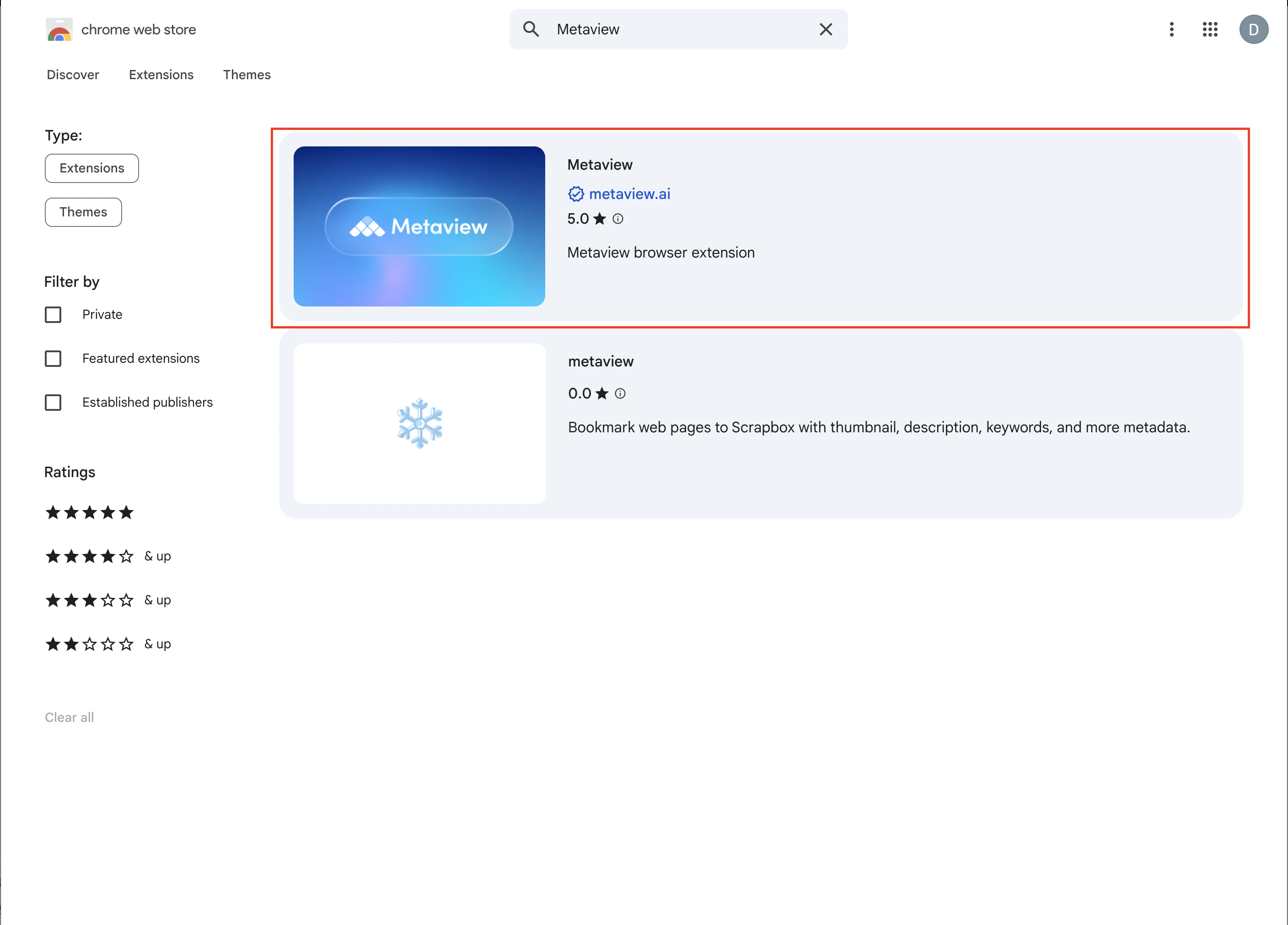
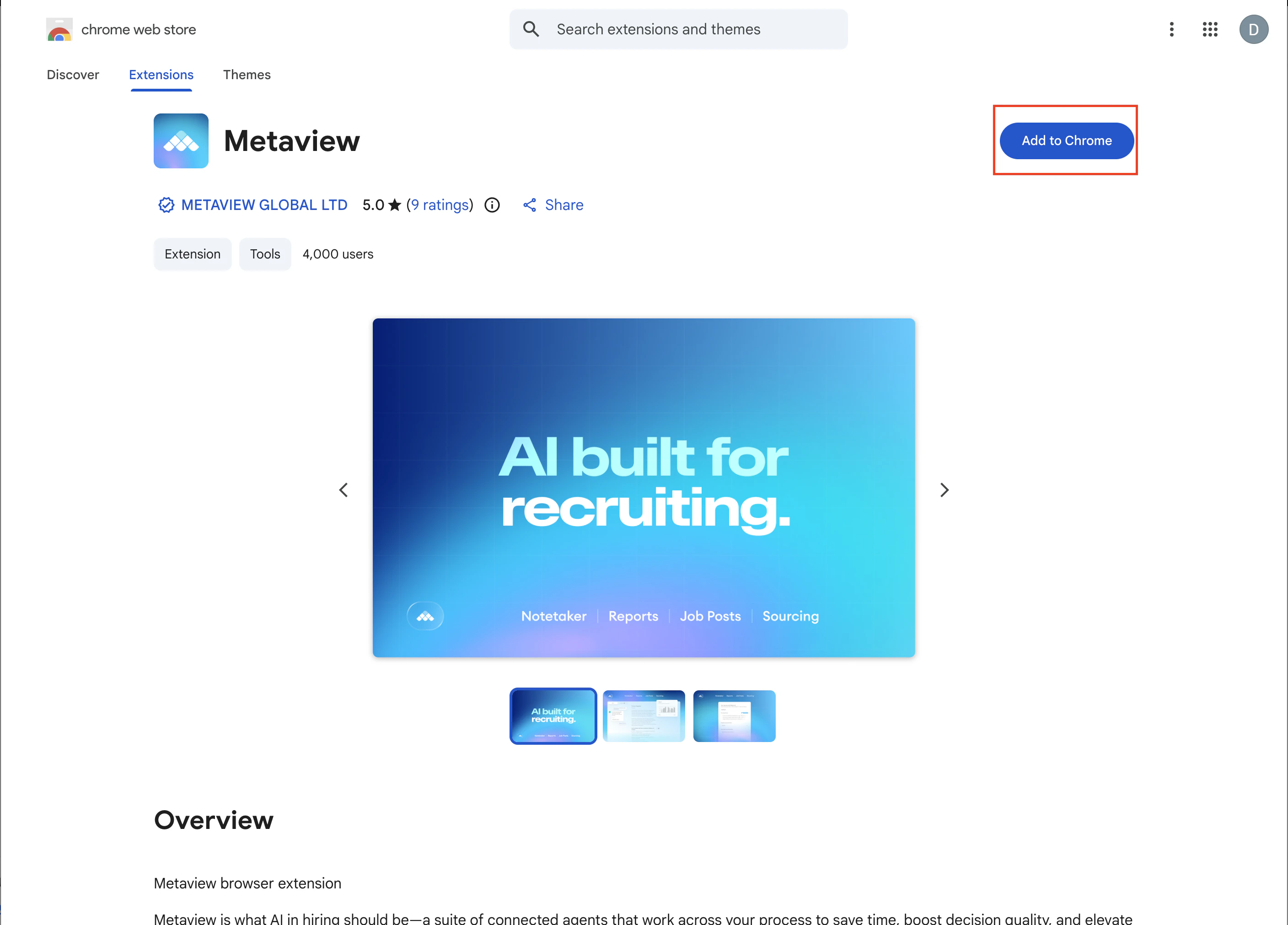
Go to the [Chrome Web Store](https://chrome.google.com/webstore/detail/metaview/aomhdoacekemkclcefjpplppefjfnlka), find the Metaview extension, and click **Add to Chrome**, then **Add Extension**.
 #### **Pin it to your toolbar**
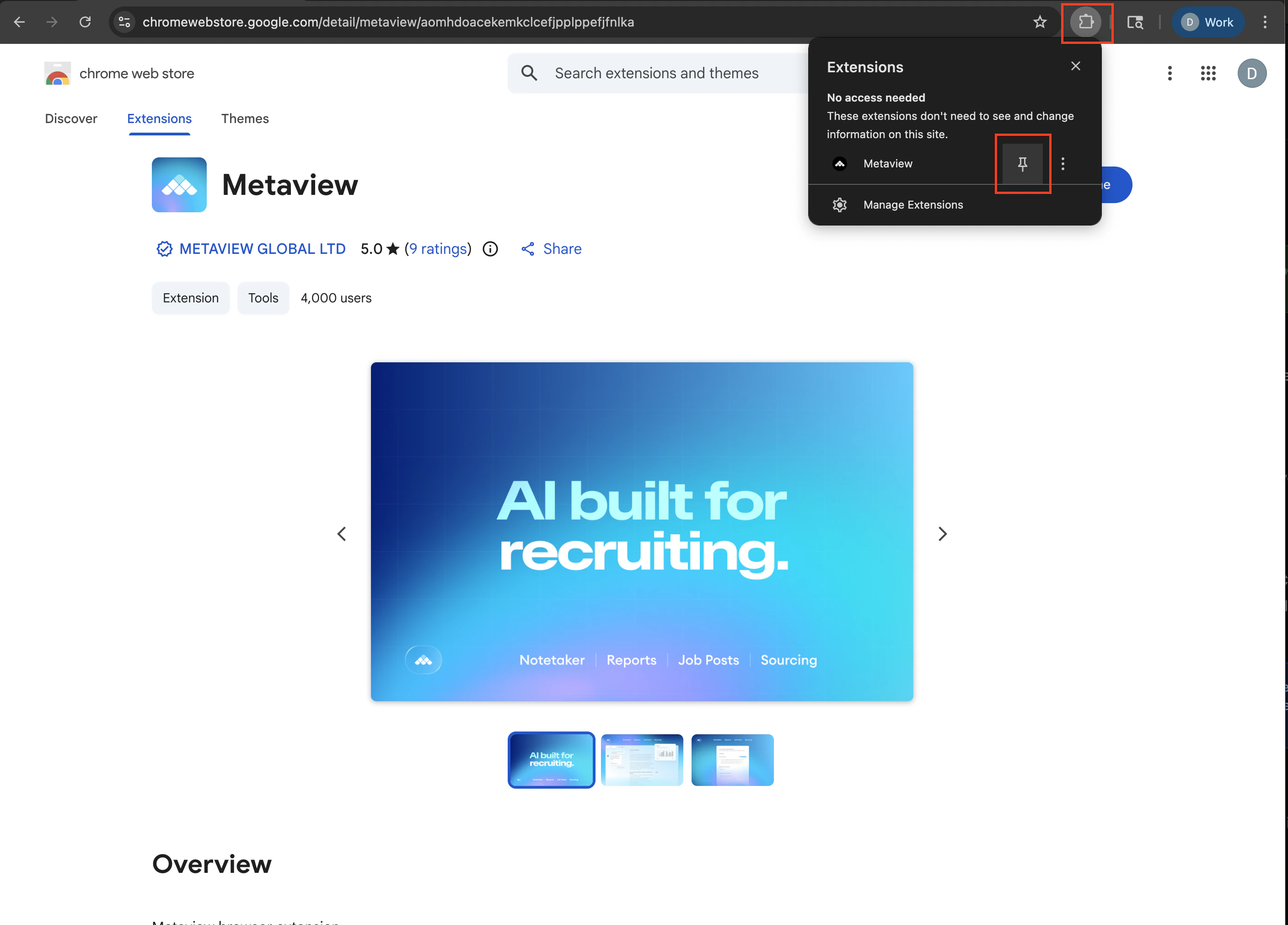
Click the puzzle icon in your browser toolbar and pin the Metaview extension so you have easy access to it.
#### **Pin it to your toolbar**
Click the puzzle icon in your browser toolbar and pin the Metaview extension so you have easy access to it.
 #### **Log in**
Click the Metaview icon to open the side panel. On first use, you'll see a **Log in** button. Click it to sign in with your normal Metaview credentials. The sign-in window closes automatically once authenticated — no extra setup needed.
Your ATS (Greenhouse or Ashby) must be connected in your Metaview workspace settings before the extension can autofill scorecards. If it's not connected, the extension will prompt you to set this up.
## **Browser compatibility**
The Metaview extension is a Chrome extension available from the Chrome Web Store. It is compatible with:
* **Google Chrome**
* **Microsoft Edge** - install from the Chrome Web Store using the same steps
#### **Log in**
Click the Metaview icon to open the side panel. On first use, you'll see a **Log in** button. Click it to sign in with your normal Metaview credentials. The sign-in window closes automatically once authenticated — no extra setup needed.
Your ATS (Greenhouse or Ashby) must be connected in your Metaview workspace settings before the extension can autofill scorecards. If it's not connected, the extension will prompt you to set this up.
## **Browser compatibility**
The Metaview extension is a Chrome extension available from the Chrome Web Store. It is compatible with:
* **Google Chrome**
* **Microsoft Edge** - install from the Chrome Web Store using the same steps